New Workspace
Creating a new workspace gives you a fresh, empty set of studies to work from. The new workspace's defaults are seeded from your application defaults, so every study you create in it starts from your preferred configuration.
Creating a New Workspace
To start a new workspace:
- Click File → New on the menu bar.
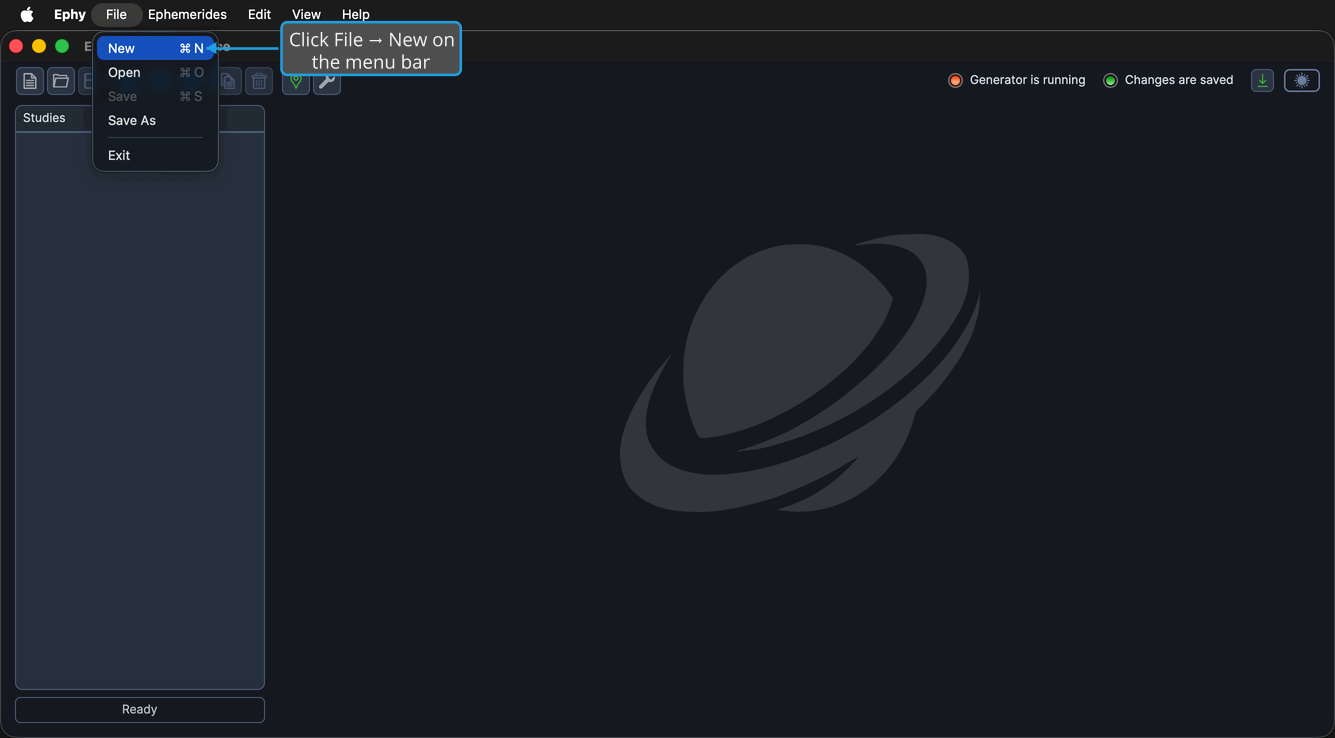
You can also click the New workspace button on the toolbar, or press Ctrl+N (Cmd+N on macOS).
note
If the current workspace has unsaved changes, the Unsaved Changes prompt appears first so you can save, discard, or cancel before the new workspace replaces it. See Save from the Unsaved Changes Prompt.