License Status Display
The license status display shows you at a glance whether the selected R7 product is activated on your computer. It also shows your credential fields and how many activations you have remaining.
What the Status Display Shows
The content area below the Application dropdown displays the following information for the selected product:
- Product icon -- The Aquila or Cygnus icon, identifying which product you are viewing.
- Status banner -- A color-coded banner that reads "Activated" or "Not Activated".
- Registered Name -- Your registered name, either as an editable field or masked text.
- Activation Code -- Your activation code, either as an editable field or masked text.
- Remaining Activations -- The number of activations still available for other computers (visible only when the license is activated).
A progress spinner appears briefly while the license status is being determined.
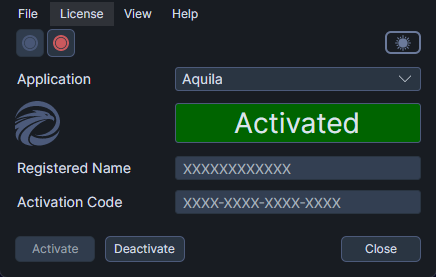
Viewing License Status
- Select a product from the Application dropdown to load and display its license status.
The status loads automatically when you open R7.Activator or switch products. The application checks the license by verifying with the licensing server. If the server is unreachable, it falls back to validating the license locally using stored token files.
When the License Is Activated
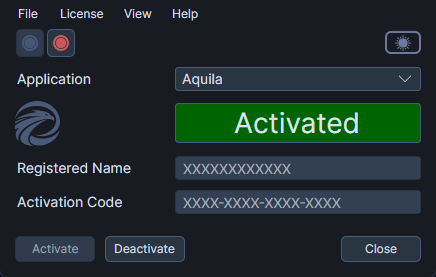
When a product is activated on your computer, the status display shows:
- The status banner reads "Activated".
- The Registered Name field displays "XXXXXXXXXXXX" to protect your credentials from casual observation.
- The Activation Code field displays "XXXX-XXXX-XXXX-XXXX" in masked format.
- The Remaining Activations field shows how many activations are available for use on other computers.
The credential fields are read-only when the license is activated.
When the License Is Not Activated
When a product is not activated on your computer, the status display shows:
- The status banner reads "Not Activated".
- The Registered Name and Activation Code fields are empty and editable, ready for you to enter your credentials.
- The Remaining Activations field is hidden.
Entering Your Credentials
When the license is not activated, enter or paste your credentials into the Registered Name and Activation Code fields. These credentials come from the confirmation email you received when you purchased the product.
To enter your credentials:
- Enter your registered name into the Registered Name field.
- Enter your activation code into the Activation Code field.
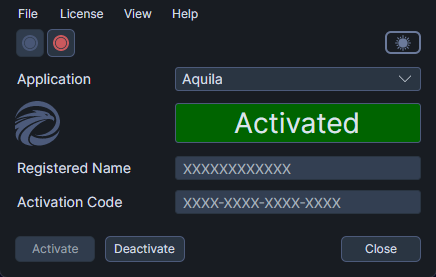
Once both fields contain values, the Activate button and the Deactivate All menu item become available.