Deactivate All Licenses
Deactivate All resets every activation of one product registered to you, on this computer and on any others. It is the command to reach for when you have lost access to a machine, or when your activations have been used up across computers you no longer control, and you want to clear the slate and start activating again.
This command is not limited to the computer you are sitting at. It releases every activation of the product registered to you, wherever those activations are, and you have to activate the product again on each of those computers afterward.
Before You Begin
- Deactivate All has a single trigger, License → Deactivate All on the menu bar. There is no toolbar button and no button on the panels for it.
- The command acts on the application selected in the application list, so select the product's panel first. See Application List.
- Have the registered name and the activation code for the product on hand. R7.Activator asks for them whenever this computer holds no credentials the command can trust, which is the usual situation for this command.
Deactivate All Licenses for a Product
The command adapts to the situation you use it in, so which path you follow depends on whether R7.Activator holds credentials it can trust for the product. It has credentials it can trust only when the product is activated on this computer and both stored values, the registered name and the activation code, are present. Values left over from a failed attempt are not trusted, so they send you down the same path as no credentials at all.
If the Product Is Activated on This Computer
The credentials stored for the product are trustworthy, so R7.Activator reuses them and asks only for your consent, without putting your registered name or activation code back on screen.
To reset every activation of a product from a computer it is activated on:
- Click the Aquila panel in the application list.
- Click License → Deactivate All on the menu bar.
- Click Yes in the Deactivate All Aquila Licenses confirmation.
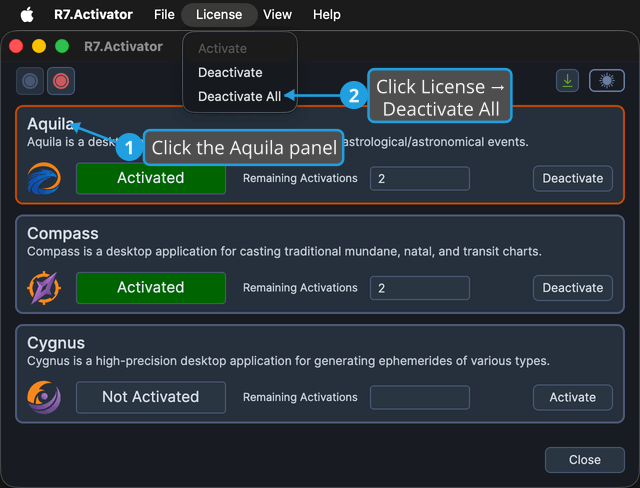
Clicking No returns to the window without changing anything.
If the Product Is Not Activated on This Computer
This is the command's usual case, because you reset every activation precisely when this machine is not one of the activated ones. R7.Activator has no credentials it can trust here, so it asks you for them.
To reset every activation of a product from a computer it is not activated on:
- Click the Aquila panel in the application list.
- Click License → Deactivate All on the menu bar. The Deactivate All Aquila Licenses dialog opens.
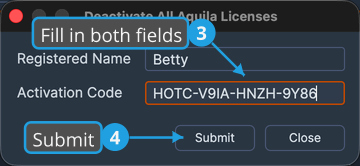
- Enter your registered name in the Registered Name field and your activation code in the Activation Code field. For the worked example in this guide, that is the registered name
Bettyand the Aquila activation codeHOTC-V9IA-HNZH-9Y86. - Click the Submit button.
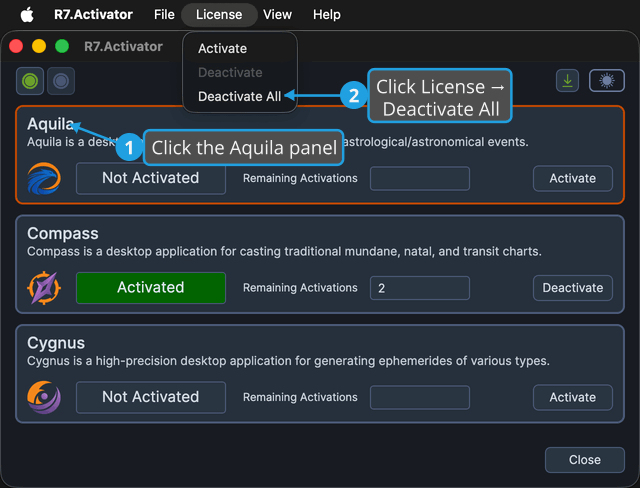
The Credentials Dialog
The dialog is titled for the operation and the product, so resetting Aquila opens Deactivate All Aquila Licenses and resetting Compass opens Deactivate All Compass Licenses. It holds two fields and two buttons:
| Control | What it is for |
|---|---|
| Registered Name | The name your license is registered to |
| Activation Code | The code issued for the product you are resetting |
| Submit | Sends the credentials and resets every activation of that product |
| Close | Closes the dialog without resetting anything |
Submit stays disabled until both fields have a value, so you cannot submit a half-filled form. Closing the dialog performs no operation at all, so if you open it by mistake, click Close and nothing changes.
What Happens Next
A message confirms that all license activations have been deactivated. The product's panel then updates in place:
- The activation status field returns to Not Activated.
- The Remaining Activations count clears.
R7.Activator has released the product's activation on every computer, including this one, so activate the product again wherever you want to use it. See Activate License.
If the Reset Fails
If the reset cannot be completed, a message reports the reason and nothing changes. R7.Activator keeps the values you entered, so re-opening the dialog pre-fills them.