Application List
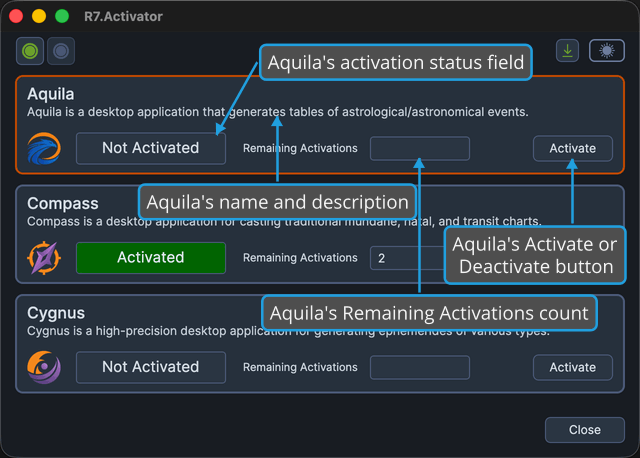
The body of the main window is the application list: a list of application panels, one for each supported product. There is one panel each for Aquila, Compass, and Cygnus, and all three are visible at once without scrolling at the window's default size.
Every panel is live at the same time. R7.Activator evaluates each product's license state when the window opens, and each panel then reports its own product's state independently, so you can see the status of every product you own without clicking through them one at a time.
What Each Panel Shows
Every panel works the same way. Reading from the top of a panel:
| Panel element | What it shows |
|---|---|
| Product name | The name of the product the panel is for, such as Aquila |
| Description | A one-line summary of what that product does |
| Product icon | The product's own icon, so the panel is easy to pick out at a glance |
| Activation status | Whether that product is Activated or Not Activated on this computer. See Activation Status |
| Remaining Activations | How many further computers you can still activate that product on. See Activation Status |
| Action button | A single button, either Activate or Deactivate |
The activation status and Remaining Activations fields are displays, not places to type. You cannot edit them.
The Action Button
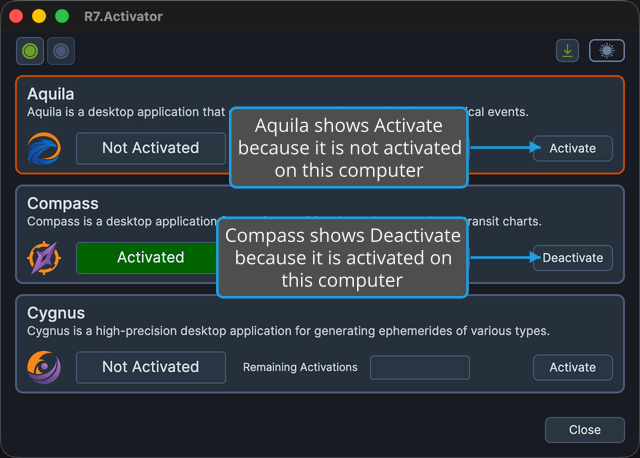
A panel shows only one of Activate and Deactivate at a time, and which one it shows tells you the product's current state:
- Activate appears when that product is not activated on this computer. See Activate License.
- Deactivate appears when that product is activated on this computer. See Deactivate License.
While a product's license state is still being evaluated, the panel shows neither button. Wait for the status field to fill in, and the correct button appears.
A panel's own button always acts on that panel's product, whichever panel is selected.
Selecting a Panel
The License menu items and the toolbar's Activate and Deactivate buttons act on the selected application, so you select a panel to point those commands at a particular product.
To select a panel:
- Click the panel of the product you want to act on.
R7.Activator marks the panel you clicked with a border drawn in the theme's accent color. The panel's background does not change.
Aquila is selected when the window opens, so you need to select a panel only when you want those commands to act on Compass or Cygnus.
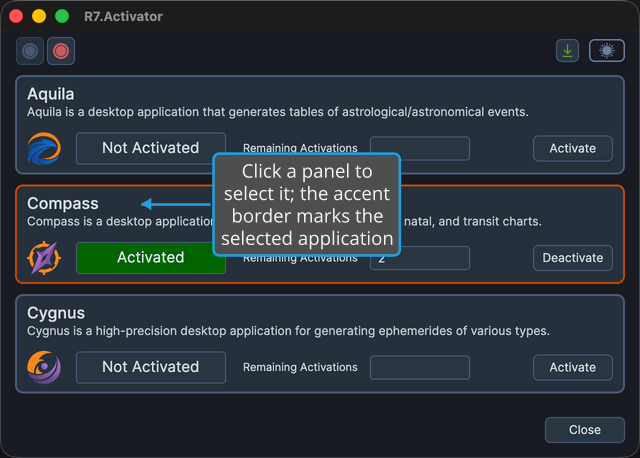
Selecting a panel changes nothing about what any panel displays. Every panel keeps reporting its own product's activation status and remaining activations, whether or not it is the selected one. Selection decides only which product the License menu items and the toolbar buttons act on.