Deactivate License
Deactivating releases a product's activation from this computer so you can use it on another one. Reach for it when you are moving to a new machine, or rebuilding this one, and do not want the activation to stay consumed by a computer you no longer use.
Before You Begin
- Check the product's panel in the application list. Deactivate appears on a panel only when that product is activated on this computer.
- You do not need your registered name or activation code. Deactivating runs off the credentials already stored for that product, so there is no form to fill in.
Deactivate a License
The steps below start from the Deactivate button on the product's own panel, which always acts on that panel's product.
To release a product's activation from this computer:
- Click the Deactivate button on the Aquila panel.
- Click Yes in the Deactivate Aquila License confirmation.
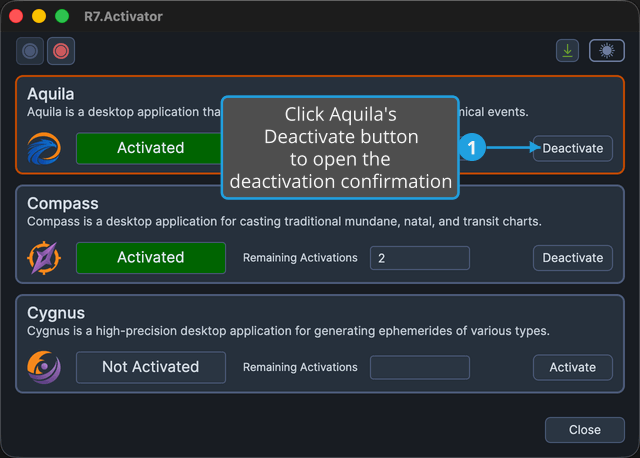
The confirmation names the product and explains that the activation is freed for use elsewhere and can be reclaimed later. Clicking No returns to the window without changing anything, so nothing happens until you explicitly agree.
Two other commands run exactly the same operation: License → Deactivate on the menu bar, and the Deactivate button on the toolbar. Both act on the application currently selected in the application list, so select the product's panel first. See Application List.
What Happens Next
On success:
- The activation status field returns to Not Activated.
- The Remaining Activations count clears.
- R7.Activator removes the stored license and credentials for that product from this computer.
The panel's action button becomes Activate again, so you can reclaim the activation on this computer later using your registered name and activation code. See Activate License.