Activate License
Activating a product licenses it on this computer so you can use it. You supply the registered name and the activation code issued with your purchase, and the product's panel switches to Activated.
Before You Begin
- Have the registered name and the activation code for the product on hand. They were issued with your purchase, and each product has its own activation code.
- Check the product's panel in the application list. Activate appears on a panel only when that product is not yet activated on this computer. If the panel shows Deactivate instead, the product is already activated here.
- If the panel shows neither button, its license state is still being evaluated. Wait for the status field to fill in. See Activation Status.
Activate a License
The steps below start from the Activate button on the product's own panel, which always acts on that panel's product.
To activate a product on this computer:
- Click the Activate button on the Aquila panel. The Activate Aquila License dialog opens.
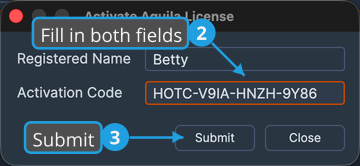
- Enter your registered name in the Registered Name field and your activation code in the Activation Code field. For the worked example in this guide, that is the registered name
Bettyand the Aquila activation codeHOTC-V9IA-HNZH-9Y86. - Click the Submit button.
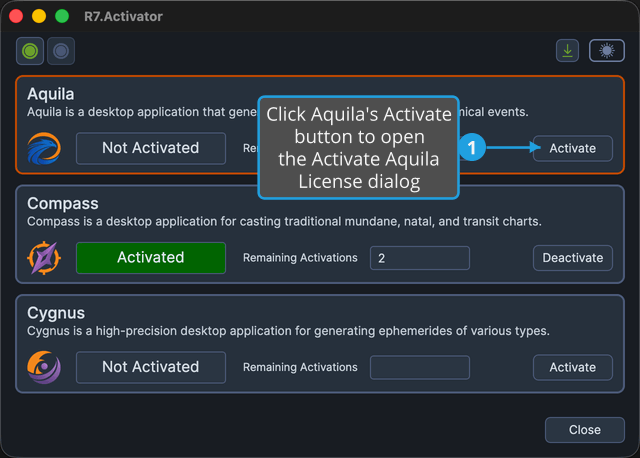
Two other commands run exactly the same operation: License → Activate on the menu bar, and the Activate button on the toolbar. Both act on the application currently selected in the application list, so select the product's panel first. See Application List.
The Credentials Dialog
The dialog is titled for the operation and the product, so activating Aquila opens Activate Aquila License and activating Compass opens Activate Compass License. It holds two fields and two buttons:
| Control | What it is for |
|---|---|
| Registered Name | The name your license is registered to |
| Activation Code | The code issued for the product you are activating |
| Submit | Sends the credentials and activates the product on this computer |
| Close | Closes the dialog without activating anything |
Submit stays disabled until both fields have a value, so you cannot submit a half-filled form. Closing the dialog performs no operation at all, so if you open it by mistake, click Close and nothing changes.
What Happens Next
On success:
- The activation status field switches to Activated on its dark green background.
- The Remaining Activations count fills in, showing how many further computers you can still activate the product on.
- A full license replaces any trial you were running for that product.
The panel's action button becomes Deactivate, ready for the day you want to move the activation to another computer. See Deactivate License.
If Activation Fails
If the activation cannot be completed, a message reports the reason and the product stays Not Activated.
R7.Activator keeps the values you entered, so re-opening the dialog pre-fills them. Correct the registered name or the activation code and submit again, rather than entering both again from scratch.