Main Window
The main window is the central interface for R7.Activator. From this single window, you can activate and deactivate licenses, check license status, and switch between R7 products.
Window Layout
The main window is organized into the following areas, from top to bottom:
- Menu bar -- Contains the File, License, View, and Help menus. On macOS, the menu bar appears at the top of the screen as a native menu rather than inside the application window.
- Toolbar -- Contains Activate and Deactivate buttons, a theme switch toggle, and an update notification area.
- Application dropdown -- Lets you select which product to manage. Defaults to Aquila.
- Content area -- Displays the selected product's license status, credential fields, and remaining activations.
- Bottom buttons -- Provides Activate, Deactivate, and Close buttons for quick access to the most common actions.
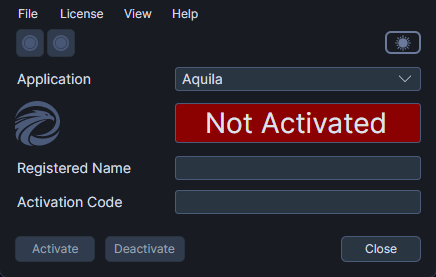
The window has a fixed size and does not support resizing. It opens centered on your screen.
Opening R7.Activator
- Open the R7.Activator application.
When R7.Activator launches, the main window appears with Aquila pre-selected in the Application dropdown. The application automatically loads and displays the license status for Aquila.
What You Can Do from the Main Window
From the main window, you have access to every license management task:
- Activate a license using the bottom Activate button, the toolbar Activate button, or the License > Activate menu item.
- Deactivate a license using the bottom Deactivate button, the toolbar Deactivate button, or the License > Deactivate menu item.
- Deactivate all licenses using the License > Deactivate All menu item.
- Switch products using the Application dropdown.
- Change the theme using the toolbar theme switch or the View > Toggle Theme menu item.
- Check for updates using the download button in the toolbar when an update is available.
- View application information using the Help > About Dialog menu item.
- Open online documentation using the Help > Documentation menu item.
- Close the application using the Close button, File > Exit, or the window close button.