Ephemeris Table
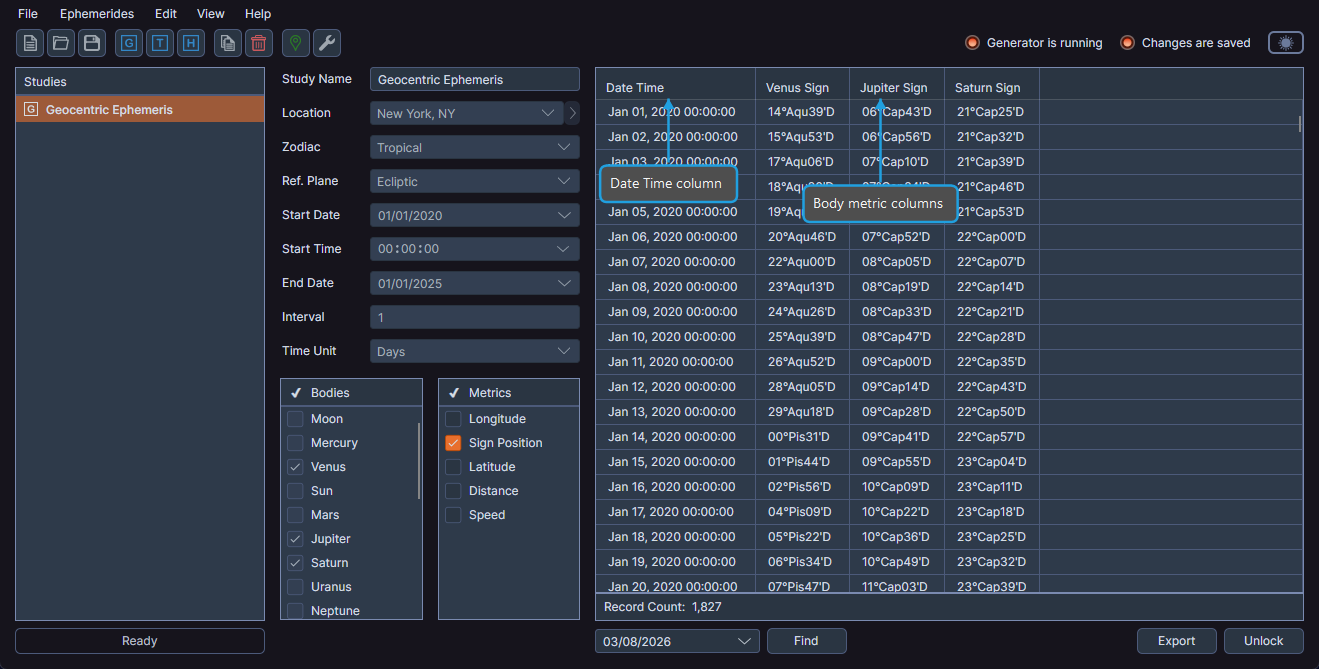
The ephemeris table displays generated ephemeris records in a tabular format. The first column is always Date Time, which stays pinned to the first position and cannot move. Ephy dynamically generates subsequent columns based on the selected bodies and metrics.
Toggling Column Visibility
You can show or hide columns in the ephemeris table using the column header context menu.
To toggle column visibility:
- Right-click any column header in the ephemeris table.
- Click the checkbox next to a column name to show or hide it.
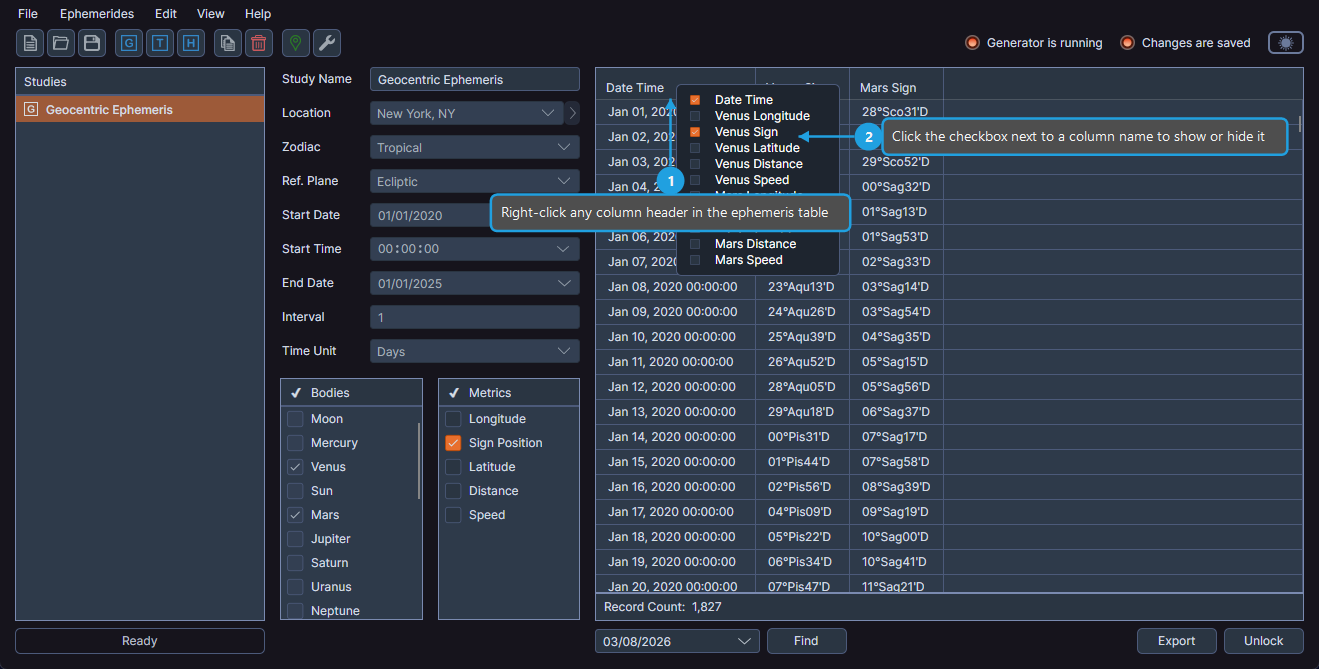
You can also control column visibility by selecting or deselecting metrics in the Metrics list. Both methods achieve the same result.
Selecting Rows
The ephemeris table supports extended selection mode for selecting multiple rows:
- Click a row to select it.
- Shift+Click to select a range of rows.
- Ctrl+Click to add or remove individual rows from the selection.
Copying Record Data
You can copy selected record data to the clipboard in various formats using the context menu.
To copy record data:
- Select one or more rows in the ephemeris table.
- Right-click to open the context menu.
- Click one of the copy format options.
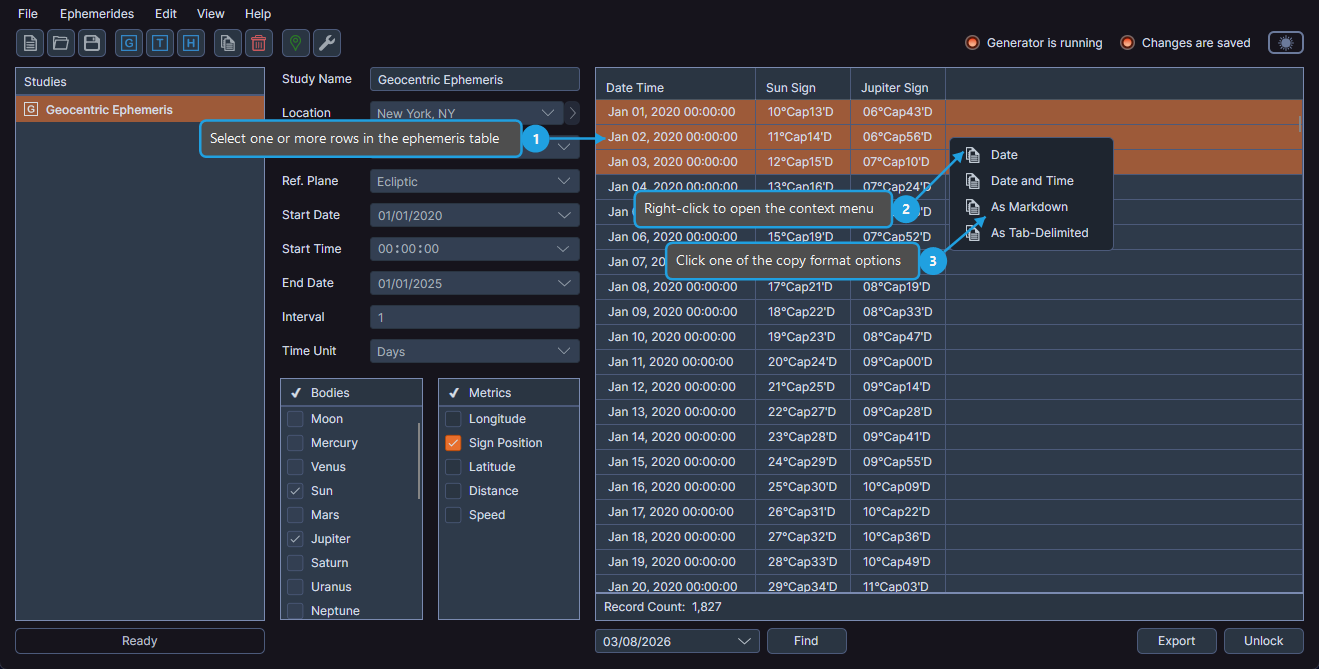
| Copy Format | Description |
|---|---|
| Date | Copies the date portion of the selected records |
| Date and Time | Copies the full date and time of the selected records |
| As Markdown | Copies the selected records formatted as a Markdown table |
| As Tab-Delimited | Copies the selected records in tab-delimited format, suitable for pasting into spreadsheets |
Copy operations include only visible columns and exclude hidden columns.