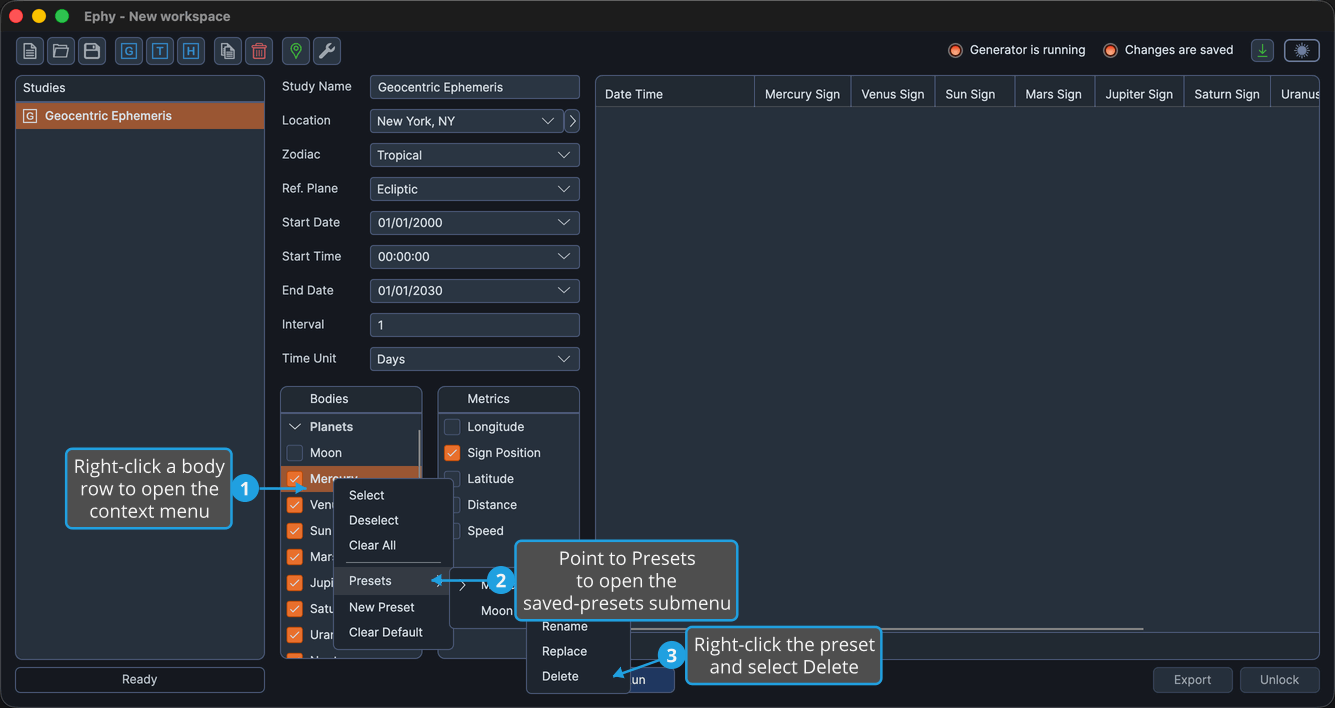
Bodies List Presets
Bodies list presets let you save a body selection under a name and reapply it to any study. You reach them from the Presets submenu on the Bodies Selection List's right-click context menu. You can also mark one preset as the default that new studies start from.
When you create or rename a preset, Ephy opens a small name-entry dialog. Type the name and click Save to confirm it.
Applying a Preset
To apply a saved preset to the current study:
- Right-click a body row to open the context menu.
- Point to Presets, then click the name of the preset you want to apply.
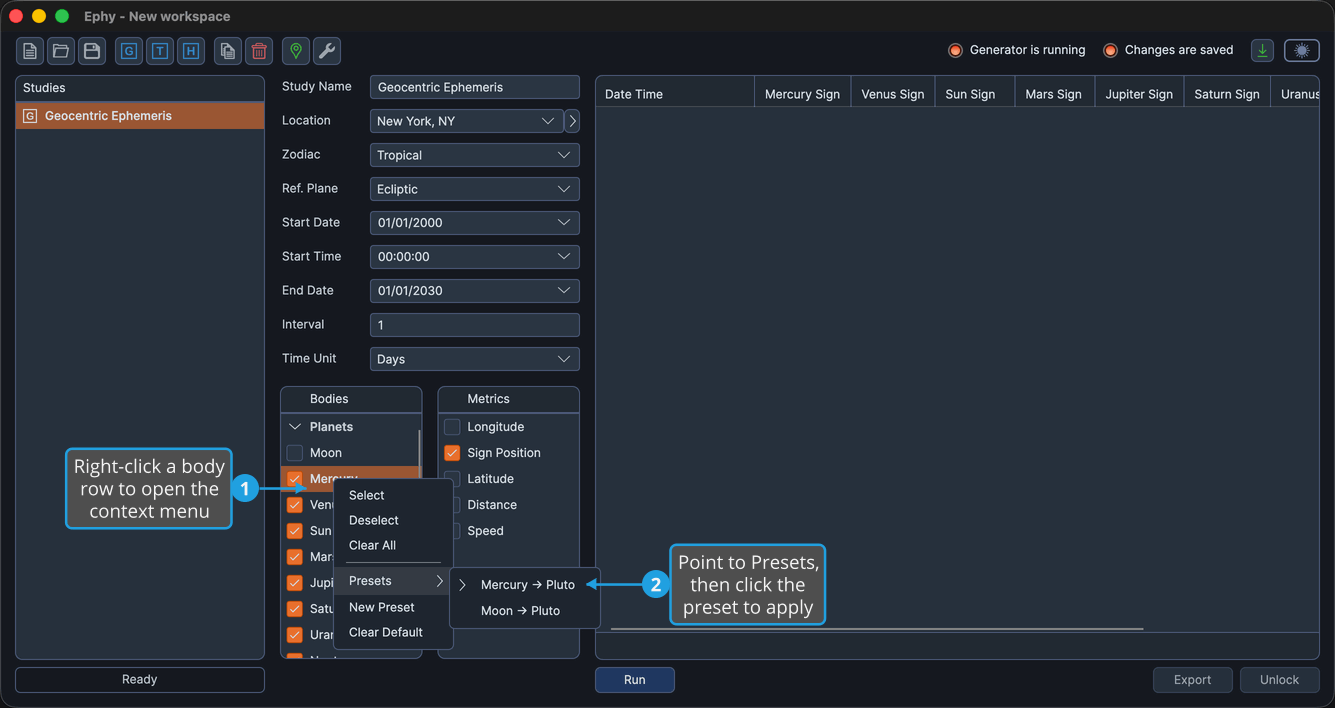
The study's body selection updates to match the preset.
Saving a New Preset
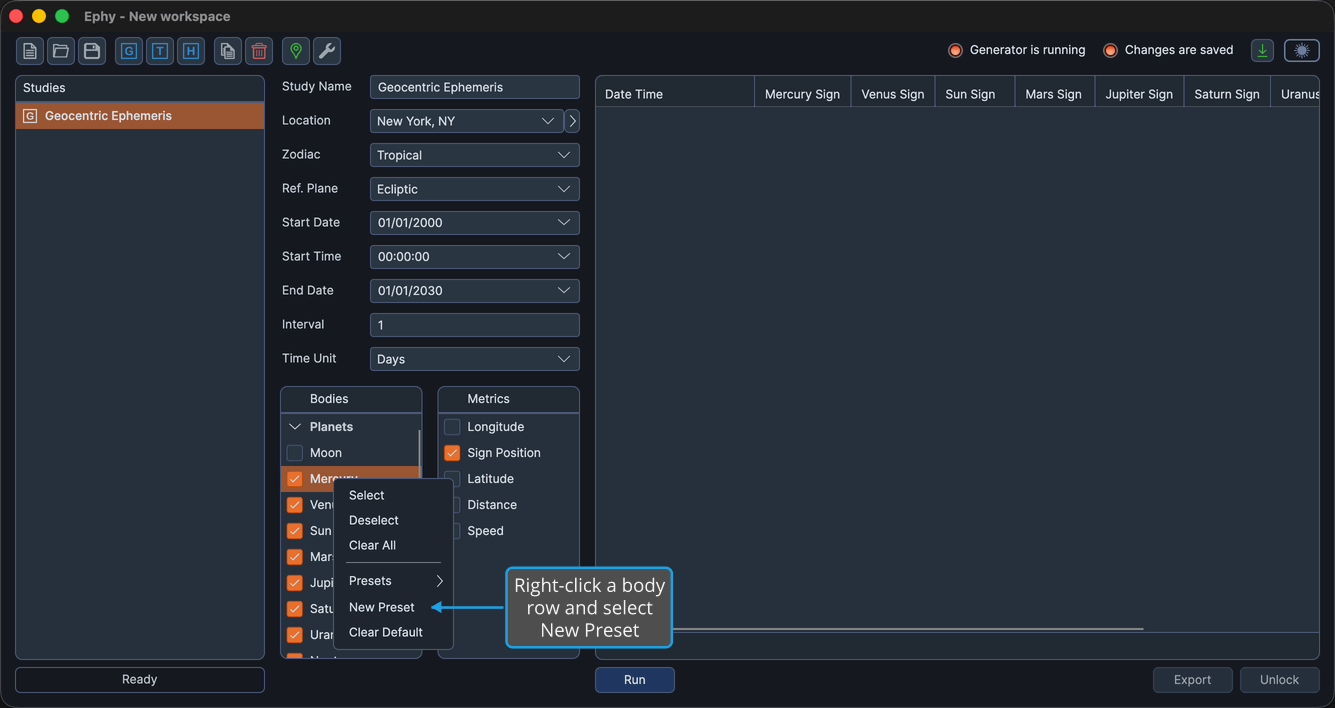
To save the study's current body selection as a new preset:
- Right-click a body row and select New Preset.
- Type a name for the preset and click Save.
Setting the Default Preset
The default preset is applied automatically to newly created studies. To set one:
- Right-click a body row to open the context menu.
- Point to Presets to open the saved-presets submenu.
- Right-click the preset and select Set Default.
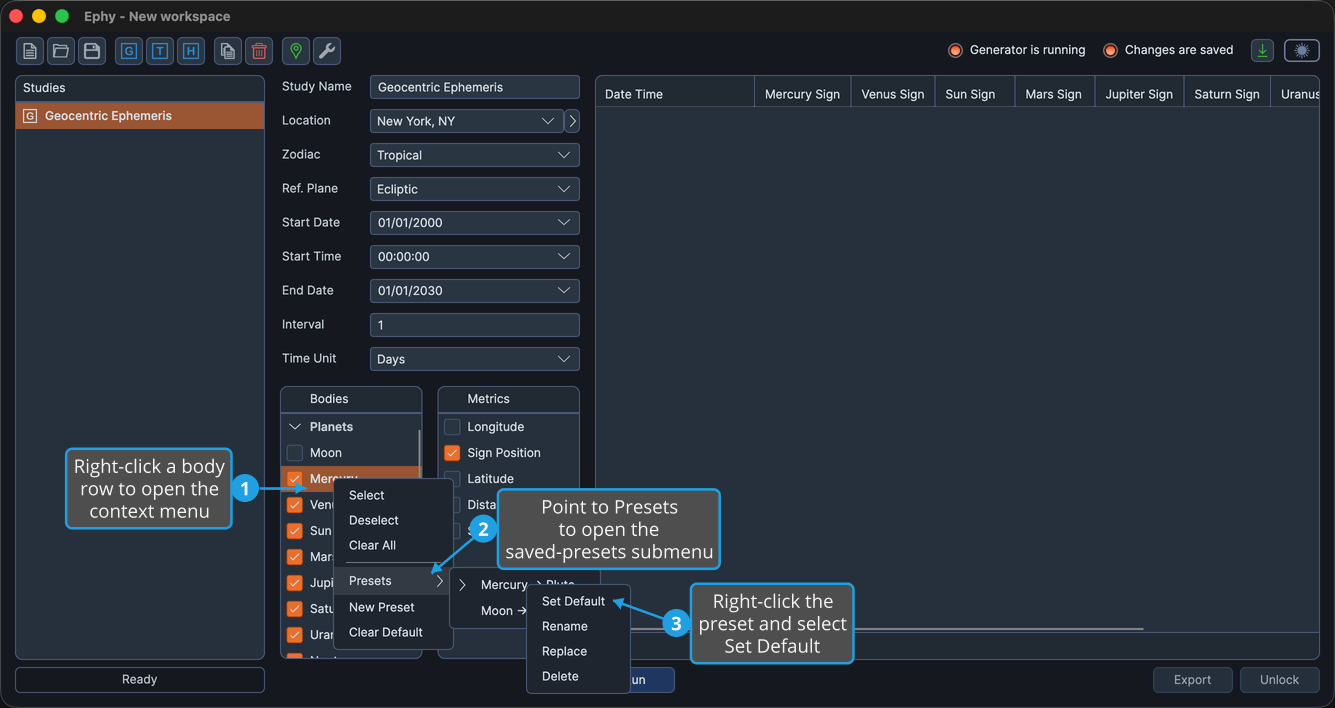
A chevron marker appears beside the preset to show it is the default.
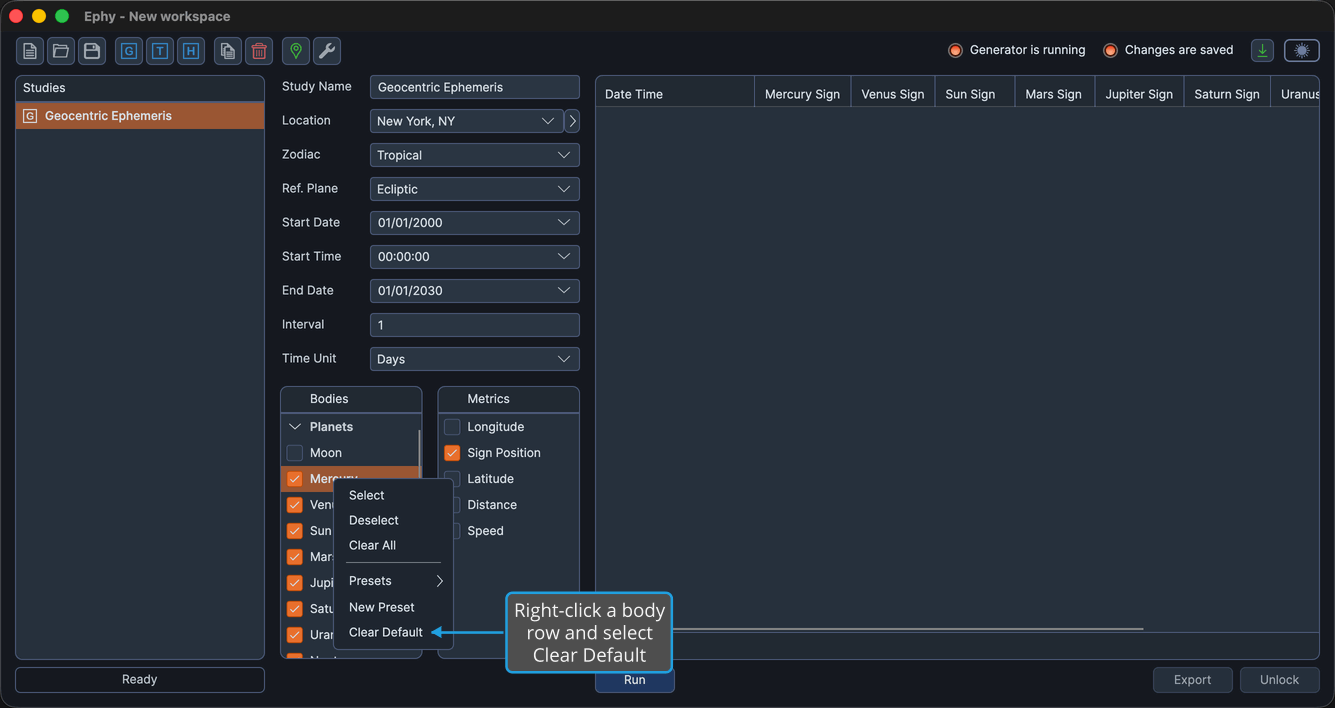
Clearing the Default Preset
To stop applying any bodies preset automatically to new studies:
- Right-click a body row and select Clear Default.
Renaming a Preset
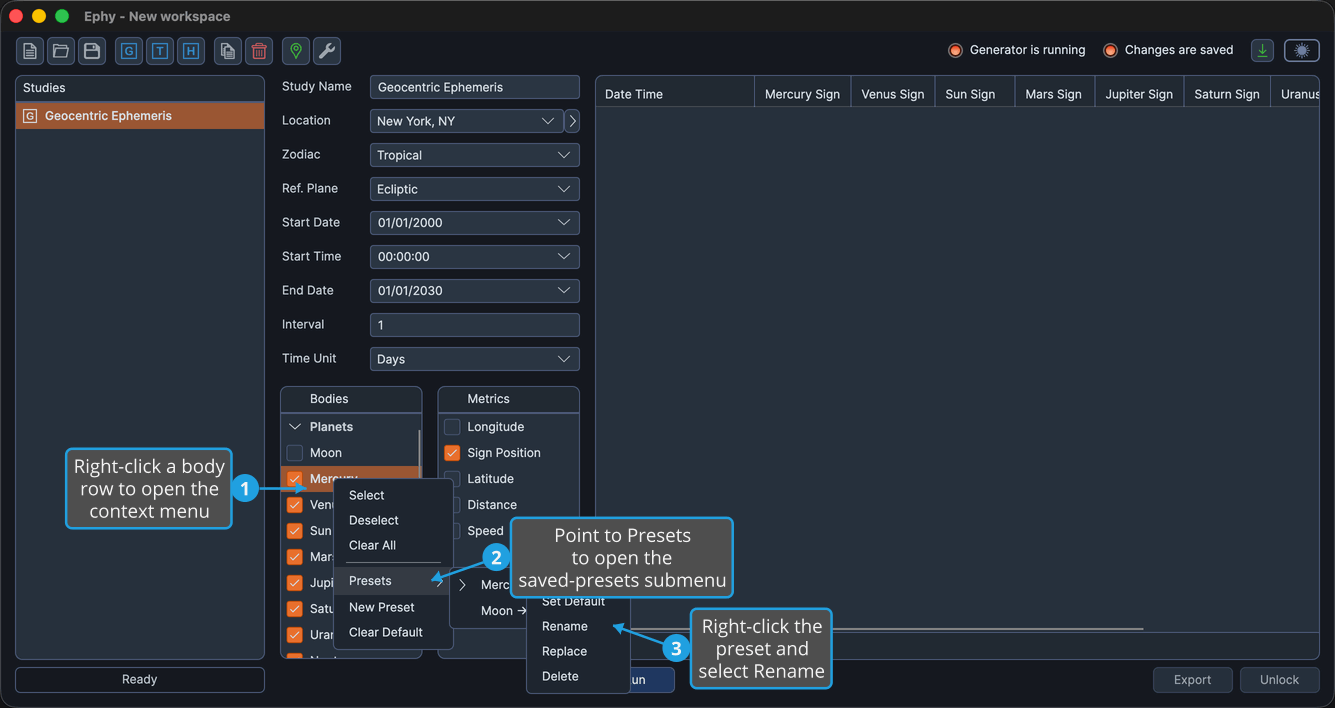
To change a preset's name:
- Right-click a body row to open the context menu.
- Point to Presets to open the saved-presets submenu.
- Right-click the preset and select Rename.
- Type the new name and click Save.
Replacing a Preset
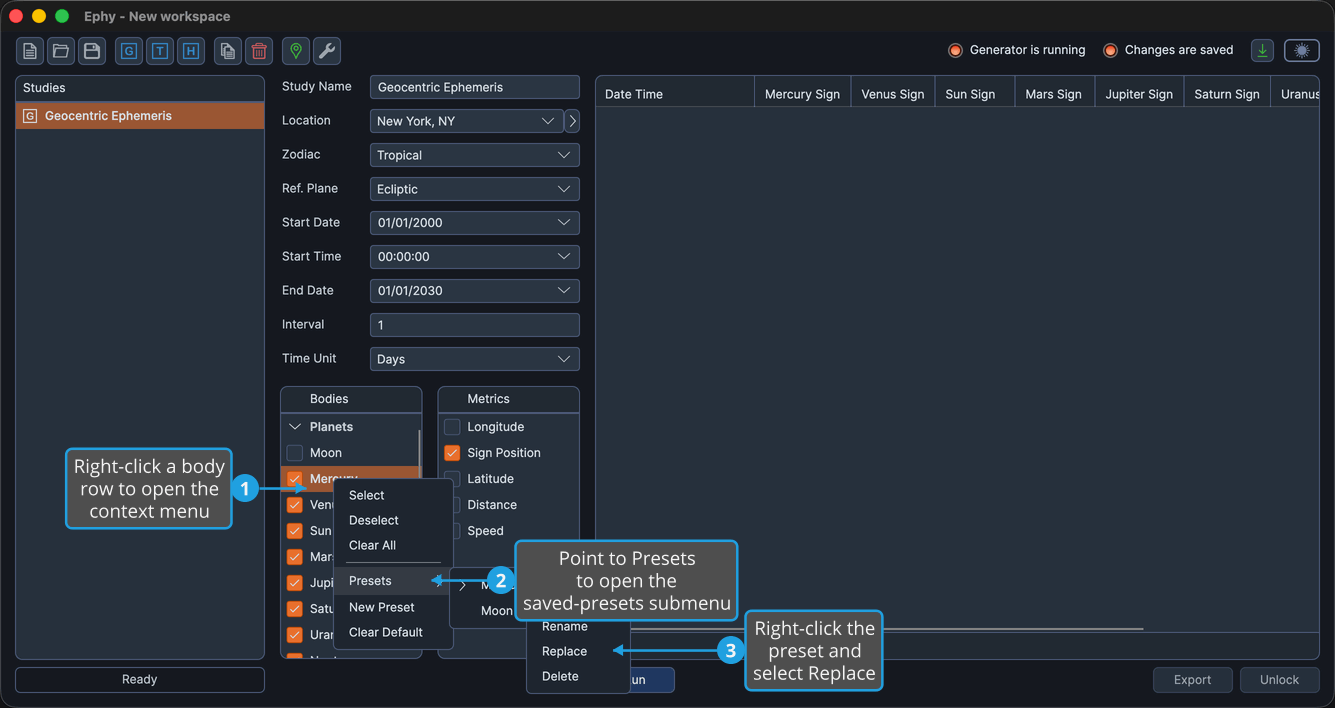
To overwrite a preset's stored selection with the study's current body selection:
- Right-click a body row to open the context menu.
- Point to Presets to open the saved-presets submenu.
- Right-click the preset and select Replace.
Deleting a Preset
To remove a saved preset:
- Right-click a body row to open the context menu.
- Point to Presets to open the saved-presets submenu.
- Right-click the preset and select Delete.