Ephemeris Settings Presets
Ephemeris settings presets let you save a set of basic ephemeris settings (Location, Zodiac, and Reference Plane) under a name and reapply it to any study. You reach them from the presets button beside the Location dropdown on the Basic Ephemeris Settings panel. You can also mark one preset as the default that new studies start from.
When you create or rename a preset, Ephy opens a small name-entry dialog. Type the name and click Save to confirm it.
Applying a Preset
To apply a saved preset to the current study:
- Click the presets button beside the Location dropdown.
- Point to Presets, then click the name of the preset you want to apply.
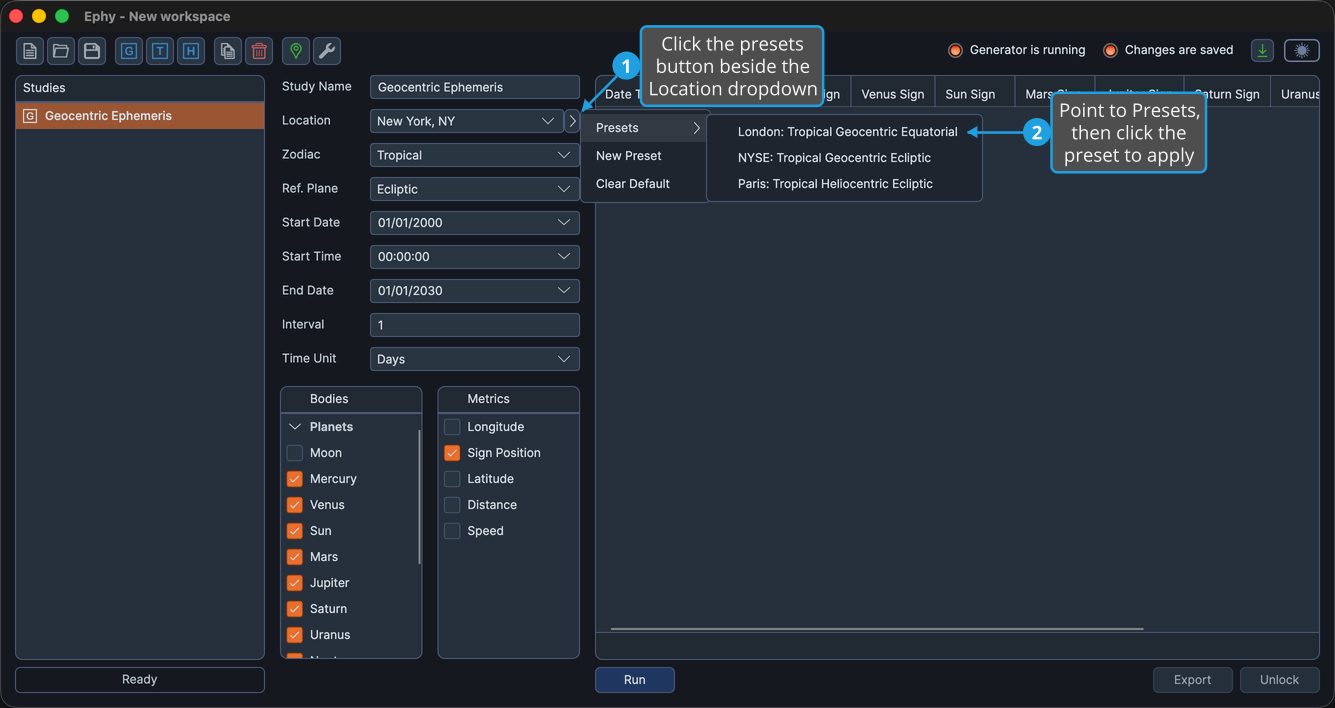
The study's Location, Zodiac, and Ref. Plane settings update to the preset's values.
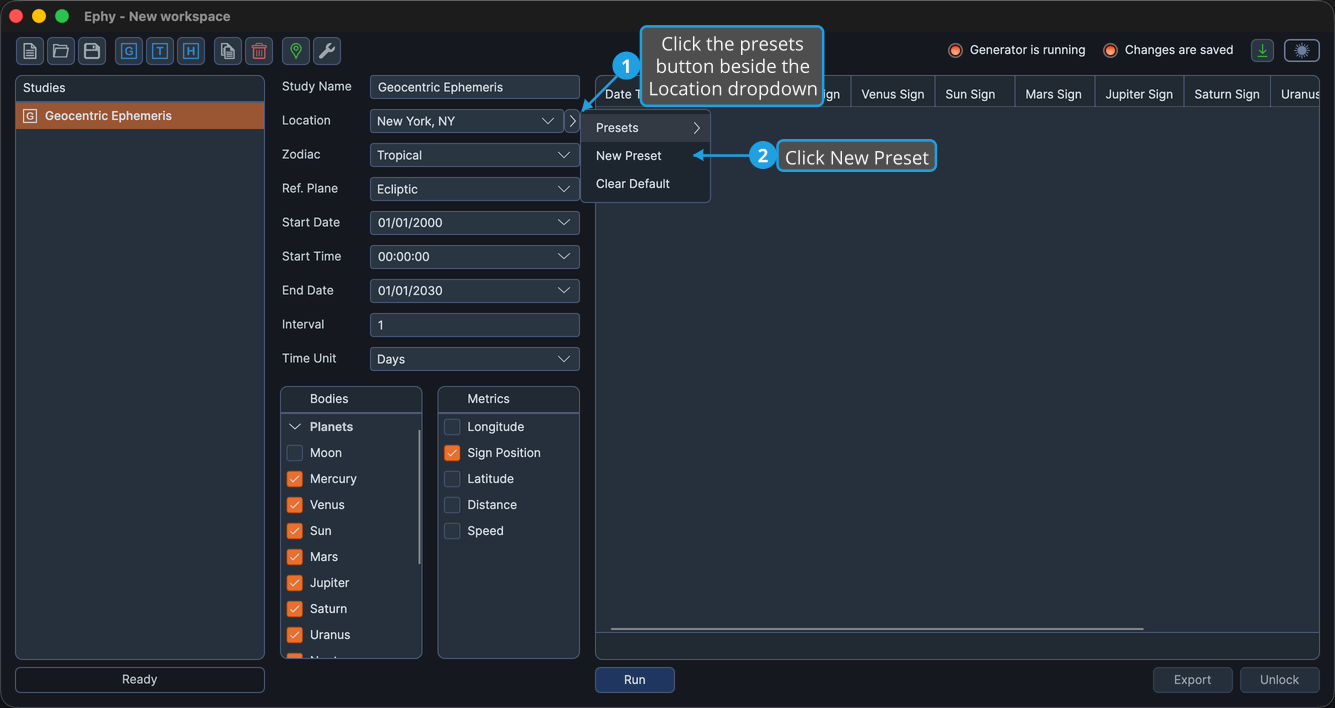
Saving a New Preset
To save the study's current settings as a new preset:
- Click the presets button beside the Location dropdown.
- Click New Preset.
- Type a name for the preset and click Save.
Setting the Default Preset
The default preset is applied automatically to newly created studies. To set one:
- Click the presets button beside the Location dropdown.
- Point to Presets to open the saved-presets submenu.
- Right-click the preset and select Set Default.
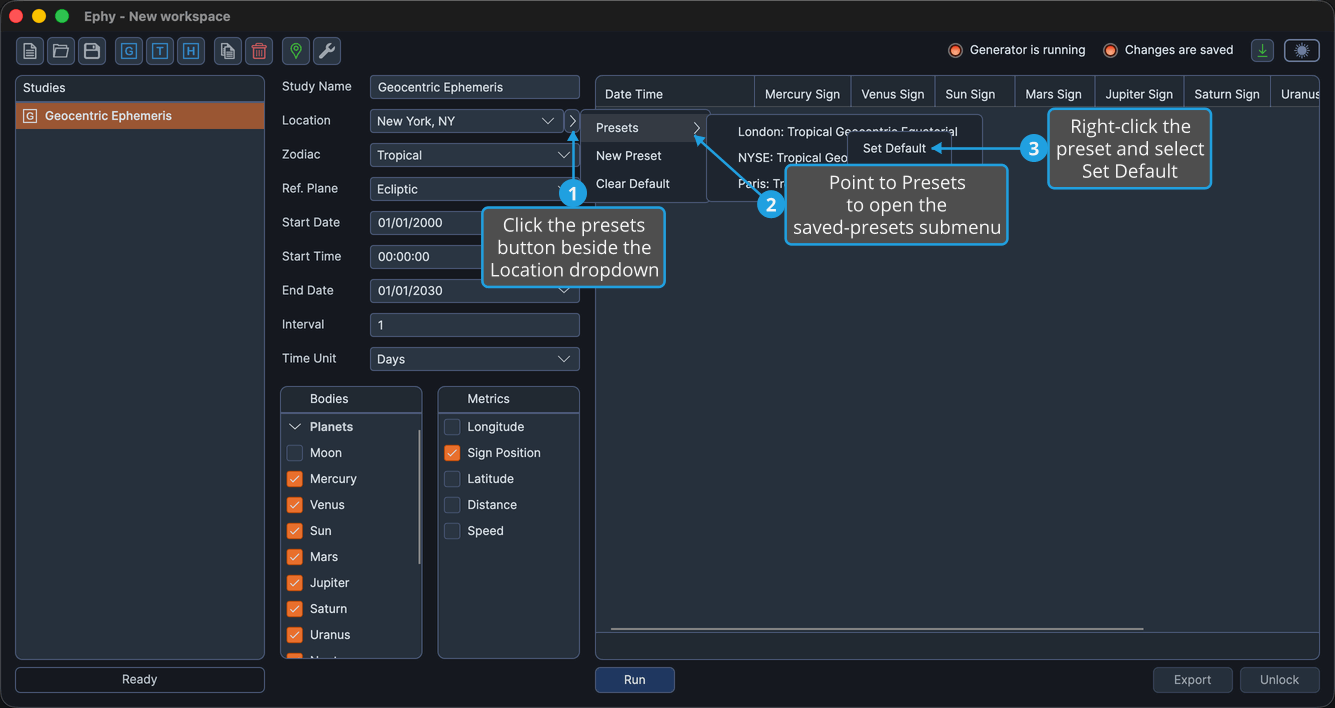
A chevron marker appears beside the preset to show it is the default.
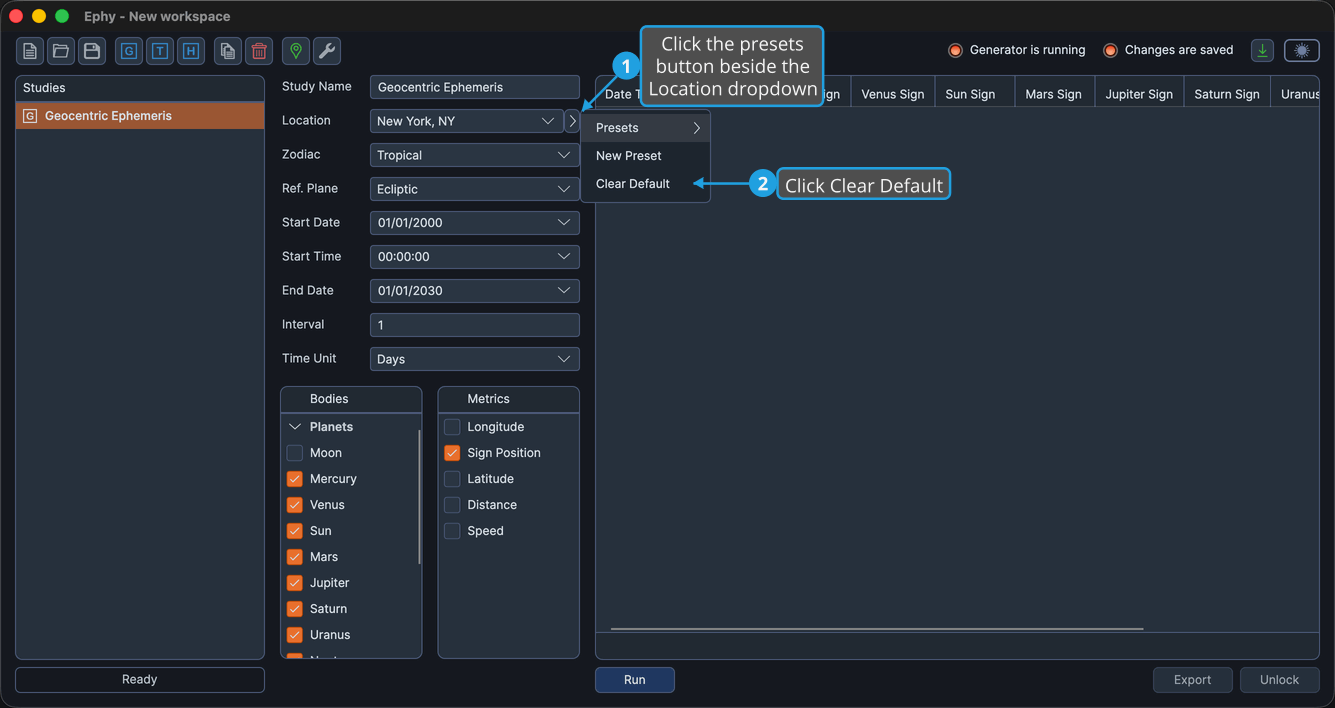
Clearing the Default Preset
To stop applying any preset automatically to new studies:
- Click the presets button beside the Location dropdown.
- Click Clear Default.
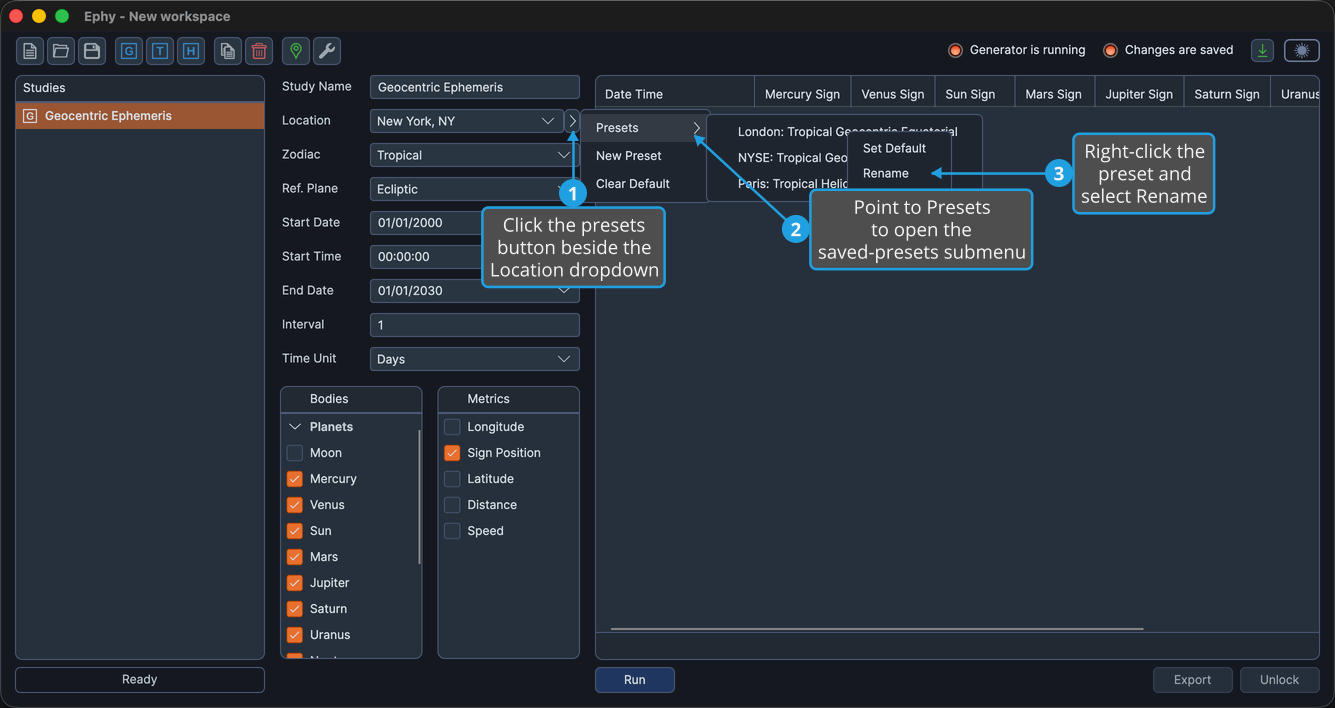
Renaming a Preset
To change a preset's name:
- Click the presets button beside the Location dropdown.
- Point to Presets to open the saved-presets submenu.
- Right-click the preset and select Rename.
- Type the new name and click Save.
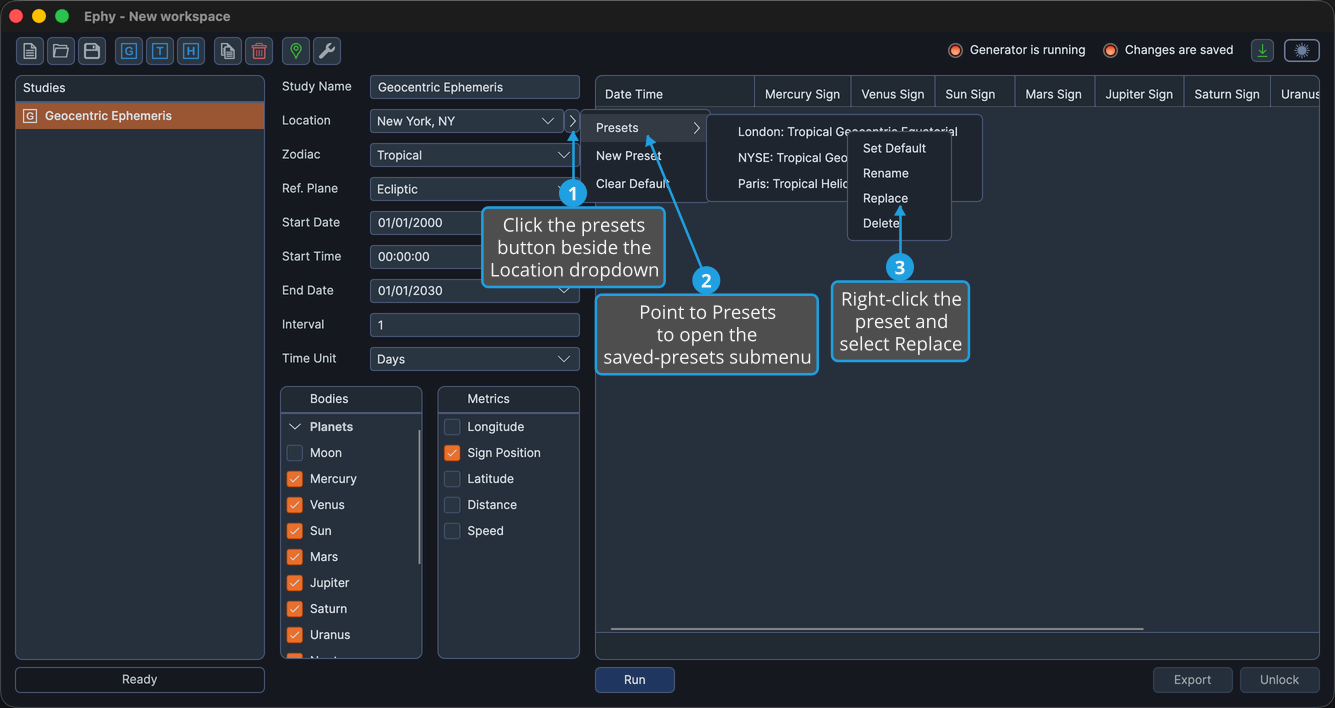
Replacing a Preset
To overwrite a preset's stored settings with the study's current settings:
- Click the presets button beside the Location dropdown.
- Point to Presets to open the saved-presets submenu.
- Right-click the preset and select Replace.
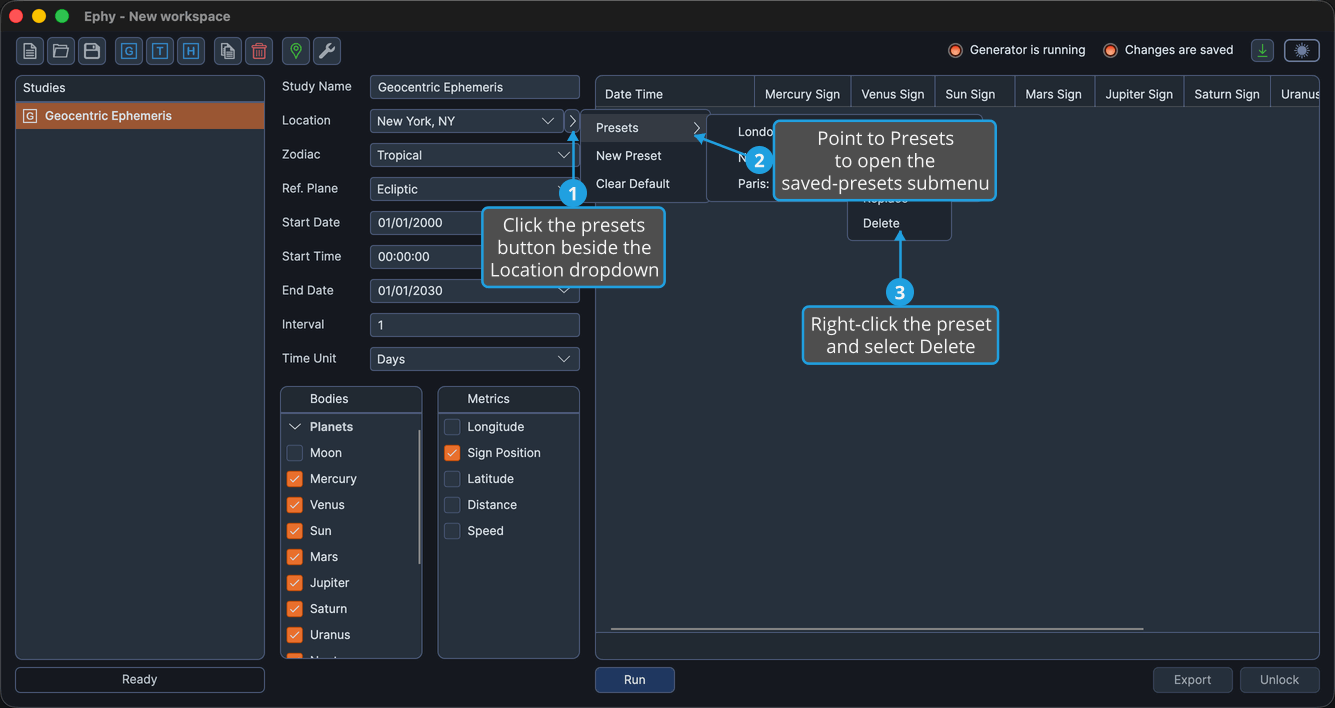
Deleting a Preset
To remove a saved preset:
- Click the presets button beside the Location dropdown.
- Point to Presets to open the saved-presets submenu.
- Right-click the preset and select Delete.