Aspect Hotspots Study
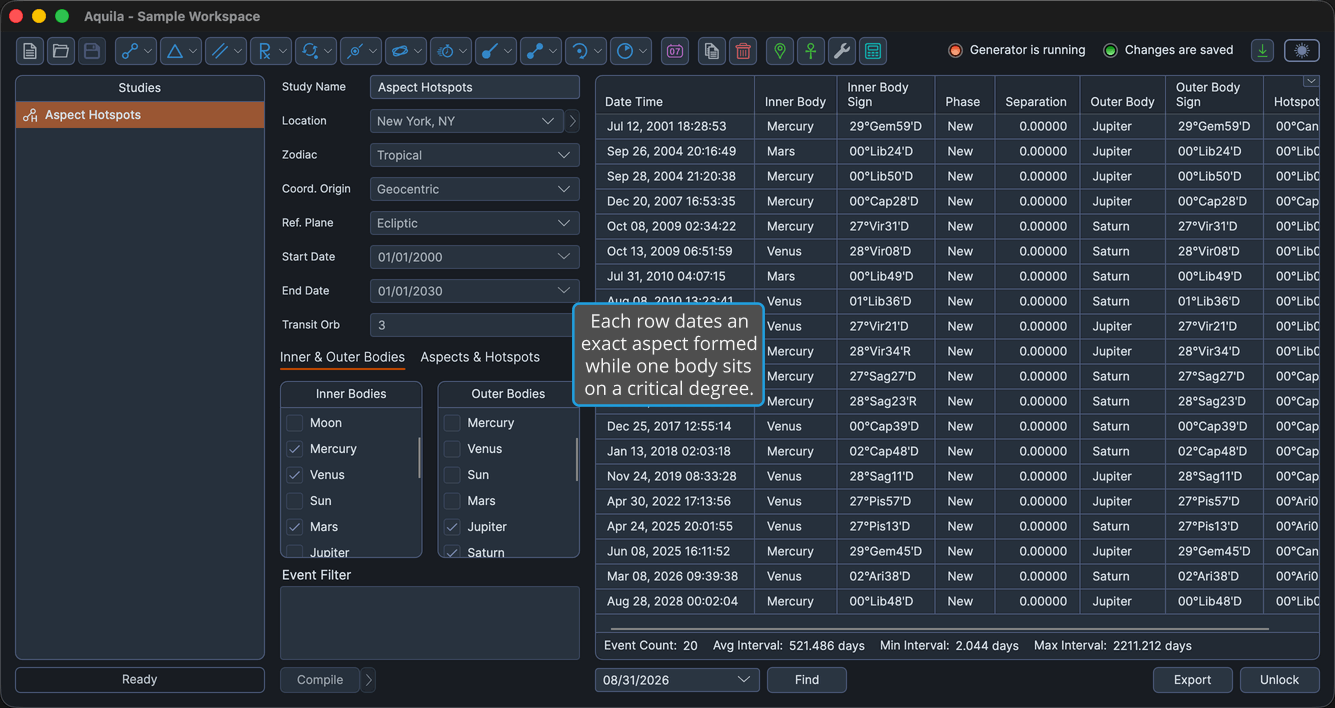
An aspect landing on a sensitive degree carries more weight than the aspect alone, and the Aspect Hotspots study isolates exactly those coincidences. It generates an event each time two transiting bodies form an exact aspect while one of them is within orb of a critical degree.
Each event records both bodies, the aspect they formed, and the hotspot degree that one of them was sitting on at the time.
Create an Aspect Hotspots Study
To add an Aspect Hotspots study to the current workspace:
- Click Mundane Studies → Aspects on the menu bar.
- Click Aspect Hotspots in the Aspects submenu.
Alternatively, click the Aspect Studies drop-down button on the toolbar and select Aspect Hotspots from its flyout.
The new study appears at the bottom of the Studies list and is selected automatically, so its settings open immediately. It takes its name from the study type.
What This Study Finds
An event is generated when two conditions coincide. First, two transiting bodies must form an exact aspect, matching one of the cycle angles entered in the Aspects table. There are no orbs on the aspects or on that table, so the match is exact. Second, at that same moment one of the two bodies must be conjunct a critical degree entered in the Hotspot Degrees table, within the Transit Orb.
The Transit Orb is therefore what governs how close a body has to be to a hotspot for the coincidence to count. It is one of the shared Orb Settings that several studies carry.
The settings column carries the Study Name, the ephemeris settings, the study date range and the Transit Orb field, and beneath them two tabs. Inner & Outer Bodies holds the Inner Bodies and Outer Bodies selection lists, and Aspects & Hotspots holds both the Aspects table of cycle angles and the Hotspot Degrees table of critical degrees watched.
Events Table Columns
The events table lists one row per coincidence. Several columns are hidden by default, as the table notes. Right-click any column header to show or hide a column, as described in Choose Events Table Columns. The coordinate columns follow the study's Reference Plane: their headers read Longitude and Latitude in the ecliptic plane, and Right Asc and Declination in the equatorial plane. The table below gives the ecliptic-plane headers.
| Column | Description |
|---|---|
| Date Time | Date and time the aspect perfects, in the application's long date and time format. Always the first column, and it cannot be moved. Visible by default. |
| Inner Body | Name of the inner body of the pair. Visible by default. |
| Inner Body Longitude | The inner body's primary coordinate, in degrees. Hidden by default. |
| Inner Body Sign | The inner body's position as degrees, sign and minutes of the zodiac. Visible by default. |
| Inner Body Latitude | The inner body's secondary coordinate, in degrees. Hidden by default. |
| Inner Body Distance | The inner body's radial distance, in astronomical units (AU). Hidden by default. |
| Inner Body Speed | The inner body's speed, in degrees per day. Hidden by default. |
| Cycle Angle | The cycle angle that was matched, in degrees. Hidden by default. |
| Phase | Aspect phase: New, Waxing, Full or Waning. Visible by default. |
| Separation | Angular separation between the two bodies, in degrees. Visible by default. |
| Outer Body | Name of the outer body of the pair. Visible by default. |
| Outer Body Longitude | The outer body's primary coordinate, in degrees. Hidden by default. |
| Outer Body Sign | The outer body's position as degrees, sign and minutes of the zodiac. Visible by default. |
| Outer Body Latitude | The outer body's secondary coordinate, in degrees. Hidden by default. |
| Outer Body Distance | The outer body's radial distance, in astronomical units (AU). Hidden by default. |
| Outer Body Speed | The outer body's speed, in degrees per day. Hidden by default. |
| Hotspot Longitude | The critical degree that was contacted, as a primary coordinate in degrees. Hidden by default. |
| Hotspot Sign | The critical degree expressed as degrees, sign and minutes of the zodiac. Visible by default. |
| Event Interval | Elapsed time since the previous event in the list. Hidden by default. |