Station Hotspots Study
A Station Hotspots study tells you when a planet stations on a critical degree. Create the study from the Mundane Studies menu, set the Transit Orb and Event Type, check the bodies, list the hotspot degrees, and generate the events.
Overview
A Station Hotspots study finds the moments when a body from the Bodies list stations retrograde or direct while within the Transit Orb of a degree in the Hotspot Degrees table. Each event is one row of the events table: the date and time of the station, whether the body turns retrograde or direct, the body's position, the hotspot degree, and the separation between the station position and the hotspot degree.
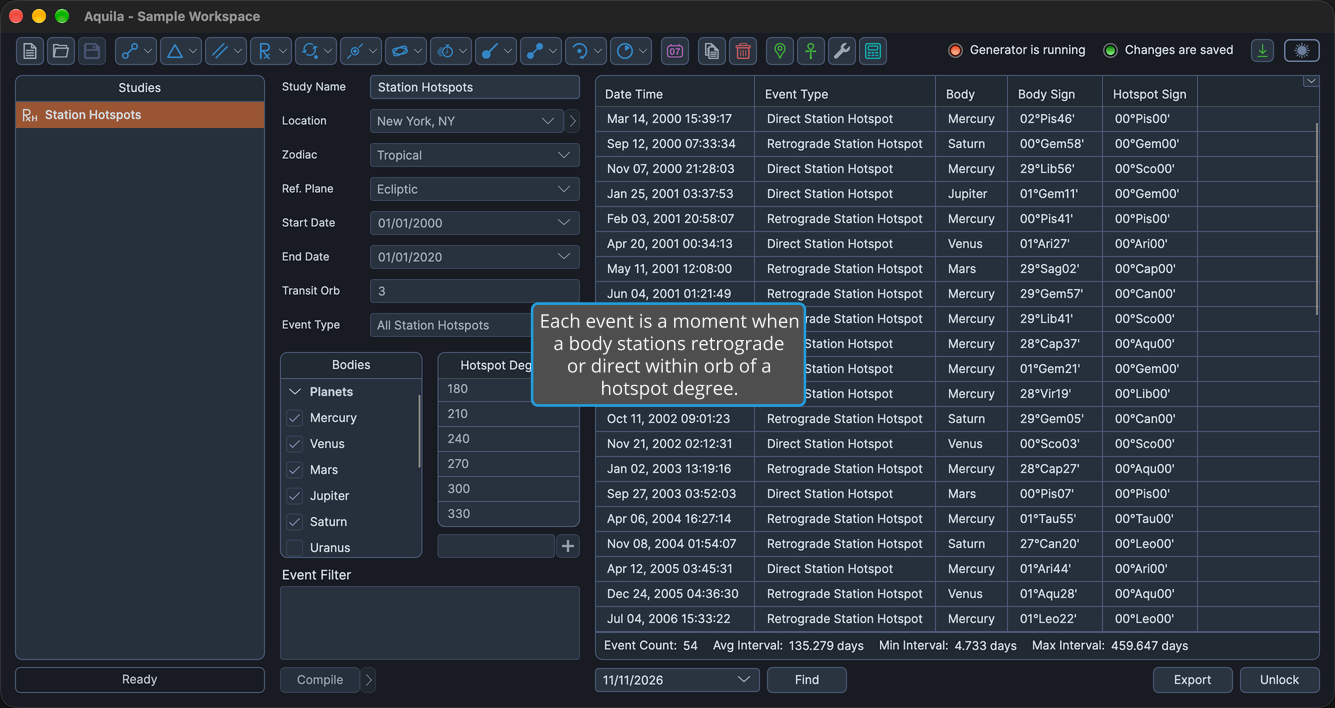
You list the hotspot degrees in the Hotspot Degrees Table and set the Transit Orb as described in Orb Settings. The Event Type drop-down keeps all station hotspots, only retrograde ones or only direct ones, as described in Event Type Selection.
Choose the bodies in the Bodies List and set up the rest of the study as described in Study Configuration. Generate Events describes how to fill the events table, and Working with Events describes what you can do with the events.
Create a Station Hotspots Study
You can create a study whenever a workspace is open and Aquila is not saving or loading it. On macOS, the menu bar is at the top of the screen; on Windows, it is inside the Aquila window.
- Click Mundane Studies on the menu bar.
- Click Stations in the Mundane Studies menu.
- Click Station Hotspots in the Stations submenu.
Aquila adds the new study, named after its type, at the end of the Studies list and selects it. The study takes its settings from the workspace defaults and the default presets, and the workspace now has unsaved changes. Create Study describes where a new study's settings come from.
The toolbar offers the same study: click the Station Studies drop-down button, which shows the Mundane Stations icon, and choose Station Hotspots. On Windows, you can also create the study from the keyboard by pressing Alt+M, S and S in turn.
Events Table Columns
The events table of a Station Hotspots study has 12 columns. The last column below says whether a column is shown by default. To show or hide a column, right-click any column header, as described in Toggle Column Visibility.
| Column | Description | Shown by Default |
|---|---|---|
| Date Time | The date and time of the station, in the time zone of the study's location. It always stays the first column. | Yes |
| Event Type | The kind of station: retrograde or direct. | Yes |
| Body | The body that stations. | Yes |
| Body Longitude | The body's longitude, in degrees (0 to 360). Under the Equatorial reference plane, it shows right ascension and is headed Body Right Asc. | No |
| Body Sign | The body's zodiac sign position (degree, sign and minute), with a D or R motion marker where the body's motion is reported. | Yes |
| Body Latitude | The body's latitude, in degrees. Under the Equatorial reference plane, it shows declination and is headed Body Declination. | No |
| Body Distance | The body's distance, in AU. | No |
| Body Speed | The body's speed in longitude (right ascension under the Equatorial reference plane), in degrees per day. | No |
| Hotspot Longitude | The longitude of the hotspot degree, in degrees (0 to 360). Under the Equatorial reference plane, it shows right ascension and is headed Hotspot Right Asc. | No |
| Hotspot Sign | The zodiac sign position of the hotspot degree (degree, sign and minute). | Yes |
| Separation | The angular separation between the station position and the hotspot degree, in degrees. | No |
| Event Interval | The number of days since the previous event in the table, to three decimal places. It is empty on the first event. | No |
The reference plane is part of the study's Reference System, which you set in Ephemeris Settings. Under the Equatorial reference plane, the Body Sign and Hotspot Sign columns are unavailable: they are empty, they stay hidden, and you cannot check them in the column menu. A sign position column that was showing is replaced by the matching Right Asc column.