Retrograde Cycles Study
A Retrograde Cycles study shows you each retrograde cycle of a planet, from pre-shadow entry through its retrograde and direct stations to post-shadow exit. Create the study from the Mundane Studies menu, check the bodies, and generate the events.
Overview
A Retrograde Cycles study finds each retrograde station of the bodies in the Bodies list and gives you the whole cycle around it in a single row of the events table. Each row shows:
- When and where the body enters the pre-shadow zone.
- The exact time and position of the retrograde station.
- The exact time and position of the direct station that follows it.
- When and where the body leaves the post-shadow zone.
- The length, in days, of the pre-shadow period, the retrograde period and the post-shadow period between these moments.
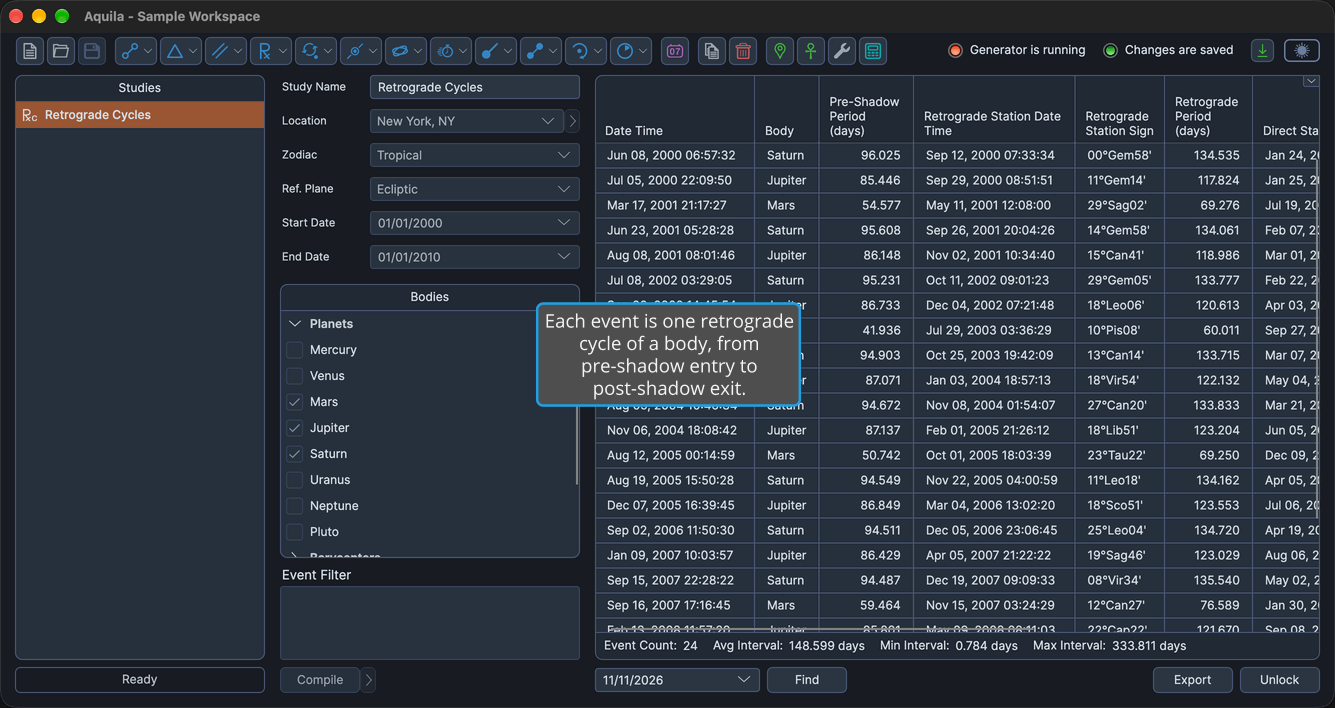
The study works from a single coordinate origin, so its Ephemeris Settings have no Coord. Origin setting.
Choose the bodies in the Bodies List and set up the rest of the study as described in Study Configuration. Generate Events describes how to fill the events table, and Working with Events describes what you can do with the events.
Create a Retrograde Cycles Study
You can create a study whenever a workspace is open and Aquila is not saving or loading it. On macOS, the menu bar is at the top of the screen; on Windows, it is inside the Aquila window.
- Click Mundane Studies on the menu bar.
- Click Stations in the Mundane Studies menu.
- Click Retrograde Cycles in the Stations submenu.
Aquila adds the new study, named after its type, at the end of the Studies list and selects it. The study takes its settings from the workspace defaults and the default presets, and the workspace now has unsaved changes. Create Study describes where a new study's settings come from.
The toolbar offers the same study: click the Station Studies drop-down button, which shows the Mundane Stations icon, and choose Retrograde Cycles. On Windows, you can also create the study from the keyboard by pressing Alt+M, S and R in turn.
Events Table Columns
The events table of a Retrograde Cycles study has 21 columns, grouped by the stages of the cycle. The last column below says whether a column is shown by default. To show or hide a column, right-click any column header, as described in Toggle Column Visibility.
| Column | Description | Shown by Default |
|---|---|---|
| Date Time | The date and time the body enters the pre-shadow zone, in the time zone of the study's location. It always stays the first column. | Yes |
| Body | The body whose retrograde cycle the row describes. | Yes |
| Pre-Shadow Entry Longitude | The body's longitude where it enters the pre-shadow zone, in degrees (0 to 360). Under the Equatorial reference plane, it shows right ascension and is headed Pre-Shadow Entry Right Asc. | No |
| Pre-Shadow Entry Sign | The body's zodiac sign position where it enters the pre-shadow zone (degree, sign and minute), with a D or R motion marker where the body's motion is reported. | No |
| Pre-Shadow Entry Latitude | The body's latitude where it enters the pre-shadow zone, in degrees. Under the Equatorial reference plane, it shows declination and is headed Pre-Shadow Entry Declination. | No |
| Pre-Shadow Period (days) | The length of the pre-shadow period, in days: from pre-shadow entry to the retrograde station. | Yes |
| Retrograde Station Date Time | The date and time of the retrograde station. | Yes |
| Retrograde Station Longitude | The body's longitude at its retrograde station, in degrees (0 to 360). Under the Equatorial reference plane, it shows right ascension and is headed Retrograde Station Right Asc. | No |
| Retrograde Station Sign | The body's zodiac sign position at its retrograde station (degree, sign and minute), with a D or R motion marker where the body's motion is reported. | Yes |
| Retrograde Station Latitude | The body's latitude at its retrograde station, in degrees. Under the Equatorial reference plane, it shows declination and is headed Retrograde Station Declination. | No |
| Retrograde Period (days) | The length of the retrograde period, in days: from the retrograde station to the direct station. | Yes |
| Direct Station Date Time | The date and time of the direct station. | Yes |
| Direct Station Longitude | The body's longitude at its direct station, in degrees (0 to 360). Under the Equatorial reference plane, it shows right ascension and is headed Direct Station Right Asc. | No |
| Direct Station Sign | The body's zodiac sign position at its direct station (degree, sign and minute), with a D or R motion marker where the body's motion is reported. | Yes |
| Direct Station Latitude | The body's latitude at its direct station, in degrees. Under the Equatorial reference plane, it shows declination and is headed Direct Station Declination. | No |
| Post-Shadow Period (days) | The length of the post-shadow period, in days: from the direct station to post-shadow exit. | Yes |
| Post-Shadow Exit Date Time | The date and time the body leaves the post-shadow zone. | Yes |
| Post-Shadow Exit Longitude | The body's longitude where it leaves the post-shadow zone, in degrees (0 to 360). Under the Equatorial reference plane, it shows right ascension and is headed Post-Shadow Exit Right Asc. | No |
| Post-Shadow Exit Sign | The body's zodiac sign position where it leaves the post-shadow zone (degree, sign and minute), with a D or R motion marker where the body's motion is reported. | No |
| Post-Shadow Exit Latitude | The body's latitude where it leaves the post-shadow zone, in degrees. Under the Equatorial reference plane, it shows declination and is headed Post-Shadow Exit Declination. | No |
| Event Interval | The number of days since the previous event in the table, to three decimal places. It is empty on the first event. | No |
The reference plane is part of the study's Reference System, which you set in Ephemeris Settings. Under the Equatorial reference plane, the four sign position columns are unavailable: they are empty, they stay hidden, and you cannot check them in the column menu. A sign position column that was showing is replaced by the matching Right Asc column.