Bodies Selection List
Restricting a study to the bodies you use in practice keeps the result set to a readable size and generation short. The bodies selection list is the checkbox list that does it, and the same control appears on every generator study.
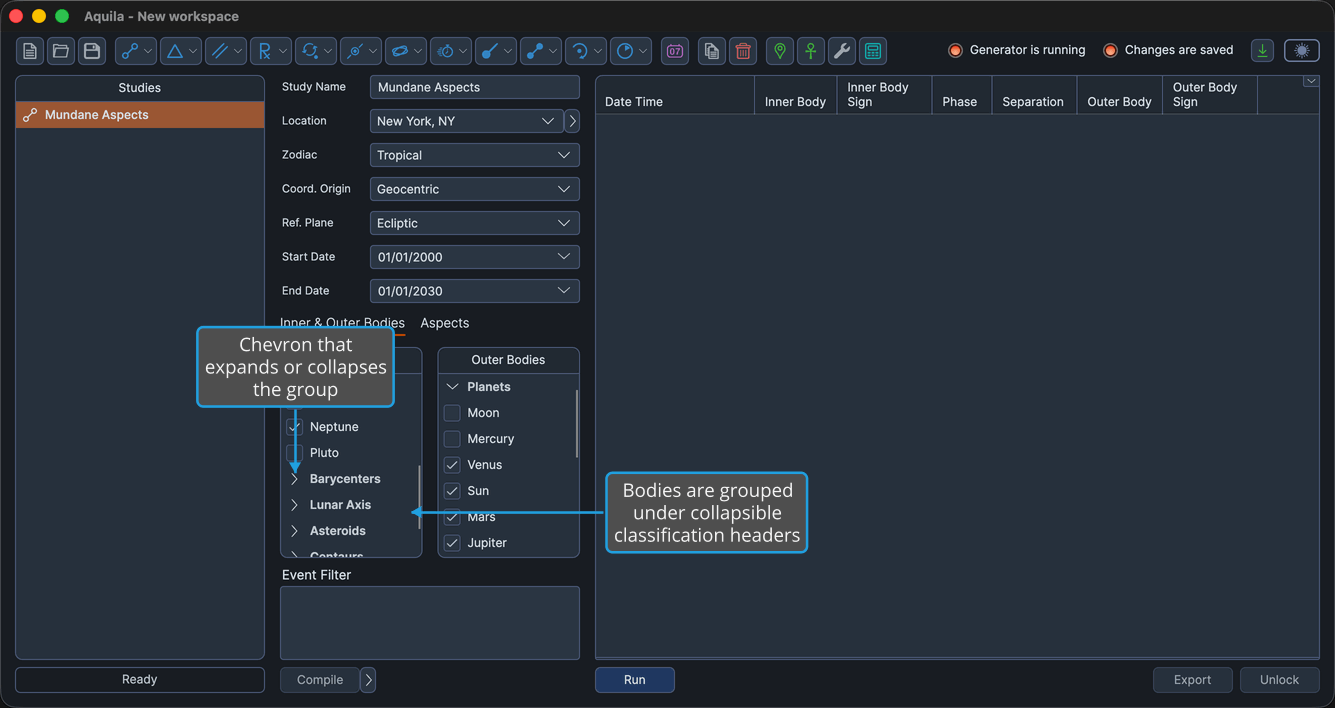
Bodies are grouped under collapsible classification headers, and each study hosts the list once or several times according to the roles its technique needs. Checking a body includes it; unchecking it takes it out again.
Classification Groups
The list groups its rows under seven collapsible headers:
- Diurnal Angles: Ascendant, Medium Coeli, Descendant and Imum Coeli.
- Planets: Moon, Mercury, Venus, Sun, Mars, Jupiter, Saturn, Uranus, Neptune and Pluto, in that order, so the Sun sits after Venus rather than at the head of the group. A heliocentric list carries Mercury, Venus, Earth, Mars, Jupiter, Saturn, Uranus, Neptune and Pluto instead.
- Barycenters: Tenet.
- Lunar Axis: Lunar Apogee, Mean Apogee, North Node and Mean Node.
- Asteroids: Vesta, Juno, Ceres and Pallas.
- Centaurs: Chiron and Pholus.
- Uranians: Cupido, Hades, Zeus, Kronos, Apollon, Admetos, Vulkanus and Poseidon.
A header appears only when the list holds at least one body of that classification, so a study that does not offer a classification shows neither its bodies nor its header. Clicking a header row, or the chevron on it, expands or collapses the group. With a header row focused, Space and Enter toggle the group, Right Arrow opens it and Left Arrow closes it. Groups can be folded away while the study is locked as well as while it is unlocked.
Role Headings
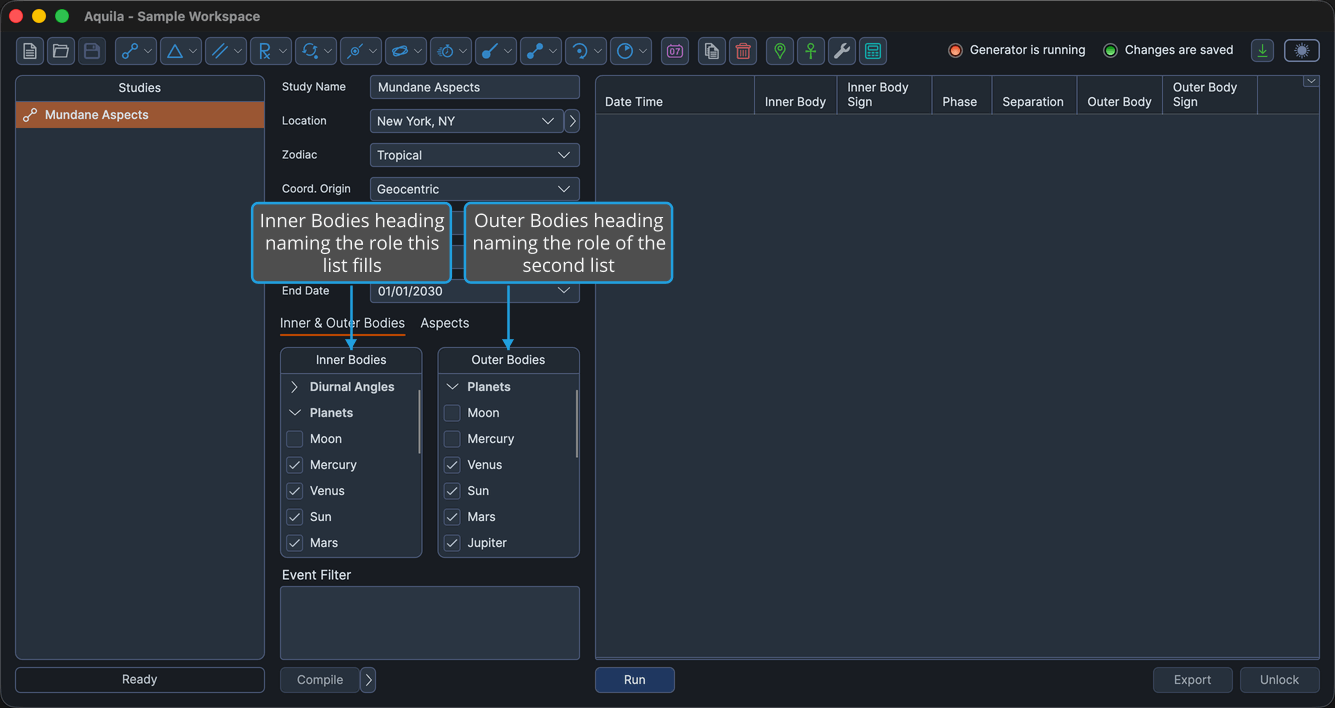
A technique that compares two sets of bodies needs two lists, so a study hosts as many instances as its technique requires. The header above each instance names the role it fills.
| Study Kind | Lists Offered |
|---|---|
| Single-body studies | Bodies |
| Two-body studies | Inner Bodies, Outer Bodies |
| Pattern studies | Inner, Middle and Outer, or Inner, Inner-Mid, Outer-Mid and Outer |
| Transit studies | Transiting Bodies, Natal Bodies |
| Primary Directions | Significators, Promissors |
| Secondary Progressions | Progressed Bodies, Natal Bodies |
| Solar Arc Directions | Directed Bodies, Natal Bodies |
| Profections | Profected Points |
Each instance keeps its own selection and its own presets. See Bodies List Presets.
Include a Body in the Study
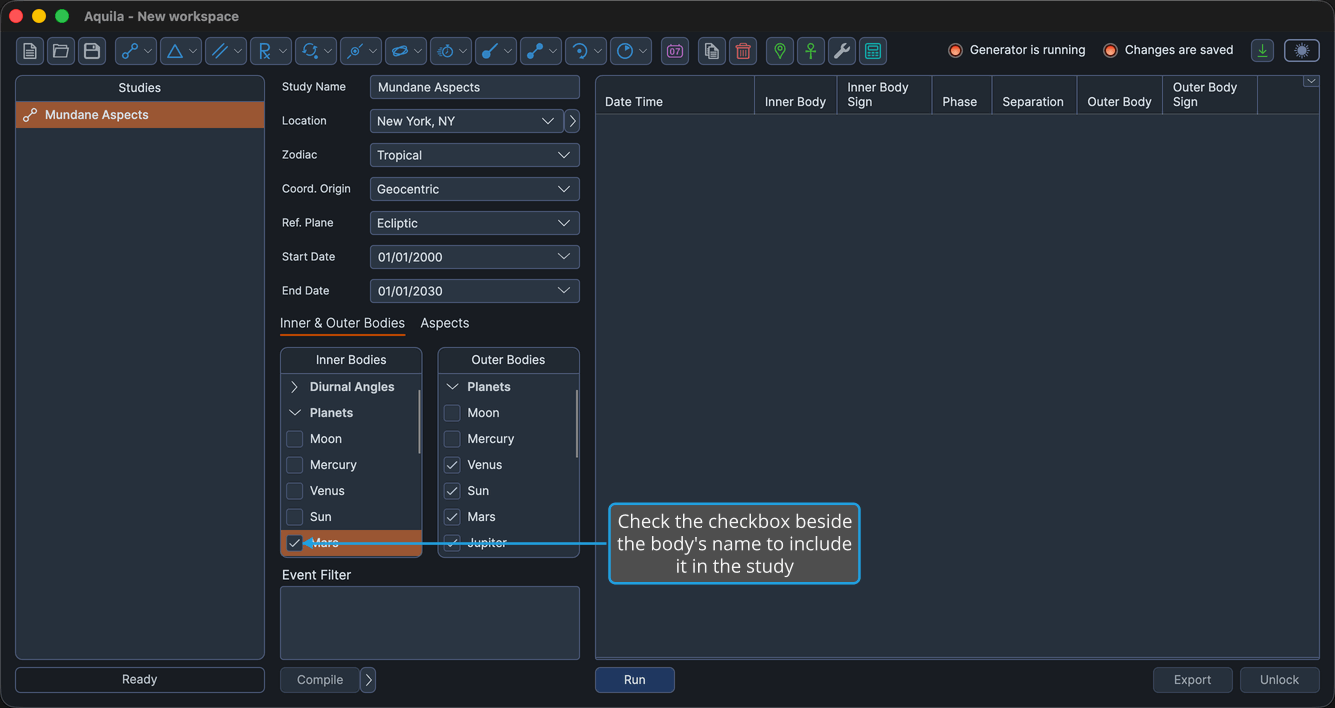
To add a single body or point to the set the study considers:
- Check the checkbox beside the body's name.
Clicking a checked checkbox again removes the body from the study. The body's classification group has to be expanded for its row to be reachable.
Pressing Space while one or more body rows are highlighted toggles those rows' checkboxes without clicking them. On a group header row, Space expands or collapses the group instead.
Select the Highlighted Bodies
Checking a dozen checkboxes one at a time is slow, so the list's right-click menu can check a whole block of rows at once.
To check several bodies together:
- Highlight one or more body rows in the bodies list.
- Right-click a highlighted row to open the context menu.
- Click Select in the context menu.
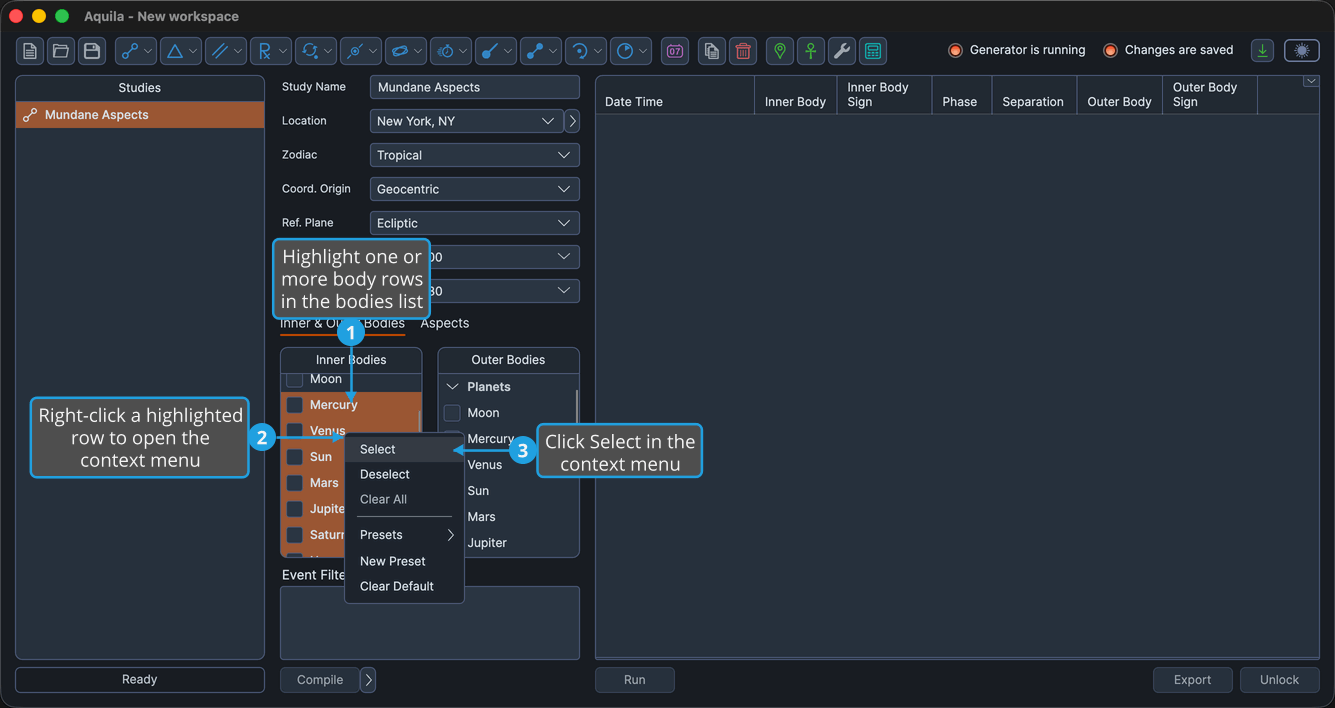
Aquila checks every highlighted row, and the study includes all of them when it generates.
Cmd-click to toggle individual rows in the highlight; Shift-click to extend the highlight to a range. On Windows use Ctrl-click in place of Cmd-click.
Deselect the Highlighted Bodies
To uncheck several bodies together:
- Highlight one or more body rows in the bodies list.
- Right-click a highlighted row to open the context menu.
- Click Deselect in the context menu.
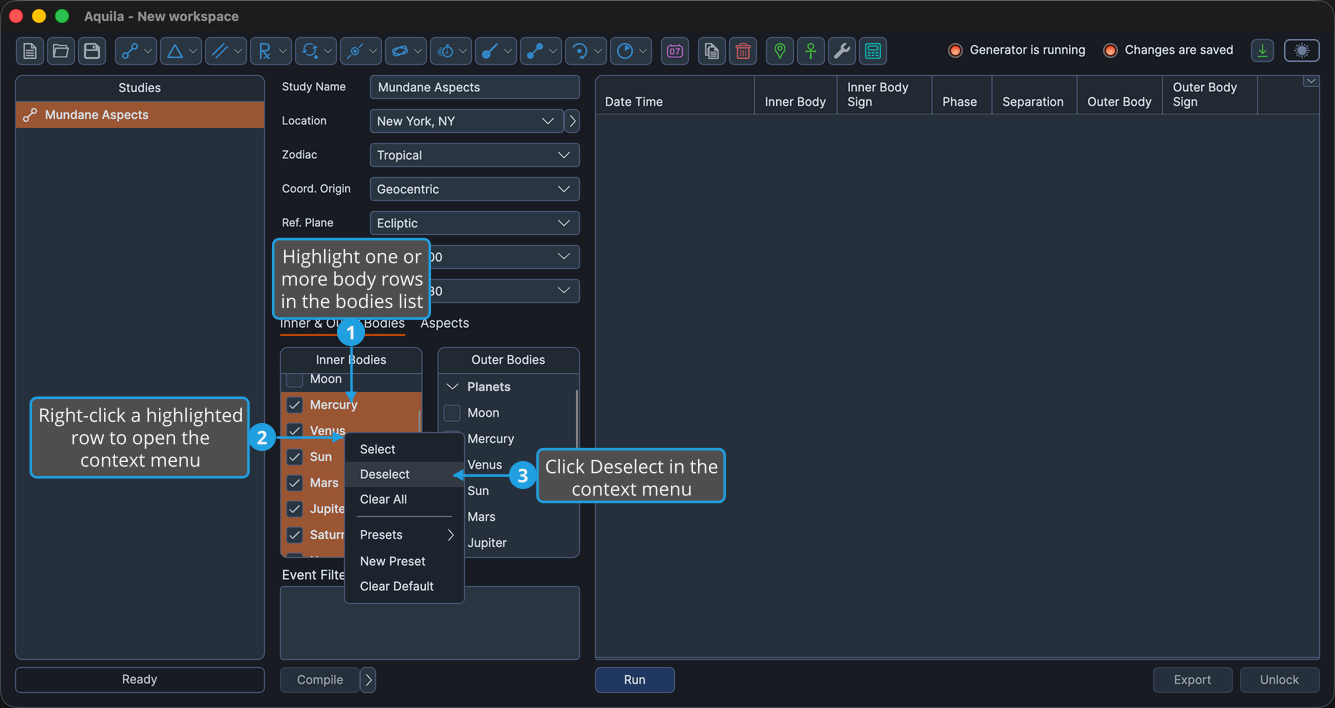
Aquila unchecks every highlighted row, and the study no longer includes those bodies.
Cmd-click to toggle individual rows in the highlight; Shift-click to extend the highlight to a range. On Windows use Ctrl-click in place of Cmd-click.
Clear All Bodies
To uncheck every body in the list before building a fresh selection:
- Right-click a body row to open the context menu.
- Click Clear All in the context menu.
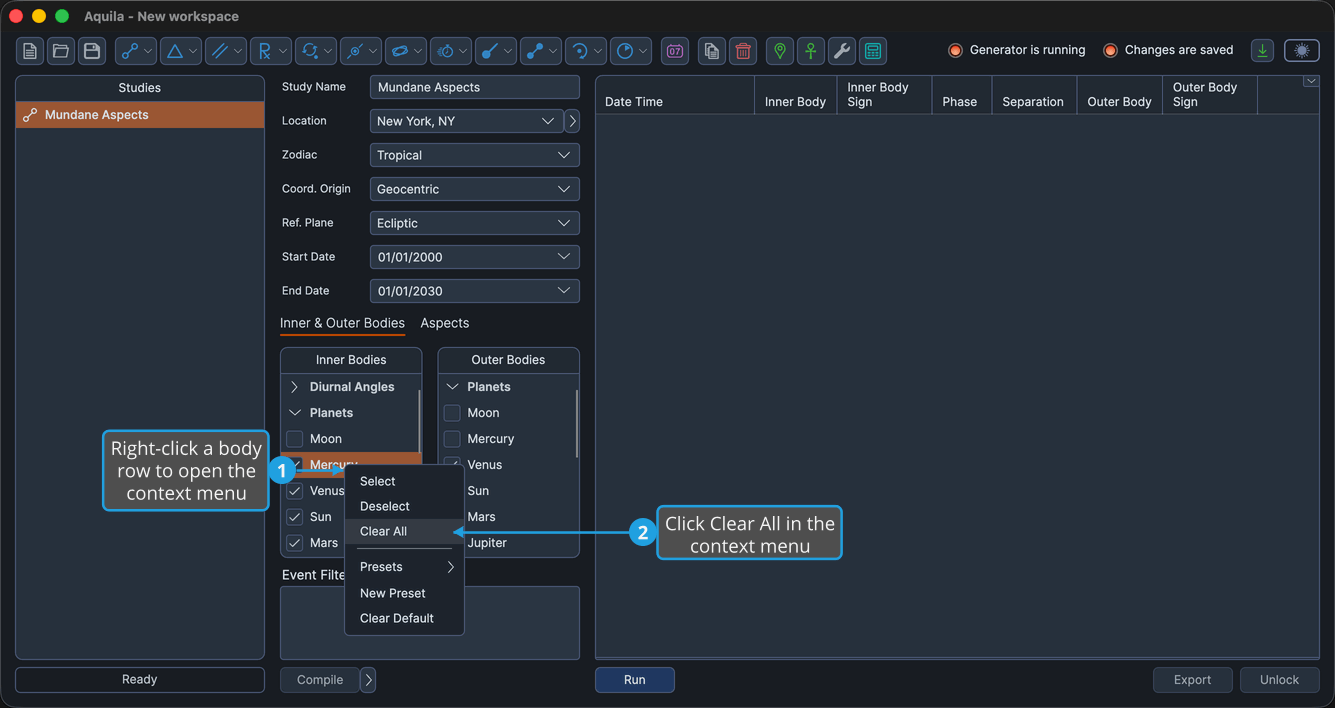
Clear All unchecks every body in the list, including bodies inside collapsed groups. It ignores what is highlighted.
Expand or Collapse a Body Group
To fold a whole classification away, or open it:
- Click the group's header row in the bodies list.
The group's body rows appear or fold away, and the chevron on the header row rotates to match.
The Bodies List Context Menu
Right-clicking a body row opens the list's context menu. Right-clicking a group header row opens nothing.
| Item | What It Does |
|---|---|
| Select | Checks every currently highlighted body row. |
| Deselect | Unchecks every currently highlighted body row. |
| Clear All | Unchecks every body in the list, including bodies inside collapsed groups. |
| Presets | Opens a submenu listing the saved body selections for this list. |
| New Preset | Saves the list's current selection as a named preset. |
| Clear Default | Removes the default marking from this list's presets. |
The whole menu is disabled while the study is locked.
Which Bodies a Study Offers
The list is not the same everywhere. Each study asks for the classifications its technique can use, and a body that cannot produce the kind of event the study looks for is not offered at all. Three things shape the set.
The first is the study's Coord. Origin. A geocentric or topocentric list is drawn from an Earth-centered catalog, which carries the four diurnal angles, the Moon, the Sun and the lunar axis points. A heliocentric list is drawn from a Sun-centered one, which carries the Earth in place of the Sun and Moon, and offers neither the angles nor the lunar axis, because neither has meaning measured from the Sun.
The second is the role the list fills. In an Earth-centered list, the Diurnal Angles are offered on an Inner Bodies or Natal Bodies list where the technique admits them at all, but never on an Outer, Middle, Inner-Mid or Outer-Mid list, so an aspect's outer body and a pattern's middle and outer legs are always chosen from the bodies rather than from the angles. Appulse Minima follows the same shape, offering the angles on its Inner Bodies list and not on its Outer Bodies list.
The third is the technique itself. Where a classification cannot produce the kind of event a study looks for, it is left out of every list that study offers:
| Studies | What Is Not Offered | Why |
|---|---|---|
| Speed Extrema | The Diurnal Angles | The angles sweep the zodiac with the Earth's rotation rather than by a motion of their own, so a speed extremum has no meaning for them. |
| Appulse Minima | The Uranians | The appulse is measured as a true great-circle distance, which turns on ecliptic latitude, and six of the eight Uranian bodies have identically zero ecliptic latitude. |
| Parallel Activations, Nodal Transits | The Diurnal Angles and the Uranians | These techniques turn on ecliptic latitude as well, and the diurnal angles lie on the ecliptic, so neither they nor the Uranians can produce the event. |
| Mundane Parallels, Transiting Parallels, Latitude Extrema | The Diurnal Angles, the Lunar Axis and the Uranians | As above, with the lunar axis points left out as well. |
| Solar Limit Transits | The Sun, the Diurnal Angles, the Lunar Axis and the Uranians | As above, and the Sun's own declination is what defines the limits, so the Sun has no limit of its own to cross. |
| Mundane Stations, Retrograde Cycles, Station Hotspots, and the Transiting Bodies list of Station Activations | The Sun and the Moon, the Diurnal Angles and the Lunar Axis, which leaves 23 bodies | Only a body that turns retrograde has a station, and none of the omitted points does. |
| Inferior Planetary Cycles | Everything except Mercury and Venus | Only the inferior planets show an inferior conjunction cycle. |
| Maximum Elongations | Everything except Mercury and Venus | Only the inferior planets reach a maximum elongation from the Sun. |
| Superior Planetary Cycles | Everything except Mars, Jupiter, Saturn, Uranus, Neptune and Pluto | Only the superior planets, those orbiting outside the Earth's orbit, have this cycle. |
| Heliacal Phenomenon | Everything except Mercury, Venus, Mars, Jupiter, Saturn and Uranus | Only the naked-eye visible planets have a heliacal rising or setting. |
Three studies drop the Sun on its own, keeping the Moon. Latitude Extrema and Nodal Transits drop it from one context only: their geocentric ecliptic lists omit the Sun and their heliocentric ecliptic lists omit the Earth, because each has zero ecliptic latitude in its own frame and so can have no latitude extremum and no out-of-plane node transit. Setting Ref. Plane to Equatorial puts it back. Solar Limit Transits drops the Sun from every context instead, for the reason given in the table above.