Ephemeris Presets
Most research runs from a small handful of frames: home location tropical geocentric, a research location sidereal, and so on. An ephemeris preset saves one of those frames under a name so it can be put on a study in a single click instead of re-entering four settings.
A preset captures all four Ephemeris rows: Location, Zodiac, Coord. Origin and Ref. Plane. Presets are reached from the small chevron button to the right of the Location drop-down, which opens a flyout offering Presets, New Preset and Clear Default. Right-clicking a name inside the Presets submenu offers Set Default, Rename, Replace and Delete.
Ephemeris presets are shared with the other Rhythm Seven astrology applications, so a preset saved here is available in them, and one saved there appears here.
Apply an Ephemeris Preset
To put a saved frame on the current study:
- Click the presets flyout button beside the Location drop-down.
- Click Presets in the flyout menu.
- Click the preset's name in the Presets submenu.
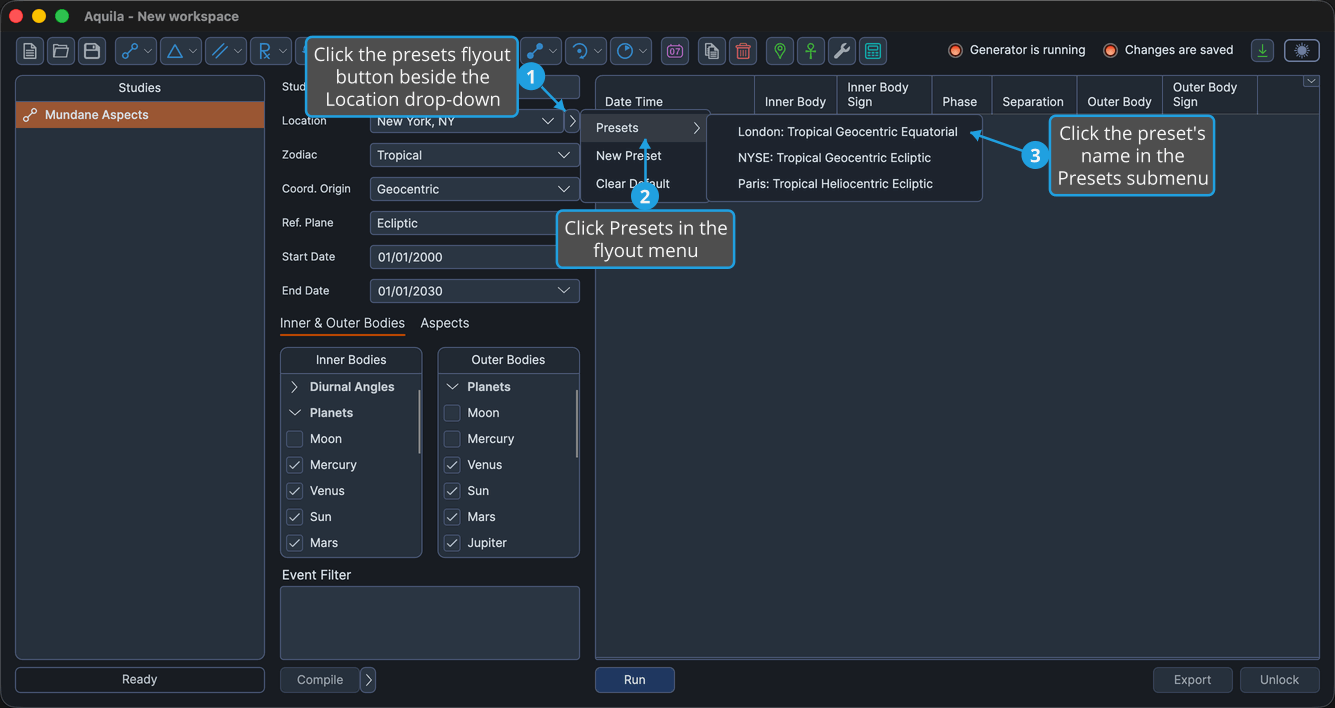
The study's Ephemeris rows change to the preset's settings. A preset marked as the default carries a chevron beside its name in the list. If a preset holds a setting the study does not offer, that one setting stays as it was and the study takes the rest.
Save a New Ephemeris Preset
To keep the study's current Ephemeris settings under a name:
- Click the presets flyout button beside the Location drop-down.
- Click New Preset in the flyout menu.
- Type a name in the prompt and click Save.
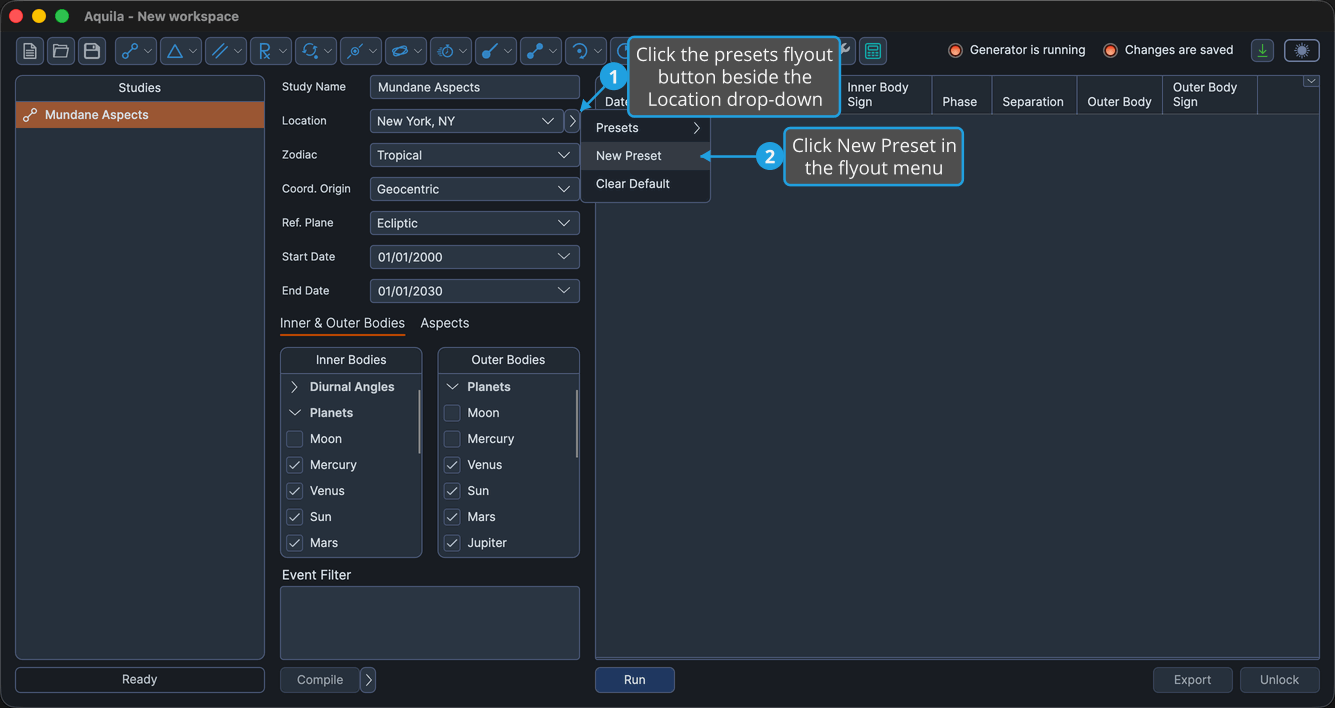
The new preset appears in the Presets submenu under the name you gave it, holding the study's current ephemeris settings.
Preset Name Dialog
The small prompt that collects the name opens with an empty box when a new preset is being saved, and pre-filled with the existing name when one is being renamed. Save is enabled only while the box holds text.
To name the preset:
- Type the preset name.
- Click Save.

Pressing Enter in the name box does the same thing, because Save is the prompt's default button. Click Cancel, or press Escape, to close the prompt without saving anything.
Set an Ephemeris Preset as the Default
Every newly created study opens on the default preset. To mark one:
- Click the presets flyout button beside the Location drop-down.
- Click Presets in the flyout menu.
- Right-click the preset's name in the Presets submenu.
- Click Set Default in the preset's options menu.
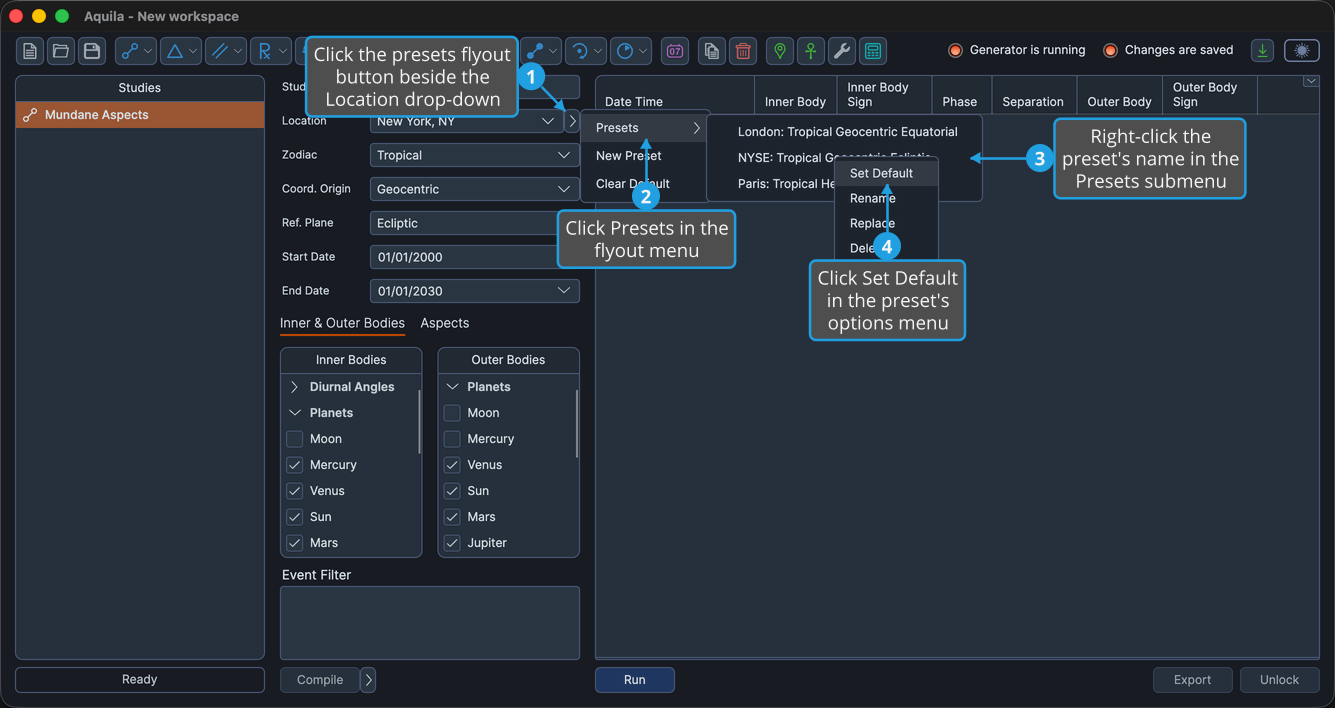
The preset is flagged with a chevron in the Presets submenu.
Clear the Default Ephemeris Preset
To stop new studies starting from a saved frame:
- Click the presets flyout button beside the Location drop-down.
- Click Clear Default in the flyout menu.
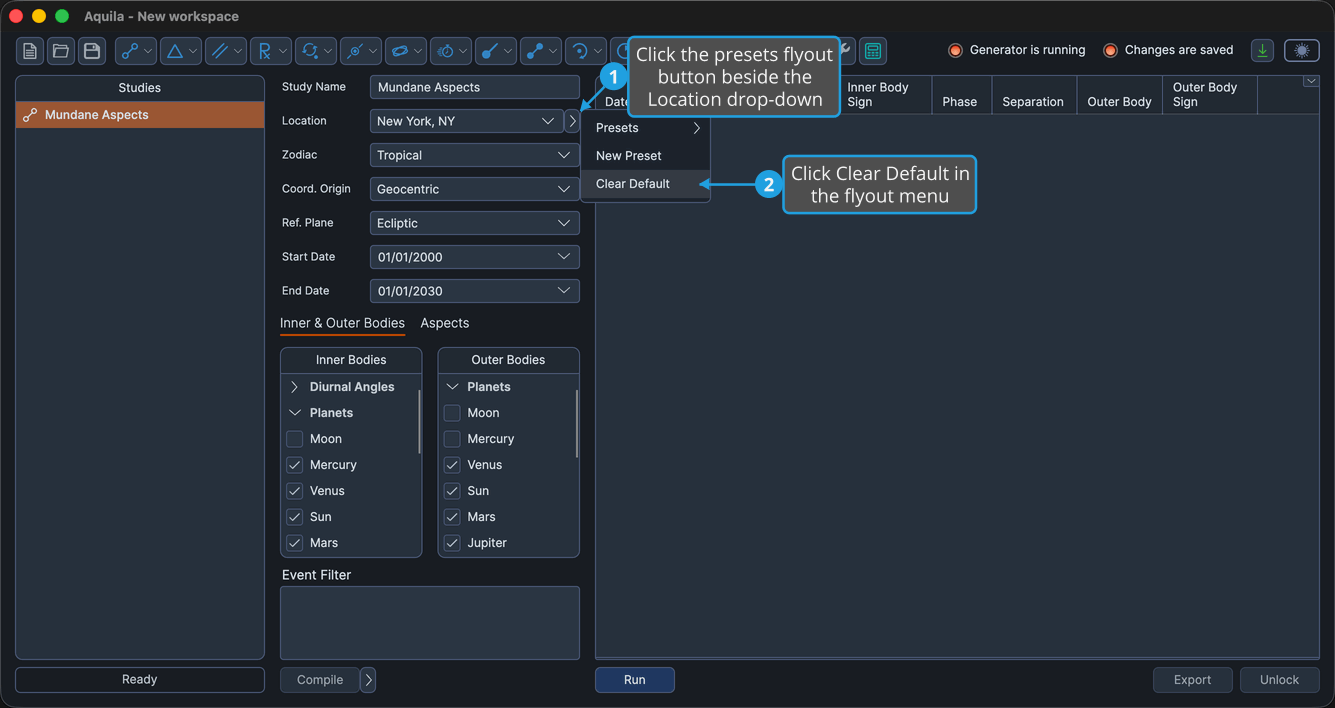
No preset carries the default chevron afterward.
Rename an Ephemeris Preset
To give a saved frame a different name without changing its settings:
- Click the presets flyout button beside the Location drop-down.
- Click Presets in the flyout menu.
- Right-click the preset's name in the Presets submenu.
- Click Rename in the preset's options menu.
- Type the new name in the prompt and click Save.
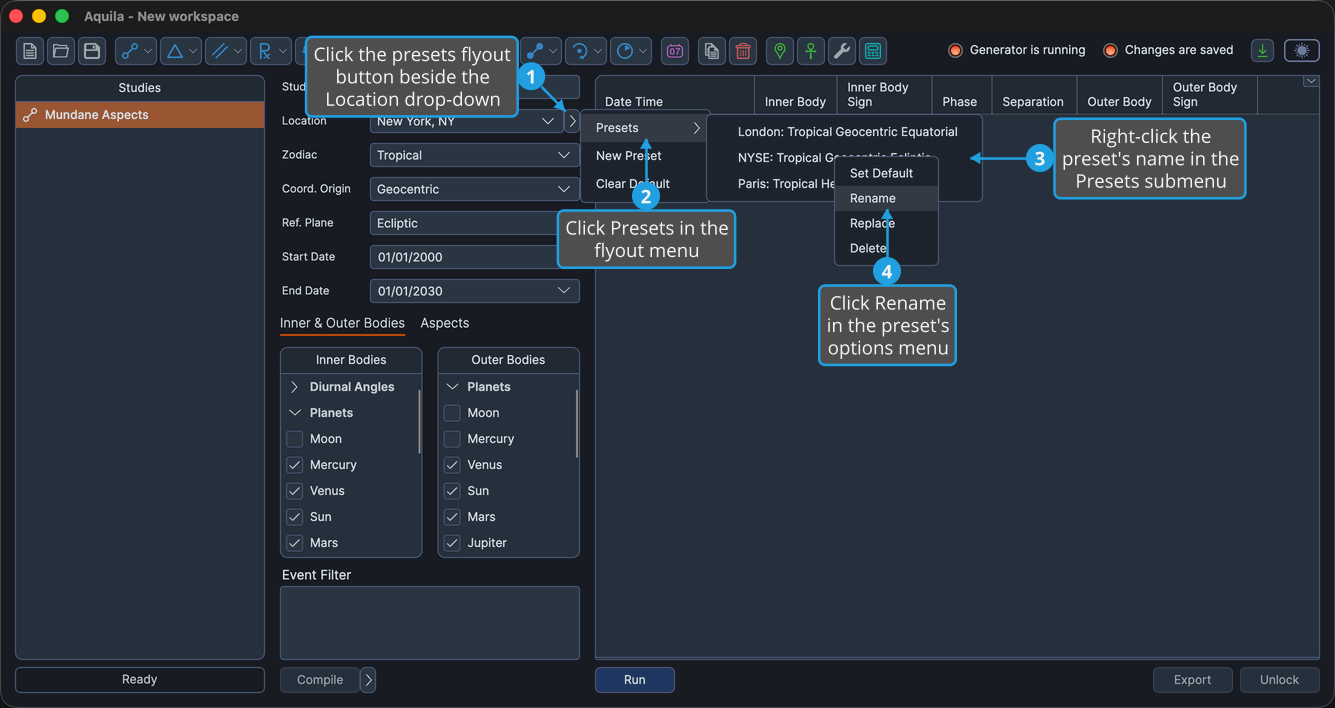
The name prompt opens with the preset's existing name already in the box. See Preset Name Dialog above.
Replace an Ephemeris Preset's Settings
To overwrite a saved preset with the settings the study currently holds:
- Click the presets flyout button beside the Location drop-down.
- Click Presets in the flyout menu.
- Right-click the preset's name in the Presets submenu.
- Click Replace in the preset's options menu.
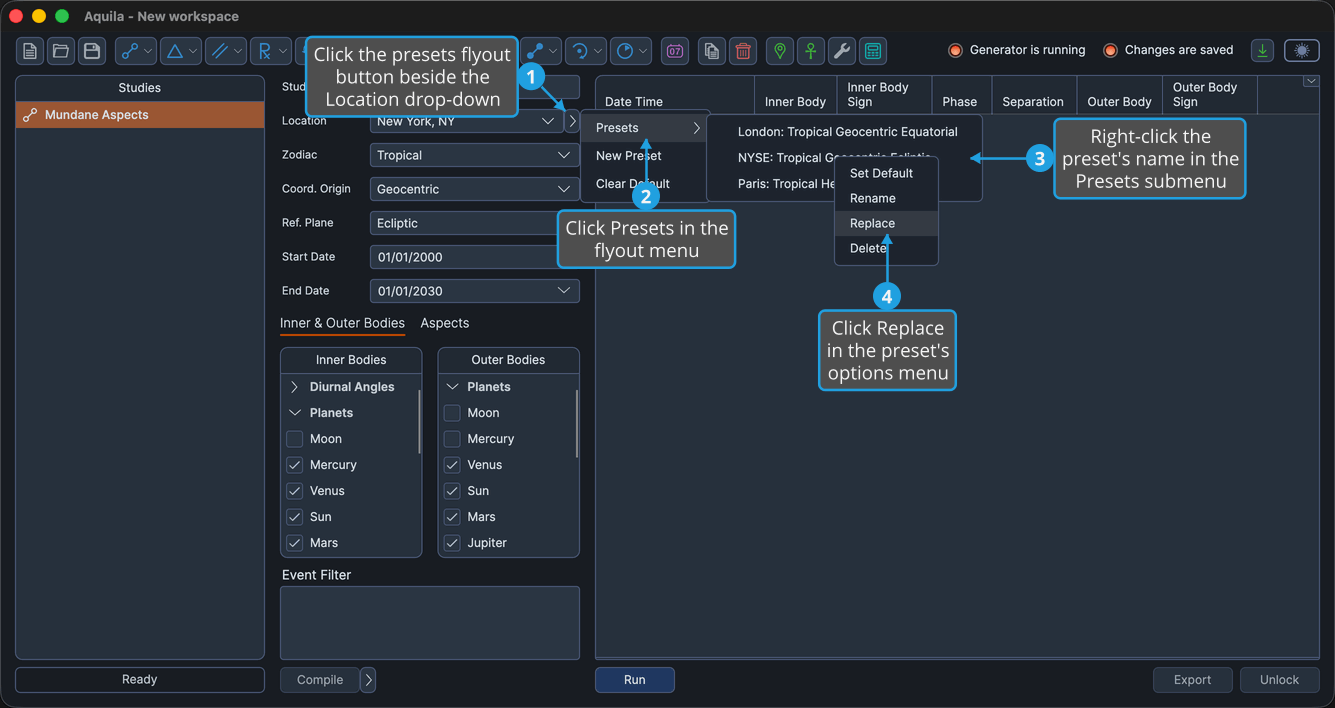
Replace asks for no name. The preset keeps its name and its default marking, and takes on the study's current Ephemeris settings.
Delete an Ephemeris Preset
To remove a saved frame that is no longer wanted:
- Click the presets flyout button beside the Location drop-down.
- Click Presets in the flyout menu.
- Right-click the preset's name in the Presets submenu.
- Click Delete in the preset's options menu.
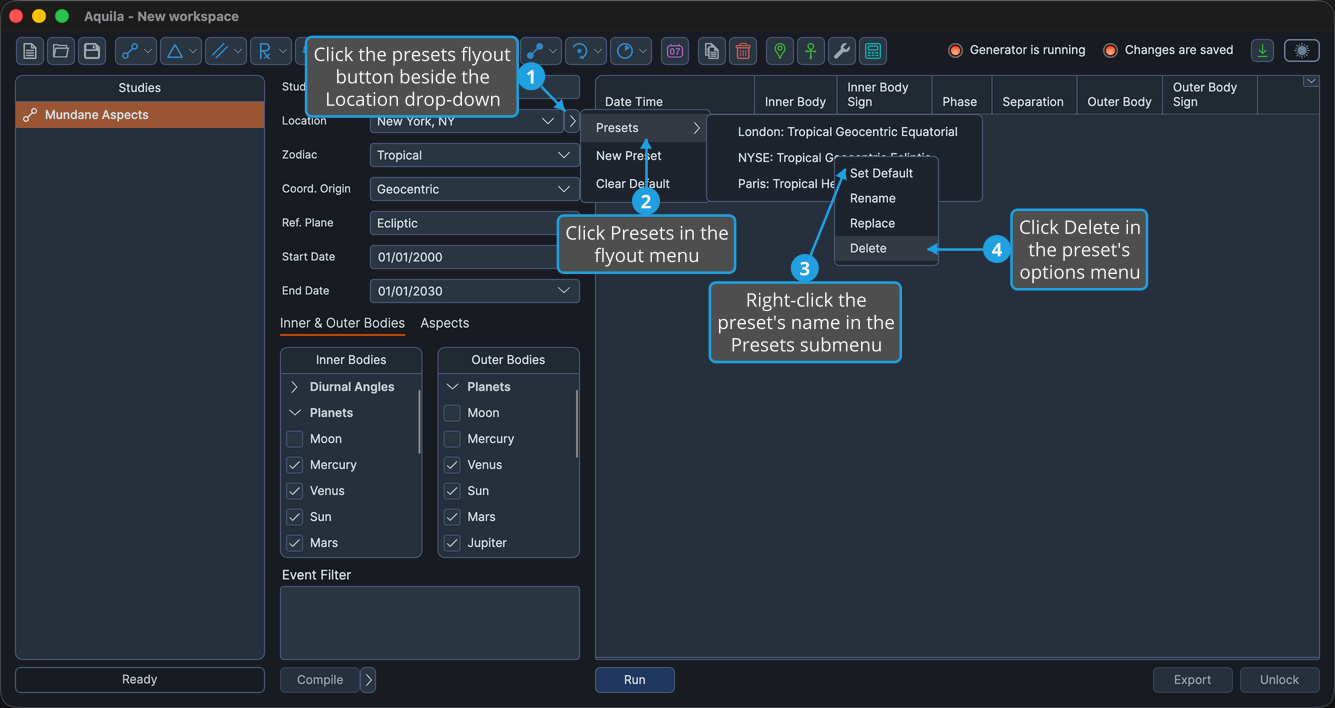
The preset disappears from the Presets submenu.
The Presets Flyout
The flyout button opens a three-item menu. The button is disabled while the study is locked.
| Item | What It Does |
|---|---|
| Presets | Opens a submenu listing every saved ephemeris preset. Clicking a name applies that preset to the study. |
| New Preset | Saves the study's current Ephemeris settings as a new preset, after prompting for a name. |
| Clear Default | Removes the default marking, so new studies no longer start from a saved frame. |
Right-clicking a name inside the Presets submenu opens that preset's own menu.
| Item | What It Does |
|---|---|
| Set Default | Marks the preset as the one new studies open on. |
| Rename | Prompts for a new name, leaving the preset's settings unchanged. |
| Replace | Overwrites the preset's settings with the study's current ones, keeping its name. |
| Delete | Removes the preset. |