Eclipse Types Selection List
Total, annular, hybrid and partial eclipses carry very different weight in practice, and researchers routinely want only some of them. The Eclipse Types list restricts an eclipse study to the kinds that matter for the question being asked.
The list is on six studies. Solar studies list the solar eclipse types and lunar studies the lunar ones. On the two eclipse-activation studies it sits on a tab named Eclipse Types, which is that tab control's first and default tab; on the other four it is laid out directly in the settings column.
Types Offered
The solar studies are the Solar Eclipses Study, the Solar Eclipse Hotspots Study and the Solar Eclipse Activations Study. Each offers four types:
| Type | Description |
|---|---|
| Total | The Moon covers the Sun's disc completely. |
| Annular | The Moon is too far from the Earth to cover the Sun's disc, leaving a ring. |
| Hybrid | The eclipse is total along part of its track and annular along the rest. |
| Partial | Only part of the Sun's disc is covered. |
The lunar studies are the Lunar Eclipses Study, the Lunar Eclipse Hotspots Study and the Lunar Eclipse Activations Study. Each offers three types:
| Type | Description |
|---|---|
| Total | The Moon passes entirely into the Earth's umbra. |
| Partial | Only part of the Moon enters the Earth's umbra. |
| Penumbral | The Moon passes through the Earth's penumbra only. |
The list is a fixed set: you choose which types are checked, never which types exist.
Include or Exclude an Eclipse Type
To add an eclipse kind to the set the study searches for, or take it out again:
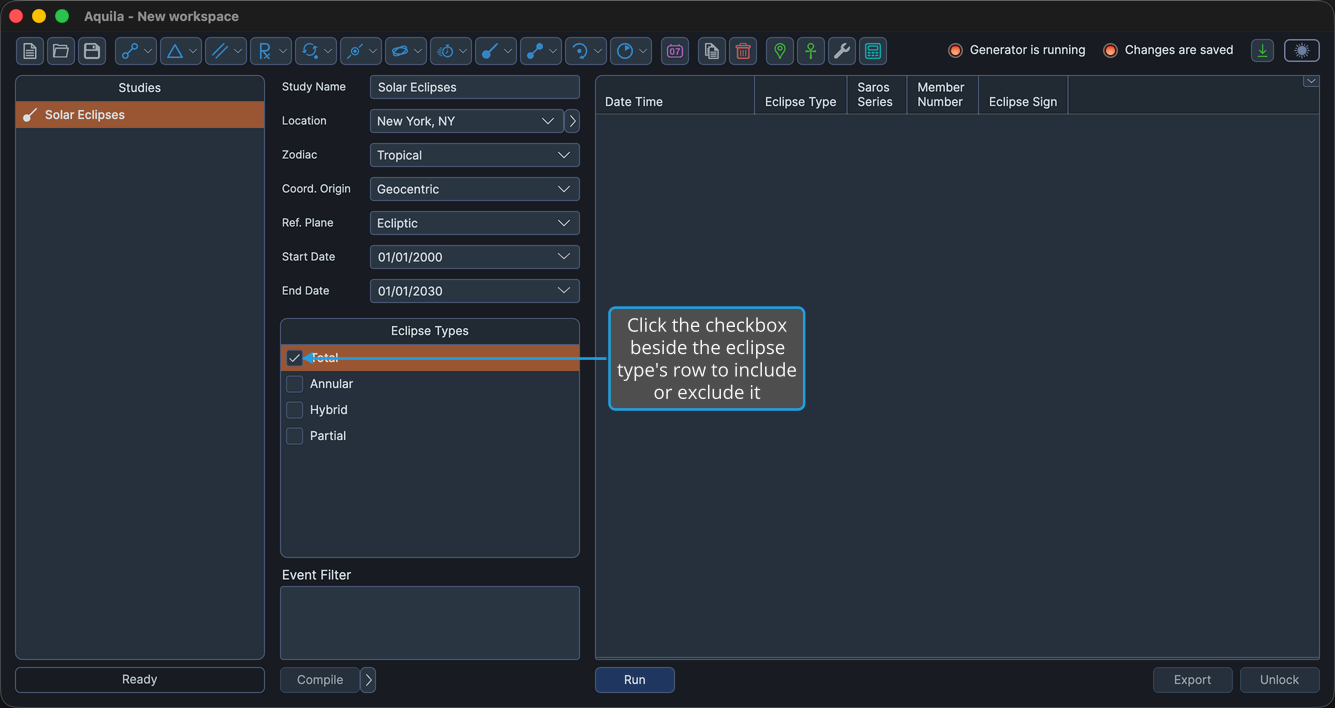
- Click the checkbox beside the eclipse type's row in the Eclipse Types list.
The checkbox changes state and the study's selection follows it.
Pressing Space while one or more rows are highlighted toggles those rows' checkboxes without clicking them.
Select the Highlighted Eclipse Types
To check several types in one gesture:
- Highlight one or more type rows in the Eclipse Types list.
- Right-click a highlighted row to open the context menu.
- Click Select in the context menu.
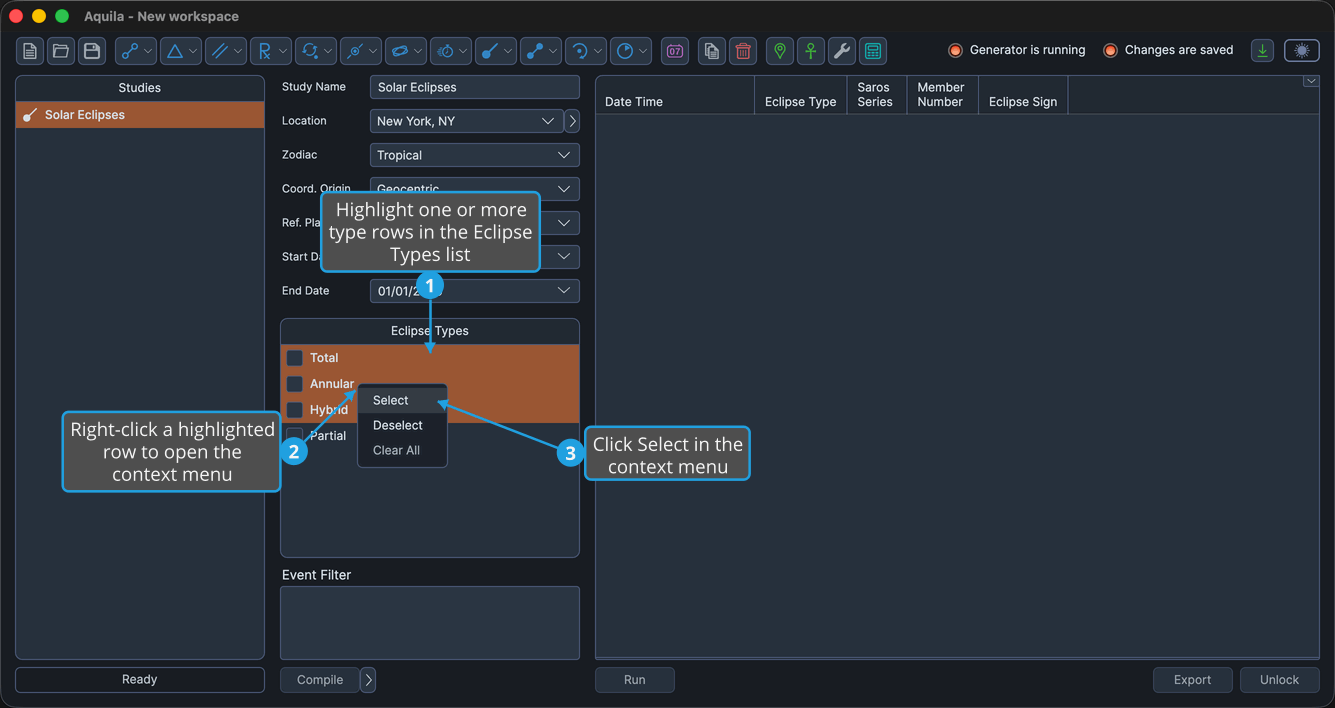
Aquila checks every highlighted type and includes it in the study.
Cmd-click to toggle individual rows in the highlight; Shift-click to extend the highlight to a range. On Windows use Ctrl-click in place of Cmd-click.
Deselect the Highlighted Eclipse Types
To uncheck several types in one gesture:
- Highlight one or more type rows in the Eclipse Types list.
- Right-click a highlighted row to open the context menu.
- Click Deselect in the context menu.
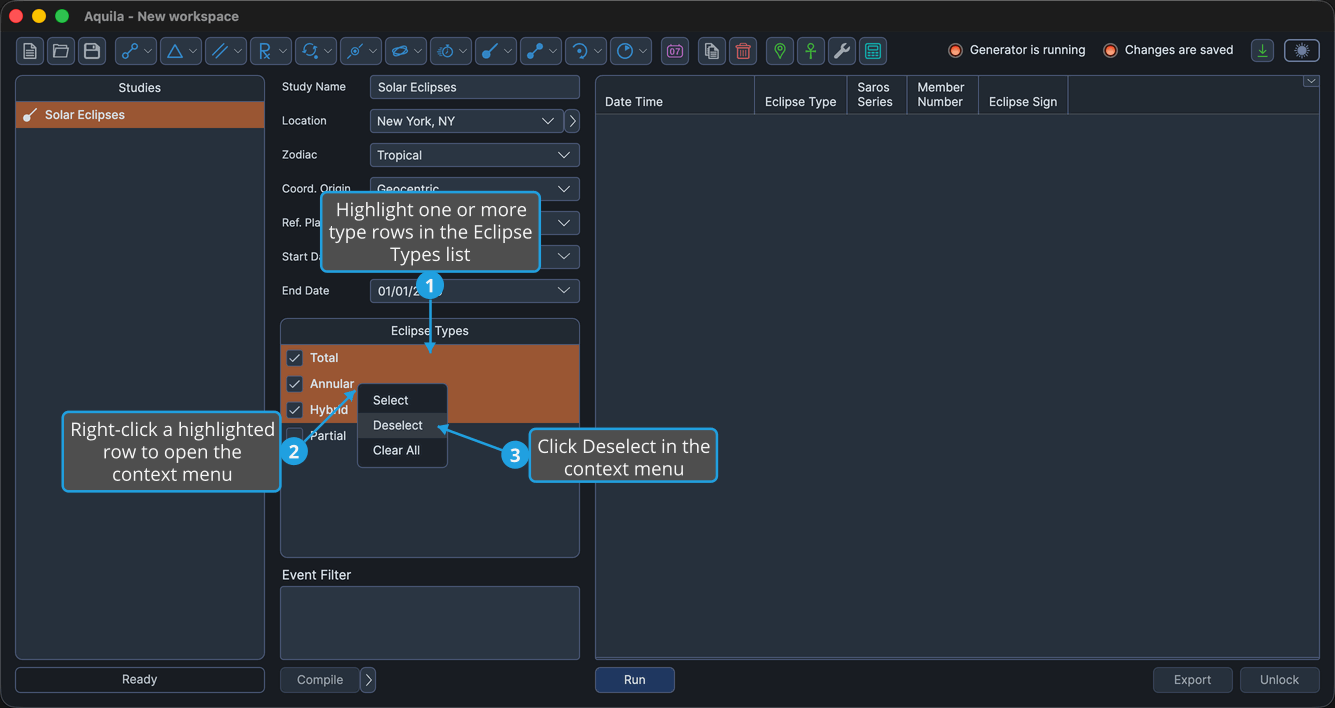
Aquila unchecks every highlighted type and excludes it from the study.
Cmd-click to toggle individual rows in the highlight; Shift-click to extend the highlight to a range. On Windows use Ctrl-click in place of Cmd-click.
Clear All Eclipse Types
To uncheck every type in the list so the selection can be rebuilt from nothing:
- Right-click a row in the Eclipse Types list to open the context menu.
- Click Clear All in the context menu.
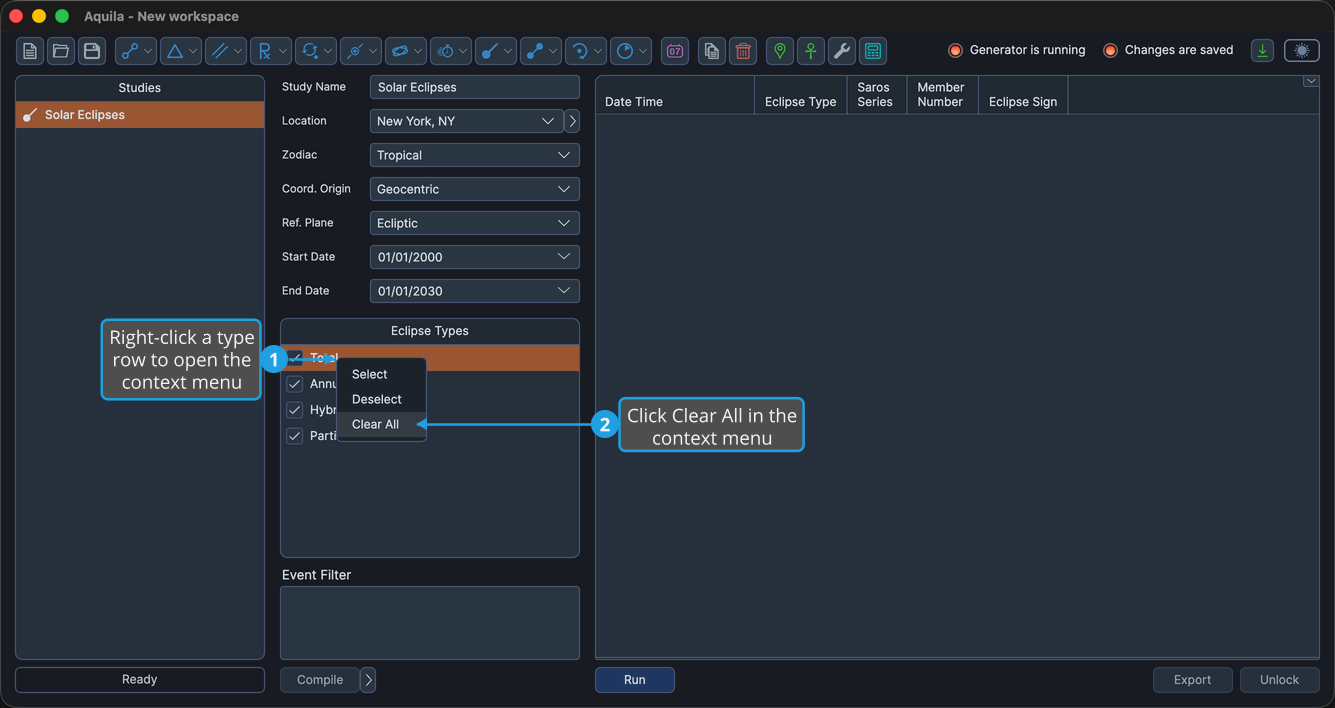
No eclipse type in the list stays checked. Clear All ignores what is highlighted.
The Eclipse Types Context Menu
Right-clicking any row of the list opens its context menu.
| Item | What It Does |
|---|---|
| Select | Checks every currently highlighted row. |
| Deselect | Unchecks every currently highlighted row. |
| Clear All | Unchecks every type in the list, whatever is highlighted. |
The menu is disabled while the study is locked.