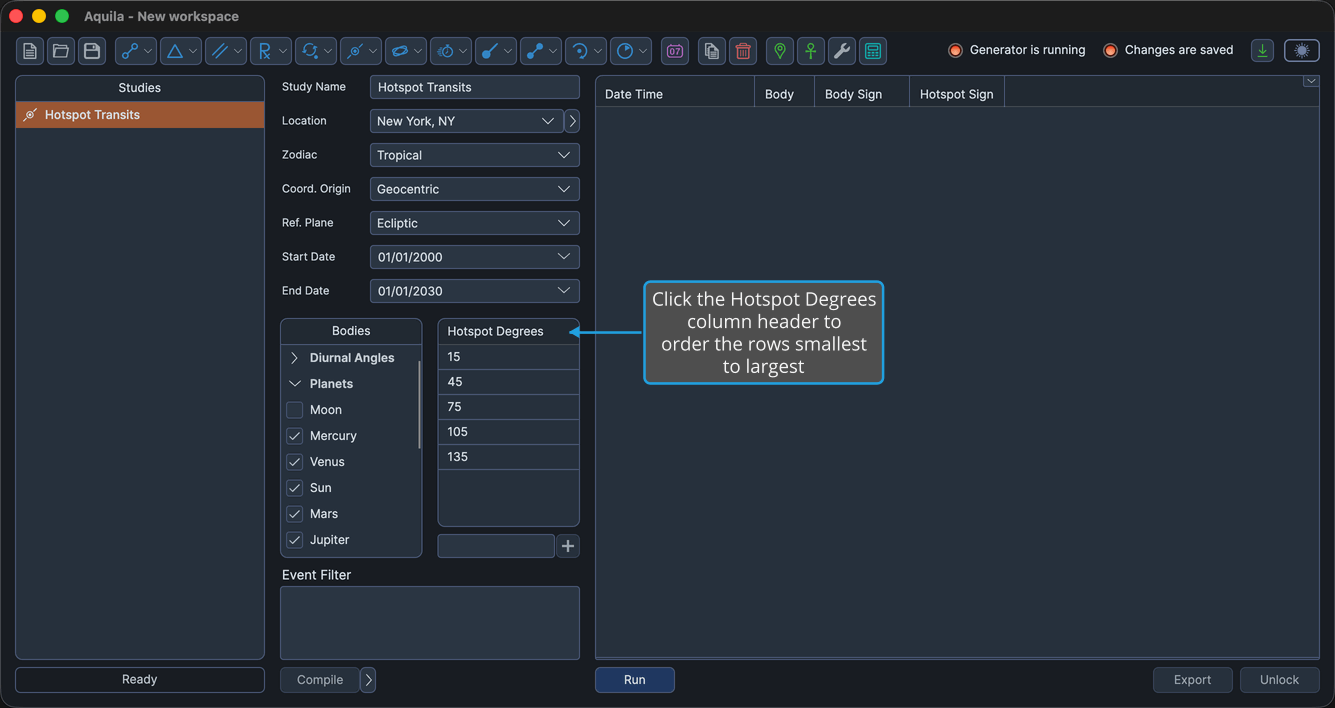
Hotspot Degrees Table
Critical-degree work depends on a personal or traditional list of sensitive points, and a hotspot study can find nothing until that list exists. The Hotspot Degrees table is where it is entered.
The table holds critical degrees on the zodiac, in degrees of longitude, that the study watches for contact. Each row holds one decimal degree value between 0 and 360.
Where the Table Appears
Five studies carry the table, all of them under the single column header Hotspot Degrees.
| Study | Where the Table Sits |
|---|---|
| Aspect Hotspots Study | On the Aspects & Hotspots tab |
| Station Hotspots Study | Directly in the settings column |
| Hotspot Transits Study | Directly in the settings column |
| Solar Eclipse Hotspots Study | Directly in the settings column |
| Lunar Eclipse Hotspots Study | Directly in the settings column |
Add a Critical Degree
To put a degree into the list the study watches:
- Type the degree into the entry box immediately below the Hotspot Degrees table.
- Press Enter to add the degree.
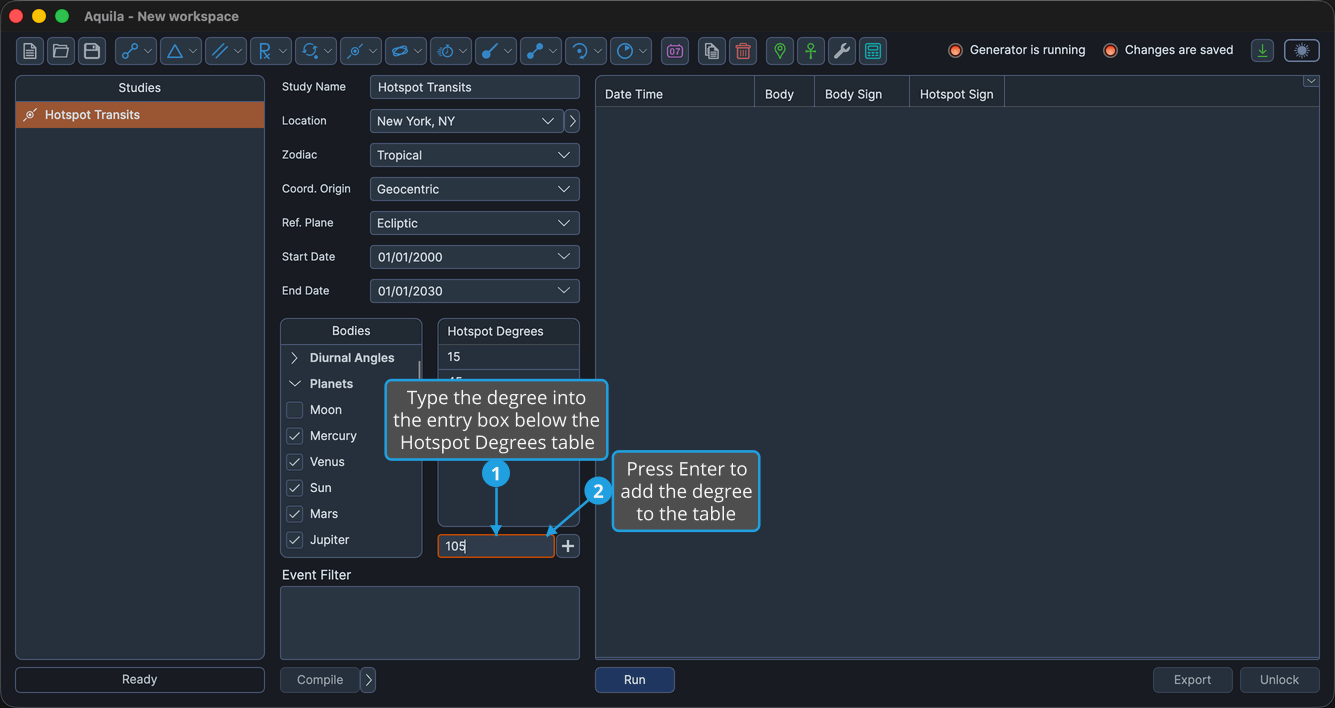
The degree appears as a new row and the entry box empties. The Add button to the right of the entry box does the same thing as pressing Enter; it is enabled only while the entry box holds a value and the study is unlocked. Text that does not parse as a number is rejected, and the entry box keeps its content.
Edit a Critical Degree
To correct or change a degree already in the list:
- Click the row in the Hotspot Degrees table to select it.
- Click the value cell in the selected row to open the editor.
- Type the new degree and press Tab or Enter to commit the edit.
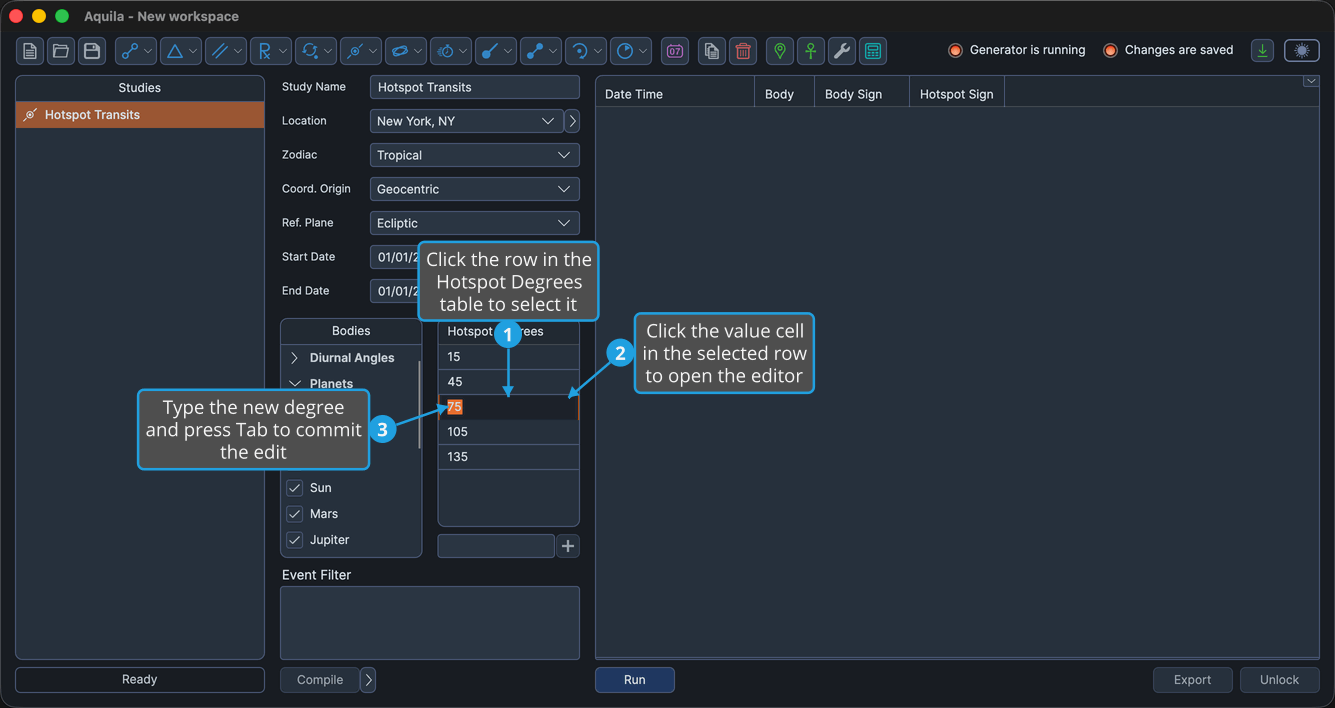
The row shows the new value, and the study watches that degree instead. The editing gesture is shared with the other numeric tables and is documented in full at Edit a Value in a Numeric Table.
Delete Selected Critical Degrees
To remove particular degrees from the list:
- Select the rows to remove in the Hotspot Degrees table.
- Open the Numeric Table Context Menu and click Delete Selected.
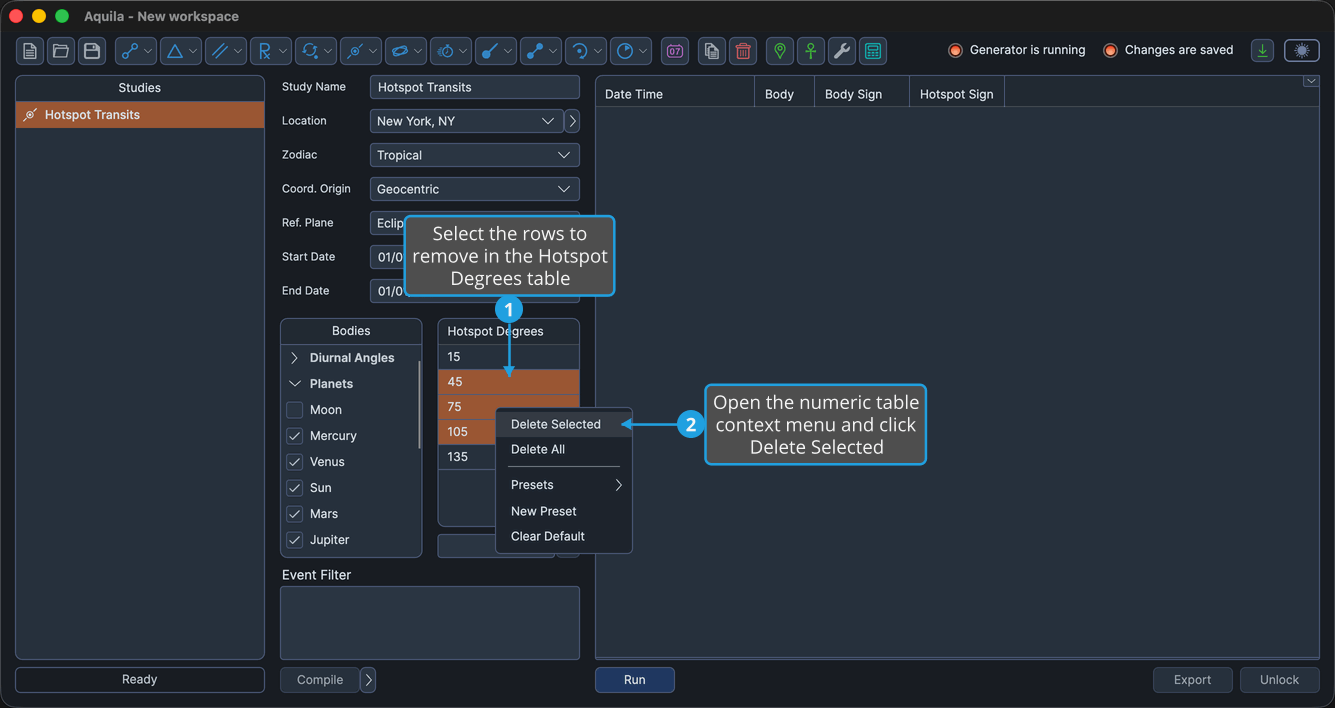
The selected rows disappear.
Extend the selection with Shift-click or Cmd-click before opening the menu to delete several rows at once. Pressing the Delete key with rows selected runs the same command without opening the menu. On Windows use Ctrl-click in place of Cmd-click.
Delete All Critical Degrees
To empty the table in one action before entering a fresh list:
- Open the Numeric Table Context Menu.
- Click Delete All in the context menu.
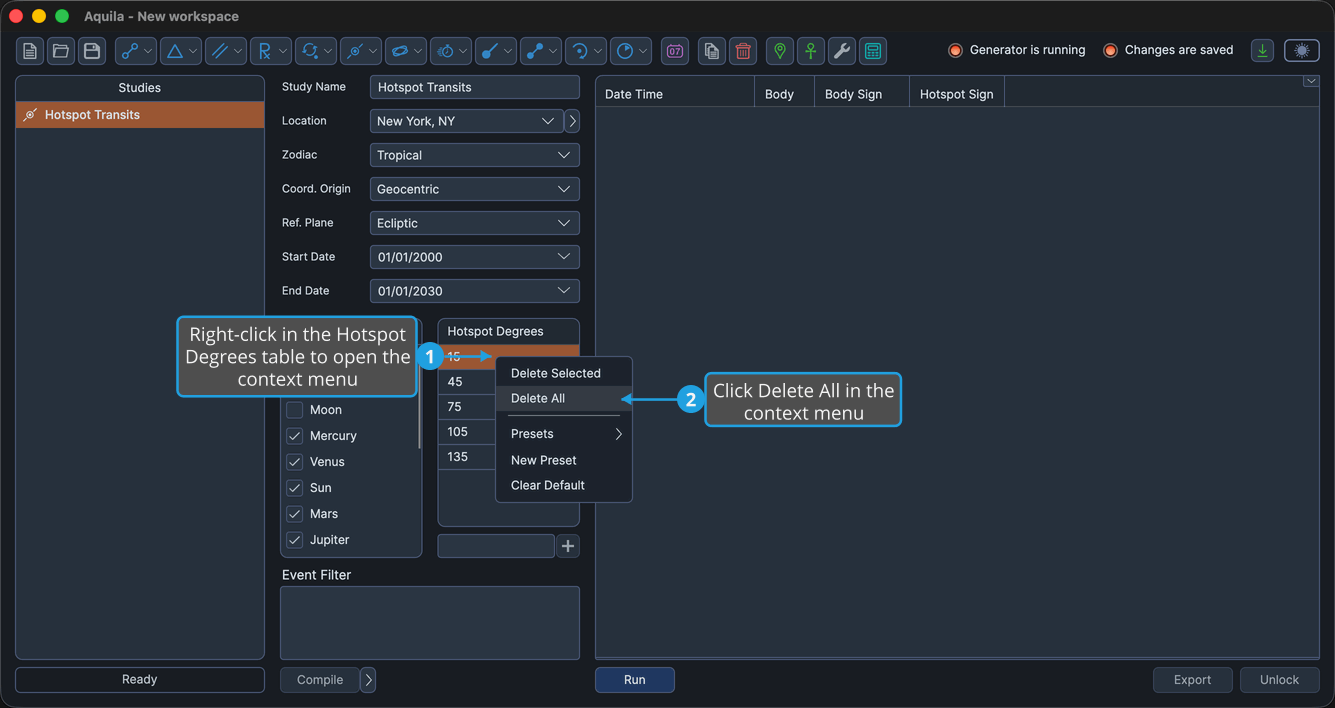
Aquila clears every row, whatever is selected.
Sort the Hotspot Degrees Table
Degrees are appended in the order they are typed. To put them in ascending numeric order:
- Click the Hotspot Degrees column header.
Aquila reorders the rows from the smallest degree to the largest. Nothing happens while the study is locked, or while the table holds one row or fewer. Right-clicking the column header opens nothing: the table's context menu opens only from the body of the table.