Event Filter Editor
A study can return far more events than anyone wants to read. The event filter narrows that output to the precise circumstance being researched, so what comes back is the handful of events that answer the question.
The Event Filter box sits at the bottom of every generator study's settings column. What goes in it is an optional boolean expression: a test that Aquila applies to every event the study finds.
How a Filter Works
For each event the study finds, Aquila evaluates the expression you have written.
- If the expression evaluates to true, the event is kept and appears in the results.
- If the expression evaluates to false, the event is discarded.
Write Moon.Latitude > 0 and the study keeps only events where the Moon sits above the ecliptic. Leave the box empty and every event the study finds is kept.
The filter is part of the study's configuration. It is saved with the study and comes back when the workspace is reopened. It has to be compiled before the study's events can be generated: see Compile Filter Script.
The box is a multi-line editor, so a long expression can be broken across several lines. It is read-only while the study is locked.
Write a Filter Expression
To write or edit the study's filter expression by hand:
- Click in the Event Filter box.
- Type the filter expression.
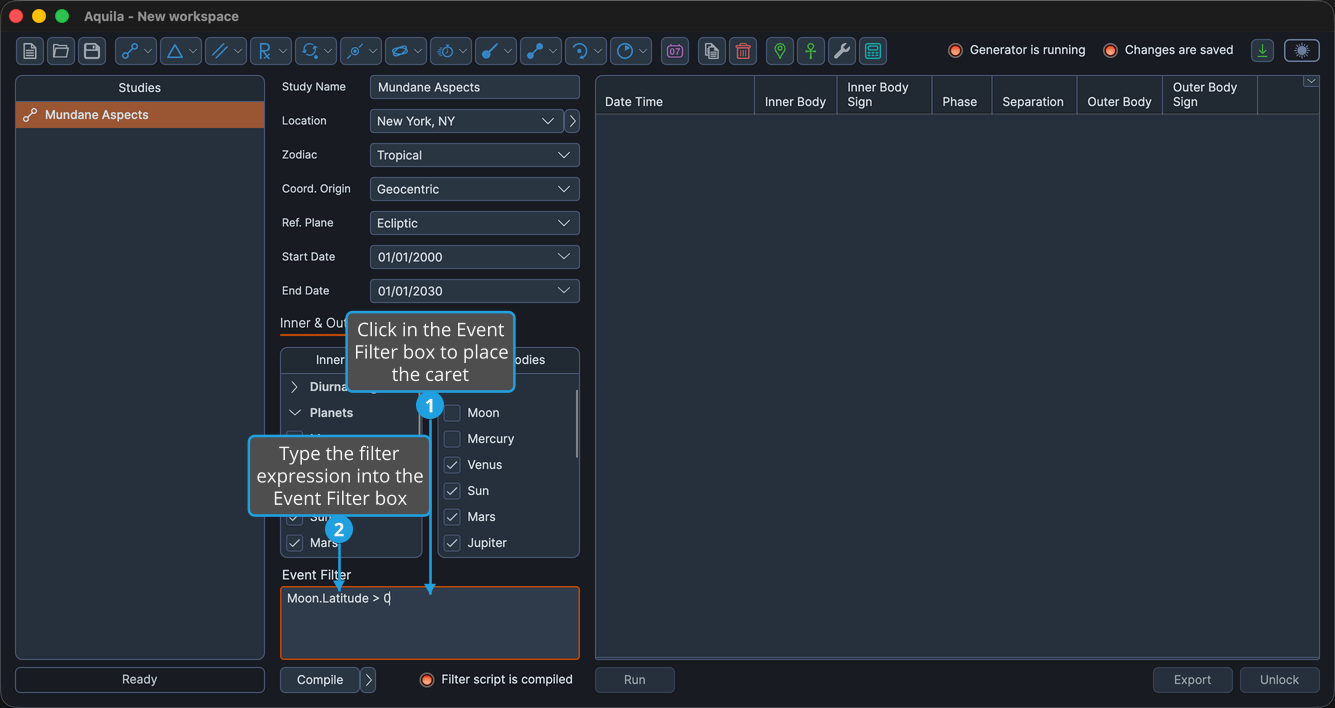
Because the text changed, the filter must be compiled again before the study's events can be generated.
Build an Expression
An expression is built from objects, their properties, operators and functions.
Objects are the celestial bodies and the zodiac signs. A body can be named outright, such as Sun, Moon or MeanNode, or referred to generically so the expression works whatever bodies the event turns out to involve.
Properties are accessed by typing the body's name, a dot, and the property name, as in Venus.Longitude.
Operators compare values and join conditions.
Functions are shortcuts that wrap a common test into a single call, so InSign(Venus, Taurus) replaces Venus.Longitude >= 30 && Venus.Longitude < 60.
Generic Bodies
A generic body token refers to whichever body filled that role in the event, rather than to one named planet. That lets a single expression work across every combination the study finds.
Which tokens make sense depends on how many bodies the study's events involve:
- Single-body studies use
BodyorBody1. - Two-body studies use
Body1for the inner body andBody2for the outer body. - Three-body studies use
Body1,Body2andBody3. - A study with an apex body, such as a Yod, numbers the apex next. The three transiting bodies are
Body1,Body2andBody3positionally, and the apex body Aquila identifies is exposed asBody4. - A study involving a natal body numbers it after the transiting bodies, apex included. On a Yod Activations study the natal body is
Body5.
The insert menu offers Body through Body3; higher-numbered tokens are typed.
Body Properties
Each body carries six positional properties. The units matter, because a comparison is only as meaningful as the number it is compared against.
| Property | What It Holds | Units |
|---|---|---|
.Longitude | The body's ecliptic longitude. | Degrees |
.Latitude | The body's ecliptic latitude. | Degrees |
.Distance | The body's distance. | Astronomical units (AU) |
.LongitudeSpeed | The body's speed in longitude. | Degrees per day |
.LatitudeSpeed | The body's speed in latitude. | Degrees per day |
.DistanceSpeed | The body's speed in distance. | AU per day |
Operators
Comparison operators test a property against a number.
| Operator | Meaning |
|---|---|
> | Greater than |
>= | Greater than or equal to |
< | Less than |
<= | Less than or equal to |
Logical operators join two conditions.
| Operator | Meaning |
|---|---|
&& | And: true only when both sides are true. |
|| | Or: true when at least one side is true. |
To find events where Mars is retrograde and more than a degree above the ecliptic, write IsRetrograde(Mars) && Mars.Latitude > 1.
Insert Syntax from the Right-Click Menu
Nothing in an expression has to be typed from memory. Right-clicking inside the Event Filter box opens an insert menu whose seven submenus supply every piece of syntax the filter language understands, spelled correctly and inserted at the caret. The box regains focus afterward, so the inserted text can be edited immediately.
| Submenu | What It Inserts |
|---|---|
| Functions | A built-in helper function, complete with sample arguments. |
| Generic Bodies | A positional body token, such as Body1. |
| Bodies | A named celestial body, such as Jupiter. |
| Body Properties | A positional property, such as .Longitude. |
| Zodiac Signs | A sign name, for use as a function argument. |
| Comparison Operators | A comparison symbol, spaced on both sides. |
| Logical Operators | A logical symbol, spaced on both sides. |
Every one of the seven top-level items is a submenu; none is a command in its own right.
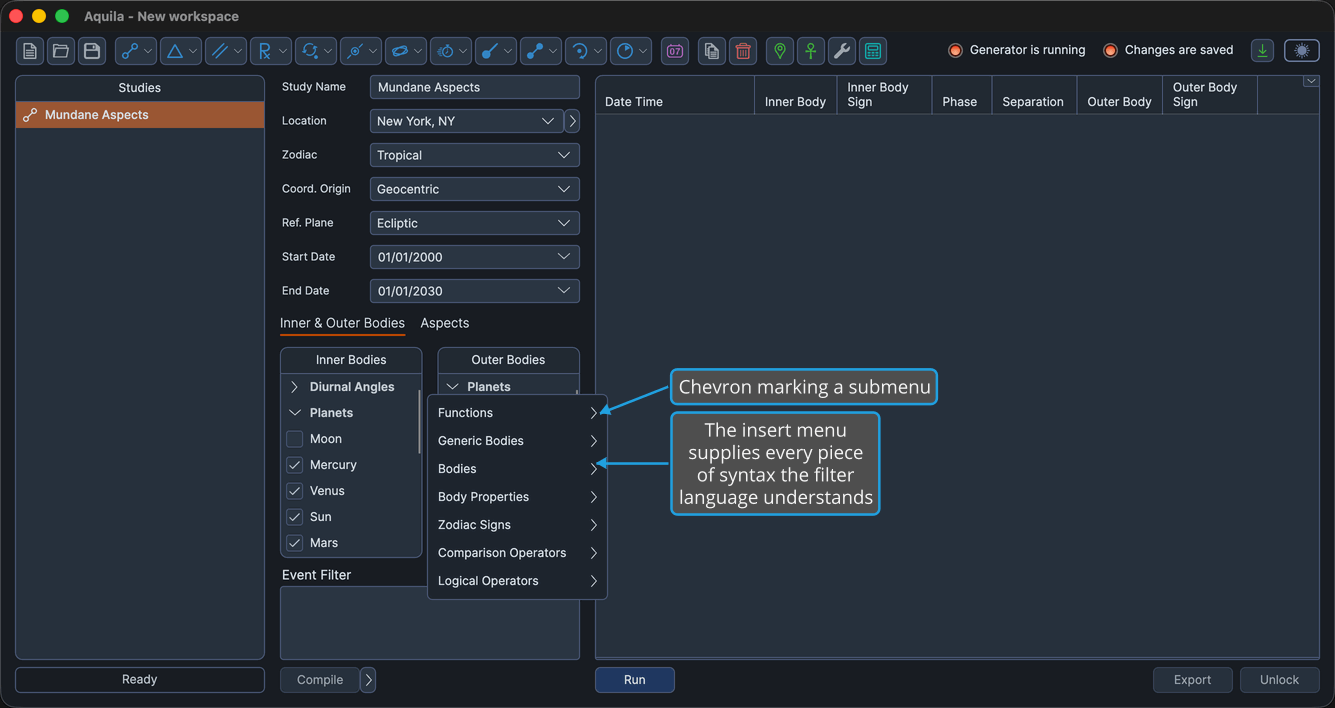
Insert a Function
To insert a built-in helper function instead of typing its name and syntax by hand:
- Click in the Event Filter box where you want the function.
- Right-click in the Event Filter box to open the insert menu.
- Click Functions in the insert menu.
- Click the function you want in the Functions submenu.
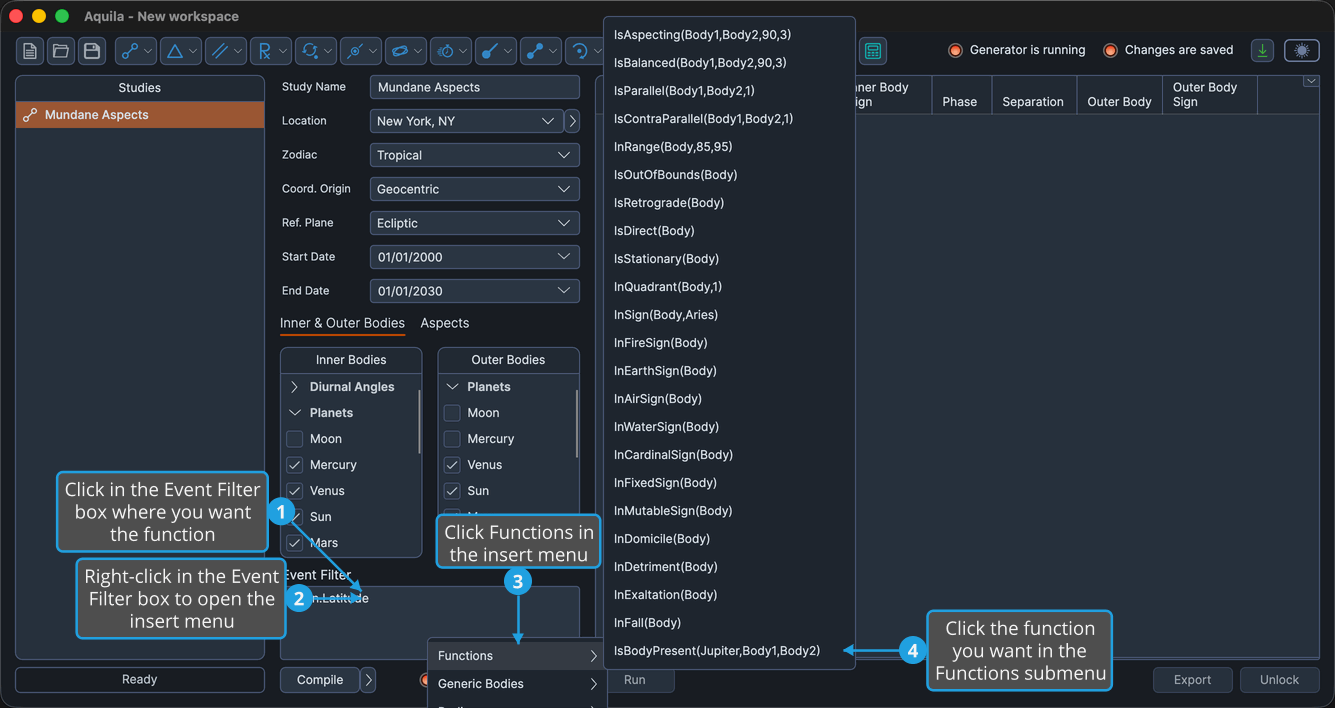
The function's sample call appears at the caret, ready for its arguments to be edited. The degree and tolerance values shown in the samples are placeholder text, not settings: change them to whatever the study needs.
| Function | What It Checks | Menu Entry |
|---|---|---|
| IsAspecting | Whether two bodies are in a given aspect, within an orb in degrees. | IsAspecting(Body1,Body2,90,3) |
| IsBalanced | Whether two bodies sit at mirror-image positions on opposite sides of a balance point, within an orb. | IsBalanced(Body1,Body2,90,3) |
| IsParallel | Whether two bodies are parallel, within a declination tolerance in degrees. | IsParallel(Body1,Body2,1) |
| IsContraParallel | Whether two bodies are contra-parallel, within a declination tolerance in degrees. | IsContraParallel(Body1,Body2,1) |
| InRange | Whether a body's longitude falls inside a degree range. | InRange(Body,85,95) |
| IsOutOfBounds | Whether a body is beyond the Sun's declination limits. | IsOutOfBounds(Body) |
| IsRetrograde | Whether a body is moving retrograde. | IsRetrograde(Body) |
| IsDirect | Whether a body is moving direct. | IsDirect(Body) |
| IsStationary | Whether a body is stationary, turning between direct and retrograde motion. | IsStationary(Body) |
| InQuadrant | Whether a body is in a given quadrant, 1 to 4, of its sign. | InQuadrant(Body,1) |
| InSign | Whether a body is in a given zodiac sign. | InSign(Body,Aries) |
| InFireSign | Whether a body is in Aries, Leo or Sagittarius. | InFireSign(Body) |
| InEarthSign | Whether a body is in Taurus, Virgo or Capricorn. | InEarthSign(Body) |
| InAirSign | Whether a body is in Gemini, Libra or Aquarius. | InAirSign(Body) |
| InWaterSign | Whether a body is in Cancer, Scorpio or Pisces. | InWaterSign(Body) |
| InCardinalSign | Whether a body is in Aries, Cancer, Libra or Capricorn. | InCardinalSign(Body) |
| InFixedSign | Whether a body is in Taurus, Leo, Scorpio or Aquarius. | InFixedSign(Body) |
| InMutableSign | Whether a body is in Gemini, Virgo, Sagittarius or Pisces. | InMutableSign(Body) |
| InDomicile | Whether a body is in its sign of domicile. | InDomicile(Body) |
| InDetriment | Whether a body is in its sign of detriment. | InDetriment(Body) |
| InExaltation | Whether a body is in its sign of exaltation. | InExaltation(Body) |
| InFall | Whether a body is in its sign of fall. | InFall(Body) |
| IsBodyPresent | Whether a named body is one of the bodies involved in the event. | IsBodyPresent(Jupiter,Body1,Body2) |
IsRetrograde, IsDirect and IsStationary describe three separate states, and exactly one of them is true for any body at any moment. A body counts as stationary while its speed sits within a hair's breadth of zero, at the turn between direct and retrograde motion, which means a stationary body is not direct. To select everything that is not retrograde, write IsDirect(Body) || IsStationary(Body). The distinction matters most on station events, where the body is stationary by definition.
Insert a Generic Body
To insert a positional body token so the expression refers to whichever bodies the event involves:
- Click in the Event Filter box where you want the token.
- Right-click in the Event Filter box to open the insert menu.
- Click Generic Bodies in the insert menu.
- Click the token you want in the Generic Bodies submenu.
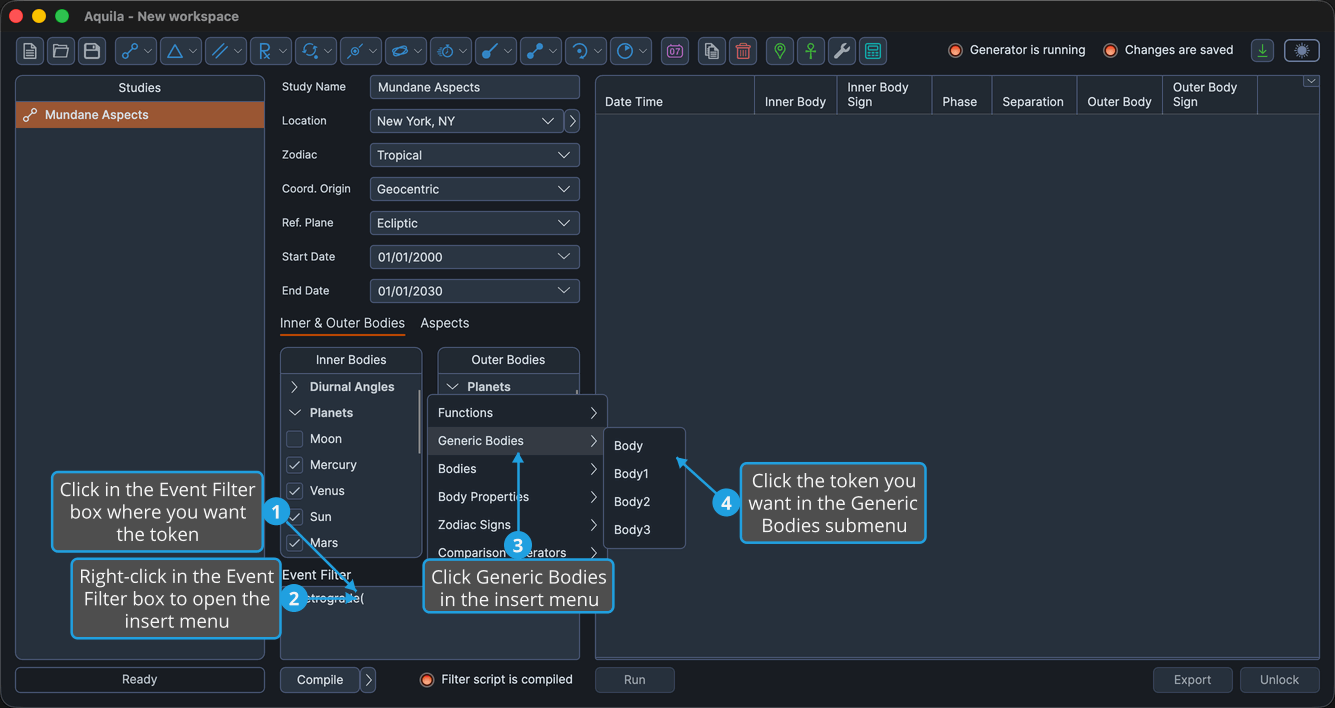
The submenu offers four tokens: Body, Body1, Body2 and Body3.
Insert a Named Body
To insert a named celestial body so the expression tests one specific body:
- Click in the Event Filter box where you want the body name.
- Right-click in the Event Filter box to open the insert menu.
- Click Bodies in the insert menu.
- Click the body you want in the Bodies submenu.
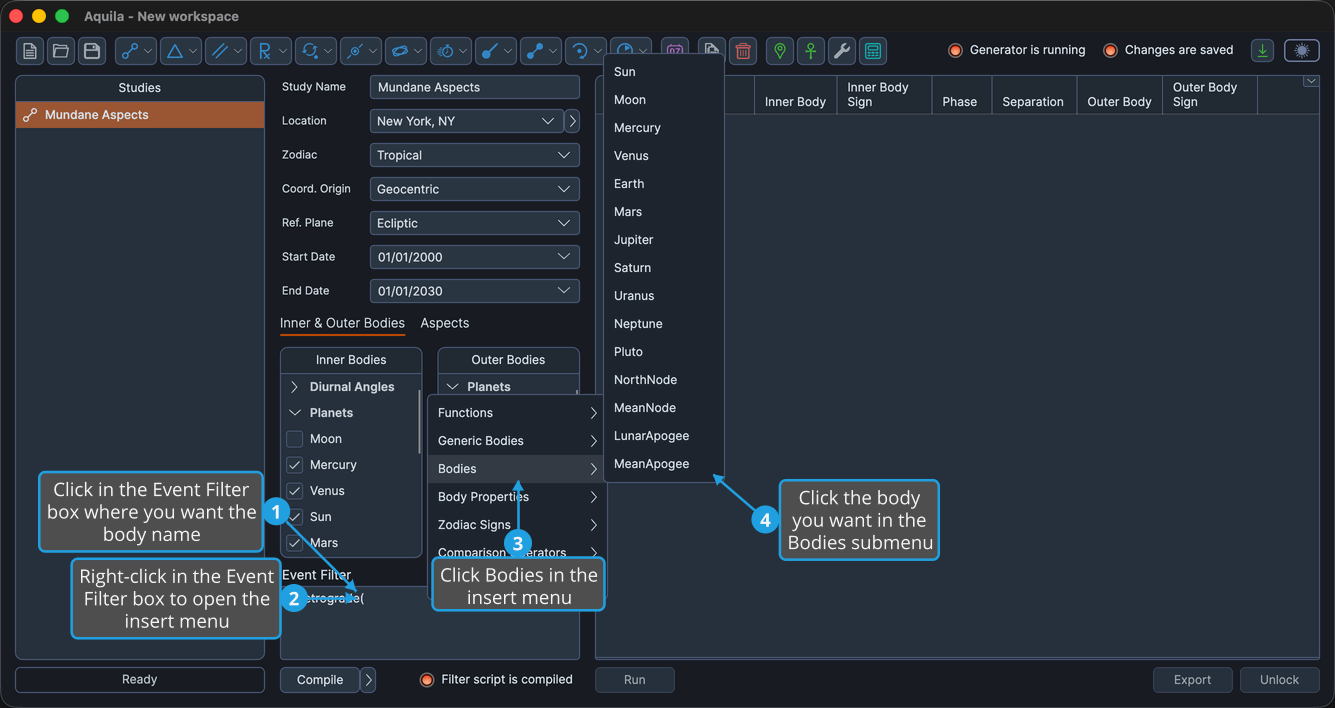
The submenu offers fifteen names, in this order: Sun, Moon, Mercury, Venus, Earth, Mars, Jupiter, Saturn, Uranus, Neptune, Pluto, NorthNode, MeanNode, LunarApogee and MeanApogee.
This is the filter editor's own fixed insert list. It is narrower than the body set the Bodies Selection List offers, and it does not change with what the study has selected.
Insert a Body Property
To append a positional property to a body token:
- Click in the Event Filter box immediately after the body token the property belongs to.
- Right-click in the Event Filter box to open the insert menu.
- Click Body Properties in the insert menu.
- Click the property you want in the Body Properties submenu.
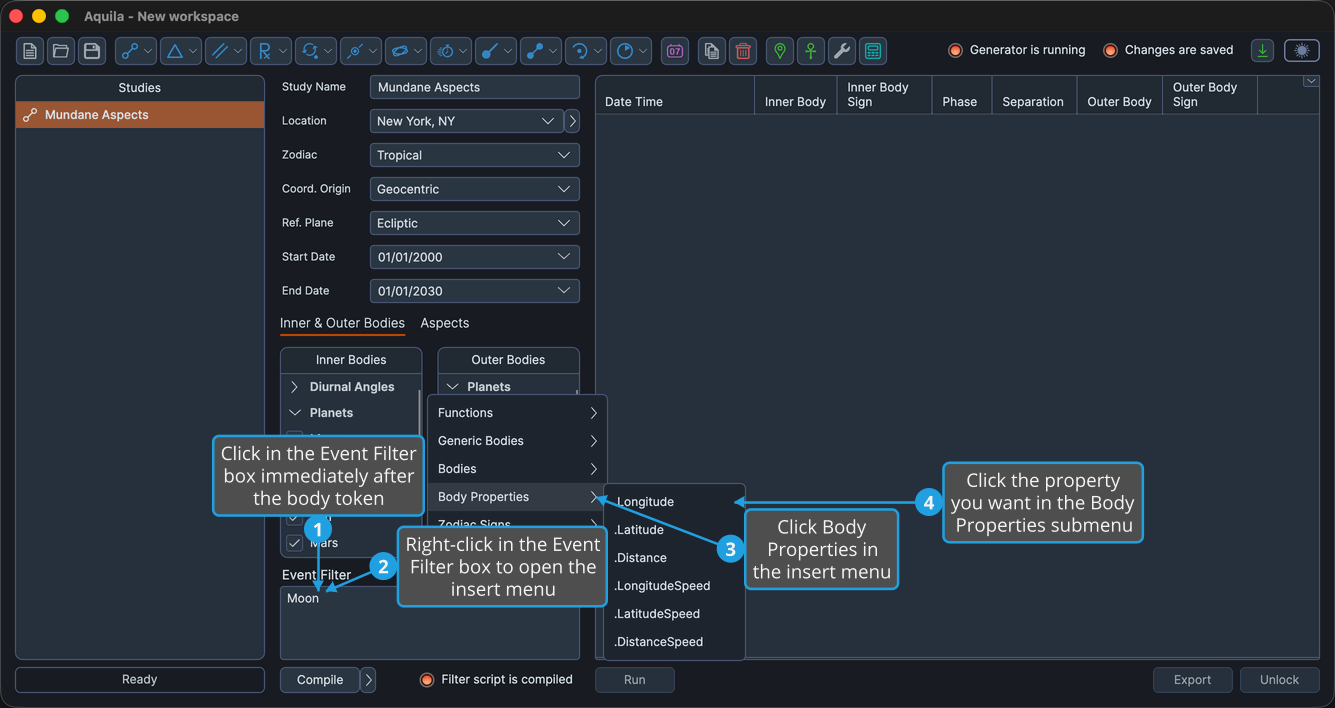
The submenu offers the six properties listed under Body Properties above. Each begins with a literal dot, because the item is inserted directly after a body token.
Insert a Zodiac Sign
To insert a sign name as the argument of a sign test such as InSign(Body,Aries):
- Click in the Event Filter box where you want the sign name.
- Right-click in the Event Filter box to open the insert menu.
- Click Zodiac Signs in the insert menu.
- Click the sign you want in the Zodiac Signs submenu.
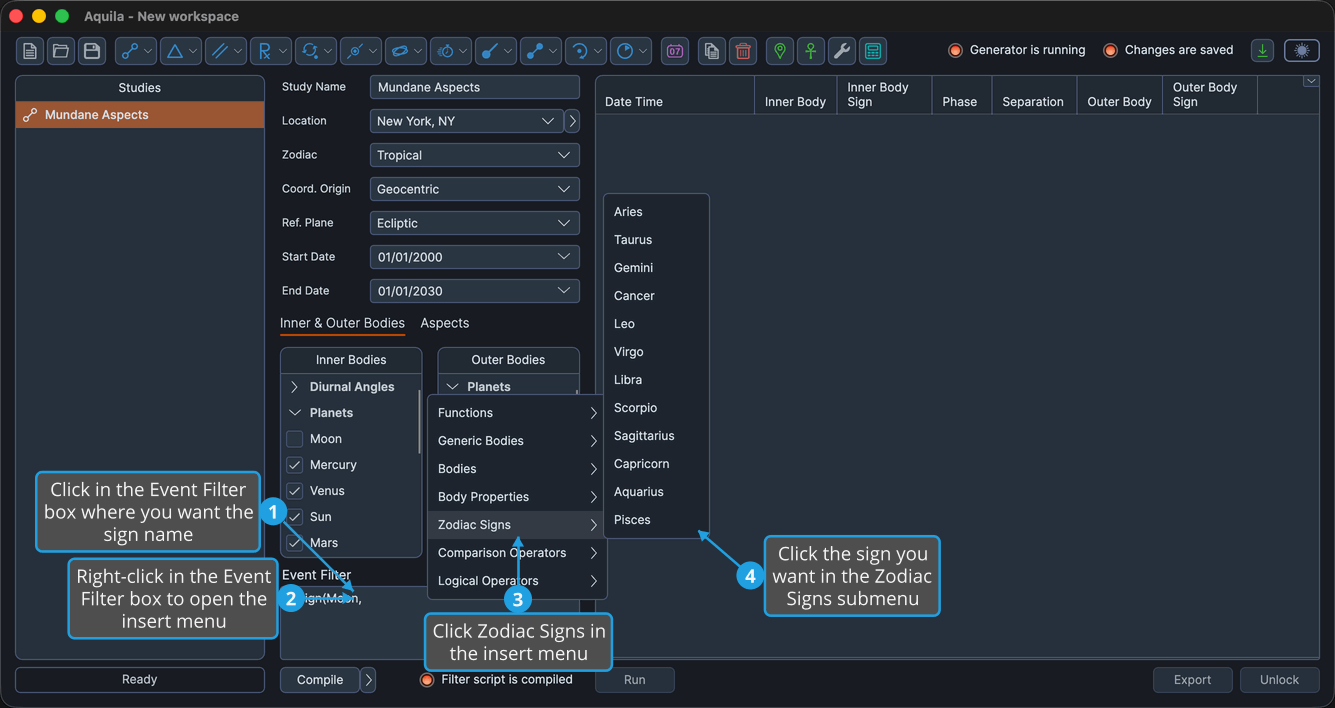
The submenu lists the twelve signs in zodiacal order: Aries, Taurus, Gemini, Cancer, Leo, Virgo, Libra, Scorpio, Sagittarius, Capricorn, Aquarius and Pisces.
Insert a Comparison Operator
To insert a comparison operator so a body property can be tested against a number:
- Click in the Event Filter box where you want the operator.
- Right-click in the Event Filter box to open the insert menu.
- Click Comparison Operators in the insert menu.
- Click the operator you want in the Comparison Operators submenu.
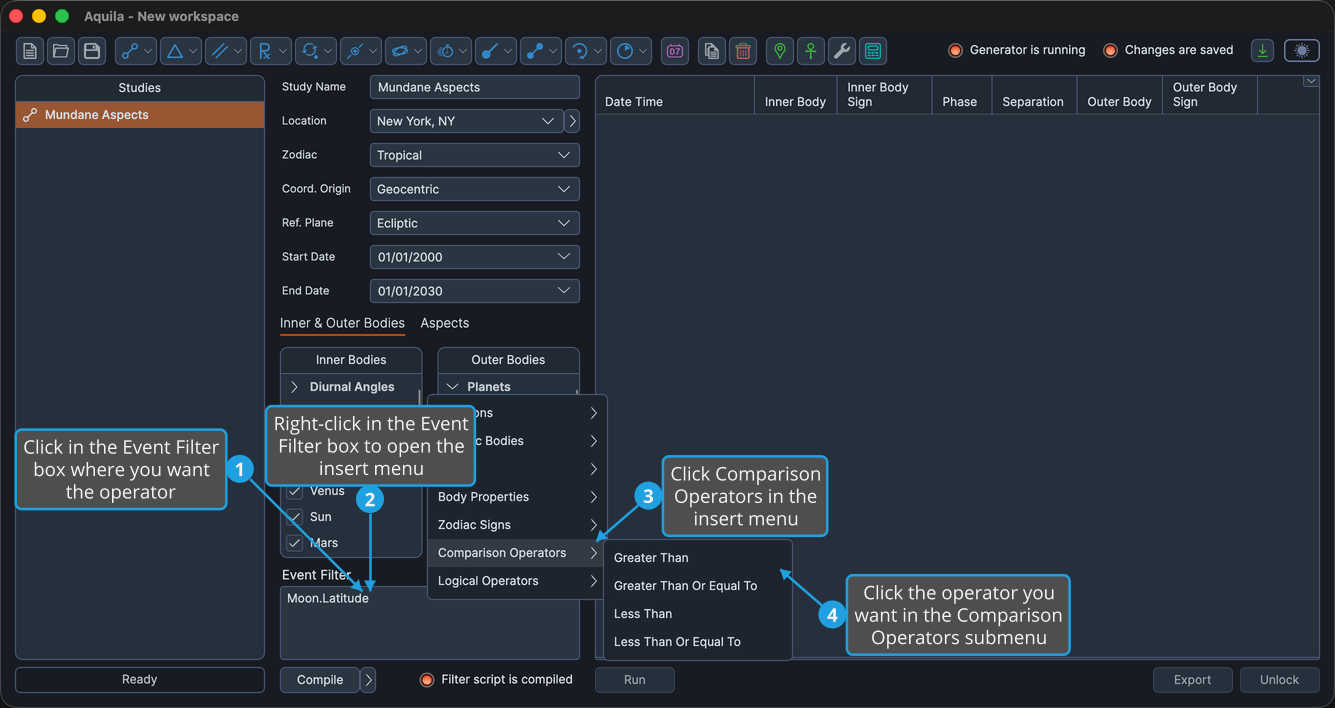
The submenu names the operators in words; the symbol is what lands in the box, spaced on both sides.
| Menu Entry | Symbol Inserted |
|---|---|
| Greater Than | > |
| Greater Than Or Equal To | >= |
| Less Than | < |
| Less Than Or Equal To | <= |
Insert a Logical Operator
To join two conditions in the expression:
- Click in the Event Filter box between the two conditions you want to join.
- Right-click in the Event Filter box to open the insert menu.
- Click Logical Operators in the insert menu.
- Click the operator you want in the Logical Operators submenu.
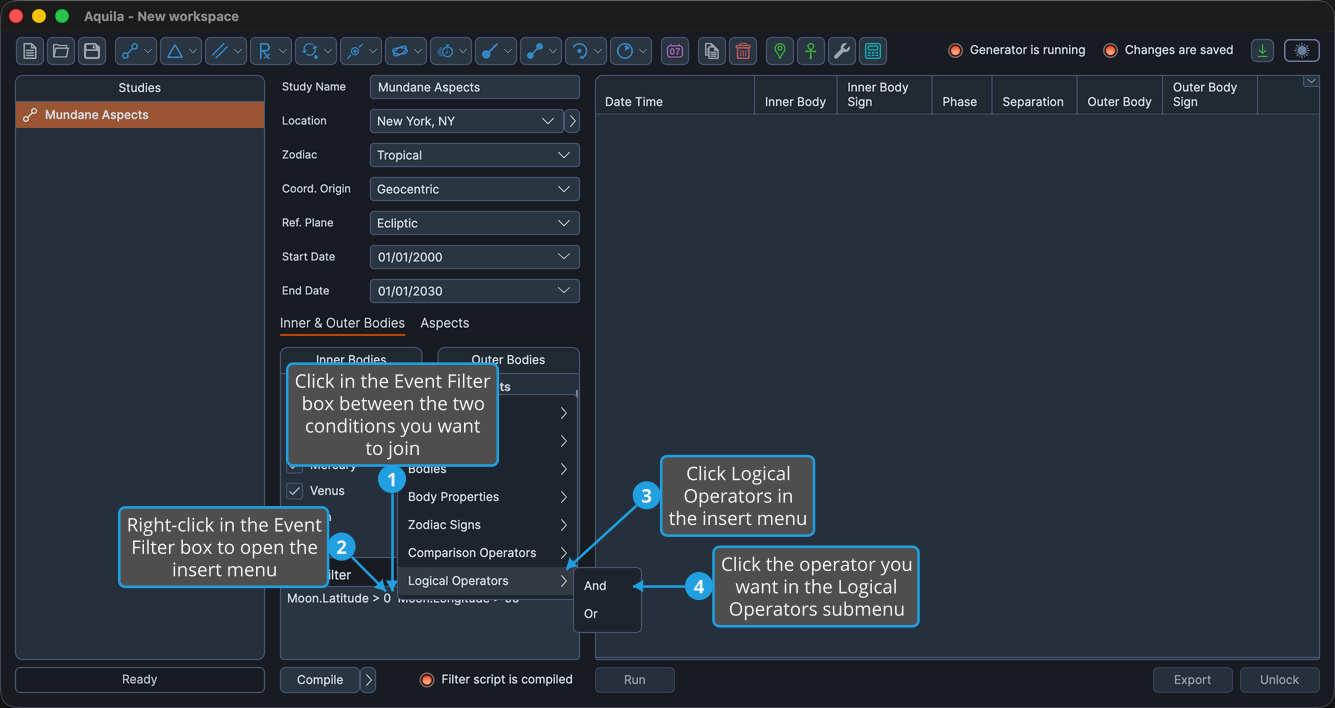
As with the comparison operators, the menu names the operator in words and inserts the symbol, spaced on both sides.
| Menu Entry | Symbol Inserted | Meaning |
|---|---|---|
| And | && | True only when both sides are true. |
| Or | || | True when at least one side is true. |
Replace Selected Text from the Insert Menu
An inserted function arrives with placeholder arguments, and swapping one of them for a real body is the commonest edit there is. The insert menu overwrites a selection rather than adding alongside it, so a placeholder can be replaced in the same gesture that would otherwise insert.
To swap the Body1 in IsRetrograde(Body1) for a named body:
- Drag across the placeholder text in the Event Filter box to select it.
- Right-click the selection to open the insert menu.
- Click Bodies in the insert menu.
- Click the replacement body in the Bodies submenu.
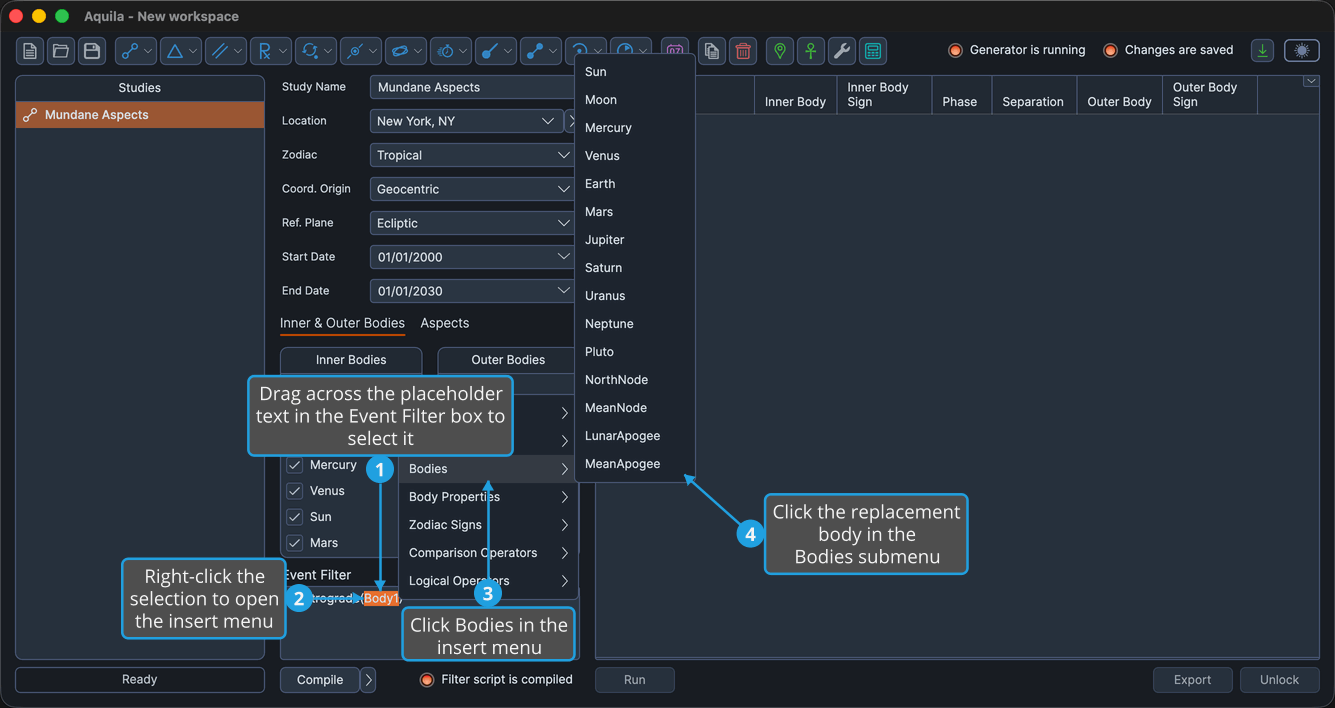
The chosen item's text replaces the highlighted text. Replacement is not specific to the Bodies submenu: any of the seven submenus can supply the replacement, and whatever the clicked item carries overwrites the selection.