Aspects Table
The Aspects table is an editable numeric table of cycle angles, in degrees, that you define yourself. When you generate events, the study records an event each time the cycle angle between two bodies matches a listed value exactly. There is no orb on these values: an event fires only on an exact cycle-angle match.
The column is labeled Aspects on mundane aspect studies and Transiting Aspects on transit aspect and activation studies, but the table works the same way in both.
Table Columns
| Column | Description |
|---|---|
| Aspects / Transiting Aspects | A cycle angle in degrees that you enter. The heading reads Aspects on mundane aspect studies and Transiting Aspects on transit aspect and activation studies. |
Adding, Editing, and Removing Values
Below the table is an entry box with an Add button. Type a value into the box and add it to the table. The Add button is enabled only when the entry box contains a value and the study is unlocked.
The Aspects table shares the numeric-table controls used throughout Aquila, so the gestures below apply equally to the Hotspot Degrees table and the Arcs table.
Add a Numeric Table Value
To add a value to the table:
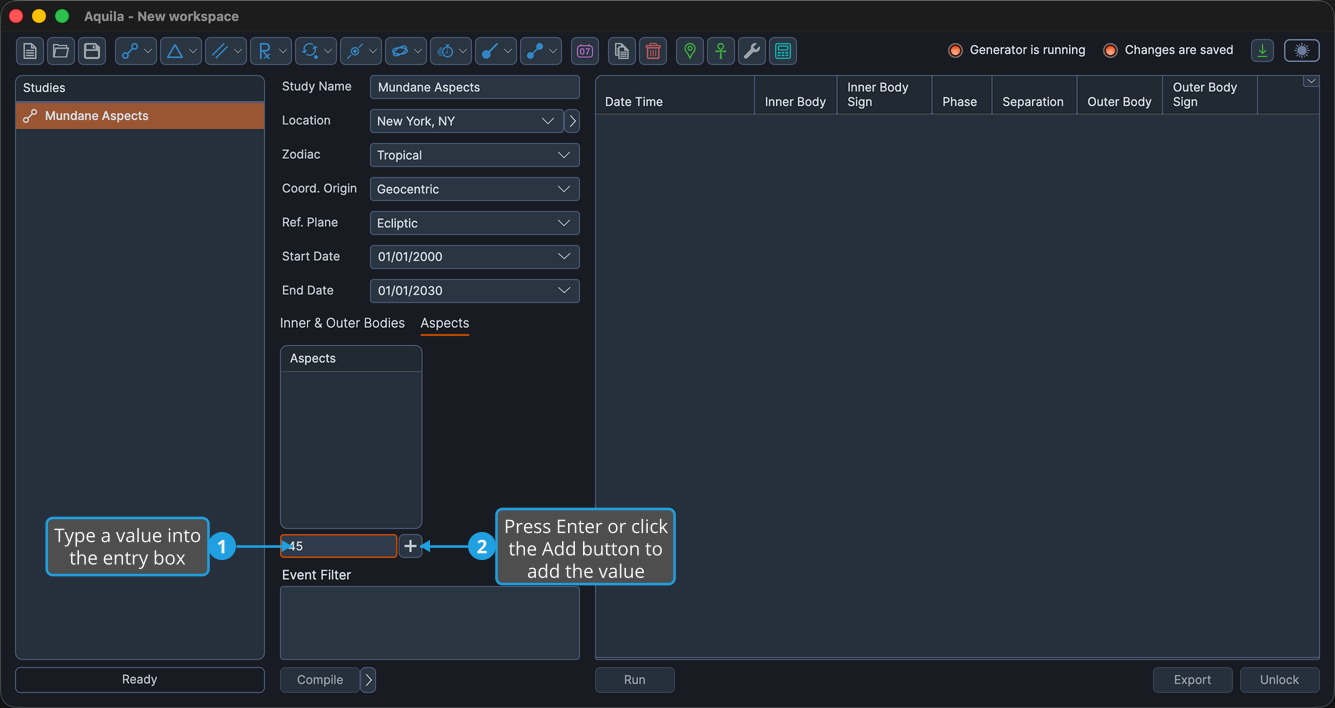
- Type a value into the entry box below the table.
- Press Enter, or click the Add button, to add the value to the table.
The value appears as a new row and the entry box clears, ready for the next value.
Edit a Numeric Table Value
To change an existing value:
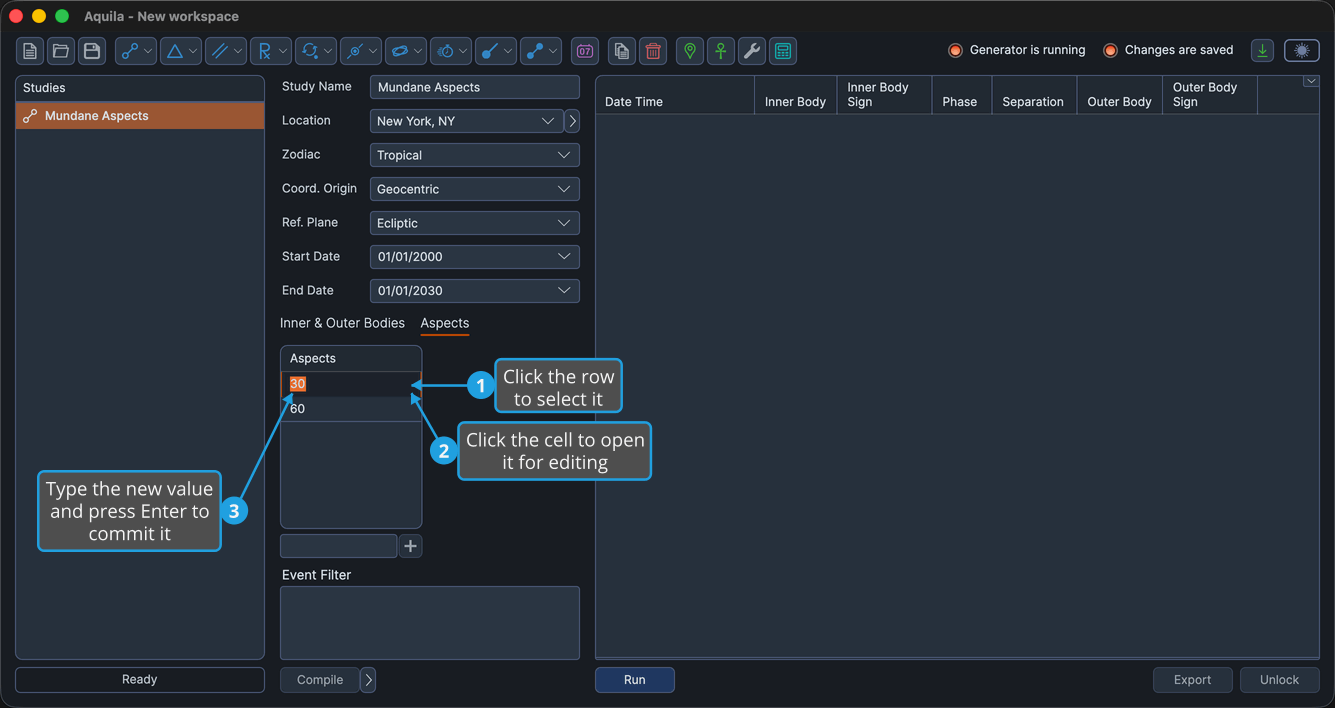
- Click the row containing the value to select it.
- Click the cell to open it for editing.
- Type the new value, then press Enter to commit it.
Editing a value is a single-click gesture: select the row, then click the cell. You do not need to double-click.
Delete Selected Numeric Table Values
To remove one or more values:
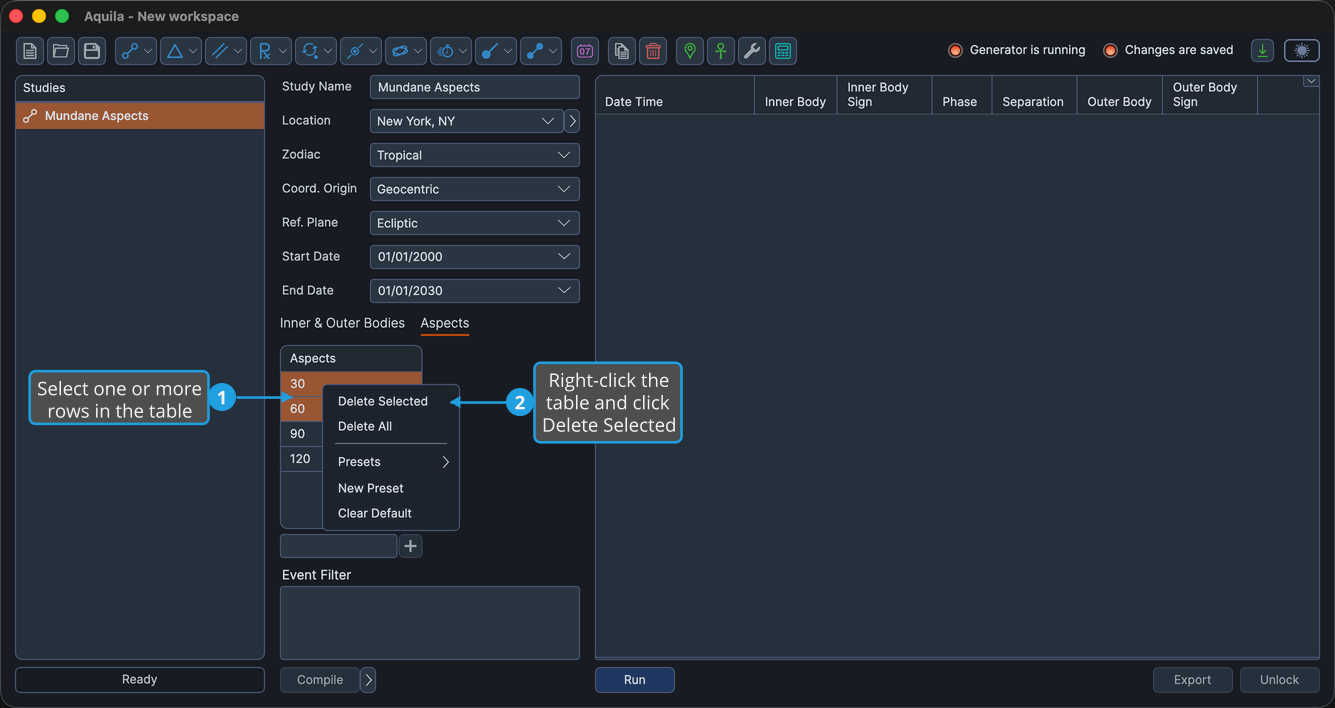
- Select one or more rows in the table.
- Right-click the table and select Delete Selected, or press Delete.
The selected rows are removed from the table.
Delete All Numeric Table Values
To empty the table at once:
- Right-click the table and select Delete All.
Saving Value Sets as Presets
You can save a table's values as a named preset and reload them into any numeric table later. See Numeric Table Presets for the full workflow.