Generate Events
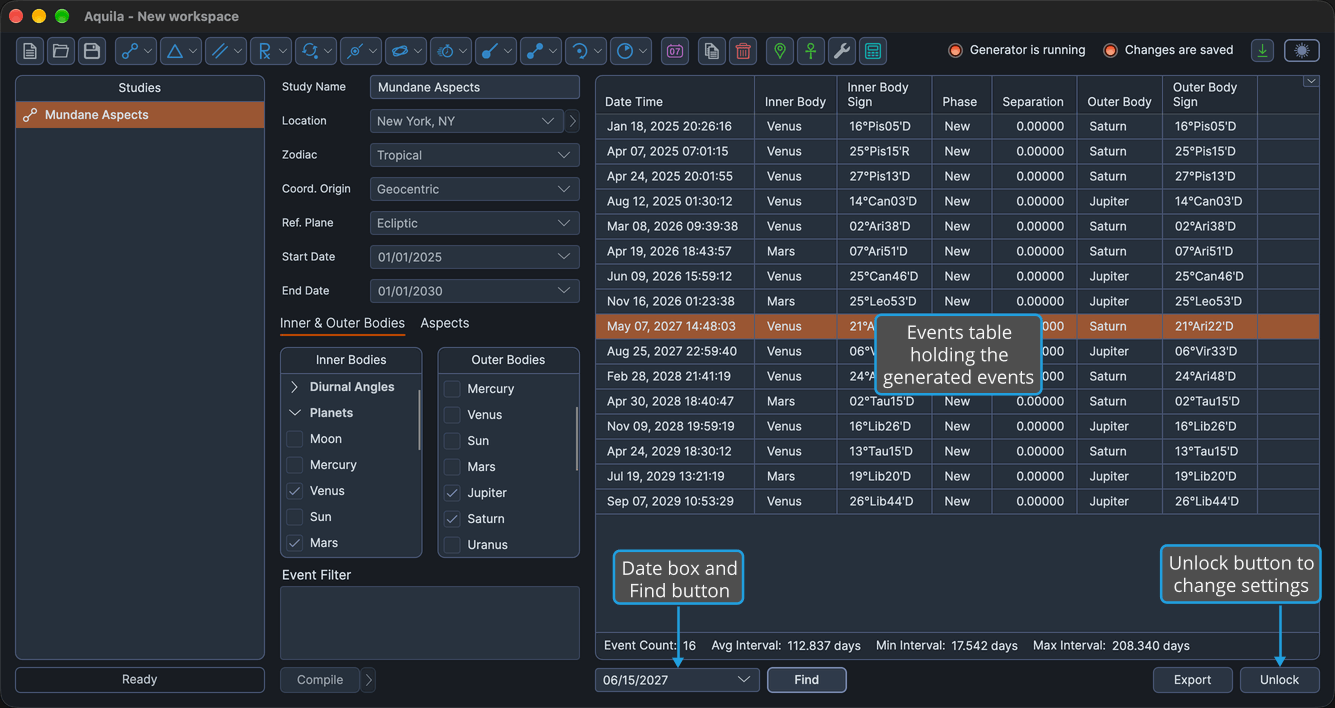
Once a study is configured, you generate the events it describes. Click Run below the study's events table, and Aquila searches the study's date range for its events and shows its progress as it goes. When the search finishes, the events fill the study's events table.
Before You Generate Events
The Run button is enabled only when:
- The study's required settings are defined, a location among them.
- The study's Event Filter is empty or compiled (Compile Filter Script).
- The study is not already generating events or compiling its filter.
- The study is unlocked. Run is hidden while a study that has generated its events is locked (Unlock Study).
A location is required for geocentric and heliocentric studies alike, because Aquila dates and displays every event in the time zone of the study's location. Choose it in the study's Ephemeris Settings.
Generate a Study's Events
Search the study's date range for the events its settings describe.
- Open the study (Open an Event Generator Study).
- Click Run at the bottom left of the events area.
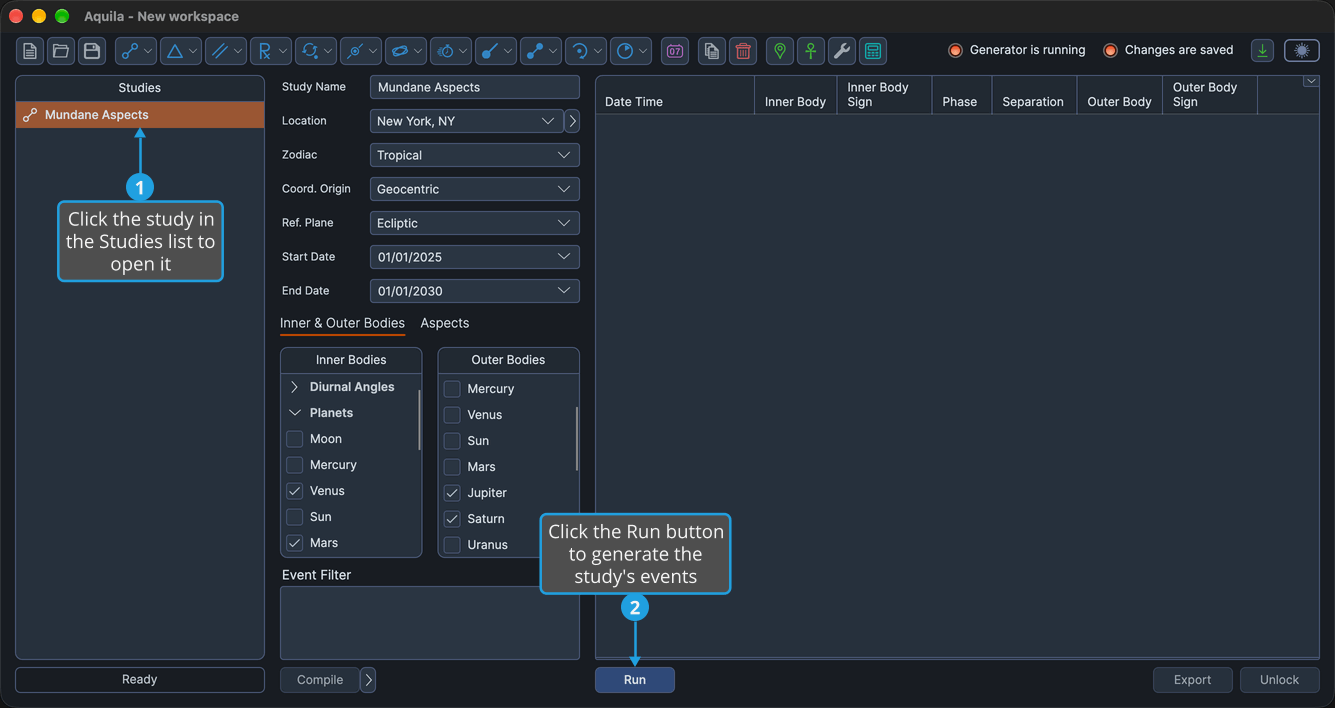
Aquila locks the study's settings and starts the search. To stop it before it finishes, cancel the generation (Cancel Generation).
What Happens During Generation
While the study generates its events:
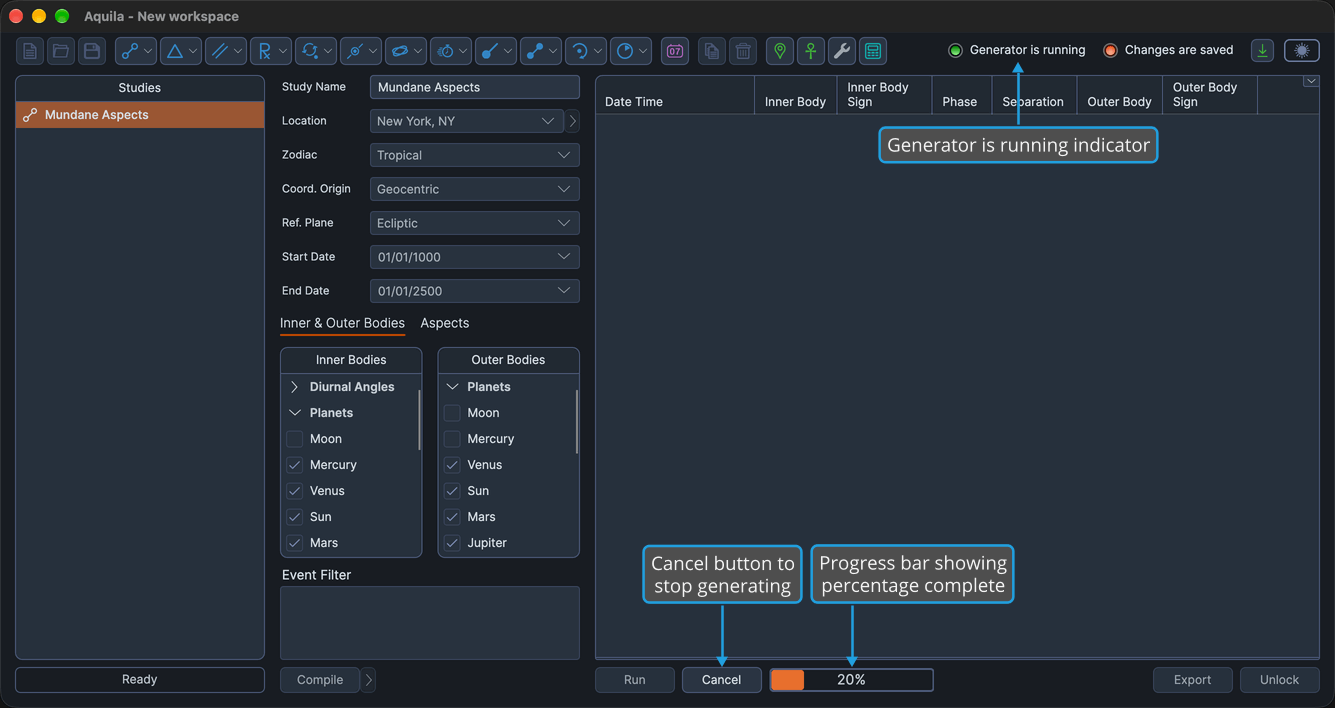
- The study's settings are locked.
- A progress bar below the events table shows the percentage complete, with a Cancel button beside it.
- The main window's Generator is running indicator turns green (Status Indicators).
When Generation Finishes
When the search completes:
- The events fill the study's events table (Events Table).
- The Run button is hidden.
- The Find controls appear (Find Event by Date).
The Run button reappears when you unlock the study (Unlock Study), so you can change its settings and generate its events again.