Reorder Studies
List your studies in an order that is meaningful to you. Drag a study up or down the Studies List and drop it where it belongs, or click it and press Option+Up (Alt+Up on Windows) or Option+Down (Alt+Down on Windows).
You need at least two studies in the workspace to change their order. The moved study stays selected, and the new order is an unsaved change to the workspace: to keep it, save the workspace (see Save Workspace).
Drag a Study to a New Position
To move a study to any position in the Studies list:
- Drag the study in the Studies list to its new position.
- Release the mouse button to drop the study.
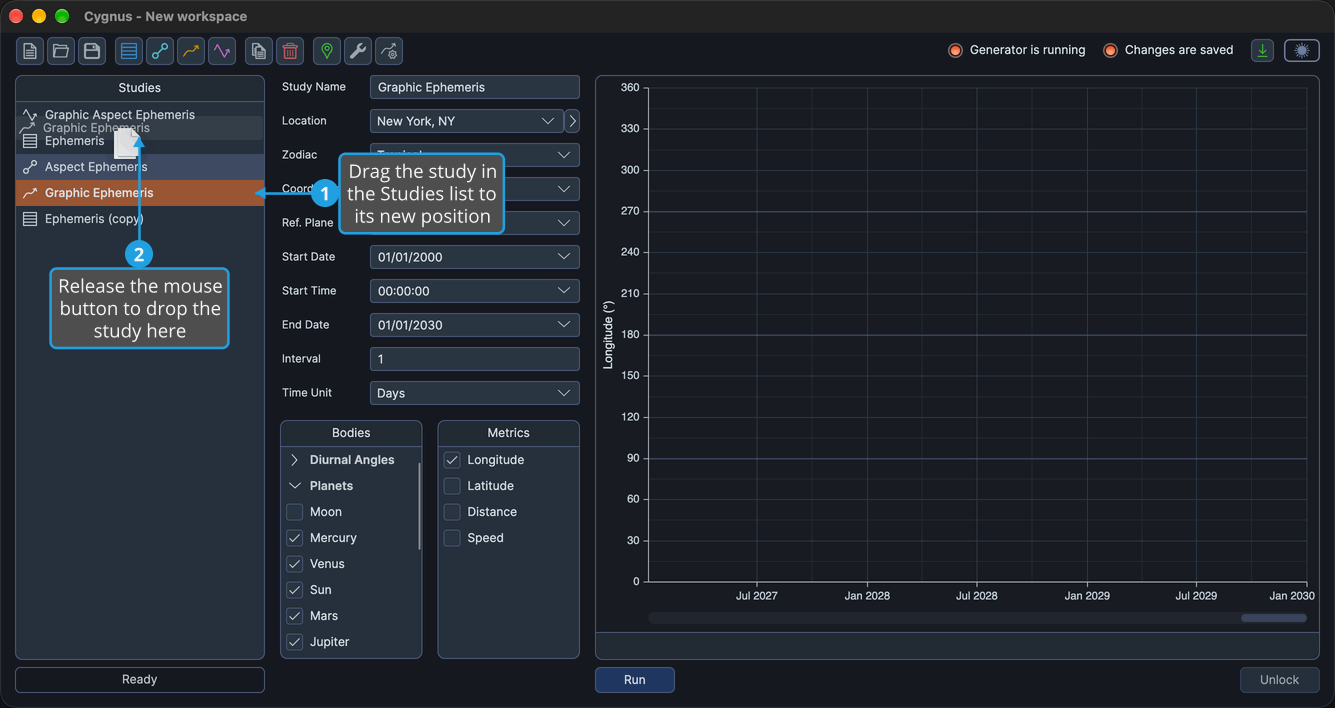
The drag begins once the pointer has moved a few pixels with the left mouse button held down. While you drag, a translucent copy of the study's row, showing its icon and name, follows the pointer. When you release the button, the study takes its new position and stays selected.
Move a Study Up
To move a study up one place in the Studies list:
- Click the study you want to move in the Studies list.
- Press Option+Up (Alt+Up on Windows).
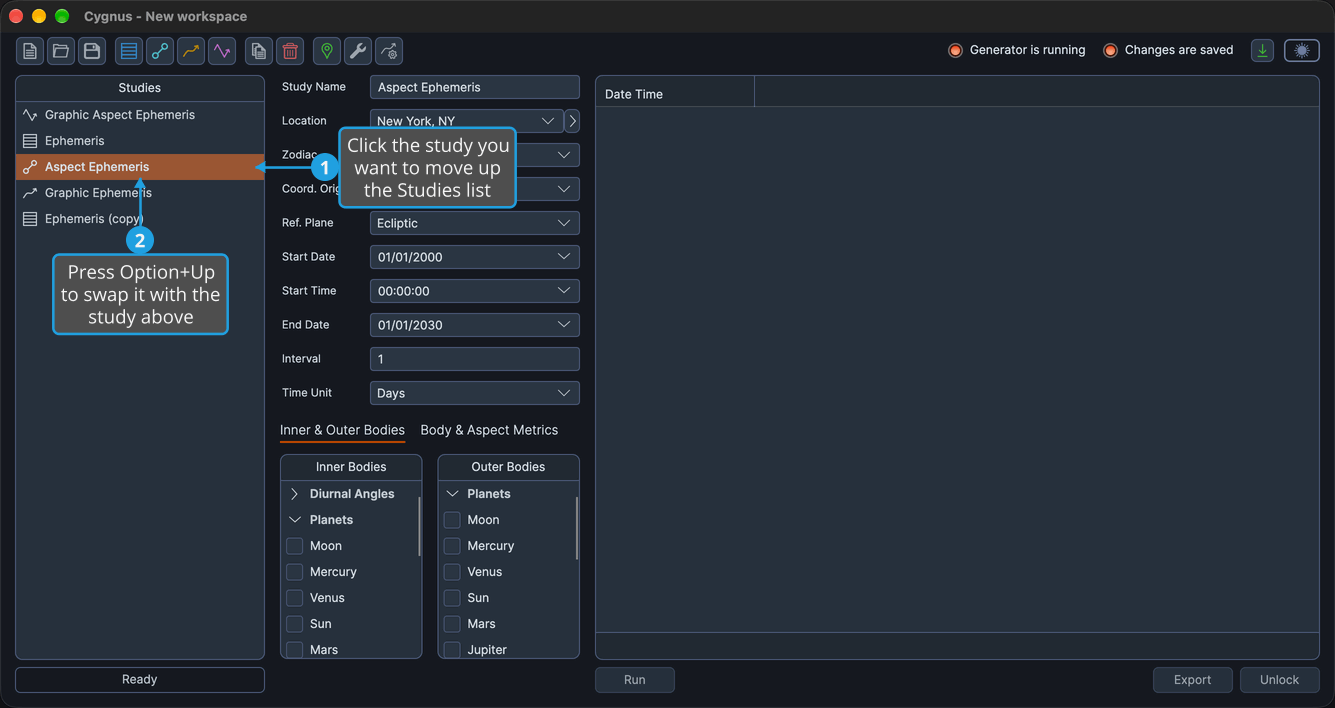
The study changes places with the study above it and stays selected, so you can press the shortcut again to move it further. The shortcut has no effect on the first study in the list.
Move a Study Down
To move a study down one place in the Studies list:
- Click the study you want to move in the Studies list.
- Press Option+Down (Alt+Down on Windows).
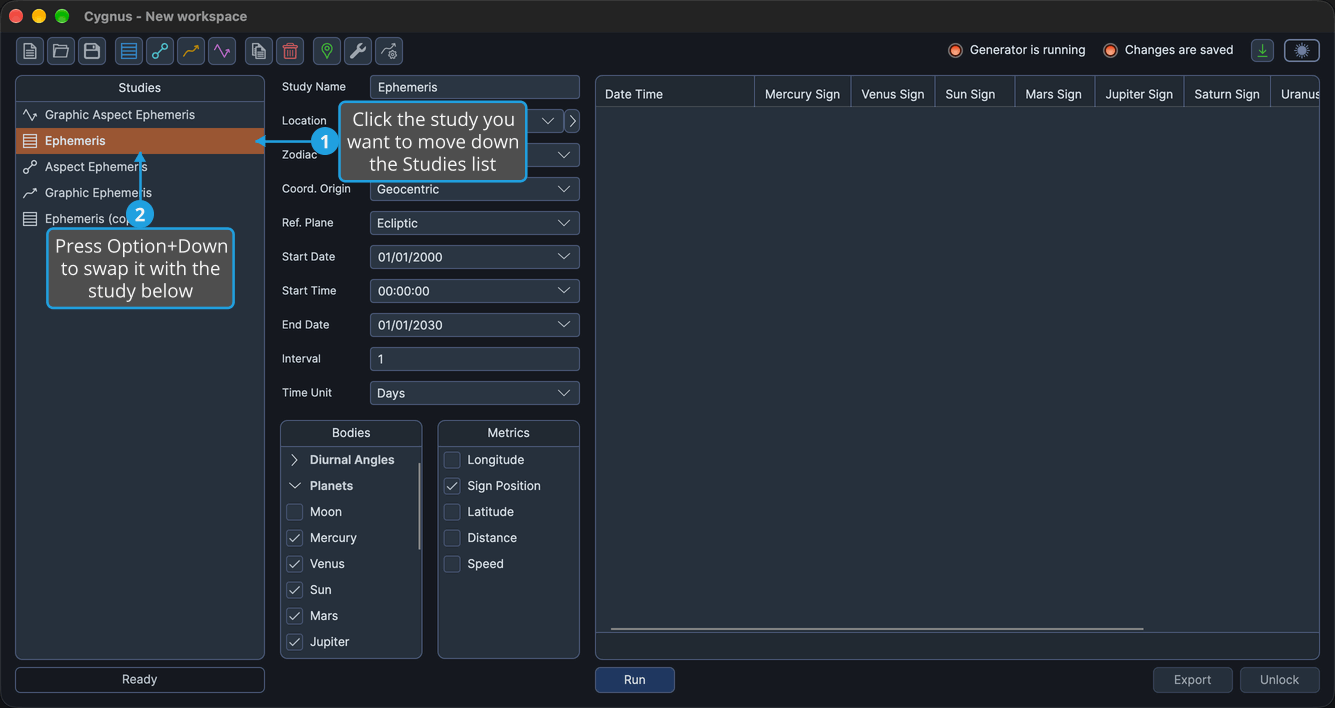
The study changes places with the study below it and stays selected, so you can press the shortcut again to move it further. The shortcut has no effect on the last study in the list.
Related Topics
- Studies List: see and select the studies of the workspace.
- Create Study: add a new study at the bottom of the list.
- Copy Study: add a copy of a study at the bottom of the list.
- Save Workspace: keep the new order.