Save Workspace
Keep your studies and their results so you can return to them later or keep several versions. Choose File → Save, click the Save button on the Toolbar or press Cmd+S (Ctrl+S on Windows); the first save asks for a file name. Choose File → Save As to save under a new name or location.
A saved workspace holds every study's settings and generated results, and the workspace defaults. The workspace takes the name of its .cygnus file, shown in the title bar, and saving turns the Changes are saved indicator green (see Status Indicators).
| Command | Shortcut | Description |
|---|---|---|
| Save | Cmd+S (Ctrl+S on Windows) | Writes to the workspace's current .cygnus file, and asks for a file name the first time. Available only while the workspace has unsaved changes. |
| Save As | None | Always asks for a new file name and location. Available whether or not the workspace has unsaved changes. |
Neither command is available while a workspace is being loaded or saved or while a study is generating.
Save the Workspace
Save the changes to a workspace that already has a .cygnus file, because it was opened from one or saved to one before.
- Open the File menu (see Open the File Menu).
- Click Save.
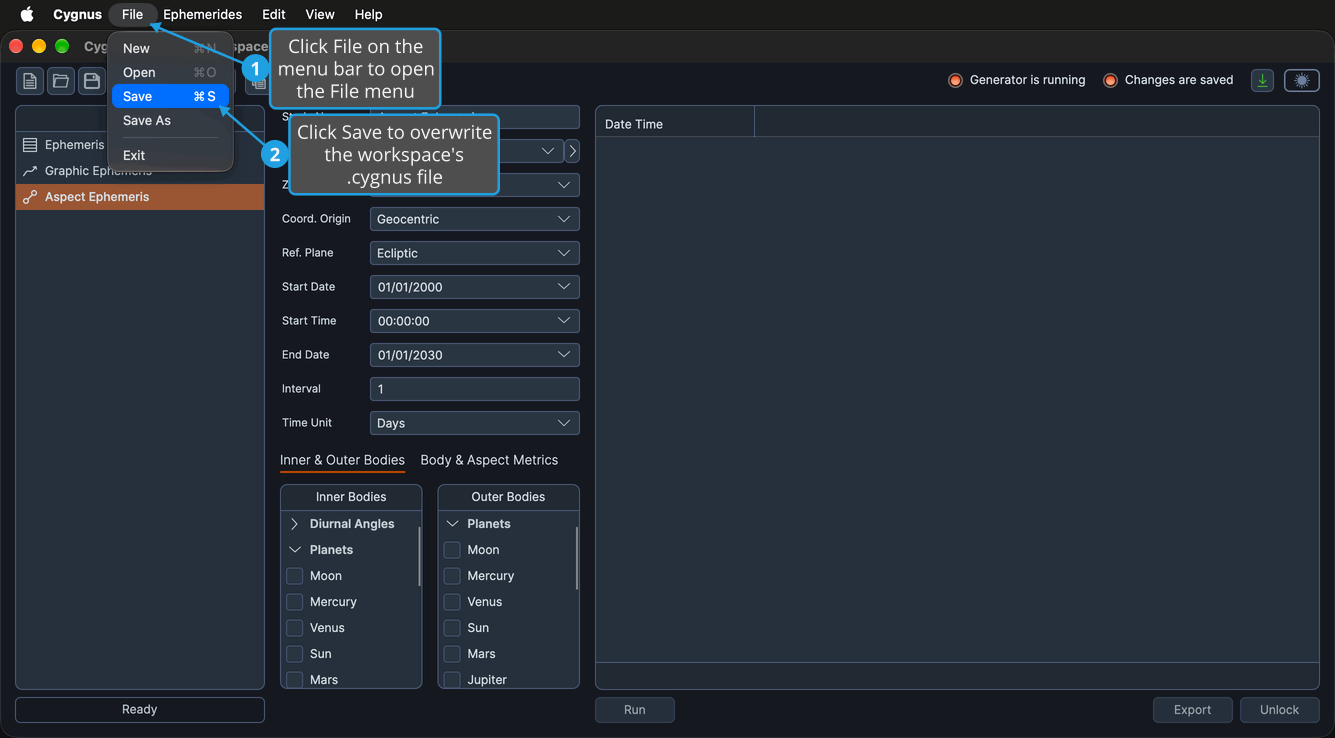
Cygnus overwrites the workspace's .cygnus file with the current workspace, and the Changes are saved indicator turns green. You can also click the Save button on the toolbar or press Cmd+S (Ctrl+S on Windows).
Save a New Workspace for the First Time
A workspace that has never been saved has no .cygnus file yet, so its first save asks for a file name and location.
- Open the File menu (see Open the File Menu).
- Click Save.
- Choose the file name and location in the save dialog (see Save a File in the Save Dialog).
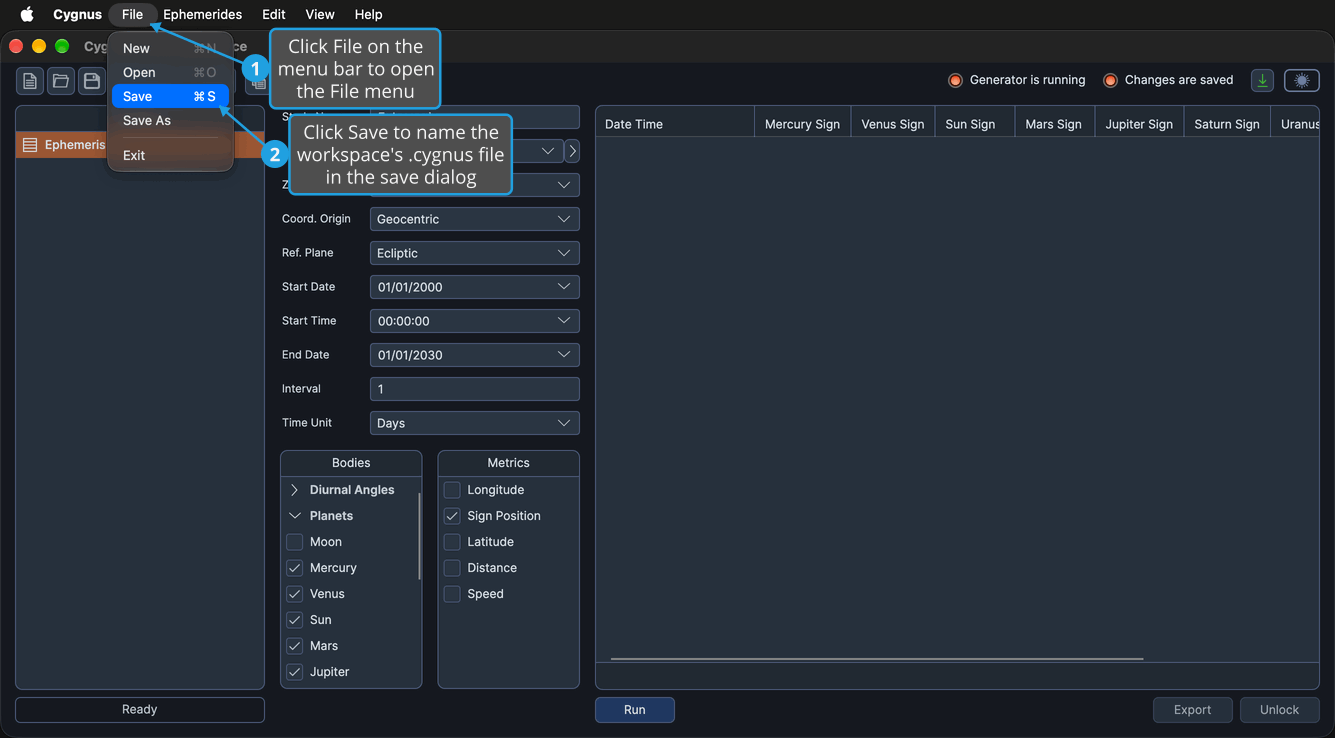
The save dialog is titled Save Workspace and suggests the workspace's current name. Cygnus writes the workspace to a new .cygnus file, the workspace takes the file's name, shown in the title bar, and the Changes are saved indicator turns green. The Save button on the toolbar and Cmd+S (Ctrl+S on Windows) open the same dialog the first time.
If you cancel the dialog (see Cancel the Save Dialog), the workspace stays unsaved.
Save the Workspace Under a New Name
Save the workspace to a new file name or location, for example to keep several versions.
- Open the File menu (see Open the File Menu).
- Click Save As.
- Choose the new file name and location in the save dialog (see Save a File in the Save Dialog).
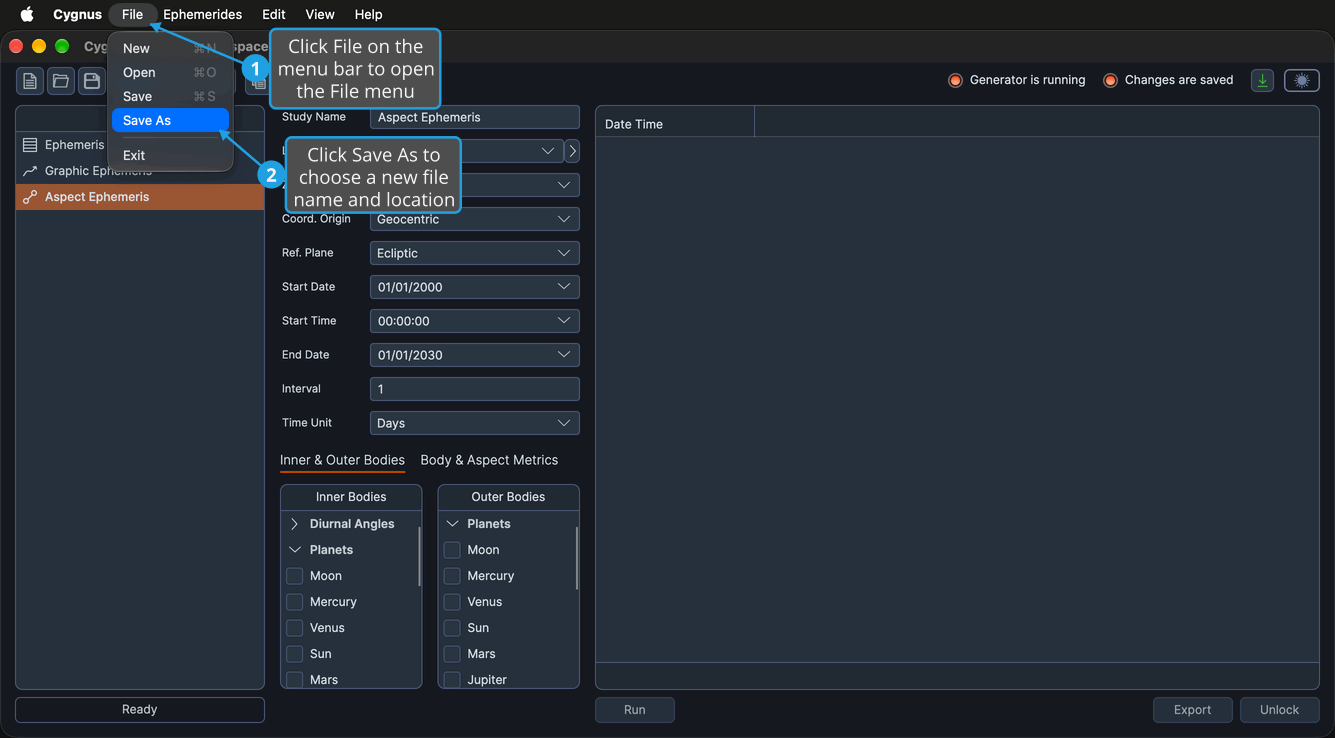
Cygnus writes the workspace to the chosen .cygnus file, the workspace takes that file's name, and from then on Save writes to the new file. The Changes are saved indicator turns green.
If you cancel the dialog (see Cancel the Save Dialog), the workspace's file and name stay unchanged.
Save a File in the Save Dialog
In the save dialog, rendered by the operating system, you choose the name and location of a file Cygnus writes: a .cygnus workspace, or a CSV export. The dialog opens when you save a workspace that has never been saved, when you choose Save As, when you export a study's records (see Export Records to CSV) and when you export locations (see Export Locations). It opens with a suggested file name: the workspace's name for a workspace, the study's name for a records export, and Locations_ followed by today's date for a locations export.
- Navigate to the folder you want to save the file in.
- Enter the file name in the dialog's name field.
- Click Save.
The dialog closes and Cygnus writes the file under the chosen name and location.
Cancel the Save Dialog
To back out of a save or export without writing a file:
- Click Cancel in the save dialog.
The dialog closes and nothing is written; the save or export is abandoned.