Menu Bar
The menu bar puts every Cygnus command within reach, including from the keyboard. Click a menu and choose a command. Where a command also has a toolbar button or a keyboard shortcut, they do the same thing.
On macOS, the five menus (File, Ephemerides, Edit, View and Help) are in the menu bar at the top of the screen, and About Cygnus is in the application menu. On Windows, the same menus form a menu bar across the top of the main window.
File Menu
The File menu holds the workspace commands.
| Command | Description | Details |
|---|---|---|
| New | Replaces the current workspace with a new, empty one. | Cmd+N (Ctrl+N on Windows). See New Workspace. |
| Open | Opens a saved workspace in place of the current one. | Cmd+O (Ctrl+O on Windows). See Open Workspace. |
| Save | Saves the workspace, asking for a name the first time. | Cmd+S (Ctrl+S on Windows). See Save Workspace. |
| Save As | Saves the workspace under a new name or in a new location. | See Save Workspace. |
| Exit | Closes Cygnus. | See Exit Application. |
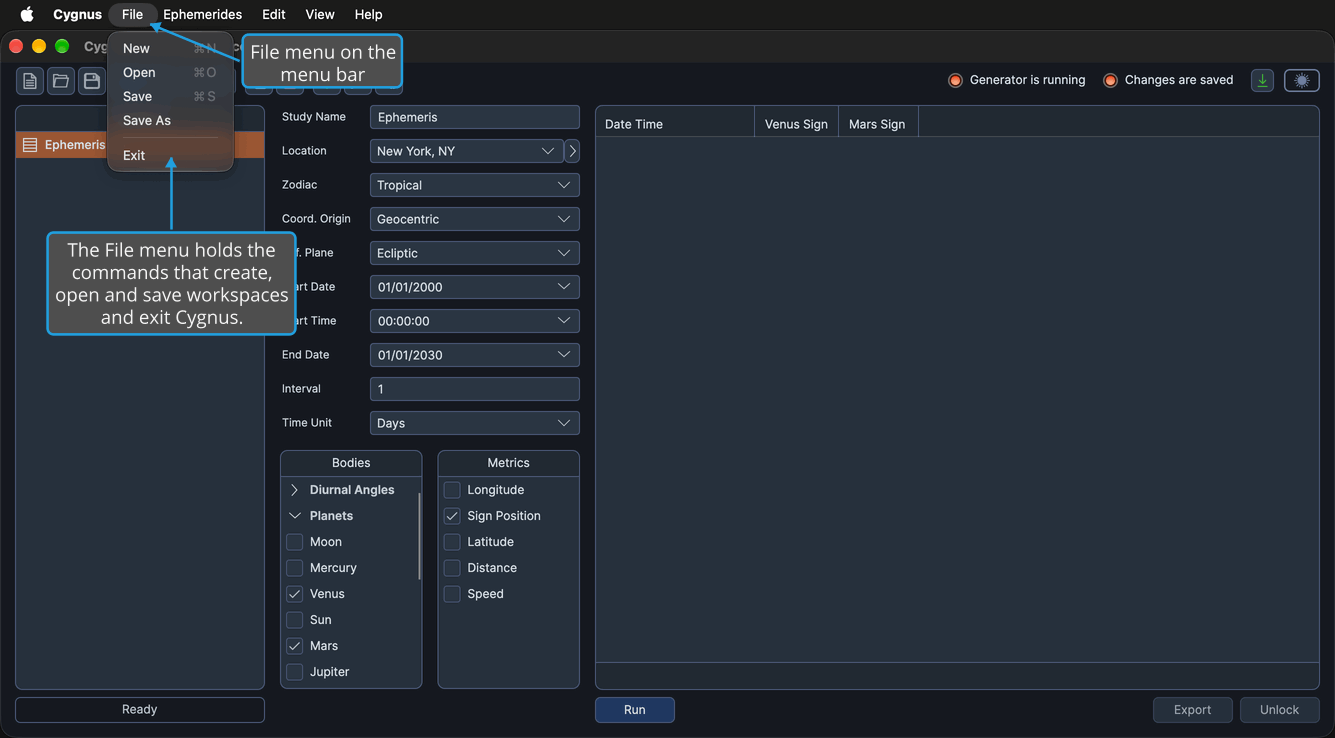
Open the File Menu
Open the File menu to choose one of its workspace commands.
- Click File on the menu bar.
The File menu opens, listing New, Open, Save, Save As and Exit. On Windows, you can also press Alt+F.
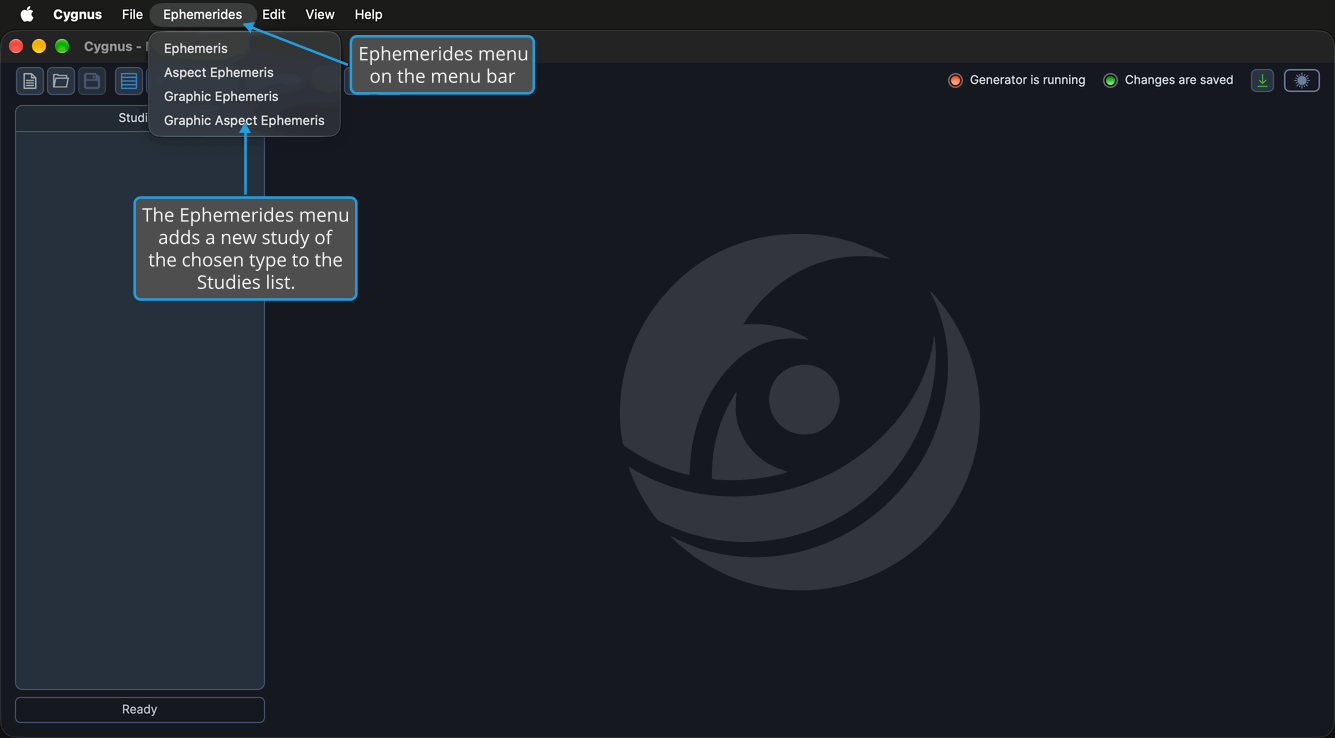
Ephemerides Menu
The Ephemerides menu adds a new study of the chosen type to the bottom of the Studies list and selects it, ready to configure.
| Command | Description | Details |
|---|---|---|
| Ephemeris | Adds a new Ephemeris study. | See Create Study and Ephemeris Study. |
| Aspect Ephemeris | Adds a new Aspect Ephemeris study. | See Create Study and Aspect Ephemeris Study. |
| Graphic Ephemeris | Adds a new Graphic Ephemeris study. | See Create Study and Graphic Ephemeris Study. |
| Graphic Aspect Ephemeris | Adds a new Graphic Aspect Ephemeris study. | See Create Study and Graphic Aspect Ephemeris Study. |
Edit Menu
The Edit menu holds the commands for the selected study and opens the settings editors.
| Command | Description | Details |
|---|---|---|
| Copy Study | Adds a copy of the selected study, with its settings but without its results. | See Copy Study. |
| Delete Study | Removes the selected study and its results once you confirm. | See Delete Study. |
| Locations | Opens the Locations Editor, where you maintain the saved locations every study can use. | See Locations Editor. |
| Default Settings | Opens the Default Settings Editor, where you set the values new workspaces and new studies start from. | See Default Settings Editor. |
| Graph Settings | Opens the Graph Settings window, where you choose the line color each body is plotted with on graphic studies. | See Graph Settings. |
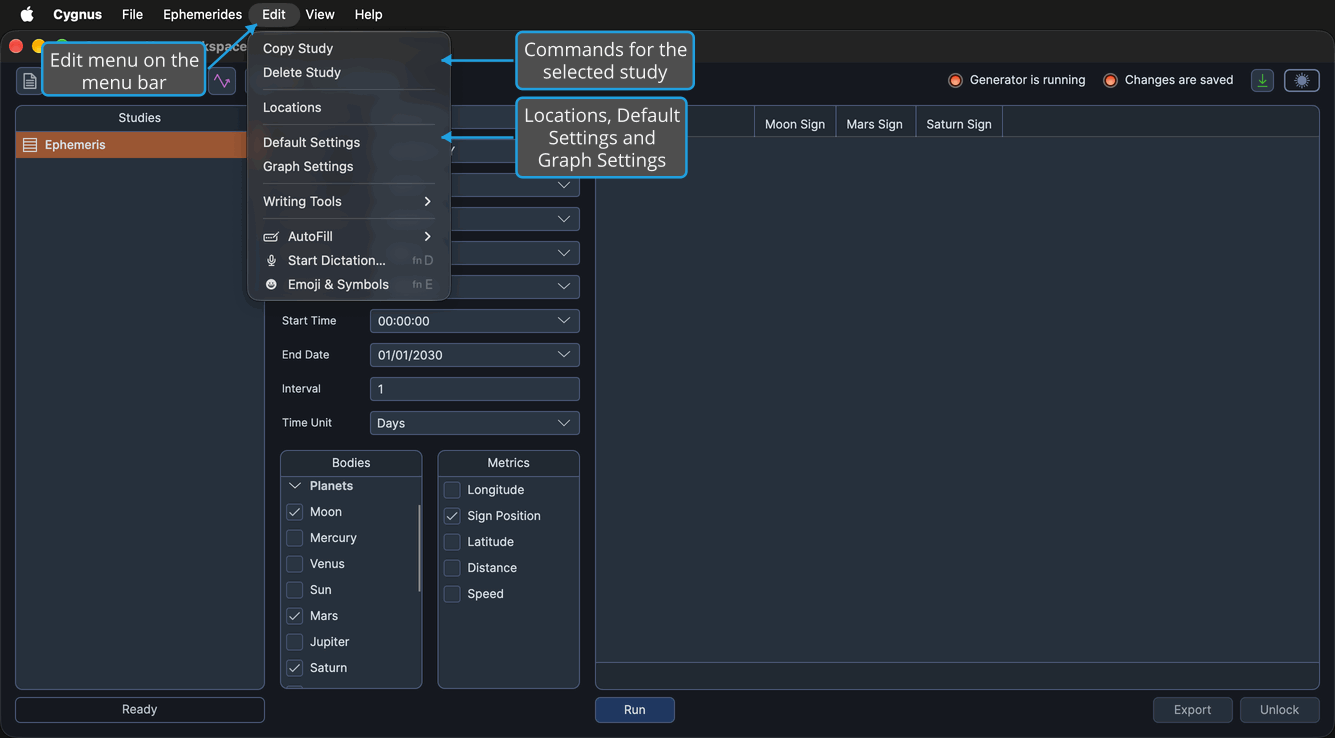
Open the Edit Menu
Open the Edit menu to choose a study command or one of the settings editors.
- Click Edit on the menu bar.
The Edit menu opens, listing Copy Study, Delete Study, Locations, Default Settings and Graph Settings. On Windows, you can also press Alt+D.
View Menu
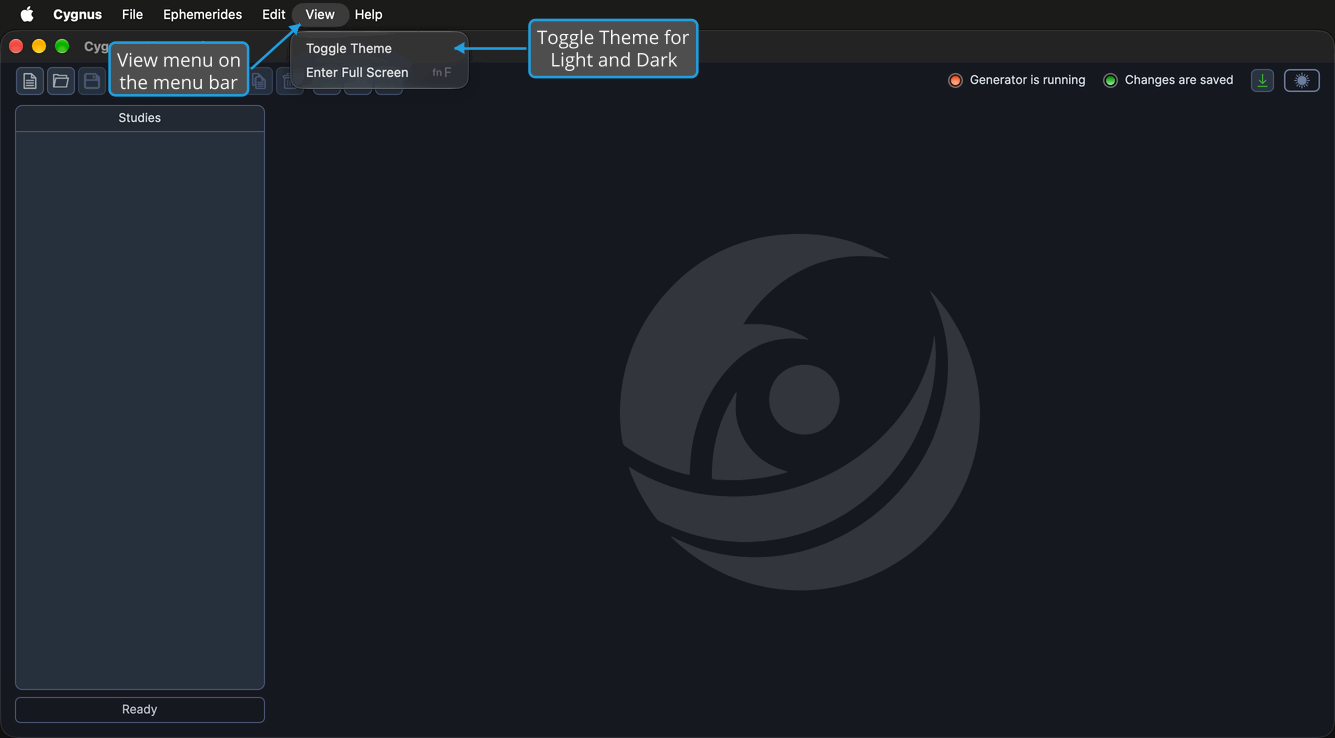
The View menu changes how Cygnus looks.
| Command | Description | Details |
|---|---|---|
| Toggle Theme | Switches Cygnus between its Light and Dark themes. | See Theme Toggle. |
Help Menu
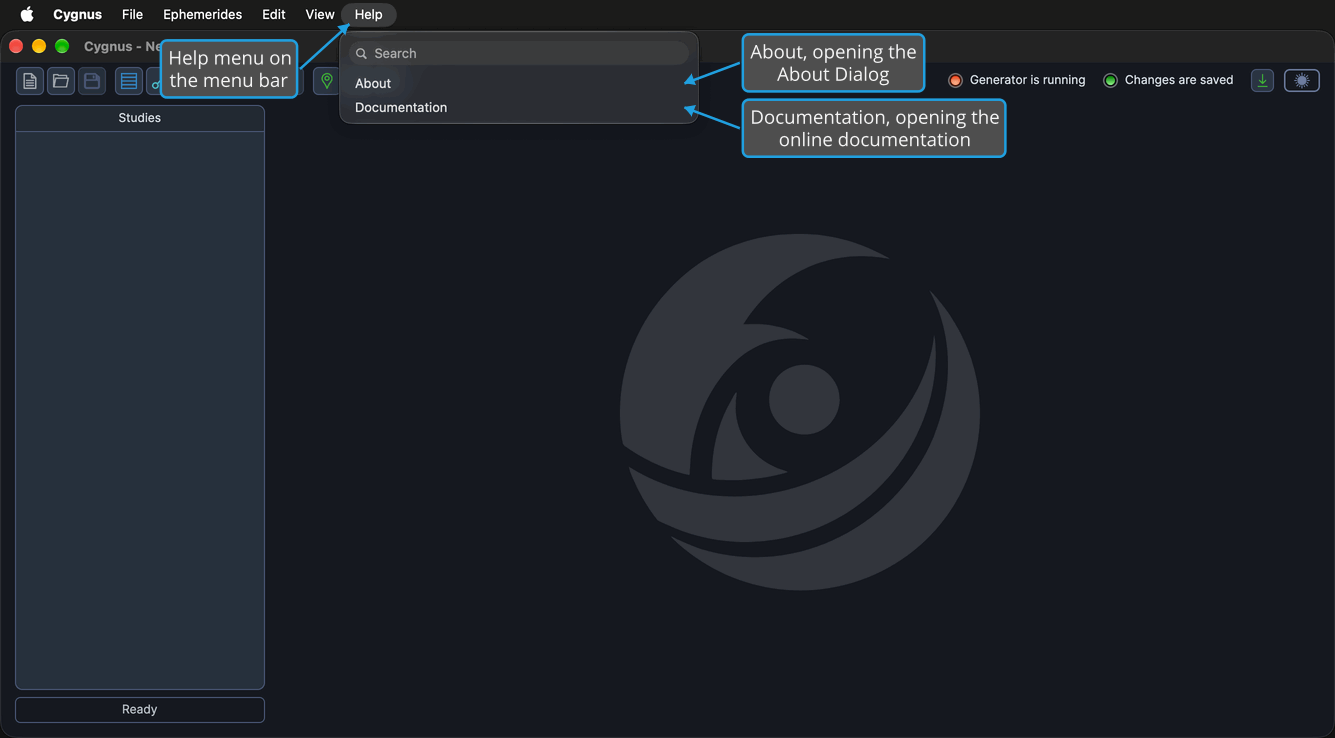
The Help menu tells you about Cygnus and opens its documentation. Its first command is labeled differently on the two platforms.
| Command | Description | Details |
|---|---|---|
| About (macOS), About Dialog (Windows) | Opens the About Dialog, which shows the Cygnus version and license status. | See About Dialog. |
| Documentation | Opens the Cygnus online documentation in your default web browser. | See Documentation. |
Application Menu on macOS
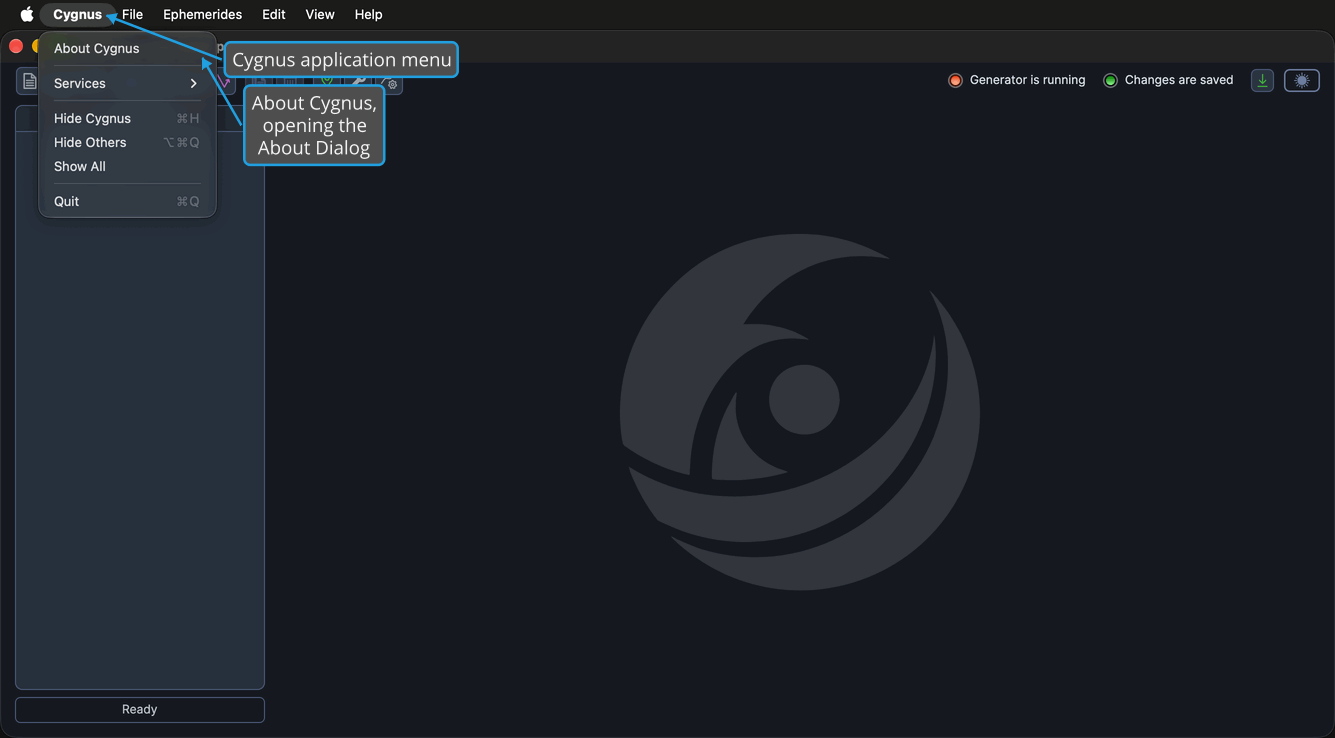
On macOS, the application menu, under the Cygnus name in the menu bar at the top of the screen, holds one Cygnus command.
| Command | Description | Details |
|---|---|---|
| About Cygnus | Opens the About Dialog. | See About Dialog. |
Menu Access Keys on Windows
On Windows, the menus and their commands have access keys, shown as underlined letters. Press Alt with a menu's letter to open the menu, then press a command's letter to choose it: for example, press Alt+F and then N for New. Access keys belong to the in-window menu bar, so they are not available on macOS.
| Menu | Menu Key | Command Keys |
|---|---|---|
| File | Alt+F | New (N), Open (O), Save (S), Save As (A), Exit (X) |
| Ephemerides | Alt+E | Ephemeris (E), Aspect Ephemeris (A), Graphic Ephemeris (G), Graphic Aspect Ephemeris (C) |
| Edit | Alt+D | Copy Study (C), Delete Study (D), Locations (L), Default Settings (E), Graph Settings (G) |
| View | Alt+V | Toggle Theme (T) |
| Help | Alt+H | About Dialog (A), Documentation (D) |