Open Workspace
Return to a set of studies you saved earlier by opening its workspace. Choose File → Open, click the Open button on the Toolbar or press Cmd+O (Ctrl+O on Windows), answer the Unsaved Changes prompt if one appears, and select a .cygnus file in the open dialog.
The workspace you open replaces the current one, with its studies' settings and saved results. Its first study is selected, studies saved with results reopen locked with those results (see Unlock Study), and the title bar shows the workspace's name.
Open is unavailable while a workspace is being loaded or saved and while a study is generating.
Open a Workspace
When the current workspace has no unsaved changes, or has never been saved to a .cygnus file, Cygnus goes straight to the open dialog. The dialog is titled Open Workspace, lists .cygnus files and is rendered by the operating system.
If the current workspace has never been saved to a .cygnus file, opening another workspace replaces it without offering to save it, and its unsaved changes are lost. To keep them, save the workspace first: see Save Workspace.
- Open the File menu (see Open the File Menu).
- Click Open.
- In the Open Workspace dialog, navigate to the folder that holds the .cygnus file.
- Select the .cygnus file and click Open.
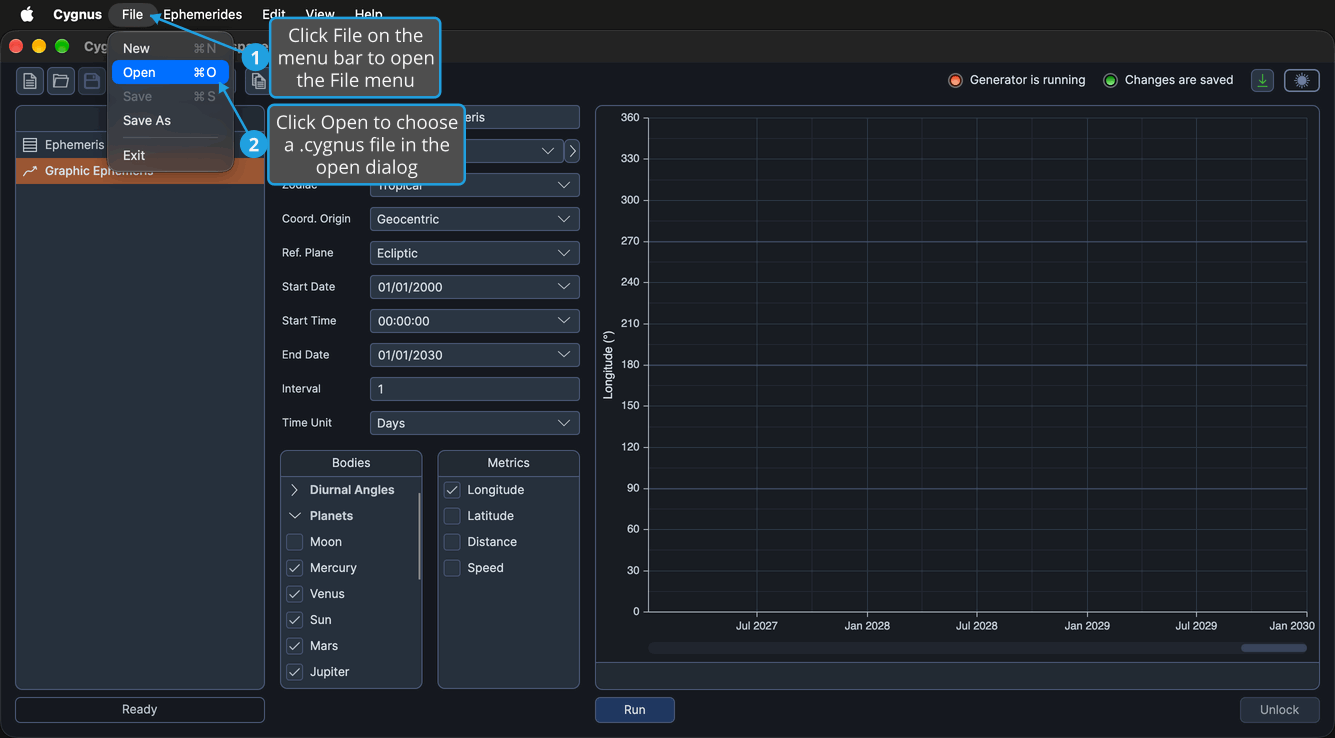
The chosen workspace opens with its first study selected. You can also click the Open button on the toolbar or press Cmd+O (Ctrl+O on Windows). Canceling the dialog leaves the current workspace open.
Open a Workspace and Save Changes
When the current workspace has been saved to a .cygnus file before and has unsaved changes, Cygnus asks "Do you want to save your changes before opening another workspace?" before it shows the open dialog. To save the changes and open another workspace:
- Open the File menu (see Open the File Menu).
- Click Open.
- Save the changes in the Unsaved Changes prompt (see Save Changes from the Unsaved Changes Prompt).
- In the Open Workspace dialog, navigate to the folder that holds the .cygnus file.
- Select the .cygnus file and click Open.
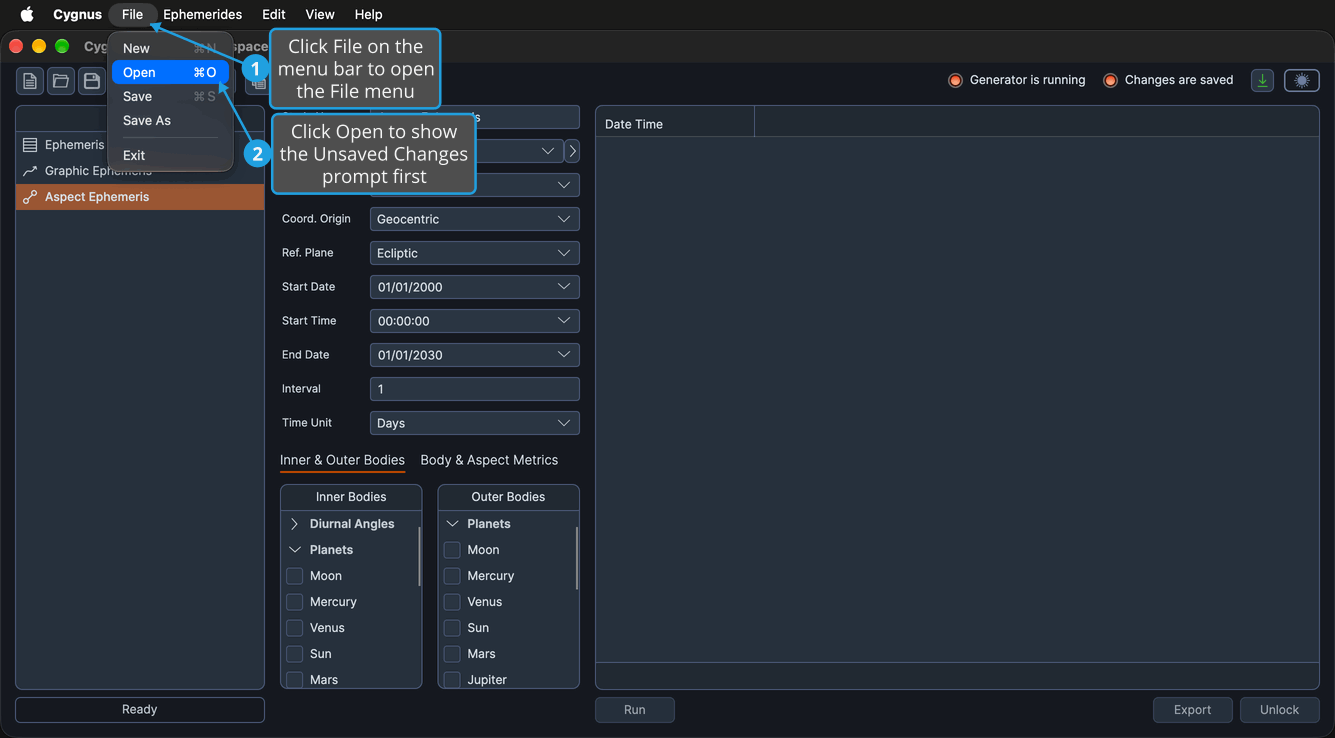
Cygnus saves the current workspace to its .cygnus file, then opens the chosen workspace with its first study selected. If the save fails, the current workspace stays open. If you cancel the open dialog after saving, the saved workspace stays open.
To go to the open dialog without saving the changes, see Discard Changes from the Unsaved Changes Prompt; to abandon opening a workspace, see Cancel from the Unsaved Changes Prompt.