Main Window
The main window is the one place where you build, generate and review all the ephemeris studies of a workspace. Its title bar shows the name of the open workspace, for example Cygnus - New workspace.
Window Layout
The window opens centered on the screen and can be resized down to a minimum of 1200 × 600 pixels. From top to bottom and left to right, it holds these areas:
- Menu Bar: the File, Ephemerides, Edit, View and Help menus. On Windows, the menu bar spans the top of the window; on macOS, the same menus are in the menu bar at the top of the screen.
- Toolbar: a row of icon buttons for the workspace, study and settings commands you use most.
- Status Indicators: two lights at the right end of the toolbar row that show whether a study is generating and whether your changes are saved.
- Update Notification Button: a download-arrow button, immediately to the left of the theme switch, that appears only when a newer version of Cygnus is available.
- Theme Toggle: the switch at the far right of the toolbar row that changes between the Light and Dark themes.
- Studies List: the left column, listing every study of the workspace. Click a study to show it in the study area.
- Study area: the rest of the window, to the right of the Studies list, where the selected study is shown. It is described below.
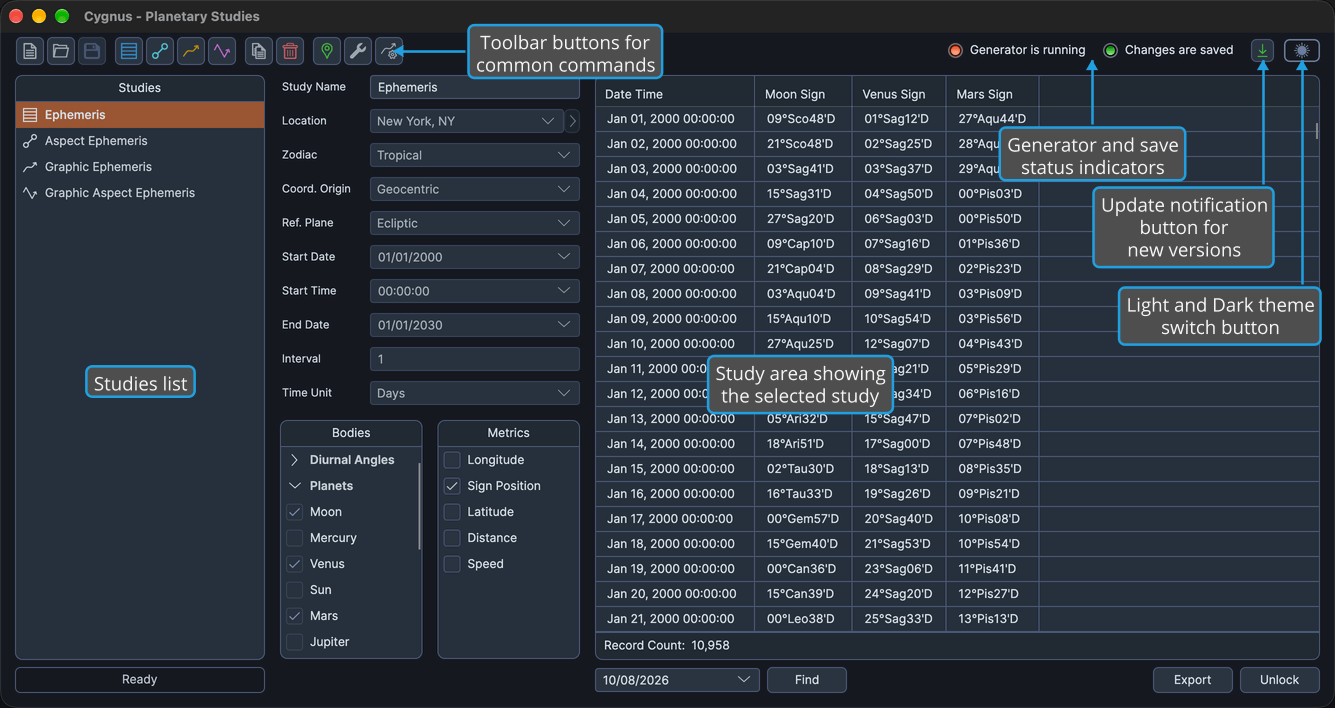
Study Area
The study area shows the study selected in the Studies list, in the view for its type: Ephemeris Study, Aspect Ephemeris Study, Graphic Ephemeris Study or Graphic Aspect Ephemeris Study. Every study view has a settings column on the left and, on the right, the results with a count bar and a button bar.
The study area shows one study at a time and has no list of its own: to switch studies, click another one in the Studies list. While no study is selected, a faint Cygnus emblem fills the area. The whole study area is unavailable while a workspace is being loaded or saved.
Launch Cygnus
Start Cygnus to open the main window with a new, empty workspace. Cygnus starts only when a valid license or an active trial is present.
- Start Cygnus from the Dock or the Applications folder.
On Windows, double-click the Cygnus desktop shortcut, or start Cygnus from its Start menu shortcut.
The main window opens centered on the screen, titled Cygnus - New workspace, with an empty Studies list and the faint Cygnus emblem in the study area.
Resize the Studies List
Widen or narrow the Studies list to fit your study names and the space the study area needs.
- Drag the splitter between the Studies list and the study area to the left or right.
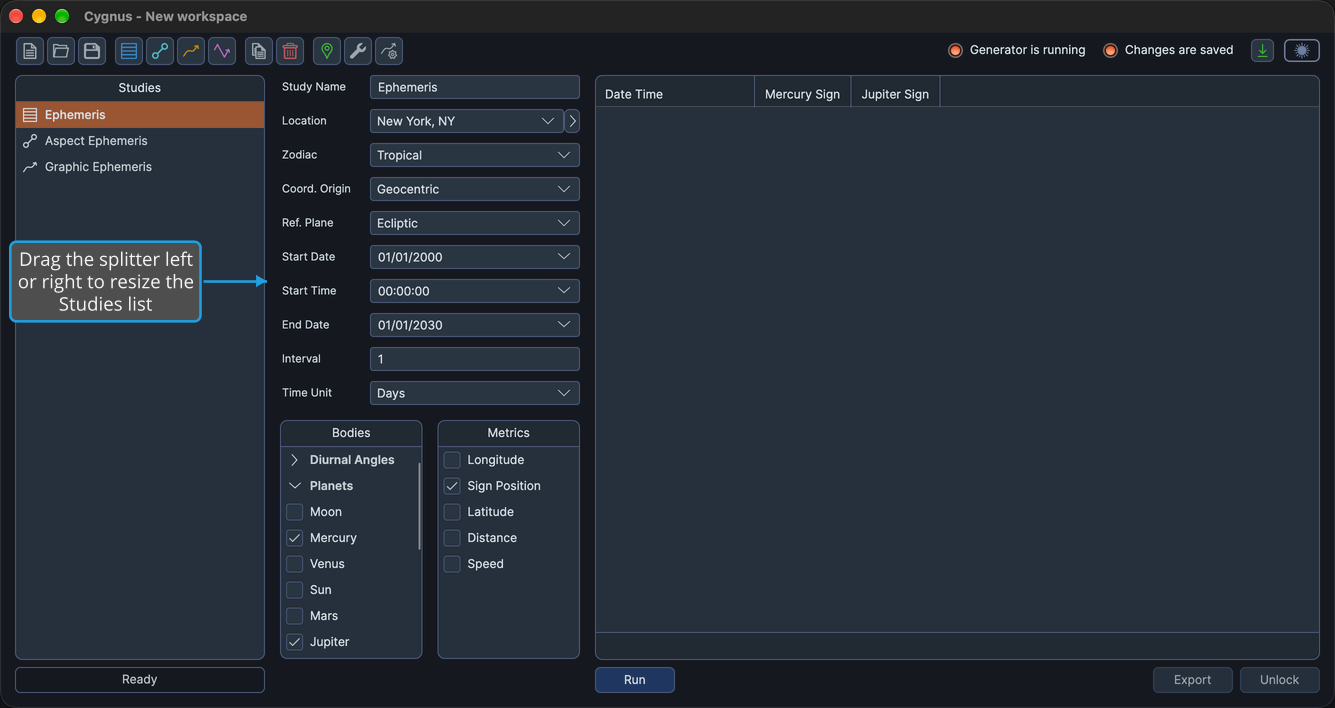
The Studies list and the study area resize together. The Studies list stays between 200 and 350 pixels wide.
Answer the Unsaved Changes Prompt
Before an action discards changes you haven't saved, Cygnus asks what to do with them in the Unsaved Changes prompt. The prompt's question names the action, for example: "Would you like to save your changes before exiting?" The prompt appears in these cases:
- From New Workspace, Open Workspace or Exit Application, when the open workspace has been saved before and has unsaved changes.
- When you close the Locations Editor, the Default Settings Editor or the Graph Settings window while it has unsaved changes.
Save Changes from the Unsaved Changes Prompt
Keep your changes and let the action continue.
- Click Yes in the Unsaved Changes prompt.
Yes is the default button, so you can also press Enter. Cygnus saves the workspace to its current location, or the editor saves its locations, defaults or colors, and the action continues. If the save fails, the action stops and your changes are kept.
Discard Changes from the Unsaved Changes Prompt
Let the action go ahead without saving your changes.
- Click No in the Unsaved Changes prompt.
Your unsaved changes are discarded and the action continues. In the Graph Settings window, the previewed colors are reverted.
Cancel from the Unsaved Changes Prompt
Abandon the action and keep your changes unsaved.
- Click Cancel in the Unsaved Changes prompt.
The prompt closes and the action is abandoned: the workspace stays open with its changes unsaved, Cygnus stays open, or the editor window stays open. Closing the prompt from its title bar also cancels.
Answer a Confirmation Request
Actions that delete or discard something ask you to confirm first, in a Confirmation Request prompt with Yes and No buttons. The prompt appears when you:
- Delete a study (Delete Study).
- Unlock a study, which deletes its results (Unlock Study).
- Delete locations in the Locations Editor.
- Reset the colors in Graph Settings.
Confirm a Confirmation Request
Go ahead with the action.
- Click Yes in the Confirmation Request prompt.
Yes is the default button, so you can also press Enter. The prompt closes and the action goes ahead: the study is deleted, the study is unlocked and its results deleted, the selected locations are removed from the Locations table, or the graph colors are reset.
Decline a Confirmation Request
Back out of the action.
- Click No in the Confirmation Request prompt.
The prompt closes and nothing changes. Closing the prompt from its title bar also declines.