Aspect Ephemeris Study
Track how the angular relationships between pairs of bodies change over time, alongside the bodies' positions. Create an Aspect Ephemeris study, configure its settings and date range, check the bodies on the Inner Bodies and Outer Bodies lists and the metrics on the Body & Aspect Metrics tab, then click Run.
At each interval across a date range, an Aspect Ephemeris study records two kinds of data, measured from the study's coordinate origin: the positions of the selected bodies, and the angular relationship of every valid pair formed from an inner body and an outer body, given as its cycle angle, phase and separation. A valid pair is an inner body paired with a slower-moving outer body: an inner Sun and an outer Jupiter form a valid pair, but an inner Jupiter and an outer Sun do not. Only valid pairs get pair columns. You can generate the study without a valid pair, but its records then hold no pair columns. Each sample becomes one record, shown as one row of the Ephemeris Table.
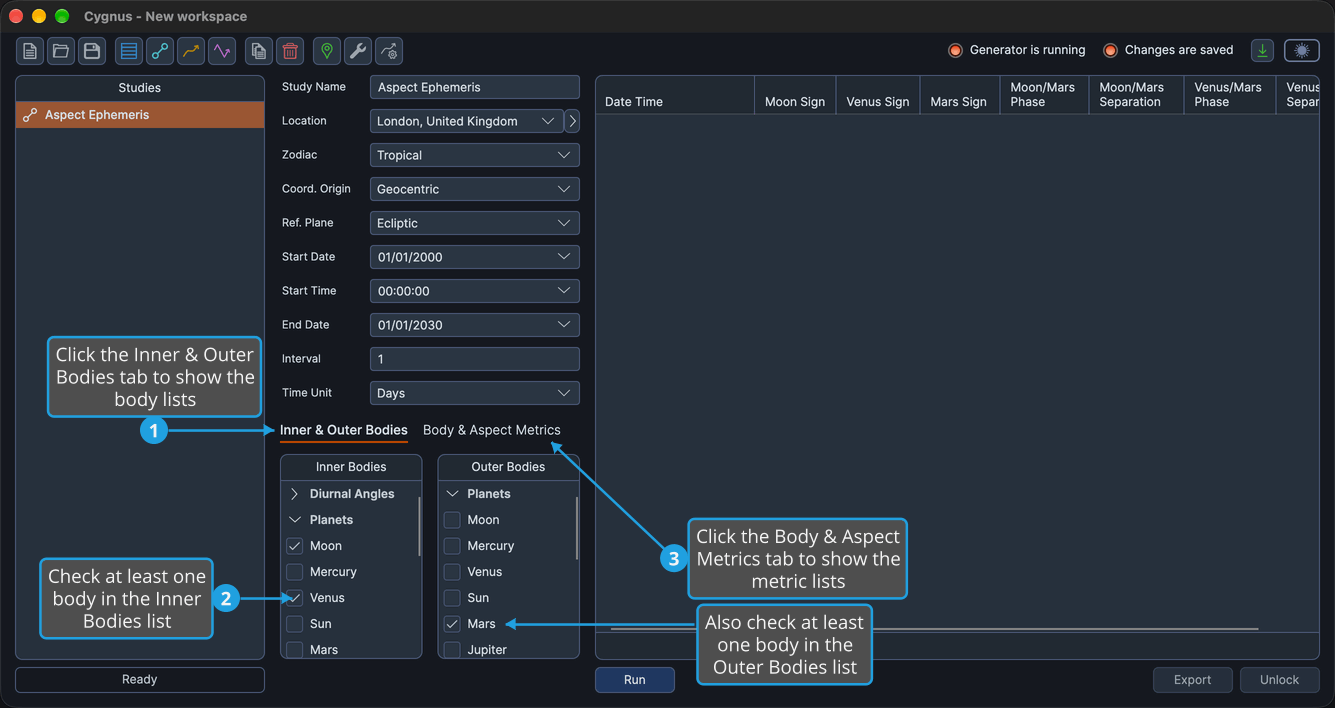
A new Aspect Ephemeris study starts with both its Inner Bodies and Outer Bodies lists empty. Check at least one inner body and one outer body before you generate the study: until both lists have a body, the Run button stays unavailable. If you mark an Inner Bodies or Outer Bodies preset as the default, new aspect studies start with it (see Bodies List Presets).
Study Layout
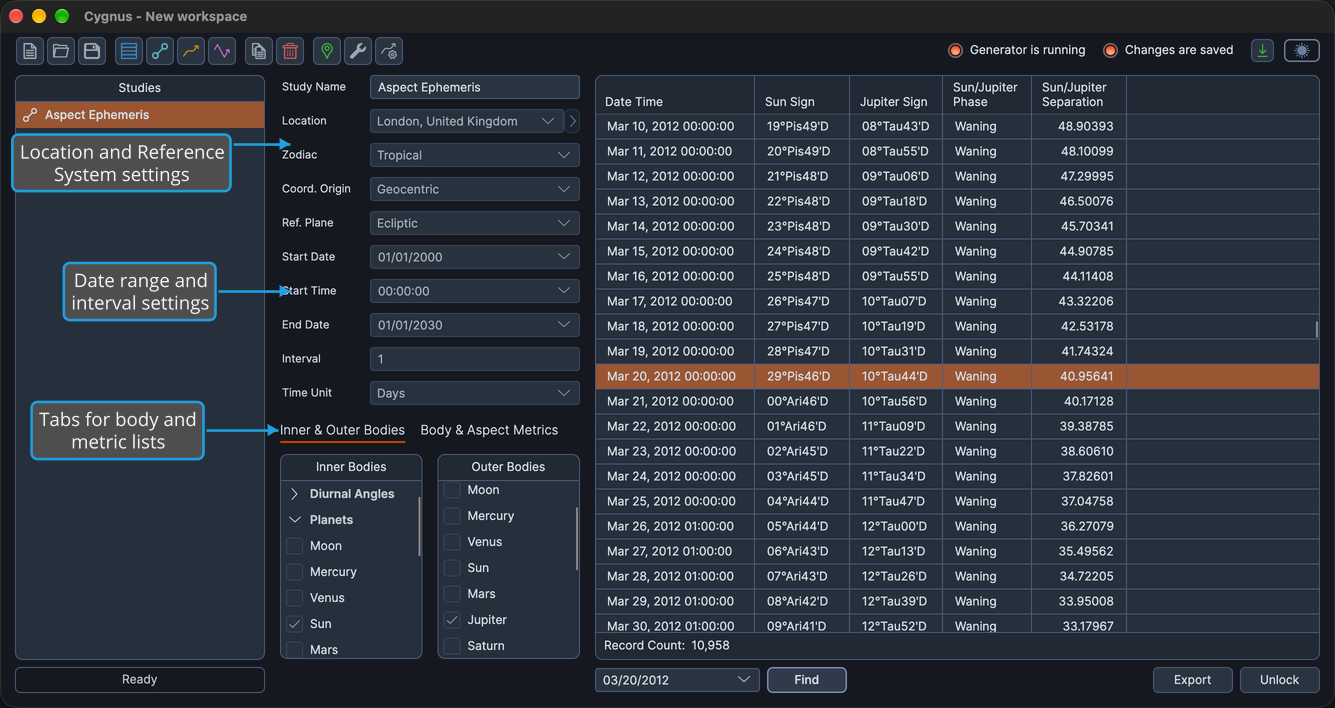
When you click an Aspect Ephemeris study in the Studies List, its view fills the study area. The settings column on the left holds, from top to bottom:
- Study Name: the name the study has in the Studies list. See Study Name.
- The Location, Zodiac, Coord. Origin and Ref. Plane settings. See Location and Reference System.
- The Start Date, Start Time, End Date, Interval and Time Unit settings. See Date Range and Interval.
- Two tabs that hold the body lists and the metric lists, described below.
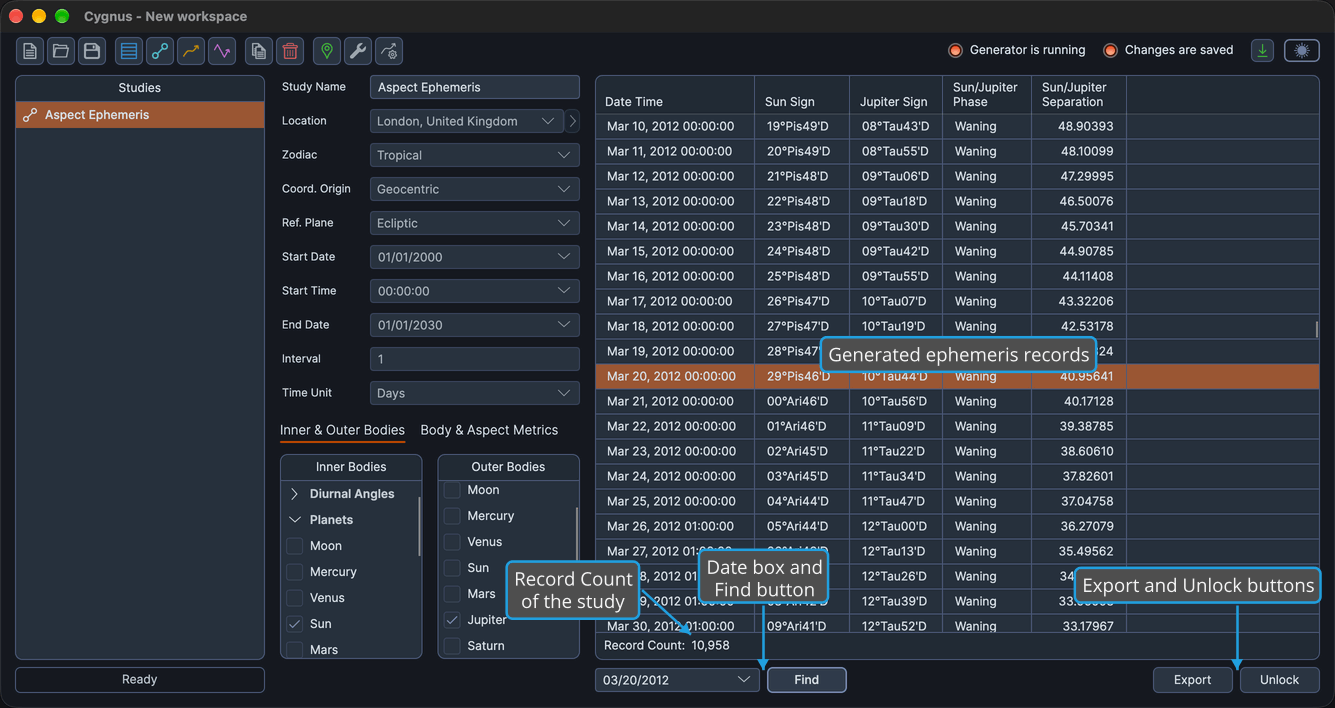
The results area on the right holds the ephemeris table, the record count beneath it (see Record and Point Count), and a button bar:
| Button | Description |
|---|---|
| Run | Generates the study's records. See Generate Study. |
| Cancel | Stops a generation in progress. See Cancel Study Generation. |
| Find | Jumps to the record nearest a chosen date. See Find a Record by Date. |
| Export | Saves the records in CSV format. See Export Records to CSV. |
| Unlock | Deletes the records and makes the study's settings editable again. See Unlock Study. |
Bodies and Metrics Tabs
The body lists and the metric lists of an Aspect Ephemeris study sit on two tabs in the settings column:
| Tab | Contents |
|---|---|
| Inner & Outer Bodies | The Inner Bodies and Outer Bodies lists, side by side. Each pair is formed from an inner body and an outer body. See Bodies List. |
| Body & Aspect Metrics | The Body Metrics and Aspect Metrics lists. See Body Metrics List and Aspect Metrics List. |
The Inner Bodies list offers every body available for the study's coordinate origin. The Outer Bodies list offers the same bodies without the Diurnal Angles.
What Each Record Holds
Each record holds its date and time, followed by:
- For every selected body, the metrics checked in the Body Metrics list: Longitude (or Right Asc), Sign Position, Latitude (or Declination), Distance in AU and Speed in degrees per day.
- For every valid pair of an inner body and an outer body, the metrics checked in the Aspect Metrics list: Cycle Angle, Phase and Separation.
A new Aspect Ephemeris study shows Sign Position for each body, and Phase and Separation for each pair.
- The date and time of each record are given in the time zone of the study's location. This is why every study needs a location, whatever its coordinate origin.
- There are two ways to choose which columns the ephemeris table shows: check or uncheck metrics in the Body Metrics and Aspect Metrics lists, or right-click any column heading and use the Column Visibility Menu.
- You can reorder the columns (see Reorder Record Columns), but the Date Time column always stays first. The table cannot be sorted: clicking a column heading does not sort the rows.
For the full pattern of body and pair columns, see Ephemeris Table.
Generate an Aspect Ephemeris Study
Create the study with Ephemerides → Aspect Ephemeris on the menu bar, or with the Aspect Ephemeris button on the toolbar: see Create Study. The Aspect Ephemeris button is the second of the four study-type buttons and shows an icon only: the same icon as an Aspect Ephemeris study in the Studies list and, on Windows, as Aspect Ephemeris in the Ephemerides menu. The new study, named "Aspect Ephemeris", appears selected at the bottom of the Studies list, and its settings already hold the workspace defaults.
Change the location, Reference System, date range or interval only where this study needs other values: see Location and Reference System and Date Range and Interval. Most ephemerides use an interval of 1 day.
To choose the bodies and metrics and generate the records:
- Click the Inner & Outer Bodies tab.
- Check at least one body in each of the Inner Bodies and Outer Bodies lists.
- Click the Body & Aspect Metrics tab.
- Check the metrics to show in the Body Metrics and Aspect Metrics lists.
- Click Run in the button bar below the ephemeris table.
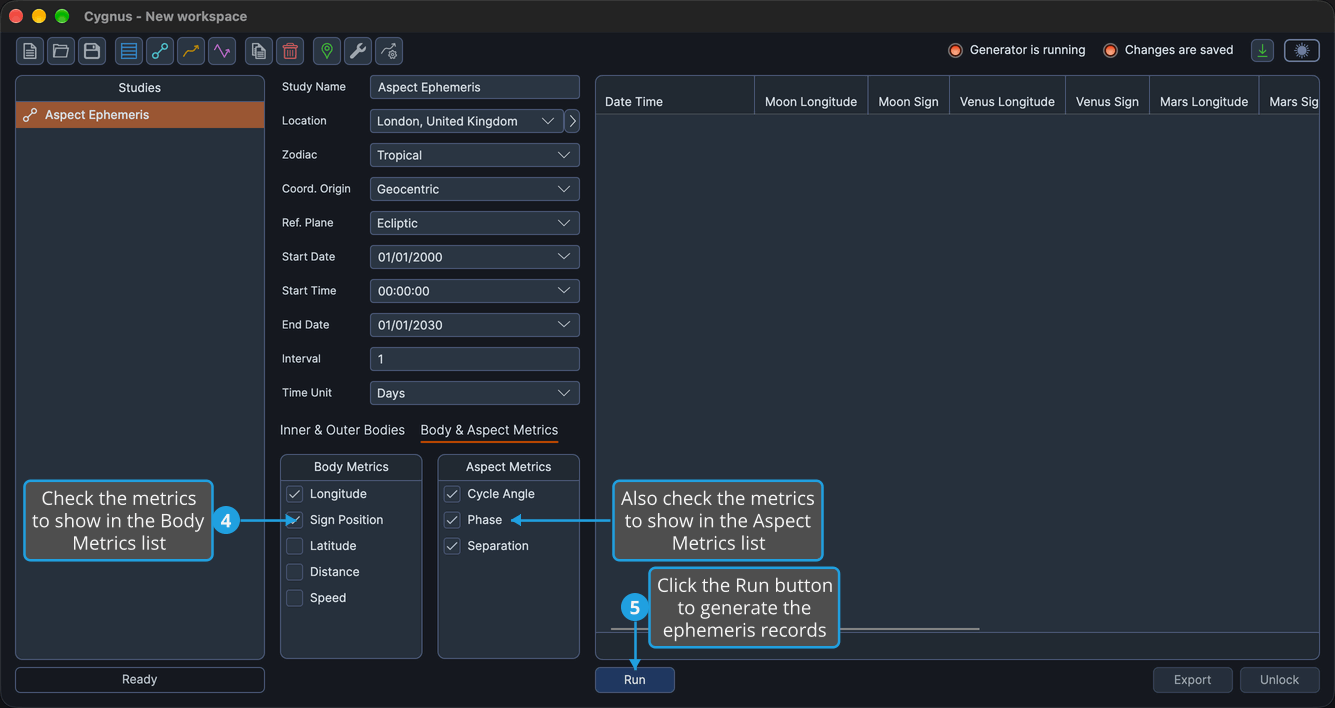
The study locks while it generates, and a progress bar beside the Cancel button shows the percentage complete. When generation finishes, the records appear in the ephemeris table, the record count appears beneath it, and the Run button disappears until you unlock the study.
You can check or uncheck metrics in the Body Metrics and Aspect Metrics lists after the study is generated: the table's columns change at once, without generating the study again.
Work with the Records
Once the study is generated, you can:
- Find a Record by Date: jump to the record nearest a chosen date.
- Copy Records to the Clipboard: copy a date or a block of records into another document or spreadsheet.
- Drag Records into Another Application: move records straight into a spreadsheet.
- Export Records to CSV: save every record with the visible columns in their displayed order.
- Open a Record's Chart in Compass: double-click a record row to see its chart in the companion application Compass.
To change the settings or the bodies and generate the study again, unlock it first. Unlocking deletes the records: see Unlock Study.
Related Topics
- Create Study: add a new study of any type to the workspace.
- Generate Study: produce the records of a configured study and follow its progress.
- Ephemeris Study: record the positions of the bodies without pair metrics.
- Graphic Aspect Ephemeris Study: plot the cycle angle and separation of body pairs on a graph.
- Bodies List Presets: save the inner and outer body selections you use often.