Drag Records into Another Application
Move records straight from the ephemeris table into a spreadsheet or another application without exporting a file. Select the records, drag one of the selected rows out of the Cygnus window onto the target application and release the mouse button.
The target application receives the records as tab-delimited text of the ephemeris table's visible columns, with a heading row. If the row you drag is part of the current selection, every selected record is carried; otherwise only the row you drag is carried. Dragging works on Ephemeris and Aspect Ephemeris studies, the two study types with an ephemeris table.
Drag Records to Another Application
Before you drag:
- Generate the Ephemeris or Aspect Ephemeris study so that its ephemeris table shows records (see Generate Study).
- Select the records you want to carry in the ephemeris table. Click the first record and Shift-click the last to select a block of adjacent records, or Cmd-click (Ctrl-click on Windows) to add records that are not adjacent.
- Open the target application, such as a spreadsheet, beside the Cygnus window.
On Windows, release the Shift key before you drop. A drop made while Shift is held fails, and Cygnus tells you to release Shift before dropping.
To drag the records:
- Drag one of the selected record rows out of the Cygnus window.
- Release the mouse button over the target application.
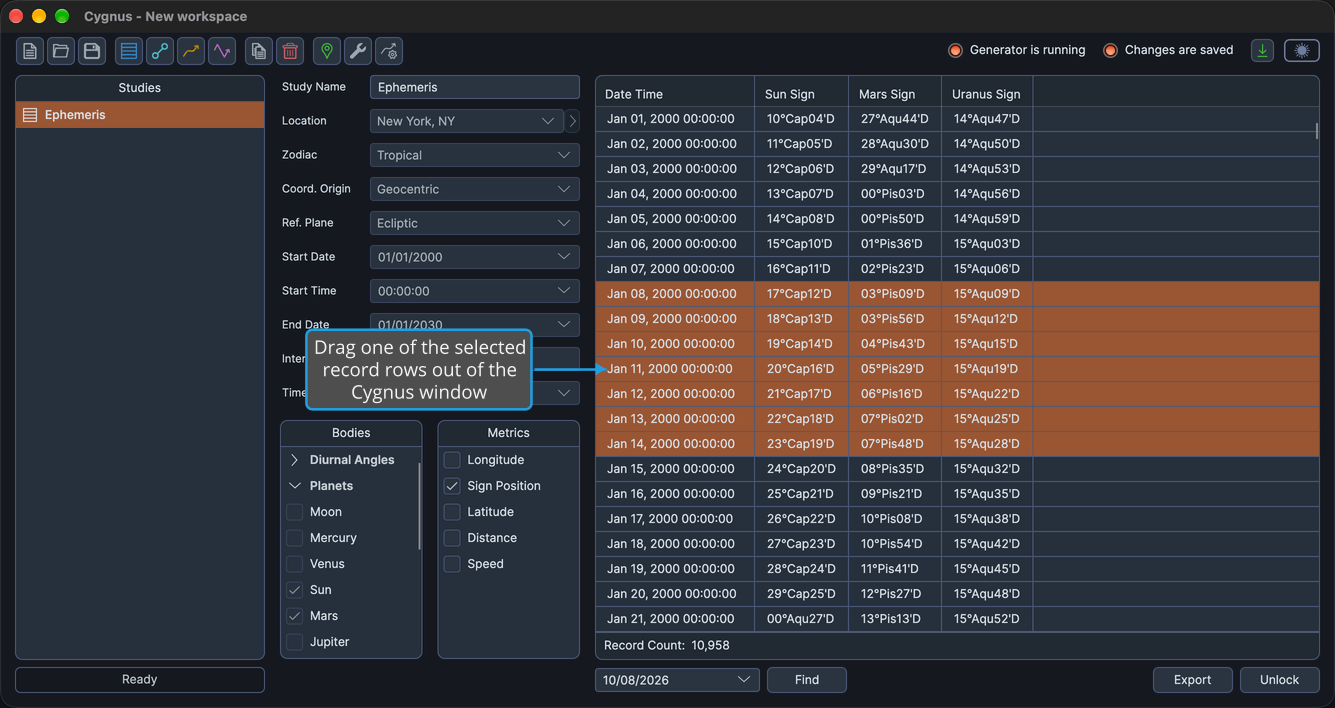
The drag starts once the pointer has moved a few pixels with the mouse button held. The drop itself is handled by the target application, which receives the records as tab-delimited text.
Related Topics
- Ephemeris Table: read and select the generated records.
- Column Visibility Menu: choose the columns the dragged records carry.
- Copy Records to the Clipboard: copy selected records as Markdown or tab-delimited text instead of dragging them.
- Export Records to CSV: save every record of the study to a CSV file.