Generate Study
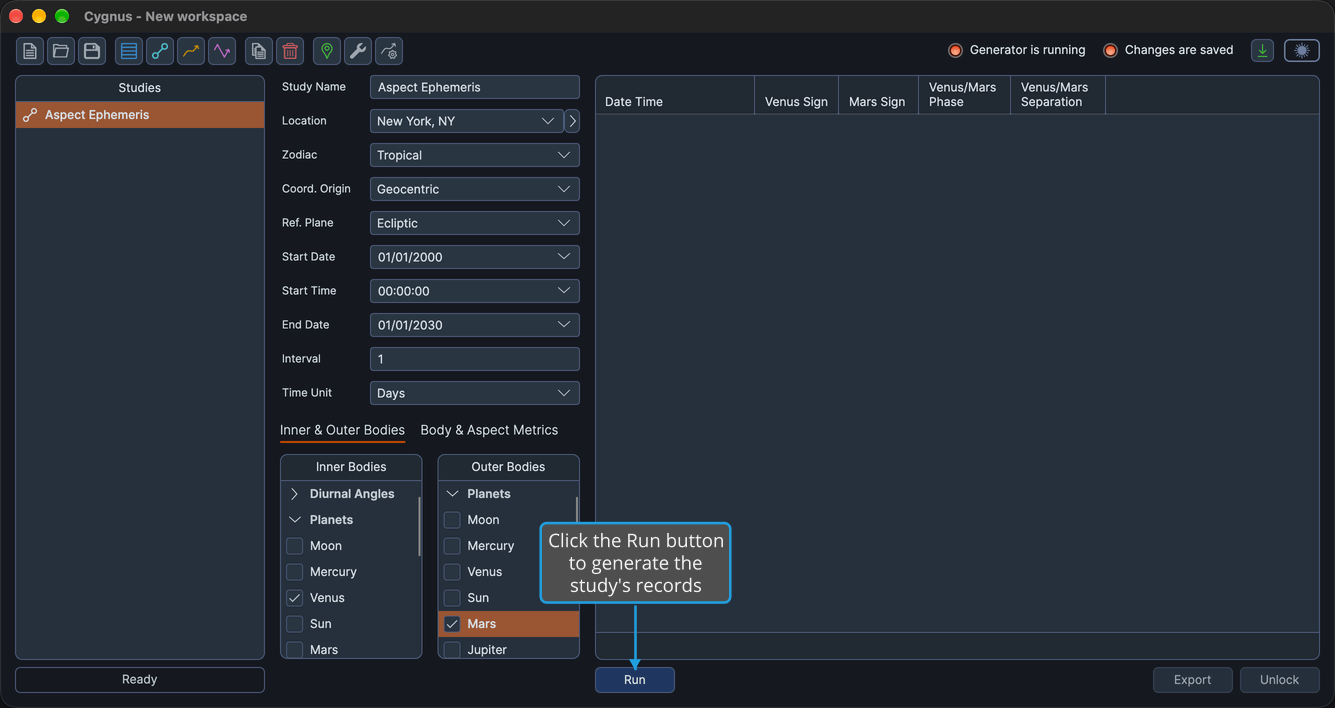
Produce the ephemeris or graph you have configured. When the study's settings are ready, click Run below the results area and watch the progress bar until the results appear.
Every study type generates its results the same way, from the button bar under its results. An Ephemeris or Aspect Ephemeris study fills its ephemeris table with records, and a Graphic Ephemeris or Graphic Aspect Ephemeris study plots its series on the graph. In both cases, the study covers its whole date range.
Prepare the Study
The Run button is available only when the selected study is ready to generate:
- The study holds no results. A study that has already been generated stays locked with its results until you unlock it: see Unlock Study.
- The start comes before the end, and the interval is greater than zero. Most ephemerides use an interval of 1 day. See Date Range and Interval.
- Bodies are selected. Aspect Ephemeris and Graphic Aspect Ephemeris studies need at least one body checked in the Inner Bodies list and one in the Outer Bodies list. A Graphic Aspect Ephemeris study also needs at least one valid pair: an inner body paired with a slower-moving outer body. See Bodies List.
The location does not affect whether Run is available, but check it before you generate: every study needs a location, whatever its coordinate origin, because the dates and times of its results are given in the location's time zone. See Location and Reference System.
Generate a Study
To generate the selected study:
- Click Run in the button bar below the results.
Follow the Progress
As soon as generation starts, the study is locked, so its settings and lists cannot be changed. A progress bar beside the Cancel button shows the percentage complete, and the Generator is running indicator turns green (see Status Indicators).
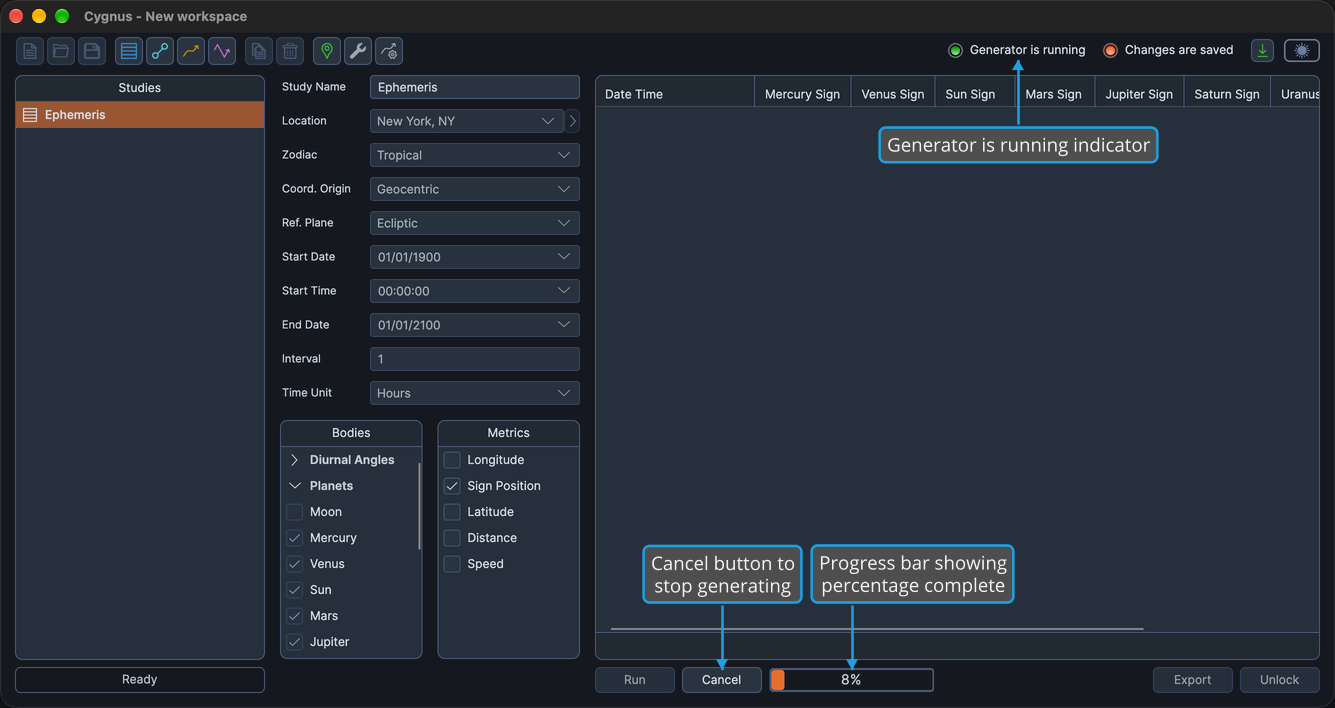
To stop a generation you started with the wrong settings, see Cancel Study Generation.
Work with the Results
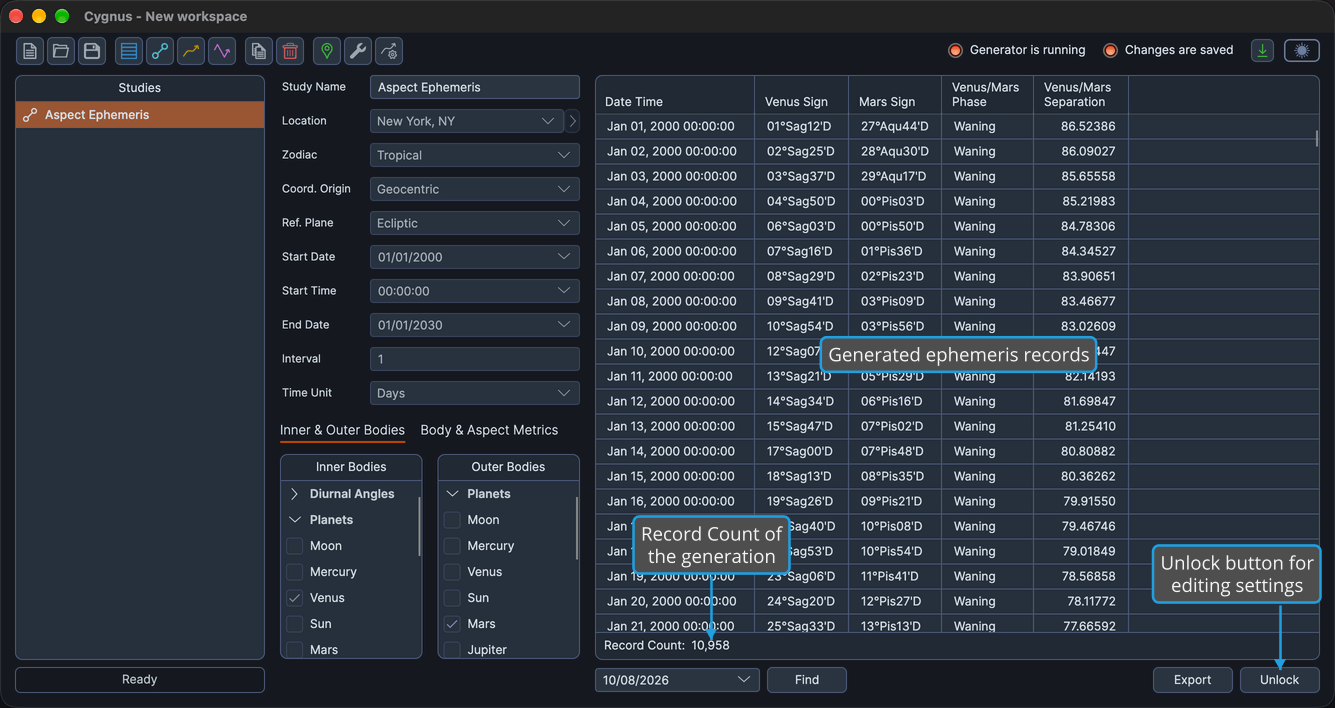
When generation finishes, the results appear in the ephemeris table or on the graph, and the number of records or points appears beneath them. The study stays locked with its results, and the Run button disappears until you unlock the study.
Read and select the records of an Ephemeris or Aspect Ephemeris study in the Ephemeris Table, or explore the plot of a Graphic Ephemeris or Graphic Aspect Ephemeris study on the Ephemeris Graph. The count beneath the results is described in Record and Point Count.
To change the settings and generate the study again, unlock it first: see Unlock Study. The Run button reappears when the study is unlocked.
Related Topics
- Cancel Study Generation: stop a study that is generating.
- Unlock Study: return a generated study to its editable state.
- Date Range and Interval: set the period a study covers and the spacing of its samples.
- Bodies List: choose the bodies a study includes.
- Status Indicators: see at a glance whether a study is still generating.