Graphic Aspect Ephemeris Study
See the angular relationships between pairs of bodies rise and fall over time on a graph. Create a Graphic Aspect Ephemeris study, configure its settings and date range, check bodies on the Inner Bodies and Outer Bodies lists and the metrics on the Aspect Metrics tab, then click Run.
A Graphic Aspect Ephemeris study samples the cycle angle and separation of every valid pair of a selected inner body and a selected outer body, at a fixed interval across a date range and from the study's coordinate origin. A valid pair is an inner body paired with a slower-moving outer body: an inner Sun and an outer Jupiter form a valid pair, but an inner Jupiter and an outer Sun do not. The study plots the samples as an interactive time-series graph: the Ephemeris Graph.
A new Graphic Aspect Ephemeris study starts with both its Inner Bodies and Outer Bodies lists empty. Check at least one inner body and one outer body before you generate the study: until both lists have a body, the Run button stays unavailable. The bodies you check must also form at least one valid pair. If you mark an Inner Bodies or Outer Bodies preset as the default, new aspect studies start with it (see Bodies List Presets).
A Graphic Aspect Ephemeris study has no ephemeris table, so it has no Find or Export controls and no Column Visibility Menu. The count beneath the graph reads Point Count: rather than Record Count:.
Study Layout
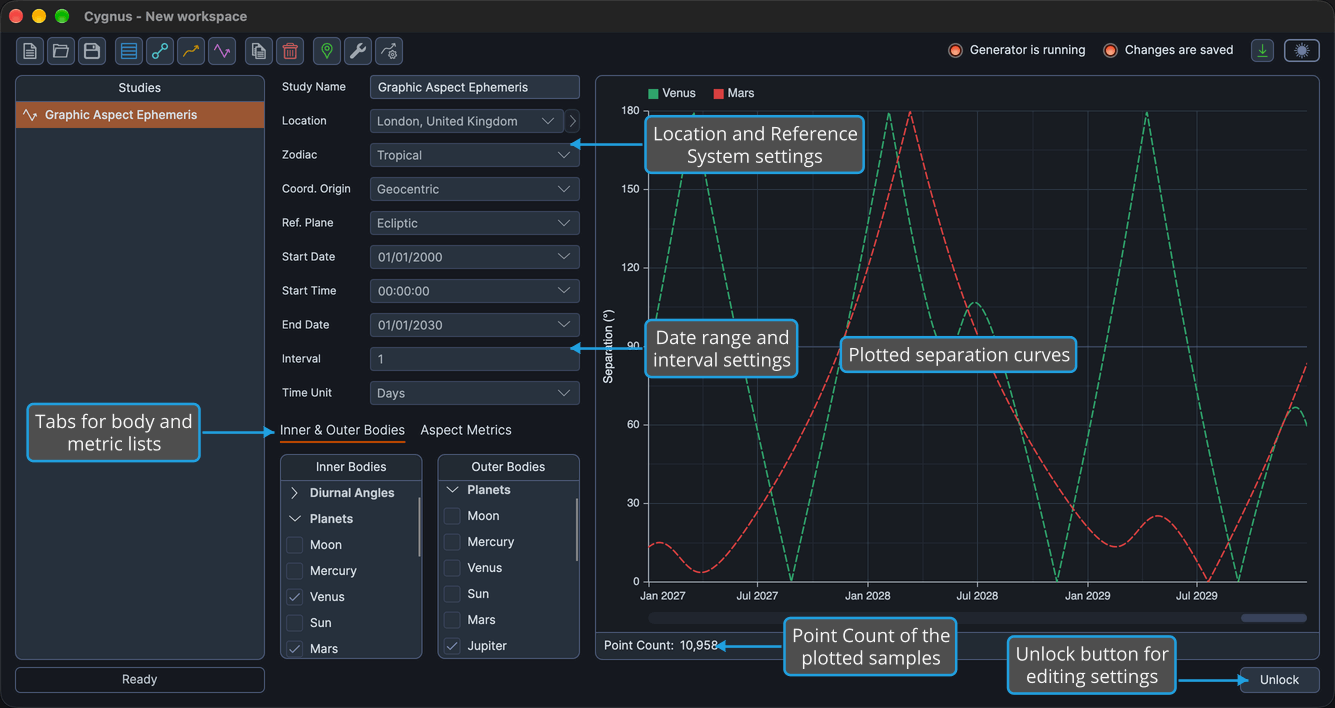
When you click a Graphic Aspect Ephemeris study in the Studies List, its view fills the study area. The settings column on the left holds, from top to bottom:
- Study Name: the name the study has in the Studies list. See Study Name.
- The Location, Zodiac, Coord. Origin and Ref. Plane settings. See Location and Reference System.
- The Start Date, Start Time, End Date, Interval and Time Unit settings. See Date Range and Interval.
- Two tabs that hold the body lists and the metric list, described below.
The results area on the right holds the graph, the point count beneath it (see Record and Point Count), and a button bar with three buttons:
| Button | Description |
|---|---|
| Run | Generates the curves plotted on the graph. See Generate Study. |
| Cancel | Stops a generation in progress. See Cancel Study Generation. |
| Unlock | Deletes the plotted curves and makes the study's settings editable again. See Unlock Study. |
Bodies and Metrics Tabs
The body lists and the metric list of a Graphic Aspect Ephemeris study sit on two tabs in the settings column:
| Tab | Contents |
|---|---|
| Inner & Outer Bodies | The Inner Bodies and Outer Bodies lists, side by side. Each pair is formed from an inner body and an outer body. See Bodies List. |
| Aspect Metrics | The Aspect Metrics list, which offers Cycle Angle and Separation. This study type has no body metrics list. See Aspect Metrics List. |
The Inner Bodies list offers every body available for the study's coordinate origin. The Outer Bodies list offers the same bodies without the Diurnal Angles.
A new study plots Separation only. Each pair's curve takes its inner body's color from Graph Settings, and the line pattern shows which metric a curve plots: see Ephemeris Graph.
Generate a Graphic Aspect Ephemeris Study
Create the study with Ephemerides → Graphic Aspect Ephemeris on the menu bar, or with the Graphic Aspect Ephemeris button on the toolbar: see Create Study. The Graphic Aspect Ephemeris button is the fourth of the four study-type buttons and shows an icon only: the same icon as a Graphic Aspect Ephemeris study in the Studies list and, on Windows, as Graphic Aspect Ephemeris in the Ephemerides menu. The new study, named "Graphic Aspect Ephemeris", appears selected at the bottom of the Studies list, and its settings already hold the workspace defaults.
Change the location, Reference System, date range or interval only where this study needs other values: see Location and Reference System and Date Range and Interval. Every study needs a location, whatever its coordinate origin, because its dates and times are given in the location's time zone. Most ephemerides use an interval of 1 day.
To choose the bodies and metrics and generate the graph:
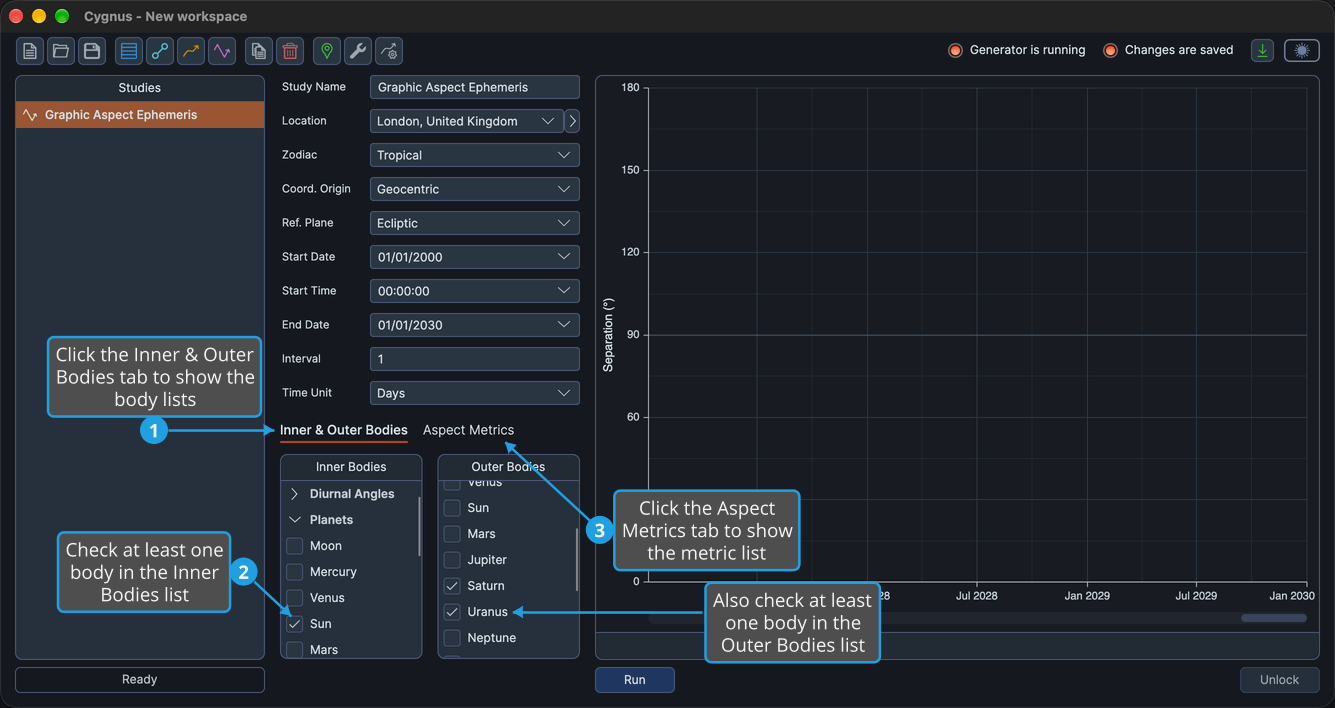
- Click the Inner & Outer Bodies tab.
- Check at least one body in each of the Inner Bodies and Outer Bodies lists.
- Click the Aspect Metrics tab.
- Check the metrics to plot in the Aspect Metrics list.
- Click Run in the button bar below the graph.
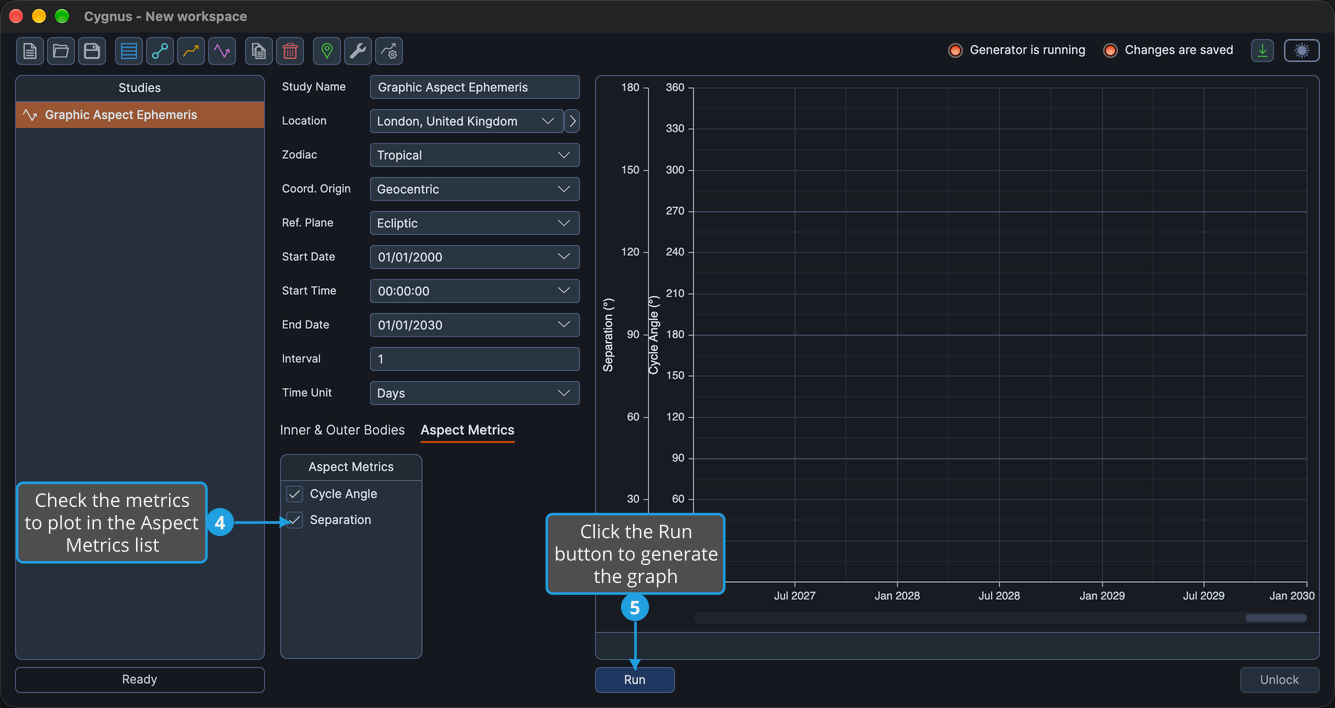
The study locks while it generates, and a progress bar beside the Cancel button shows the percentage complete. When generation finishes, the graph shows the curves, opening on the most recent part of the generated span. The point count appears beneath the graph, and the Run button disappears until you unlock the study.
Change What Is Plotted
- Metrics: check or uncheck Cycle Angle or Separation in the Aspect Metrics list at any time. The graph redraws at once, without generating the study again.
- Bodies: to change which pairs are plotted, unlock the study, change the Inner Bodies and Outer Bodies lists and generate the study again. Unlocking deletes the plotted curves, but keeps any value axis ranges you adjusted: see Unlock Study.
Explore the Graph
- Rest the pointer on a curve to see a crosshair and a readout of the sample's date and value. The readout names the pair and the metric, for example "Sun/Jupiter Separation". See Graph Hover Readout.
- Drag on a value axis to adjust the range of the metric it scales. Adjusted ranges are saved with the study and survive an unlock. See Adjust a Graph Value Axis Range.
- Drag inside the plot to pan the time window, and drag the time-axis strip at the foot of the plot to zoom it. The time window is not saved: it is recomputed each time the study is opened. See Pan and Zoom the Graph Time Window.
- Double-click a point on a curve to open its chart in the companion application Compass. See Open a Graph Point's Chart in Compass.
Related Topics
- Ephemeris Graph: read the curves, axes and legend of the graph.
- Create Study: add a new study of any type to the workspace.
- Generate Study: produce the graph of a configured study and follow its progress.
- Aspect Ephemeris Study: record the cycle angle, phase and separation of body pairs, with the bodies' positions, in an ephemeris table.
- Graphic Ephemeris Study: plot the positions of the bodies instead of pair metrics.
- Bodies List Presets: save the inner and outer body selections you use often.