Graph Settings
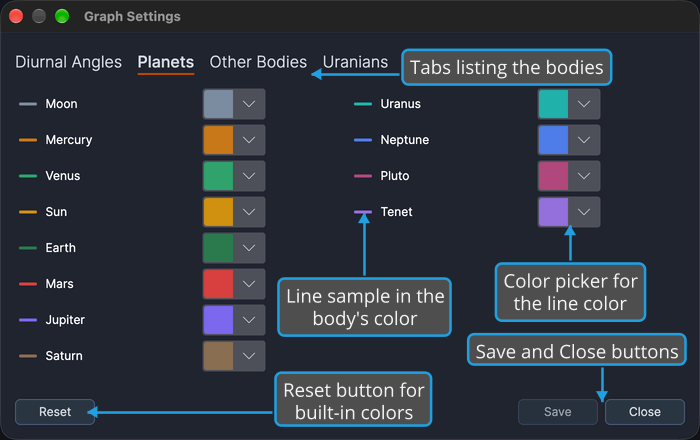
Draw each body's curve in a color you can recognize across all your graphs. Choose Edit → Graph Settings or click the Graph Settings toolbar button, click a tab, choose a color for a body with its color picker, then click Save and Close.
The Graph Settings window sets the line color each body is plotted with on graphic studies. Four tabs, Diurnal Angles, Planets, Other Bodies and Uranians, list the bodies, and each row shows a line sample and a color picker. The Other Bodies tab ends with an All Other Bodies row that sets the fallback color for any body without a color of its own.
Every color change previews straight away on every open graphic study. Save keeps your changes, Reset restores the built-in colors once you confirm, and closing the window with unsaved changes offers to save them, discarding the preview if you decline.
The window is not modal, so the main window and its graphs stay usable while it is open. Opening Graph Settings again brings the open window forward.
Open Graph Settings
To open the Graph Settings window:
- Open the Edit menu (see Open the Edit Menu).
- Click Graph Settings in the Edit menu.
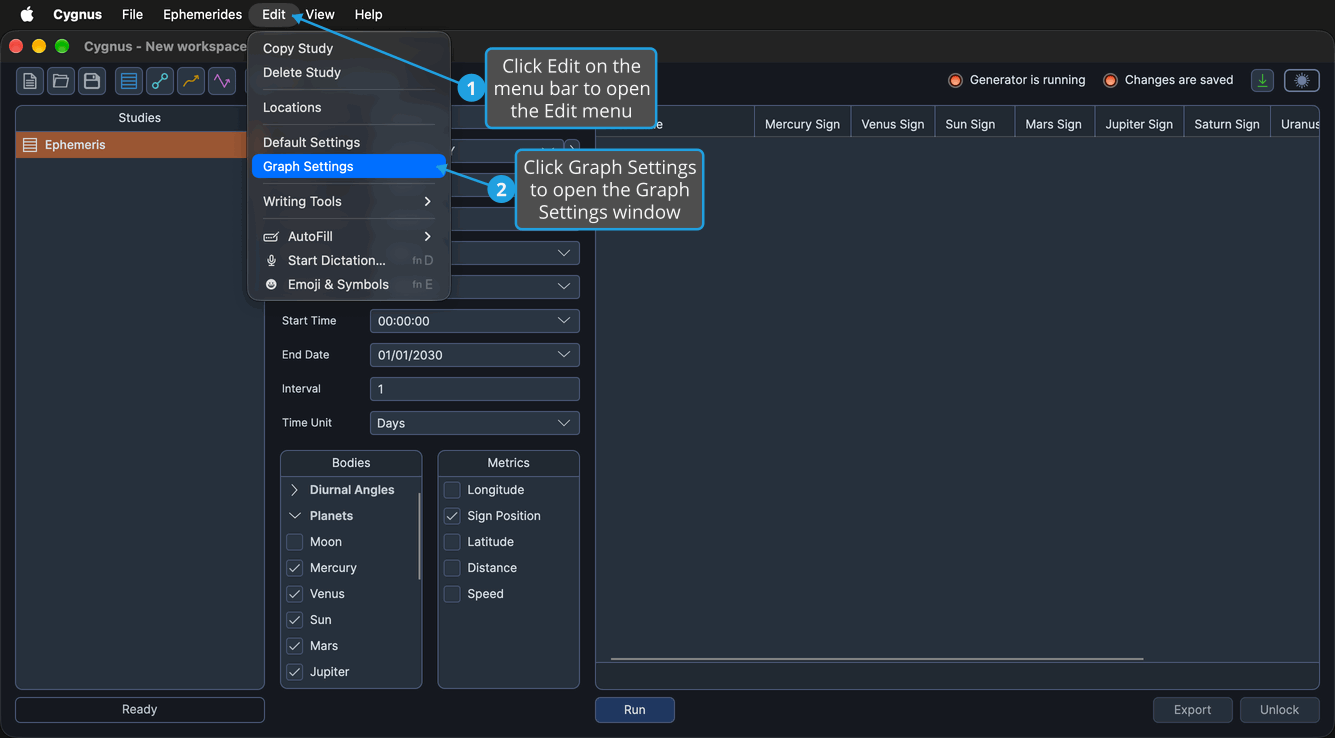
The Graph Settings window opens with its Diurnal Angles, Planets, Other Bodies and Uranians tabs. If it is already open, it is brought forward instead.
On macOS, the Edit menu is in the menu bar at the top of the screen. You can also click the Graph Settings button on the Toolbar.
Set a Body's Graph Color
Choose the color a body's curves are drawn in on graphic studies. To set a body's color (to find the tab that lists a body, see Bodies on Each Tab):
- Click the tab that lists the body, for example Planets for the Sun.
- Click the color picker on the body's row, for example the Sun row.
- Click the new color in the color picker's drop-down.
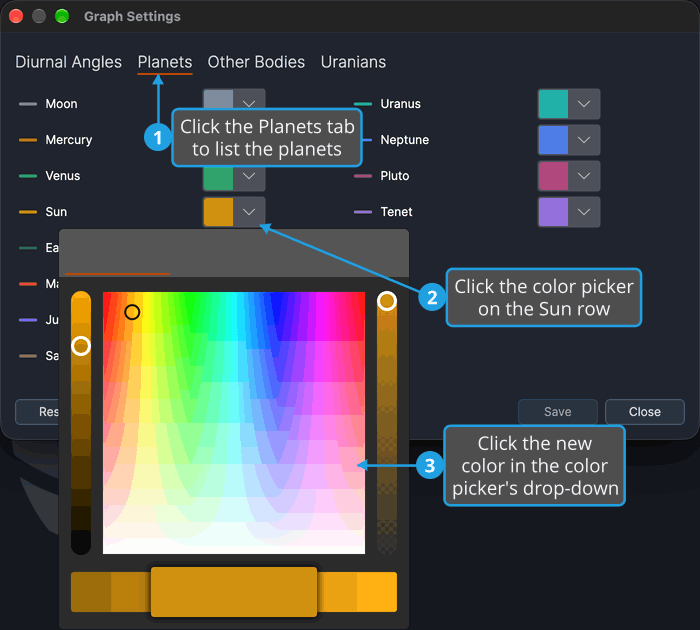
The body's line sample takes the new color, and every open graphic study redraws the body's curves in it straight away. The change is kept only when you save it.
Set the Fallback Graph Color
The All Other Bodies row sets a fallback color rather than naming a body: Cygnus uses it for any body that has no color of its own. To set the fallback color:
- Click the Other Bodies tab.
- Click the color picker on the All Other Bodies row.
- Click the new color in the color picker's drop-down.
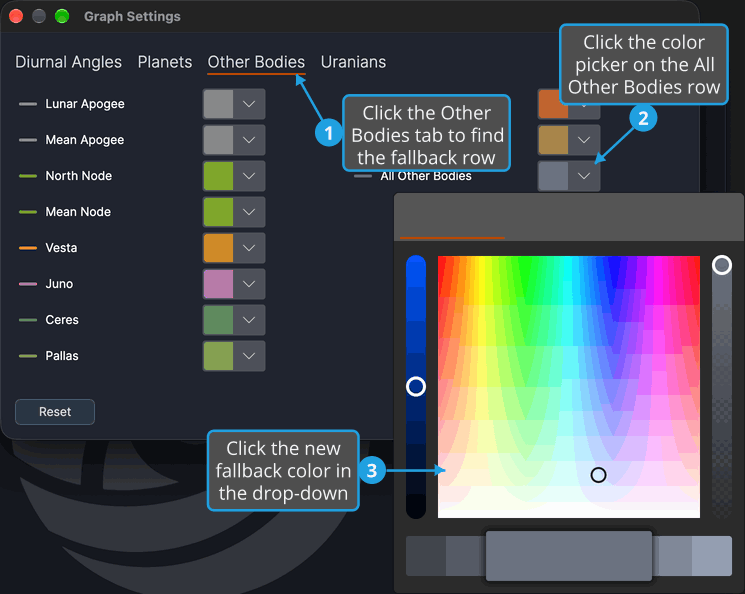
The All Other Bodies line sample takes the new color, and every open graphic study redraws the bodies without a color of their own in it. The change is kept only when you save it.
Save Graph Settings
Keep the color changes you made in the Graph Settings window:
- Click Save.
The colors are saved, and every graphic study uses them from now on, including after you restart Cygnus. Save is available only while the window has unsaved color changes.
Reset Graph Settings to the Built-in Colors
Replace every body color with the built-in colors of Cygnus. To reset the colors:
- Click Reset.
- Confirm the reset when Cygnus asks "Reset all graph settings to their built-in defaults? Your current settings will be replaced." (see Confirm a Confirmation Request).
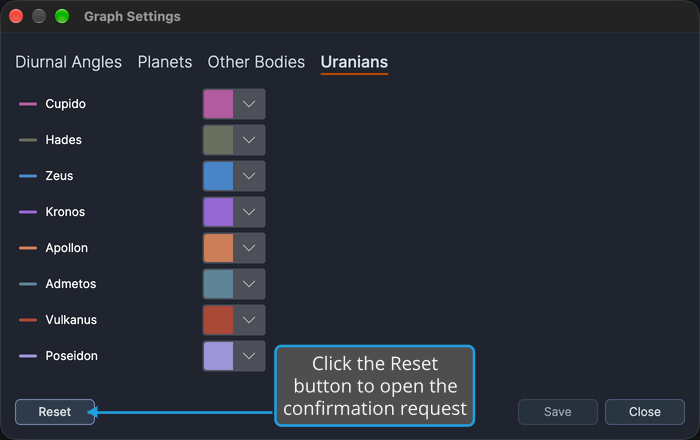
Every row shows its built-in color, and open graphic studies redraw in those colors. The reset is an unsaved change until you click Save. To leave the colors unchanged, decline the request instead (see Decline a Confirmation Request).
Close Graph Settings
When every color change has been saved, close the window:
- Click Close.
The window closes. The window's title-bar close button closes it too.
Close Graph Settings and Save Changes
When the window has unsaved color changes, Close and the title-bar close button first ask, "Would you like to save your changes before closing?" To save the changes and close the window:
- Click Close.
- Save the changes in the Unsaved Changes prompt (see Save Changes from the Unsaved Changes Prompt).
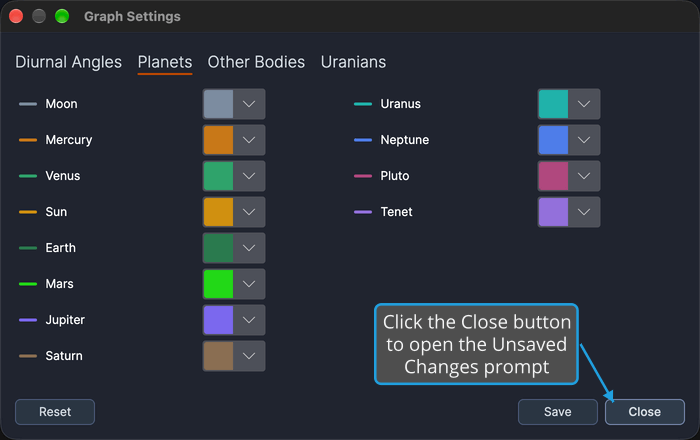
The colors are saved, every graphic study uses them from now on, including after you restart Cygnus, and the window closes. If the save fails, the window stays open with your changes.
To close the window without saving, answer No instead: the previewed colors are discarded and the window closes (see Discard Changes from the Unsaved Changes Prompt). To keep the window open, answer Cancel (see Cancel from the Unsaved Changes Prompt).
Bodies on Each Tab
Each tab lists its bodies top to bottom, filling a left column of up to eight rows before the right column, so the Diurnal Angles and Uranians tabs use the left column only:
| Tab | Bodies |
|---|---|
| Diurnal Angles | Ascendant, Medium Coeli, Descendant, Imum Coeli |
| Planets | Moon, Mercury, Venus, Sun, Earth, Mars, Jupiter, Saturn, Uranus, Neptune, Pluto, Tenet |
| Other Bodies | Lunar Apogee, Mean Apogee, North Node, Mean Node, Vesta, Juno, Ceres, Pallas, Chiron, Pholus, All Other Bodies |
| Uranians | Cupido, Hades, Zeus, Kronos, Apollon, Admetos, Vulkanus, Poseidon |
The tabs group the bodies differently from the classification groups of a study's Bodies List. The two groupings are not meant to correspond, and neither is wrong. Earth appears on the Planets tab although only a heliocentric study can plot it, and Earth and the Sun never appear together in one study's Bodies list. Tenet, the planetary barycenter, closes the Planets tab.
Related Topics
- Graphic Ephemeris Study: plot body positions in the colors set here.
- Graphic Aspect Ephemeris Study: plot the aspects between pairs of bodies on a graph.
- Ephemeris Graph: read the curves of a graphic study.
- Bodies List: choose the bodies a study plots.