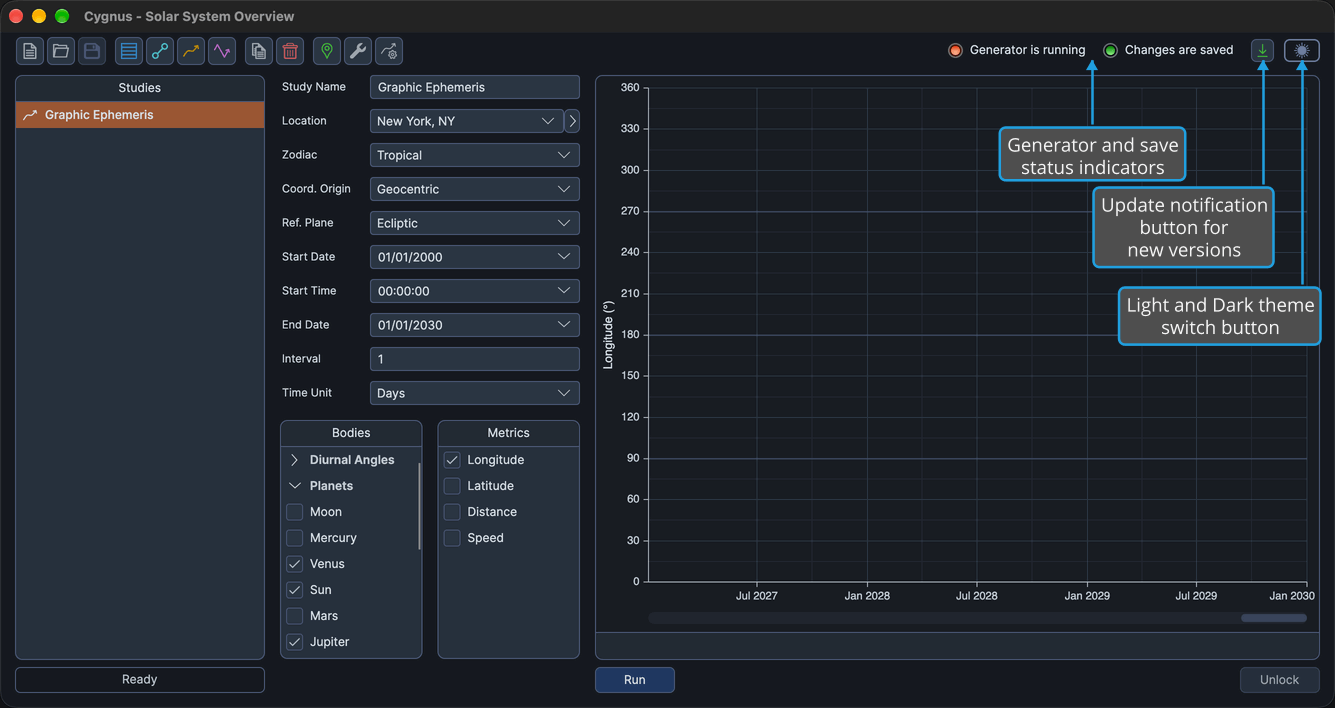
Toolbar
The toolbar gives you one-click access to the commands you use most. It is the row of icon buttons at the top of the main window, below the menu bar on Windows. Click a toolbar button: each performs the same command as its menu counterpart.
A button is unavailable whenever its command is, for example New while a workspace is being loaded or saved. The buttons sit in four groups, and the right end of the same row holds the status indicators, the update notification button and the theme switch.
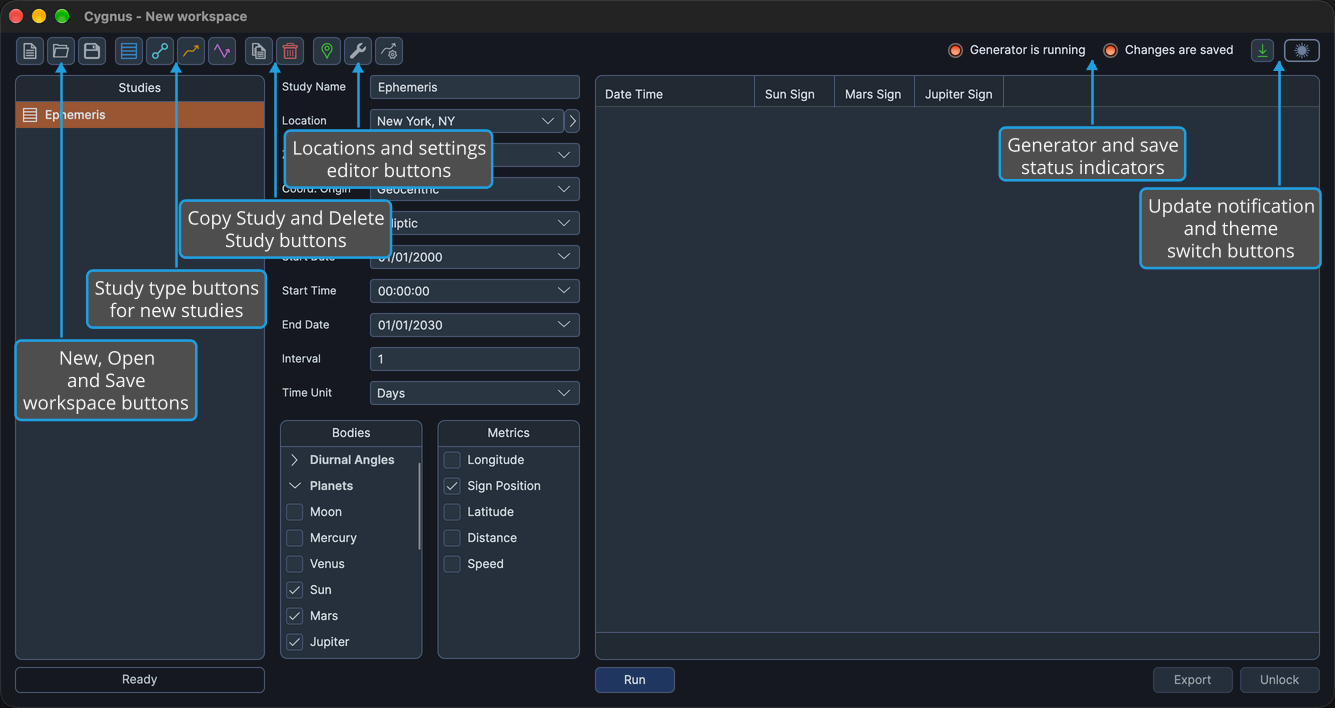
Workspace Buttons
| Command | Description | Details |
|---|---|---|
| New | Replaces the current workspace with a new, empty one. | Same as File → New. See New Workspace. |
| Open | Opens a saved workspace in place of the current one. | Same as File → Open. See Open Workspace. |
| Save | Saves the workspace. | Same as File → Save. See Save Workspace. |
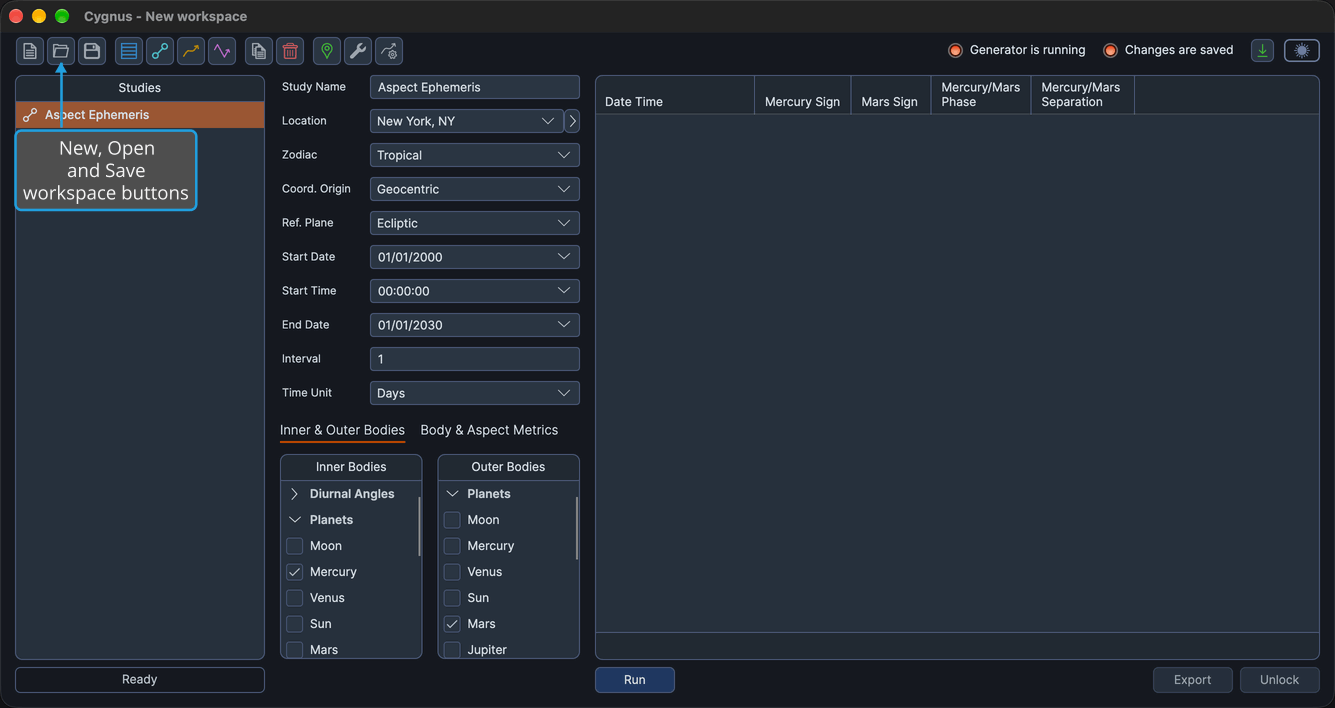
Study Type Buttons
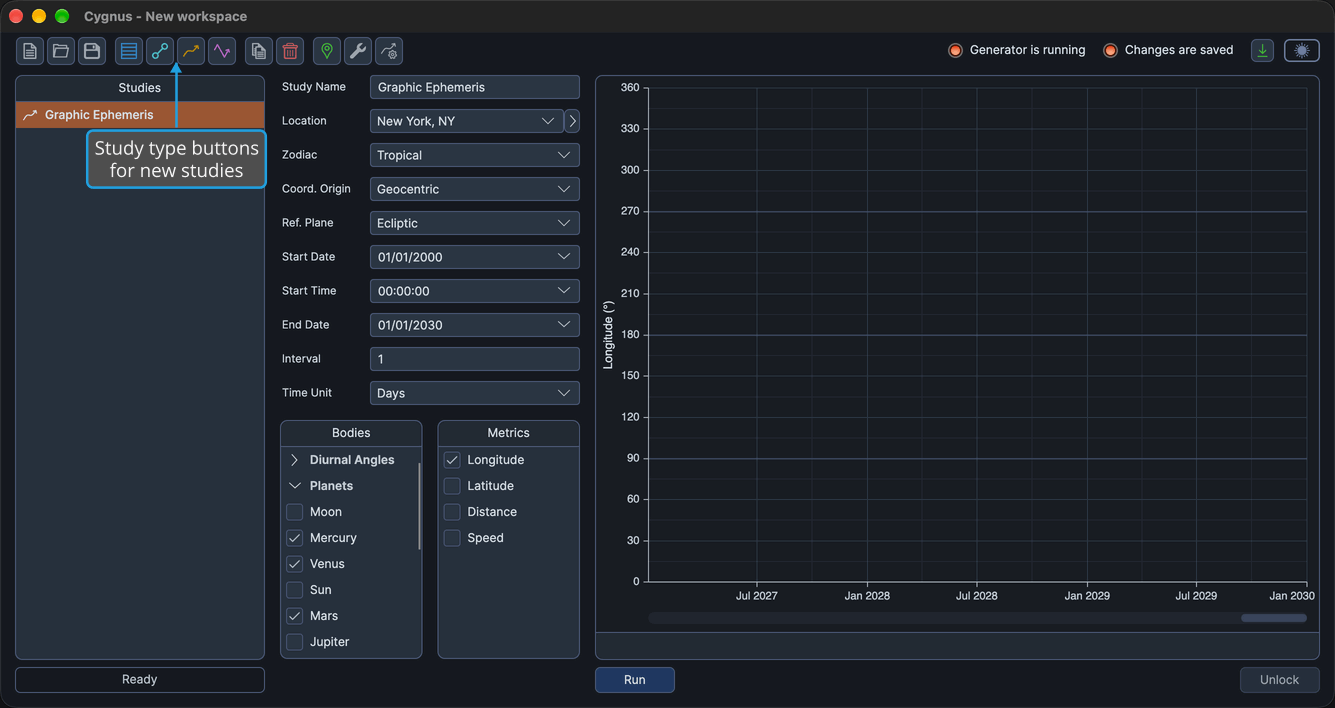
Each study type has its own button, which adds a new study of that type to the bottom of the Studies list and selects it.
| Command | Icon | Description | Details |
|---|---|---|---|
| Ephemeris button | The same icon as an Ephemeris study in the Studies list. | Adds a new Ephemeris study. | Same as Ephemerides → Ephemeris. See Create Study. |
| Aspect Ephemeris button | The same icon as an Aspect Ephemeris study in the Studies list. | Adds a new Aspect Ephemeris study. | Same as Ephemerides → Aspect Ephemeris. See Create Study. |
| Graphic Ephemeris button | The same icon as a Graphic Ephemeris study in the Studies list. | Adds a new Graphic Ephemeris study. | Same as Ephemerides → Graphic Ephemeris. See Create Study. |
| Graphic Aspect Ephemeris button | The same icon as a Graphic Aspect Ephemeris study in the Studies list. | Adds a new Graphic Aspect Ephemeris study. | Same as Ephemerides → Graphic Aspect Ephemeris. See Create Study. |
Study Buttons
| Command | Icon | Description | Details |
|---|---|---|---|
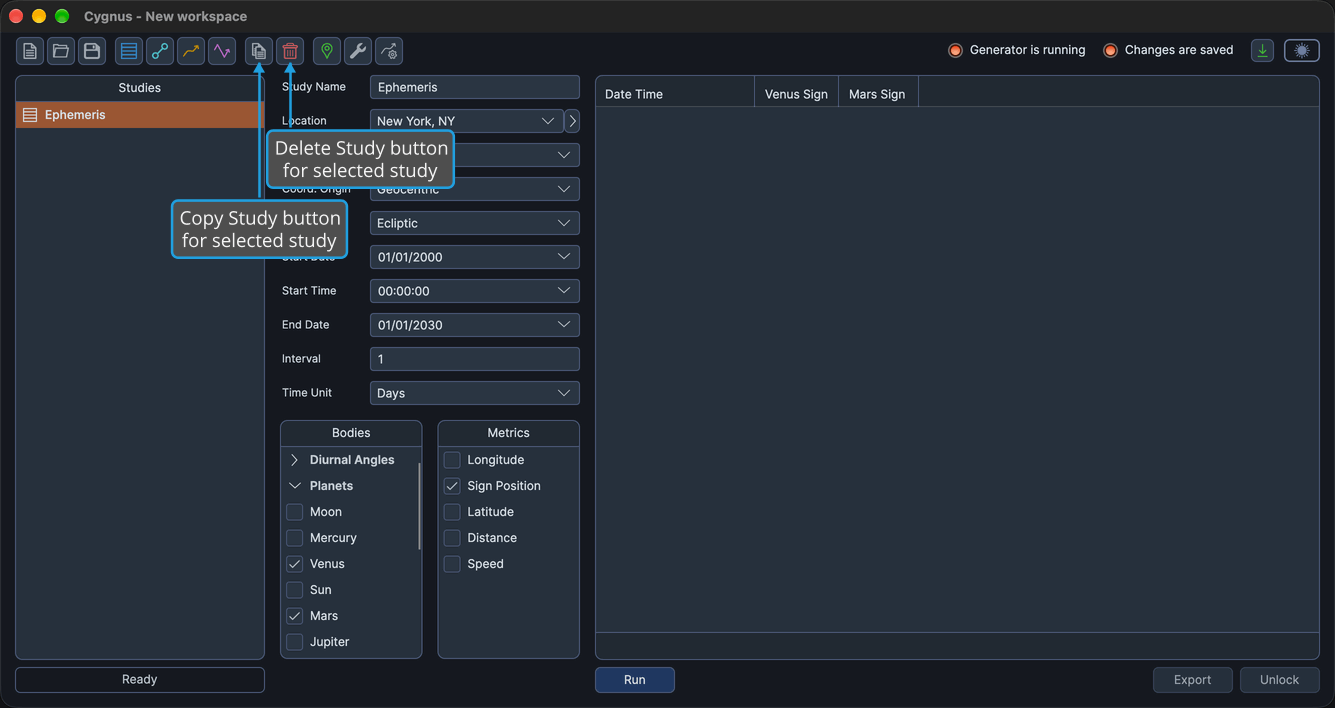
| Copy Study button | The same icon as Copy on the Studies list context menu. | Adds a copy of the selected study, with its settings but without its results. | Same as Edit → Copy Study. See Copy Study. |
| Delete Study button | A trash can, the same icon as Delete on the Studies list context menu. | Removes the selected study and its results once you confirm. | Same as Edit → Delete Study. See Delete Study. |
Settings Buttons
| Command | Description | Details |
|---|---|---|
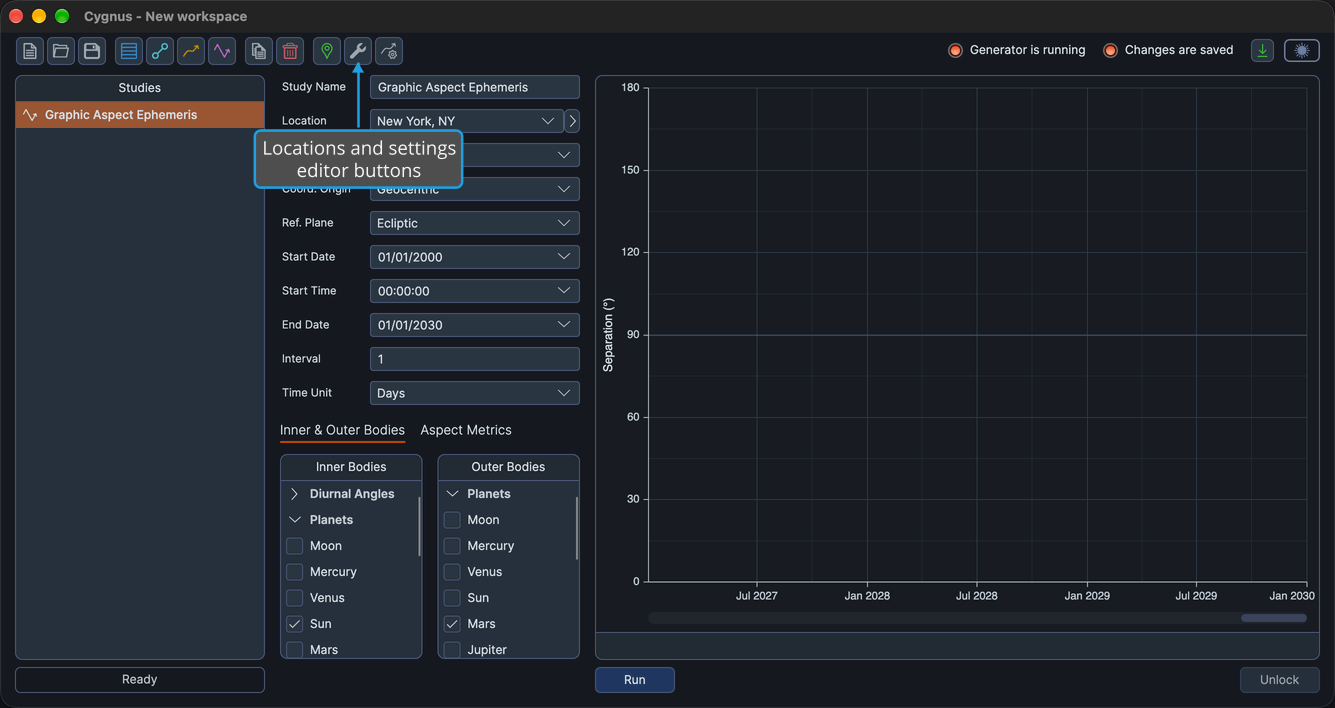
| Locations | Opens the Locations Editor. | Same as Edit → Locations. See Locations Editor. |
| Default Settings | Opens the Default Settings Editor. | Same as Edit → Default Settings. See Default Settings Editor. |
| Graph Settings | Opens the Graph Settings window. | Same as Edit → Graph Settings. See Graph Settings. |
Right End of the Toolbar Row
The right end of the toolbar row holds three more elements.
| Element | Description | Details |
|---|---|---|
| Status indicators | Two lights, Generator is running and Changes are saved, that show whether a study is generating and whether your changes are saved. | See Status Indicators. |
| Update notification button | A download-arrow button that appears only when a newer version of Cygnus is available, immediately to the left of the theme switch. | See Update Notification Button. |
| Theme switch | Switches Cygnus between its Light and Dark themes. | Same as View → Toggle Theme. See Theme Toggle. |