Open Recent File
The File menu's Recent Files submenu lists the workspaces you have most recently opened or saved, so you can return to a workspace without browsing the file system. Selecting a recent file opens it in the same way as the Open Workspace command.
Open a Recent Workspace
To reopen a recently used workspace:
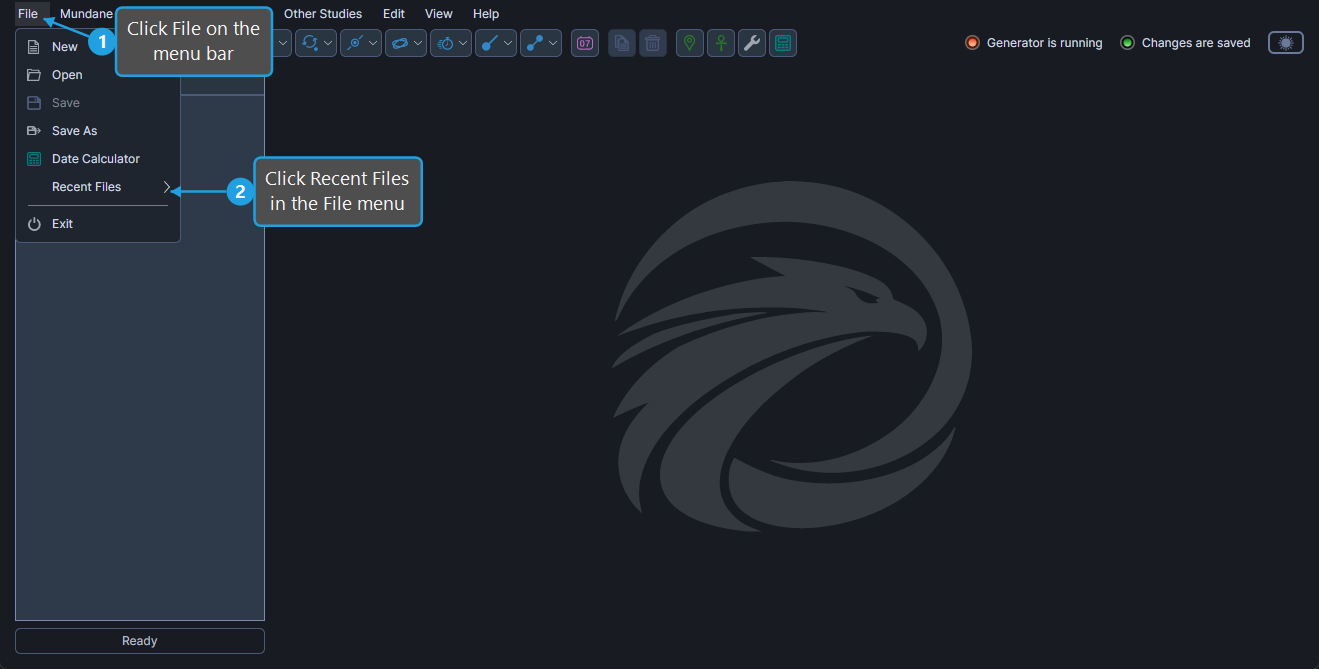
- Click File on the menu bar.
- Click Recent Files in the File menu.
- Click the desired file path in the Recent Files submenu.
- If the active workspace contains unsaved changes, click Yes, No, or Cancel in the Unsaved Changes dialog.
The selected workspace replaces the active workspace, and its file path moves to the top of the recent files list.
Recent Files List
The Recent Files submenu lists the workspaces you have most recently opened or saved. Each menu item is the full file path to a .aquila workspace. The list updates automatically when you open a workspace, save a new workspace, or save a workspace under a new name.