Open Workspace
Opening a workspace restores a piece of research exactly as you left it. Every study the .aquila file holds comes back to the Studies list with its settings intact and with any events it had already generated, so a study that took minutes to generate is ready to read the moment the file loads.
The main window title changes to the name of the workspace you opened, and from that point Save writes back to this file.
Open a Saved Workspace
To reopen a workspace you saved earlier:
- Open the File Menu.
- Click Open in the File menu.
- Select the
.aquilafile in the open-file dialog.
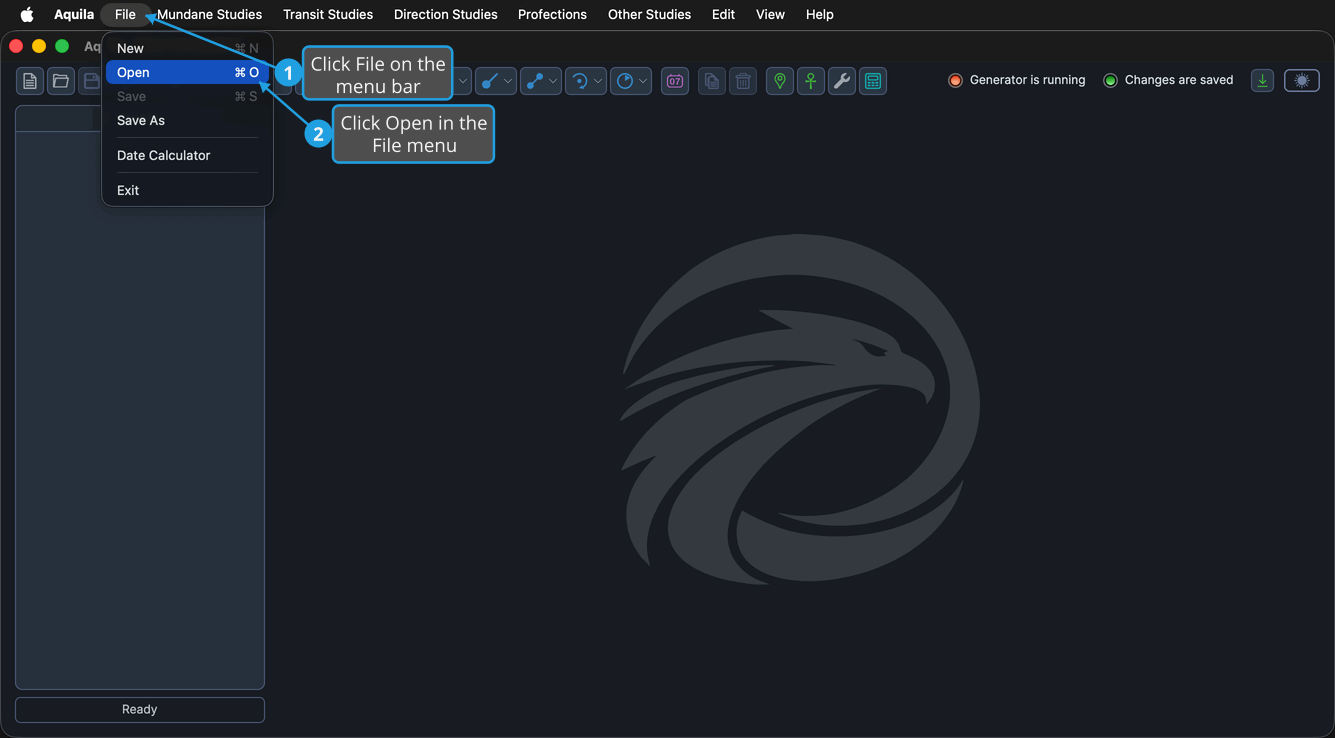
Press Cmd+O (Ctrl+O on Windows) to reach the open-file dialog directly. The Open button on the toolbar does the same thing.
The command is unavailable while the workspace is busy with a save or a load, and while a study is generating events or compiling its event filter.
Choose a File in the Open File Dialog
The open-file dialog is your operating system's own file picker, raised by any command that reads a file. It hands the path you pick back to the command that asked for it.
To choose a file:
- Select the file to open in the file list.
- Click Open.
The dialog closes and the command proceeds to read the file you chose.
Cancel the Open File Dialog
Backing out of the picker leaves everything as it was. Nothing is read and the command that raised the dialog stops.
To close the dialog without choosing a file:
- Click Cancel in the open-file dialog.