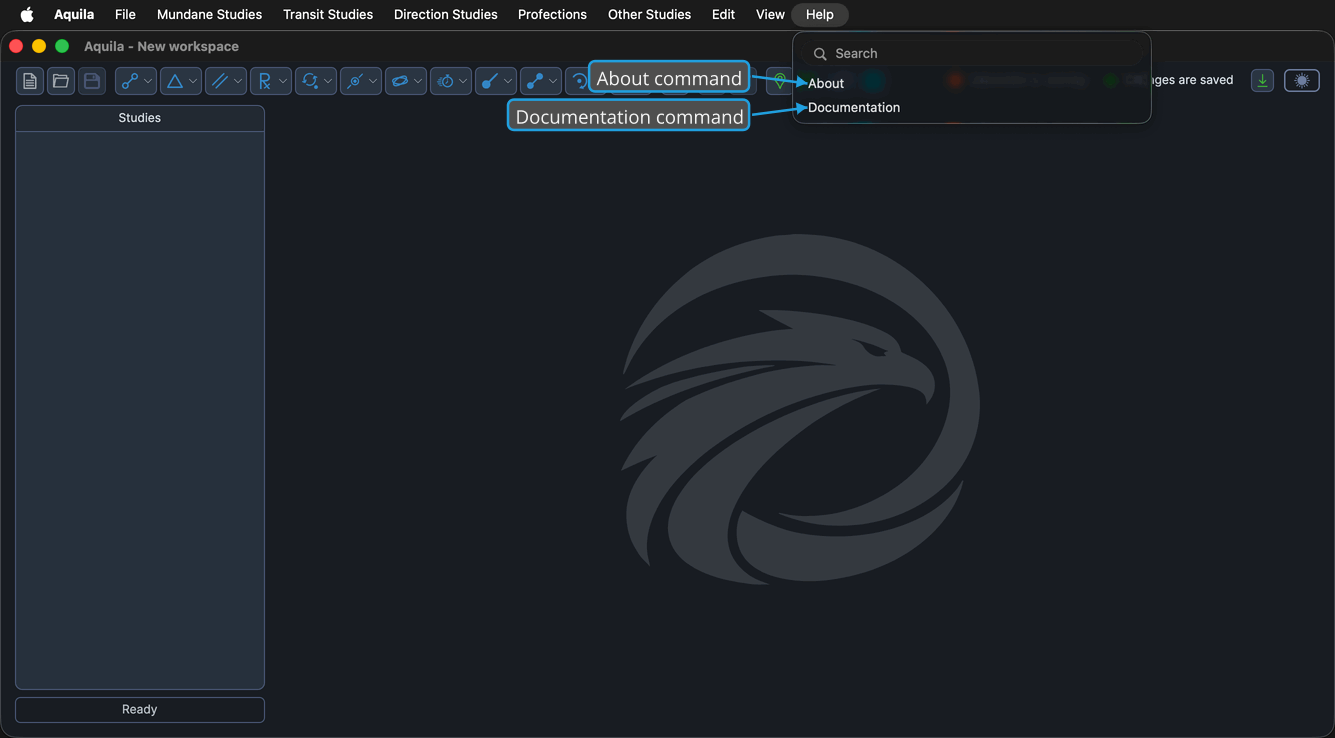
Menu Bar
The menu bar runs across the top of the main window and is the complete, browsable map of everything Aquila can do. Nine menus group the commands: File for the workspace-file commands, five menus for creating studies, Edit for study management and the reference-data editors, View for the theme, and Help for the version information and this documentation. On macOS the same menus appear in the native menu bar at the top of the screen rather than inside the window.
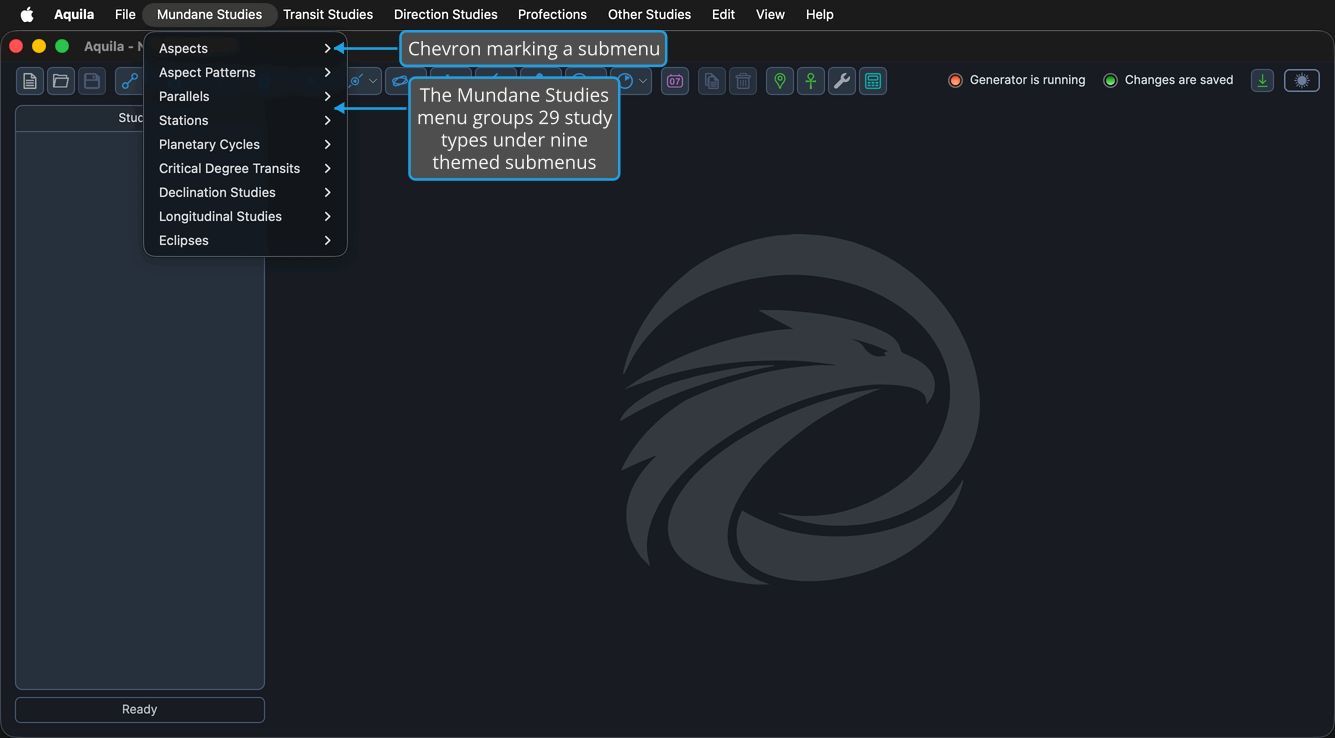
Click a menu header to open it, then click the item you want. Where a menu nests a second level, as the Mundane Studies menu does, click the submenu header to open the group beneath it.
The File Menu
The File menu holds the commands that create, open, and save workspaces, along with the command that closes Aquila.
| Command | Shortcut | Description | Details |
|---|---|---|---|
| New | Cmd+N (Ctrl+N on Windows) | Starts an empty workspace, seeded from the Application Defaults. | New Workspace |
| Open | Cmd+O (Ctrl+O on Windows) | Opens a saved .aquila workspace file through a file picker. | Open Workspace |
| Save | Cmd+S (Ctrl+S on Windows) | Writes the workspace back to the file it came from. | Save Workspace |
| Save As | None | Writes the workspace to a newly named file and continues working in it. | Save Workspace |
| Exit | None | Closes Aquila, checking for unsaved changes first. | Exit Application |
Shortcuts are given in their macOS form, with the Windows equivalent in parentheses.
The table above lists Aquila's own File menu commands. The File menu as it appears on screen carries one further command that is outside the scope of this documentation set, so the open menu holds one more row than the table.
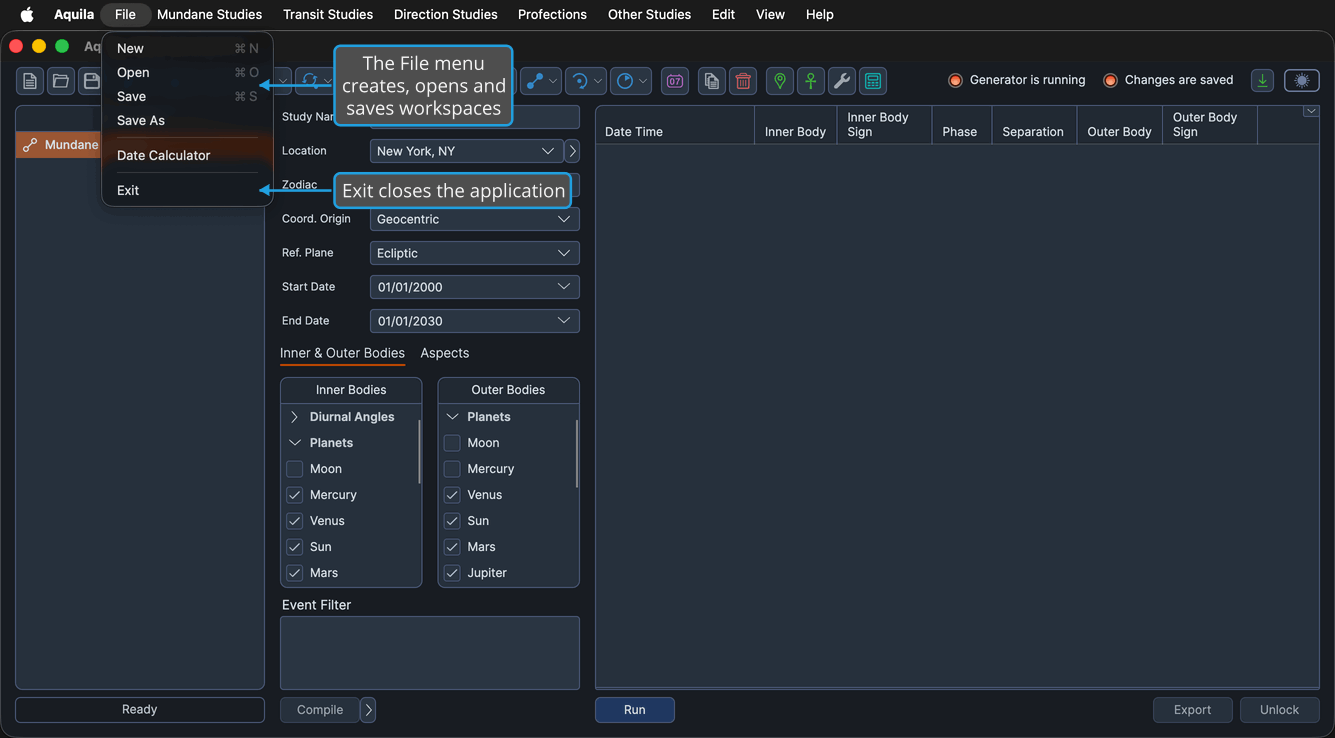
Open the File Menu
To reach any of the workspace-file commands:
- Click File on the menu bar.
The File menu drops open, listing the workspace-file commands and Exit.
The Mundane Studies Menu
The Mundane Studies menu creates the studies that search the transiting bodies on their own, without reference to a natal record. Its 29 study types are grouped under nine themed submenus, so reaching one takes three clicks on the menu. See Create Study for the procedure.
| Submenu | Command | Description | Details |
|---|---|---|---|
| Aspects | Mundane Aspects | Exact aspects between a pair of transiting bodies. | Mundane Aspects Study |
| Aspects | Appulse Minima | The closest true angular approach of two transiting bodies within orb of each other. | Appulse Minima Study |
| Aspects | Aspect Hotspots | Exact aspects between two transiting bodies while one is within orb of a critical degree. | Aspect Hotspots Study |
| Aspects | Lunar Phases | The Moon reaching one of the eight phase angles to the Sun. | Lunar Phases Study |
| Aspect Patterns | Grand Trines | Three transiting bodies each 120° from the other two, within orb. | Grand Trines Study |
| Aspect Patterns | Kites | A transiting Grand Trine with a fourth body opposing one of its points within orb. | Kites Study |
| Aspect Patterns | Stelliums | Three transiting bodies conjunct within orb. | Stelliums Study |
| Aspect Patterns | T-Squares | Two transiting bodies in opposition with a third squaring both of them within orb. | T-Squares Study |
| Aspect Patterns | Yods | Two transiting bodies sextile each other and both quincunx an apex body, within orb. | Yods Study |
| Aspect Patterns | Grand Squares | Four transiting bodies each opposing one of the others and squaring the remaining two, within orb. | Grand Squares Study |
| Parallels | Mundane Parallels | Exact parallels and contra-parallels of declination between two transiting bodies. | Mundane Parallels Study |
| Stations | Mundane Stations | The moments a body stations retrograde or direct. | Mundane Stations Study |
| Stations | Retrograde Cycles | Each complete retrograde cycle, keyed to the body's entry into its pre-retrograde shadow. | Retrograde Cycles Study |
| Stations | Station Hotspots | Transiting stations that fall within orb of a critical degree. | Station Hotspots Study |
| Planetary Cycles | Inferior Planetary Cycles | Each synodic cycle of an inferior planet, keyed to its retrograde station. | Inferior Planetary Cycles Study |
| Planetary Cycles | Superior Planetary Cycles | Each synodic cycle of a superior planet, keyed to its retrograde station. | Superior Planetary Cycles Study |
| Critical Degree Transits | Hotspot Transits | A body crossing a fixed longitudinal degree of the zodiac. | Hotspot Transits Study |
| Critical Degree Transits | Sign Ingresses | A body crossing a sign boundary at a multiple of 30°. | Sign Ingresses Study |
| Declination Studies | Nodal Transits | A body transiting its own ascending or descending node, where its latitude crosses zero. | Nodal Transits Study |
| Declination Studies | Latitude Extrema | A body reaching a maximum or minimum of latitude or declination. | Latitude Extrema Study |
| Declination Studies | Solar Limit Transits | A body's declination crossing one of the Sun's declination limits. | Solar Limit Transits Study |
| Declination Studies | Heliacal Phenomenon | Each heliacal rising and setting, the first morning a body is visible before sunrise and the last evening after sunset. | Heliacal Phenomenon Study |
| Longitudinal Studies | Speed Extrema | A body reaching a maximum or minimum of longitudinal speed. | Speed Extrema Study |
| Longitudinal Studies | Maximum Elongations | An inferior planet reaching its greatest angular distance from the Sun. | Maximum Elongations Study |
| Longitudinal Studies | Mundane Arcs | A body completing another whole-number multiple of an arc you specify. | Mundane Arcs Study |
| Eclipses | Solar Eclipses | Each solar eclipse in the date range. | Solar Eclipses Study |
| Eclipses | Solar Eclipse Hotspots | Solar eclipses falling within orb of a critical degree. | Solar Eclipse Hotspots Study |
| Eclipses | Lunar Eclipses | Each lunar eclipse in the date range. | Lunar Eclipses Study |
| Eclipses | Lunar Eclipse Hotspots | Lunar eclipses falling within orb of a critical degree. | Lunar Eclipse Hotspots Study |
The Transit Studies Menu
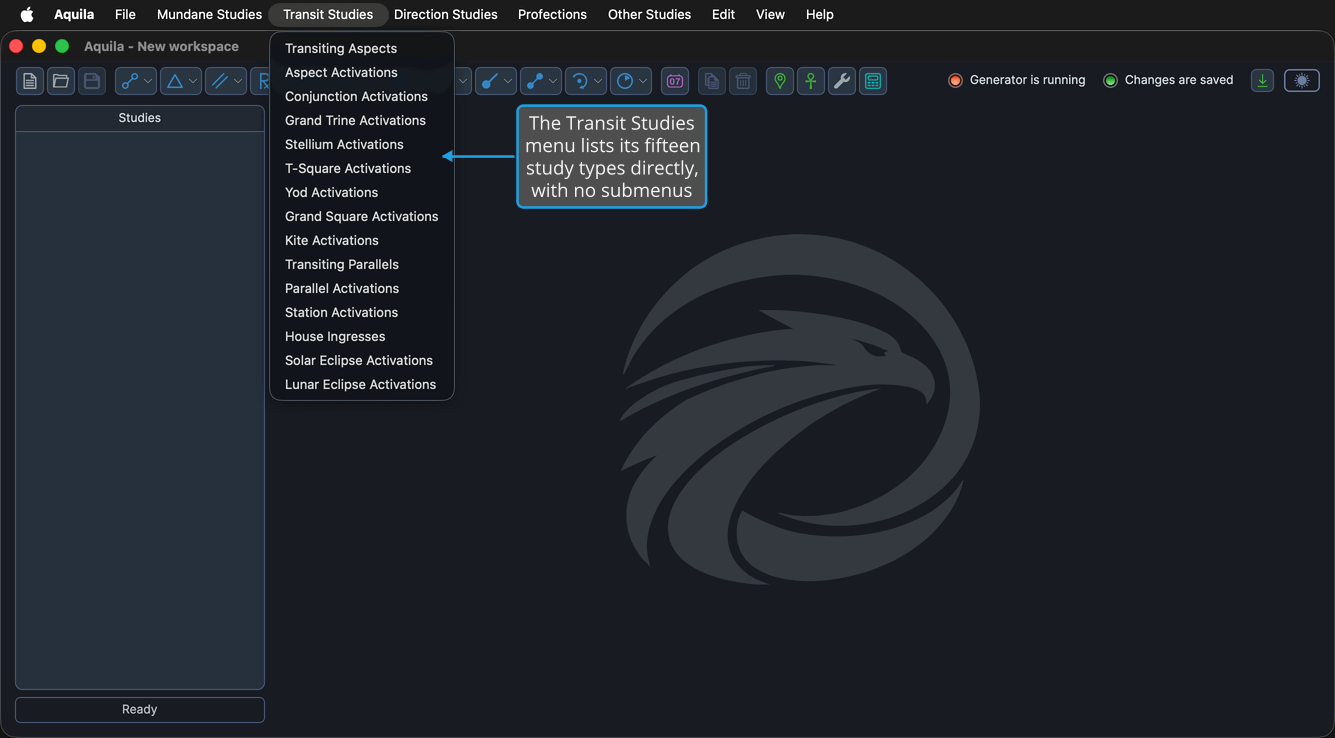
The Transit Studies menu creates the studies that measure the transiting bodies against a natal record. It lists its fifteen study types directly, with no submenus, so a study type is two clicks away.
| Command | Description | Details |
|---|---|---|
| Transiting Aspects | Exact aspects from a transiting body to a natal body. | Transiting Aspects Study |
| Aspect Activations | Exact aspects between two transiting bodies while one is within orb of a natal body. | Aspect Activations Study |
| Conjunction Activations | Precise conjunctions of two transiting bodies aspecting a natal body within orb. | Conjunction Activations Study |
| Grand Trine Activations | Transiting Grand Trines with a body within orb of a natal body. | Grand Trine Activations Study |
| Stellium Activations | Transiting Stelliums with a body within orb of a natal body. | Stellium Activations Study |
| T-Square Activations | Transiting T-Squares with a body within orb of a natal body. | T-Square Activations Study |
| Yod Activations | Transiting Yods with a body within orb of a natal body. | Yod Activations Study |
| Grand Square Activations | Transiting Grand Squares with a body within orb of a natal body. | Grand Square Activations Study |
| Kite Activations | Transiting Kites with a body within orb of a natal body. | Kite Activations Study |
| Transiting Parallels | Exact parallels and contra-parallels of declination to a natal body. | Transiting Parallels Study |
| Parallel Activations | Parallels between two transiting bodies while one is within orb of a natal parallel. | Parallel Activations Study |
| Station Activations | Transiting stations that fall within orb of a natal body. | Station Activations Study |
| House Ingresses | Transiting bodies crossing a natal house cusp. | House Ingresses Study |
| Solar Eclipse Activations | Solar eclipses falling within orb of an aspect to a natal body. | Solar Eclipse Activations Study |
| Lunar Eclipse Activations | Lunar eclipses falling within orb of an aspect to a natal body. | Lunar Eclipse Activations Study |
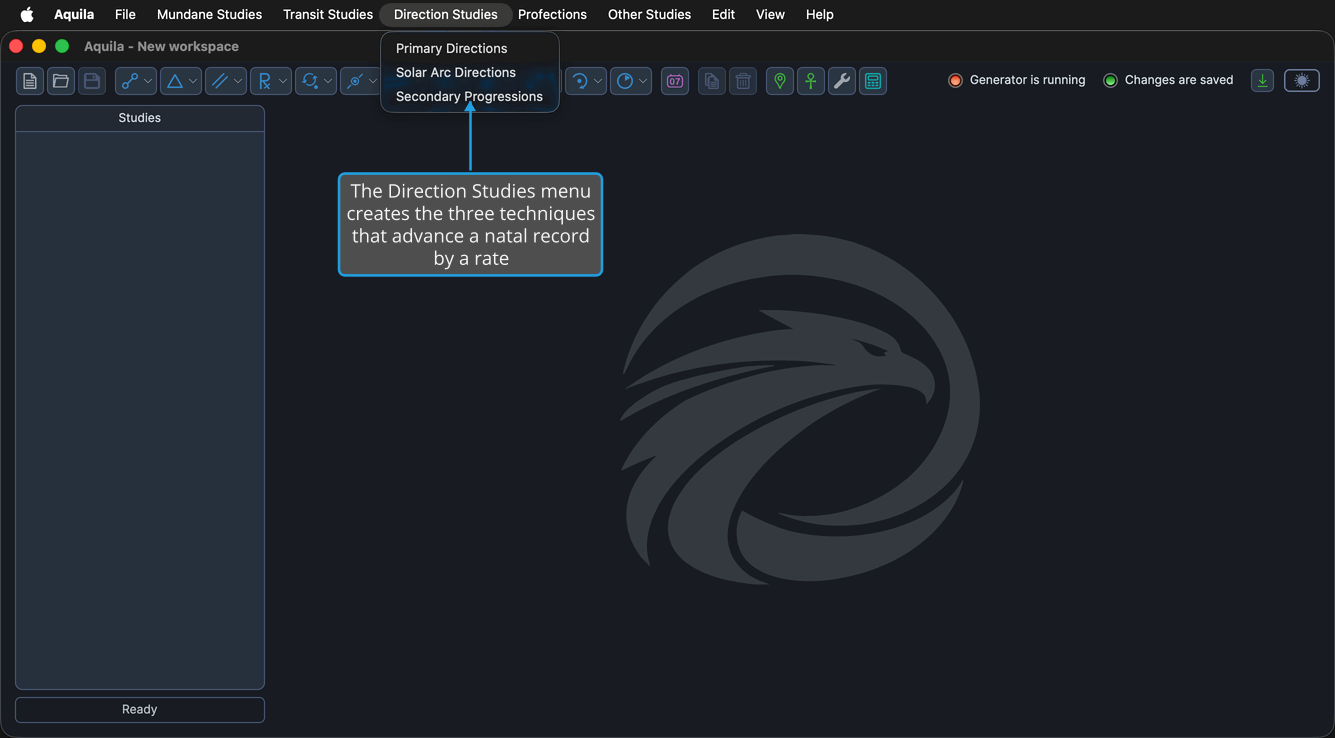
The Direction Studies Menu
The Direction Studies menu creates the studies that advance a natal record through time by a rate rather than by transit.
| Command | Description | Details |
|---|---|---|
| Primary Directions | The diurnal rotation carries a promissor, or one of its aspect rays, to a significator's natal place. | Primary Directions Study |
| Solar Arc Directions | Natal points advanced by the arc of the secondary progressed Sun perfect aspects to natal places. | Solar Arc Directions Study |
| Secondary Progressions | Progressed bodies, the natal sky re-read at one day per year of life, perfect aspects to natal places. | Secondary Progressions Study |
The Profections Menu
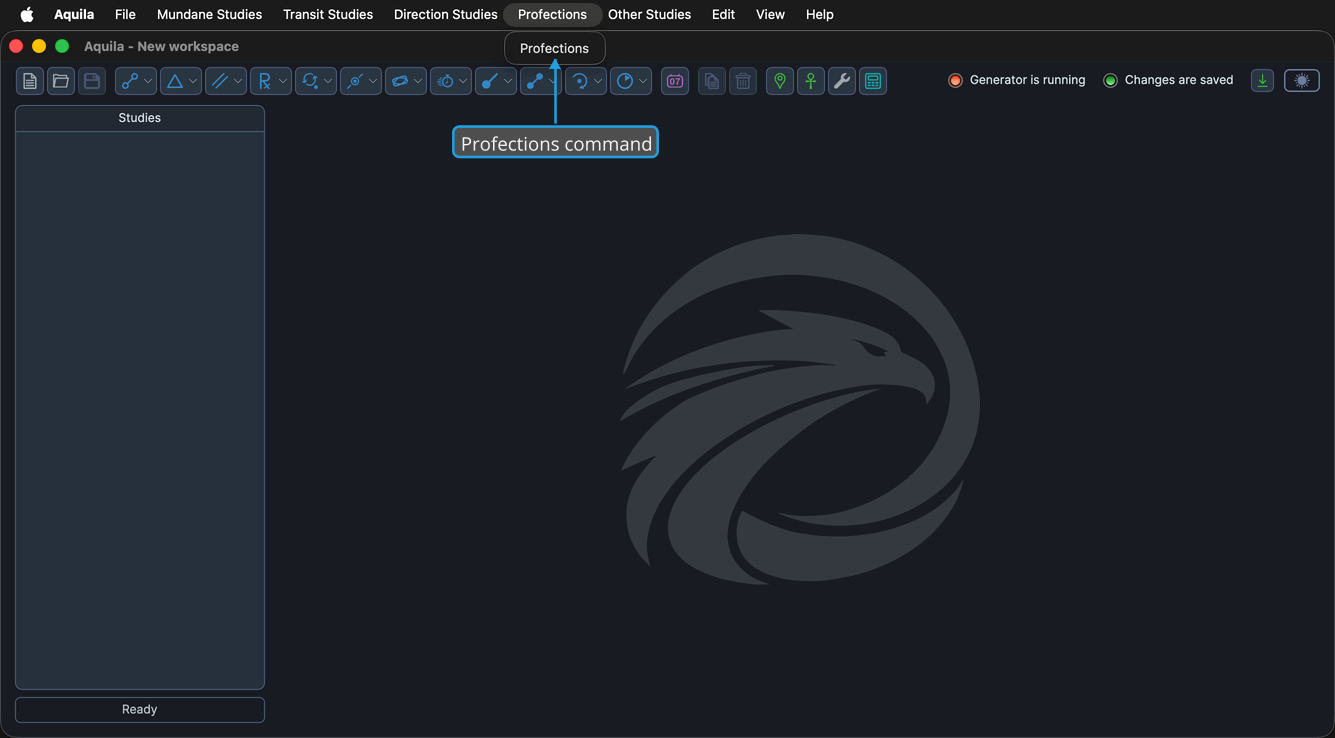
The Profections menu holds a single command, which creates the study that advances a natal point one whole sign per year, month, or day.
| Command | Description | Details |
|---|---|---|
| Profections | A profected point enters its next sign, activating that sign's natal house and making its ruler the Lord of the Period. | Profections Study |
The Other Studies Menu
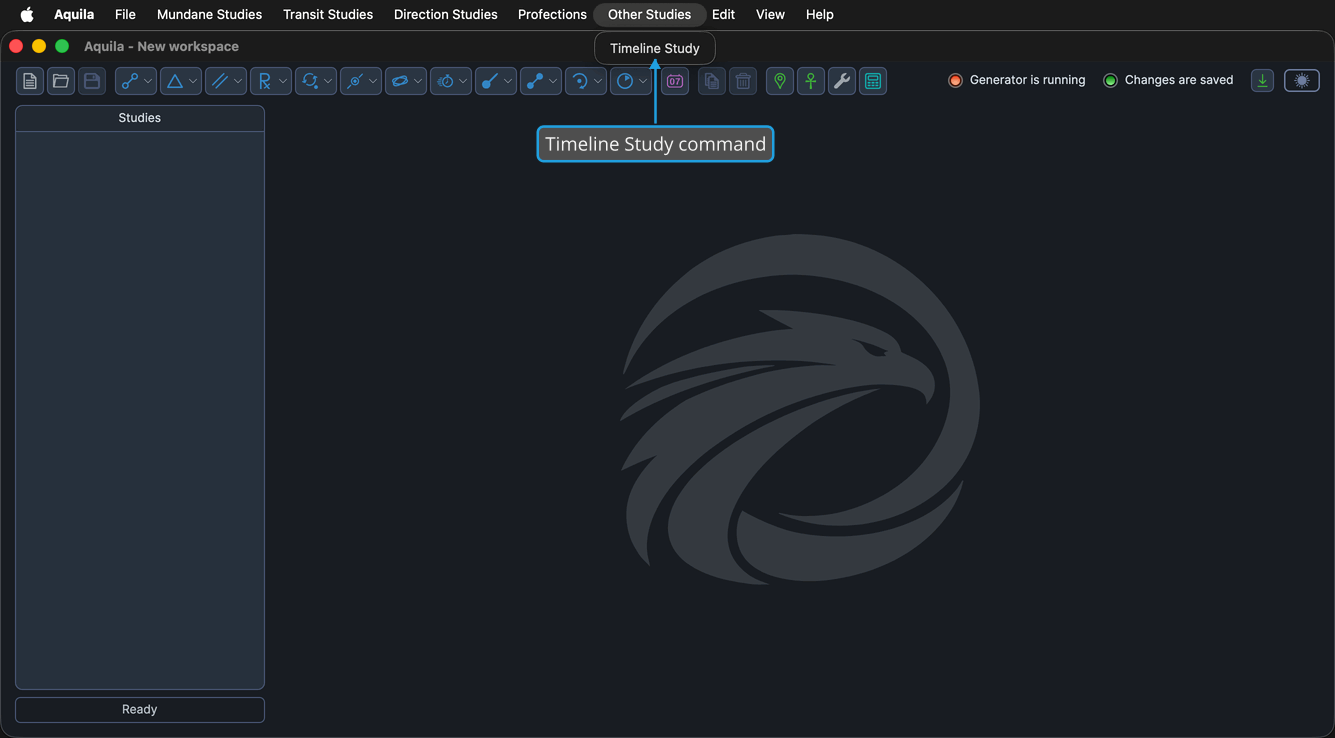
The Other Studies menu holds the one study type that generates nothing of its own and instead draws on studies you have already generated.
| Command | Description | Details |
|---|---|---|
| Timeline Study | Merges the events of other studies in the workspace into one chronological list. | Timeline Study |
The Edit Menu
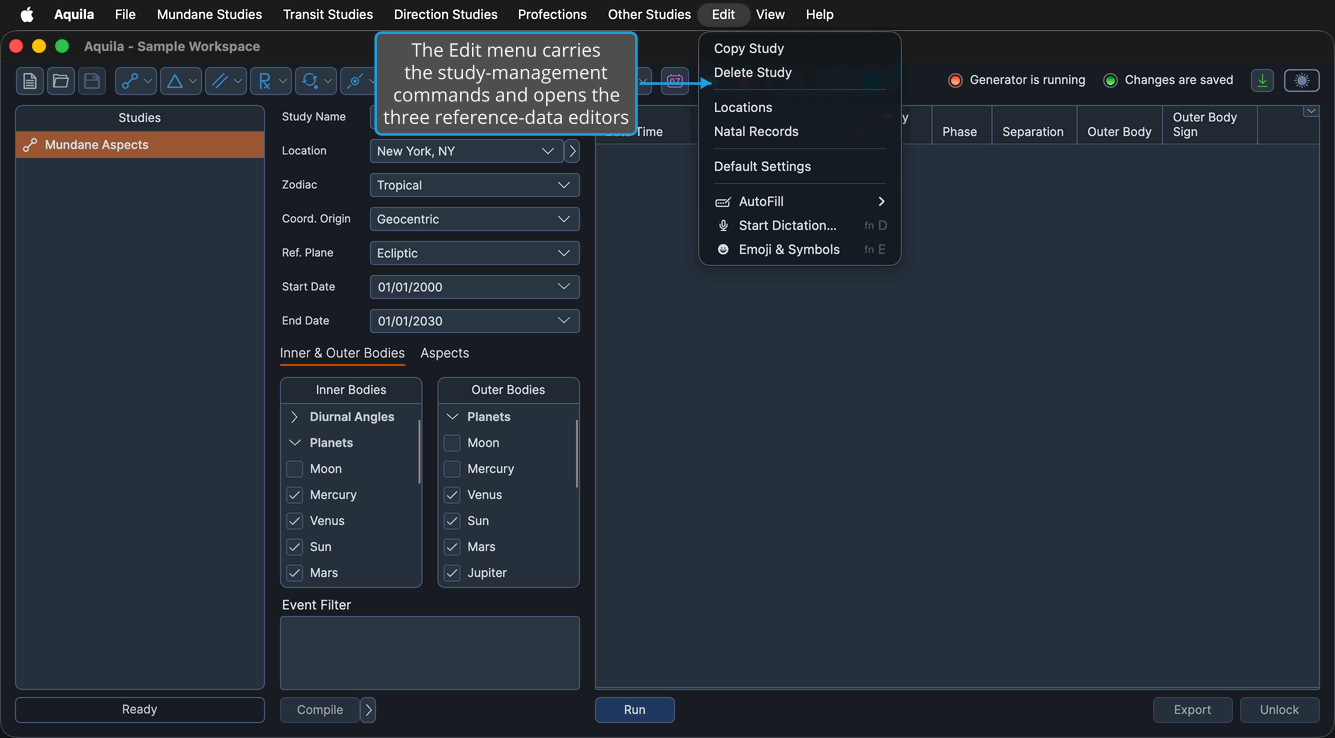
The Edit menu carries the two study-management commands and opens the three reference-data editors.
| Command | Description | Details |
|---|---|---|
| Copy Study | Duplicates the selected study with all of its configuration. | Copy Study |
| Delete Study | Removes the selected study and any events it has generated. | Delete Study |
| Locations | Opens the Locations editor. | Locations Editor |
| Natal Records | Opens the Natal Records editor. | Natal Records Editor |
| Default Settings | Opens the Default Settings editor, which holds the Application Defaults and the Workspace Defaults. | Default Settings Editor |
macOS appends its own AutoFill, Start Dictation and Emoji & Symbols commands beneath Aquila's in the Edit menu. Those are operating-system services rather than Aquila commands.
Open the Edit Menu
To reach any of the study-management or reference-data commands:
- Click Edit on the menu bar.
The Edit menu drops open, listing Aquila's Copy Study, Delete Study, Locations, Natal Records, and Default Settings commands.
The View Menu
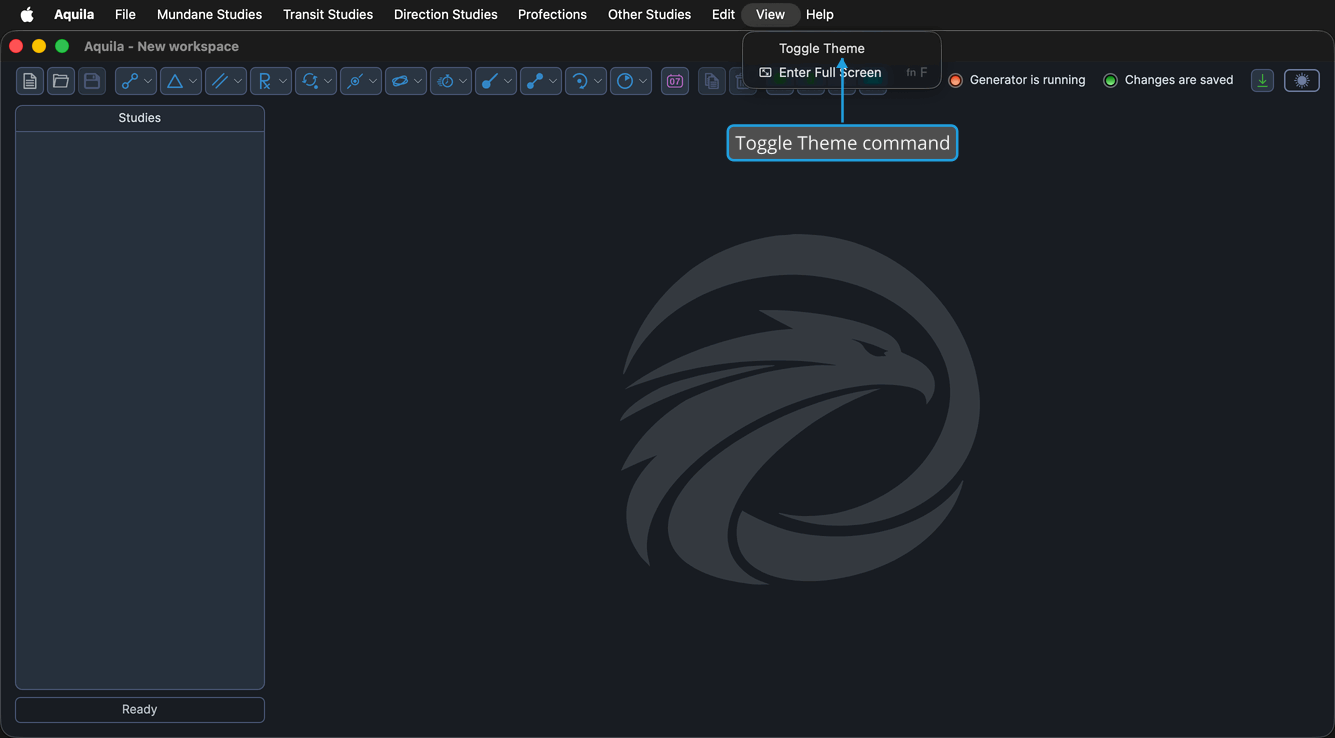
Toggle Theme is the View menu's only Aquila command. macOS adds its own Enter Full Screen command beneath it.
| Command | Description | Details |
|---|---|---|
| Toggle Theme | Flips the application between the Light and Dark themes. | Theme Toggle |
The Help Menu
The Help menu points to the version and license information and to this documentation. On macOS the search field at the top of the menu is supplied by the operating system rather than by Aquila.
| Command | Description | Details |
|---|---|---|
| About | Opens the About dialog, showing the installed version and the license status. | About Dialog |
| Documentation | Opens Aquila's user documentation in your default browser. | Open Documentation |