Main Window
Aquila opens in a single top-level window, and everything the application does happens inside it. Double-click the Aquila application icon to launch it; the window opens centered on screen, its title bar naming the current workspace. From here you reach every part of the application: creating and opening workspaces, adding studies, configuring the study you have selected, and reading the events it generates.
Work in Aquila flows from left to right. Studies accumulate in the list down the left side, and the study you select there fills the rest of the window with its settings and its results.
Window Layout
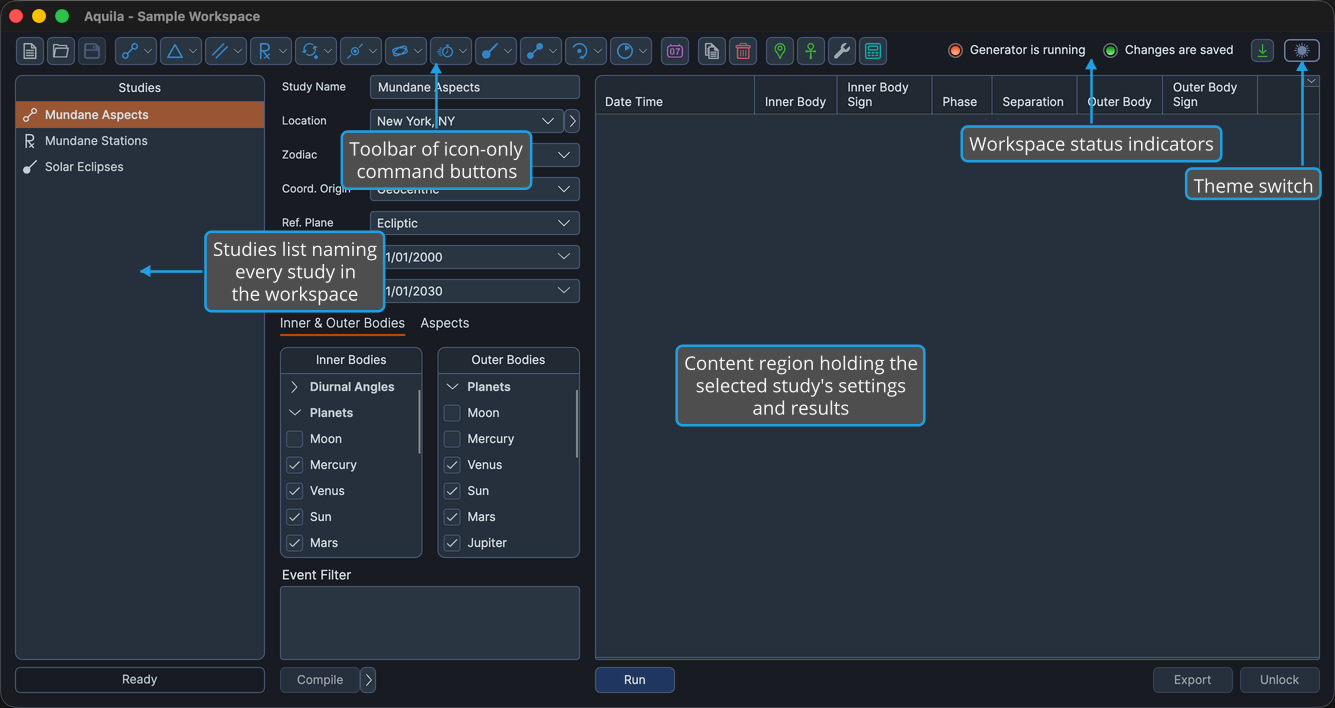
The window is organized into four regions: the title bar, the toolbar, the Studies list, and the content region.
The title bar across the top carries the name of the current workspace, so the file you are working in is always visible.
Beneath it sits the toolbar, which repeats the commands you reach for constantly as icon-only buttons. The menu bar is the complete, browsable map of everything Aquila can do; on macOS it appears in the native menu bar at the top of the screen rather than inside the window. The right-hand end of the toolbar row carries the two workspace status indicators, and the theme toggle sits at the top-right corner of the window beside them.
Down the left side, the Studies list names every study in the open workspace, each row showing a study-type icon beside the study's name. Clicking a row loads that study into the content region, the large area filling the rest of the window, where the study's settings and its generated events are laid out. A drag handle between the Studies list and the content region lets you widen or narrow the list.
In This Section
- Menu Bar: The nine menus that group every command in the application, including the five menus that create studies.
- Toolbar: Icon-only buttons for the workspace-file commands, the study types, study management, and the reference-data editors.
- Workspace Status Indicators: Two lamps that report whether a study is generating events anywhere in the workspace, and whether your changes have been written to disk.
- Theme Toggle: The toggle that flips the application between the Light and Dark themes, and remembers your choice between sessions.
- Studies List: The panel listing every study in the open workspace, where you select the study you want to work on.
- Exit Application: The command that closes Aquila, and what happens to unsaved work when it does.