Toolbar
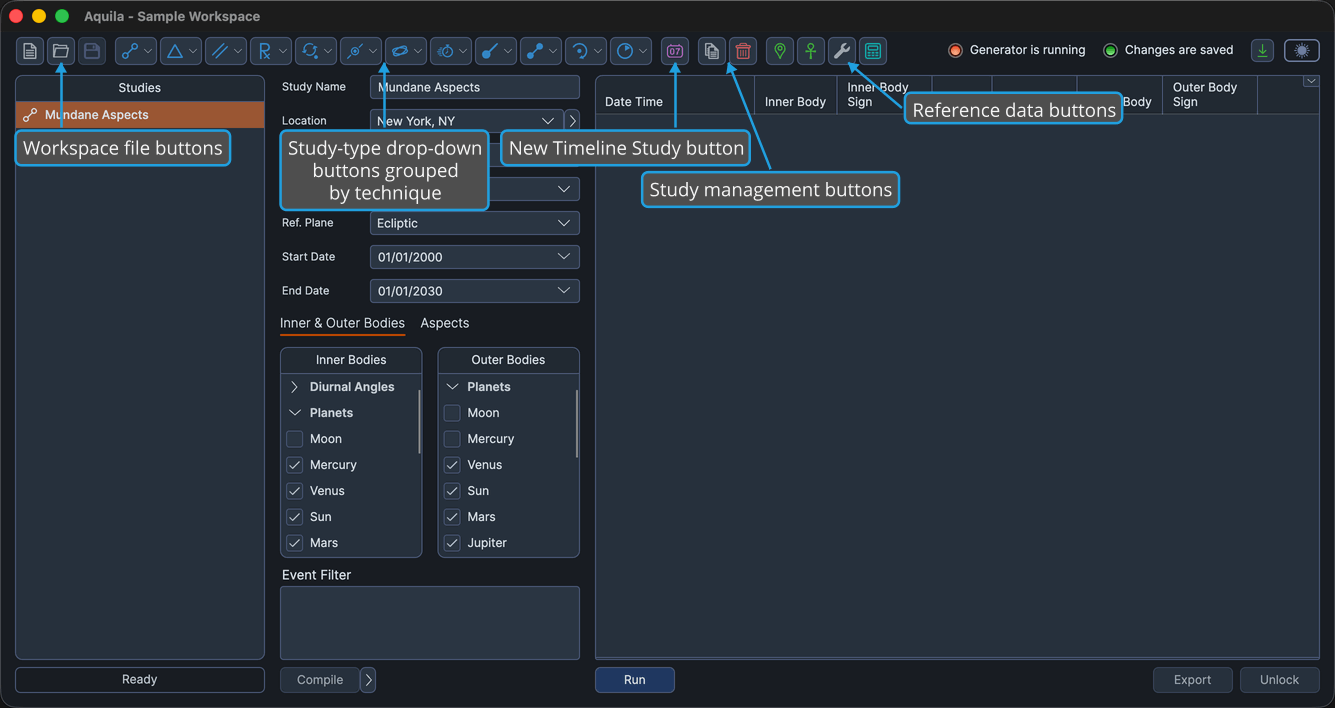
The toolbar is the button strip beneath the menu bar, giving one-click access to the commands used constantly so a menu need not be opened each time. Aquila's toolbar commands are the three workspace-file buttons, twelve drop-down buttons that group the study types by technique, a button that adds a Timeline study, the Copy Study and Delete Study buttons, and the three buttons that open the reference-data editors.
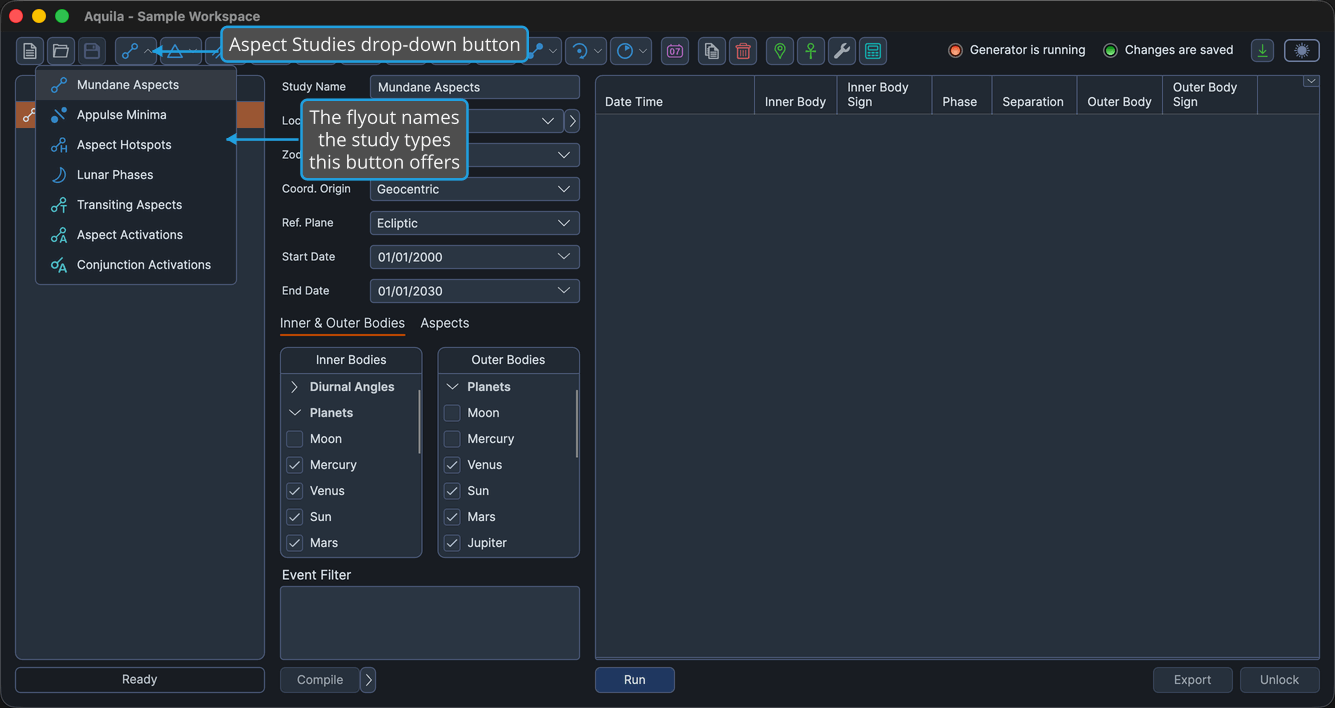
Every toolbar control is icon-only and carries no tooltip. A plain button runs its command as soon as you click it; a drop-down button instead opens a flyout, and the study types that button offers are named on that flyout. The right-hand end of the toolbar row carries the Workspace Status Indicators.
Workspace Buttons
The first three buttons are the workspace-file commands, in the same order as the top of the File menu.
| Command | Shortcut | Description | Details |
|---|---|---|---|
| New | Cmd+N (Ctrl+N on Windows) | Starts an empty workspace, seeded from the Application Defaults. | New Workspace |
| Open | Cmd+O (Ctrl+O on Windows) | Opens a saved .aquila workspace file through a file picker. | Open Workspace |
| Save | Cmd+S (Ctrl+S on Windows) | Writes the workspace back to the file it came from. | Save Workspace |
Shortcuts are given in their macOS form, with the Windows equivalent in parentheses.
Study-Type Drop-Down Buttons
Twelve drop-down buttons group Aquila's study types by technique rather than by the mundane and transit split the menu bar uses, so a technique and its natal counterpart sit together. Click a drop-down button to open its flyout, which lists that group's study types by name with an icon against each. See Create Study for the procedure.
| Drop-Down Button | Study Type | Details |
|---|---|---|
| Aspect Studies | Mundane Aspects | Mundane Aspects Study |
| Aspect Studies | Appulse Minima | Appulse Minima Study |
| Aspect Studies | Aspect Hotspots | Aspect Hotspots Study |
| Aspect Studies | Lunar Phases | Lunar Phases Study |
| Aspect Studies | Transiting Aspects | Transiting Aspects Study |
| Aspect Studies | Aspect Activations | Aspect Activations Study |
| Aspect Studies | Conjunction Activations | Conjunction Activations Study |
| Aspect Patterns | Grand Trines | Grand Trines Study |
| Aspect Patterns | Grand Trine Activations | Grand Trine Activations Study |
| Aspect Patterns | Stelliums | Stelliums Study |
| Aspect Patterns | Stellium Activations | Stellium Activations Study |
| Aspect Patterns | T-Squares | T-Squares Study |
| Aspect Patterns | T-Square Activations | T-Square Activations Study |
| Aspect Patterns | Yods | Yods Study |
| Aspect Patterns | Yod Activations | Yod Activations Study |
| Aspect Patterns | Grand Squares | Grand Squares Study |
| Aspect Patterns | Grand Square Activations | Grand Square Activations Study |
| Aspect Patterns | Kites | Kites Study |
| Aspect Patterns | Kite Activations | Kite Activations Study |
| Parallel Studies | Mundane Parallels | Mundane Parallels Study |
| Parallel Studies | Transiting Parallels | Transiting Parallels Study |
| Parallel Studies | Parallel Activations | Parallel Activations Study |
| Station Studies | Mundane Stations | Mundane Stations Study |
| Station Studies | Retrograde Cycles | Retrograde Cycles Study |
| Station Studies | Station Hotspots | Station Hotspots Study |
| Station Studies | Station Activations | Station Activations Study |
| Planetary Cycle Studies | Inferior Planetary Cycles | Inferior Planetary Cycles Study |
| Planetary Cycle Studies | Superior Planetary Cycles | Superior Planetary Cycles Study |
| Ingress Studies | Hotspot Transits | Hotspot Transits Study |
| Ingress Studies | Sign Ingresses | Sign Ingresses Study |
| Ingress Studies | House Ingresses | House Ingresses Study |
| Declination Studies | Nodal Transits | Nodal Transits Study |
| Declination Studies | Solar Limit Transits | Solar Limit Transits Study |
| Declination Studies | Heliacal Phenomenon | Heliacal Phenomenon Study |
| Declination Studies | Latitude Extrema | Latitude Extrema Study |
| Arc Studies | Speed Extrema | Speed Extrema Study |
| Arc Studies | Maximum Elongations | Maximum Elongations Study |
| Arc Studies | Mundane Arcs | Mundane Arcs Study |
| Solar Eclipse Studies | Solar Eclipses | Solar Eclipses Study |
| Solar Eclipse Studies | Solar Eclipse Hotspots | Solar Eclipse Hotspots Study |
| Solar Eclipse Studies | Solar Eclipse Activations | Solar Eclipse Activations Study |
| Lunar Eclipse Studies | Lunar Eclipses | Lunar Eclipses Study |
| Lunar Eclipse Studies | Lunar Eclipse Hotspots | Lunar Eclipse Hotspots Study |
| Lunar Eclipse Studies | Lunar Eclipse Activations | Lunar Eclipse Activations Study |
| Direction Studies | Primary Directions | Primary Directions Study |
| Direction Studies | Solar Arc Directions | Solar Arc Directions Study |
| Direction Studies | Secondary Progressions | Secondary Progressions Study |
| Profections | Profections | Profections Study |
The same study types are reachable from the menu bar, where they are grouped by technique family instead. See Menu Bar for the menu routes.
New Timeline Study Button
A Timeline study generates nothing of its own, so it has a plain button rather than a place on a drop-down flyout.
| Command | Description | Details |
|---|---|---|
| New Timeline Study | Adds a Timeline study, which merges the events of other studies in the workspace into one chronological list. | Timeline Study |
Study Management Buttons
These two buttons act on whichever study is selected in the Studies list.
| Command | Description | Details |
|---|---|---|
| Copy Study | Duplicates the selected study with all of its configuration. | Copy Study |
| Delete Study | Removes the selected study and any events it has generated. | Delete Study |
Reference Data Buttons
The Locations, Natal Records and Default Settings buttons open the editors holding the data your studies draw on, together with the settings new workspaces and new studies inherit.
| Command | Description | Details |
|---|---|---|
| Locations | Opens the Locations editor. | Locations Editor |
| Natal Records | Opens the Natal Records editor. | Natal Records Editor |
| Default Settings | Opens the Default Settings editor, which holds the Application Defaults and the Workspace Defaults. | Default Settings Editor |
The toolbar carries one further button that is outside the scope of this documentation set.