Natal Records Editor
A natal record is the fixed reference that transit, direction, progression and profection studies measure against, so it needs to be stored accurately and to stay reusable across studies and workspaces. The Natal Records Editor is where that collection is kept, in an editable table holding a name, a date, a time and a birthplace for each record.
Coordinates are all that the birthplace needs. Aquila resolves the correct time zone from them and applies the historical daylight-saving rules in force on the date, so a record entered once is interpreted correctly wherever it is used. The record collection is stored outside any one workspace and is shared with the other Rhythm Seven astrology applications.
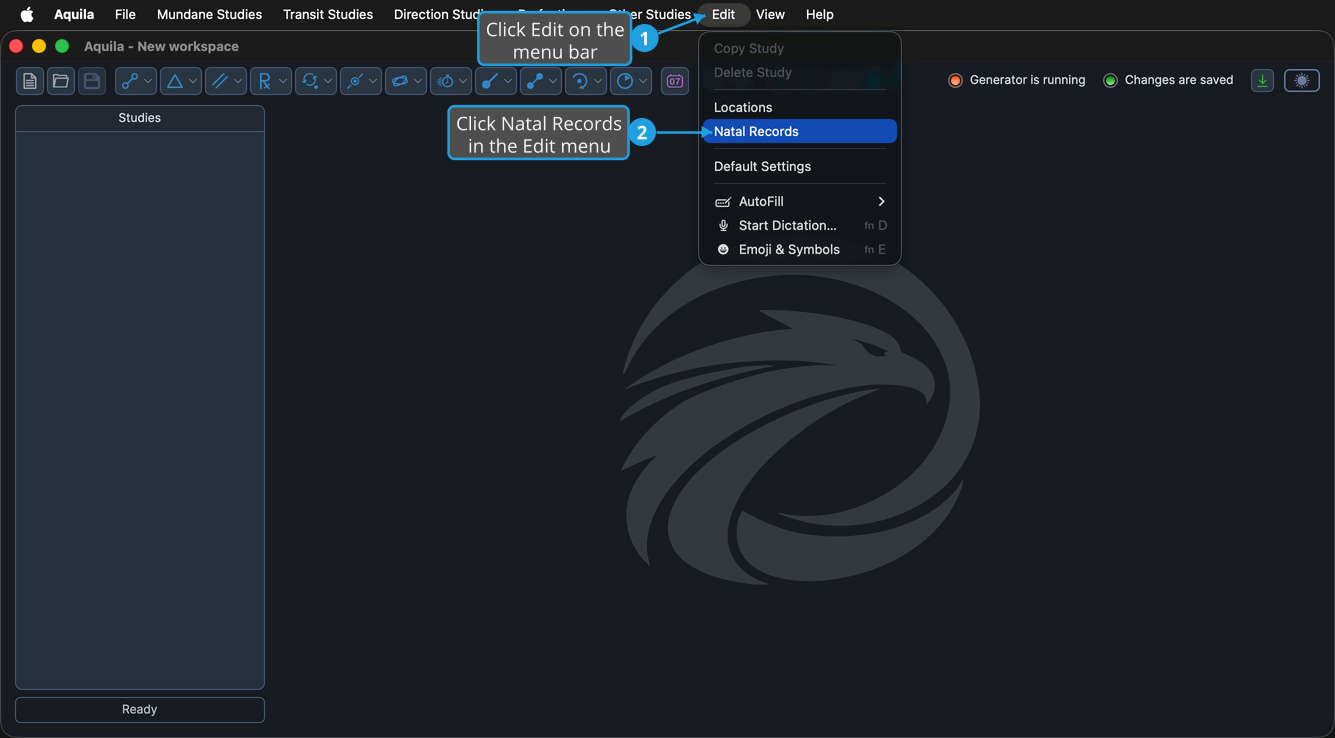
Open the Natal Records Editor
To open the editor:
- Open the Edit Menu.
- Click Natal Records in the Edit menu.
The Natal Records toolbar button on the main window opens the same editor in a single click.
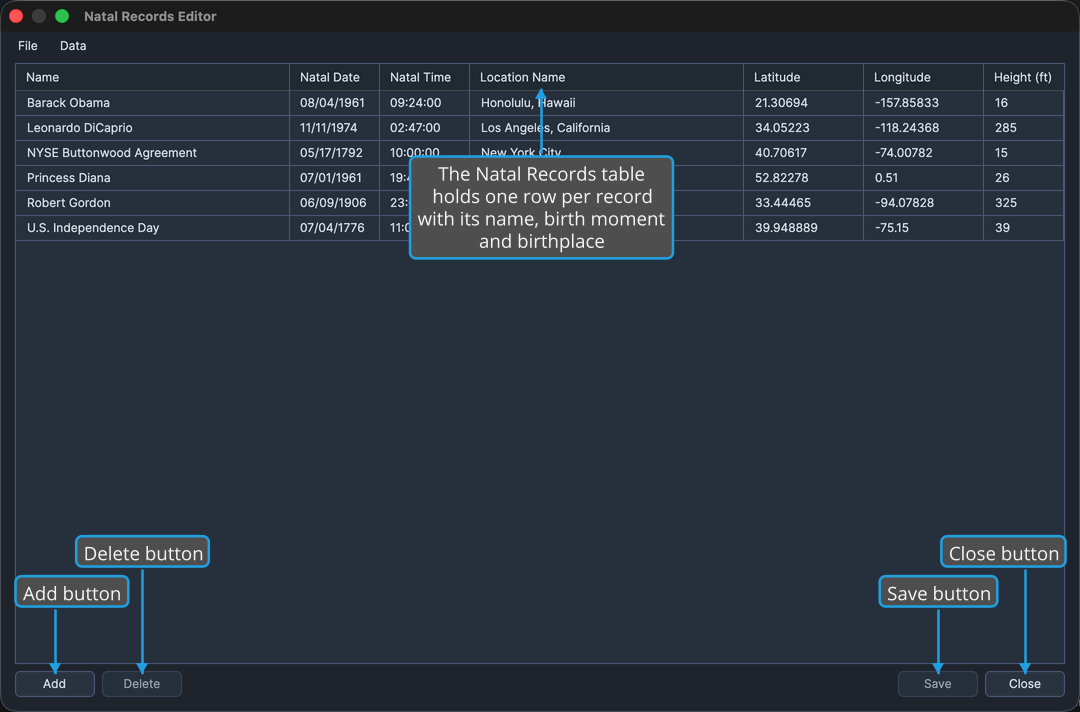
The Natal Records Table
The table holds one row per record and always shows the same seven columns.
| Column | Description |
|---|---|
| Name | The record's name, as offered by every Natal Record drop-down |
| Natal Date | The record's date |
| Natal Time | The record's time of day |
| Location Name | The name of the birthplace |
| Latitude | The birthplace's latitude in degrees, positive north |
| Longitude | The birthplace's longitude in degrees, positive east |
| Height (ft) | The birthplace's elevation in feet |
No column can be sorted by clicking its column header. Rows are added and removed with the Add and Delete buttons below the table.
The Natal Time cell carries two warning markers. One appears when the clock time entered occurred twice on that date, at a daylight-saving fall-back transition, and is resolved on saving through Ambiguous Time Resolution. The other appears when the clock time was skipped entirely, at a spring-forward transition, and so never occurred.
Add a Natal Record
To append an empty row so a new record can be entered:
- Click the Add button below the table.
Aquila appends a new row to the table and puts it into edit mode, with its Name cell ready for typing.
Edit a Natal Record
Cells are edited in place. The gesture is two single clicks, never a double-click: click the row to select it, then click the cell to open its editor. The row stays in edit mode until focus leaves it, so a whole record can be filled in without leaving and re-entering the row.
To change any value recorded against a natal record:
- Click the record's row to select it.
- Click the cell you want to change to put the row into edit mode.
- Type the new value and press Tab or Enter to commit the edit.
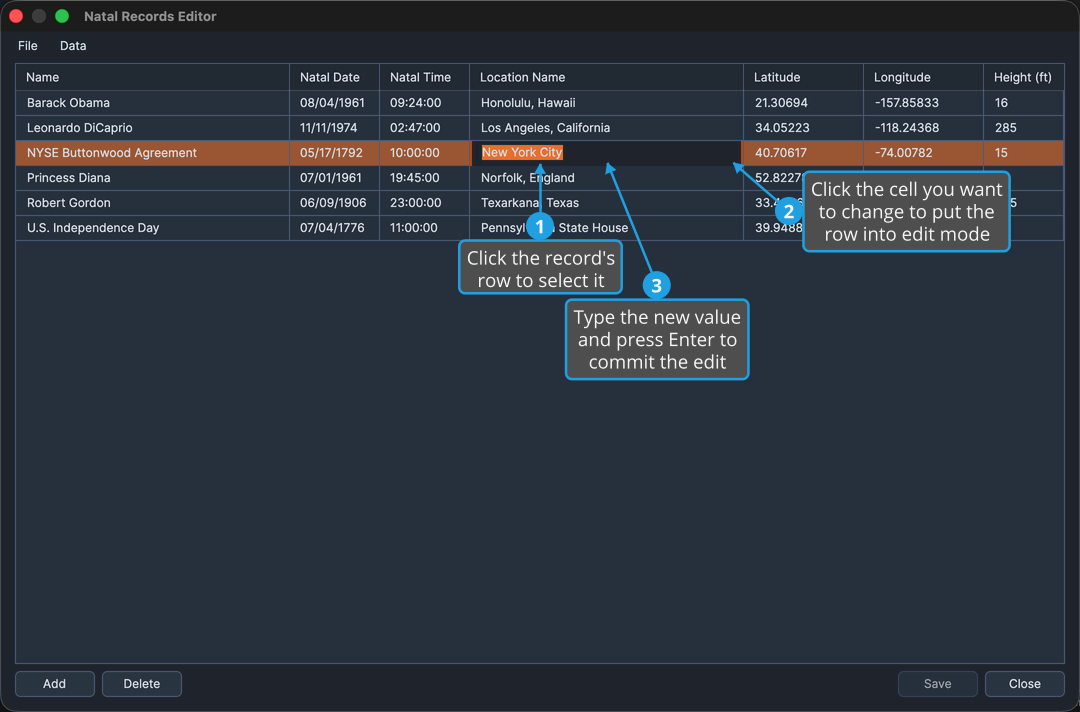
The columns take a record name, a birth date and time, a birthplace name, a latitude and longitude in degrees, and an elevation in feet, as the column table above sets out. Every edit marks the editor as holding unsaved changes until you save the collection.
The Natal Date and Natal Time cells use masked entry boxes, so type the date and the time in the format the cell already displays.
Enter commits the value in the cell it was typed into. Tab commits it and moves on to the next cell in the same row, which is the quicker way to work across a new record's seven cells in one run.
Delete Natal Records
To remove one or more records from the collection:
- Select the rows to remove in the Natal Records table.
- Click the Delete button below the table.
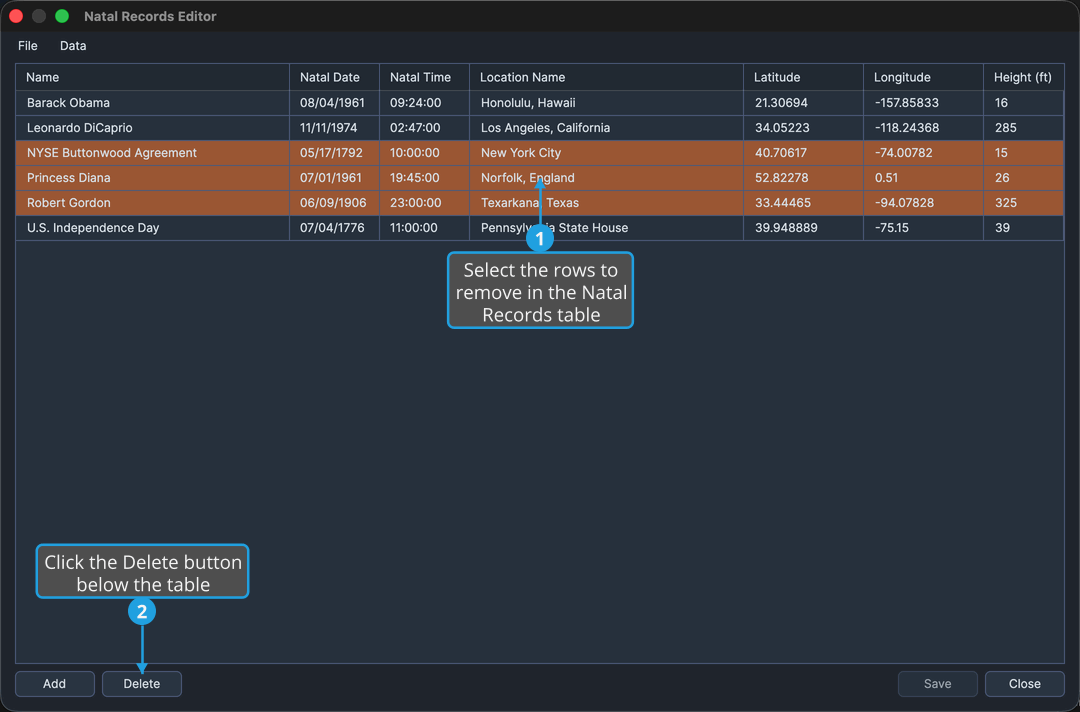
Cmd-click to toggle individual rows in the selection; Shift-click to extend the selection to a range. On Windows use Ctrl-click in place of Cmd-click.
Pressing the Delete key removes the selected rows as well, as long as the table holds keyboard focus.
Save the Natal Records
To write the edited collection back to the shared store:
- Click the Save button at the bottom-right of the editor.
Aquila writes the collection outside the workspace, where the other Rhythm Seven astrology applications can see it, and the editor stops showing unsaved changes. Save is also available from the editor's File menu and is bound to Cmd+S (Ctrl+S on Windows). It is unavailable while there is nothing to save.
If a record carries a natal time that falls inside a repeated daylight-saving hour, saving raises a prompt asking which of the two instants the reading means. See Ambiguous Time Resolution.
Close the Editor
To leave the editor and return to the main window:
- Click the Close button at the bottom-right of the editor.
Exit on the editor's File menu and the window's own close button do the same thing.
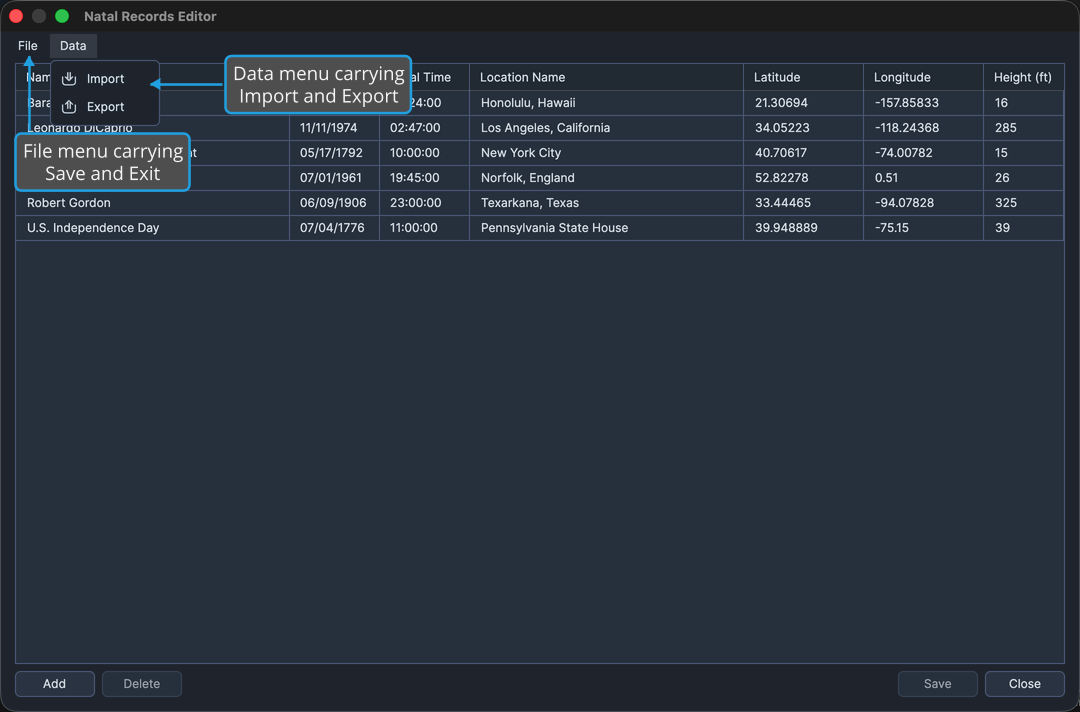
The Editor Menus
The editor carries two menus of its own above the table.
| Menu | Command | Description |
|---|---|---|
| File | Save | Writes the collection back to the shared store, the same as the Save button |
| File | Exit | Closes the editor |
| Data | Import | Adds records read from a file to the collection. See Import Natal Records |
| Data | Export | Writes the whole collection out to a file. See Export Natal Records |