Import Locations
A location list built on another machine, or received from a colleague, does not have to be re-entered row by row. Import reads locations from a CSV file into the Locations Editor, and is reached from the editor's Data menu.
Import always adds to the list already in the editor; it never replaces it.
Import Locations from a File
Open the Locations Editor first, as described in Open the Locations Editor. Then:
- Click Data → Import on the Locations Editor menu bar.
- Select the file to read, as described in Choose a File in the Open File Dialog. The picker offers CSV files by default, with an all-files fallback for a list saved under a different extension.
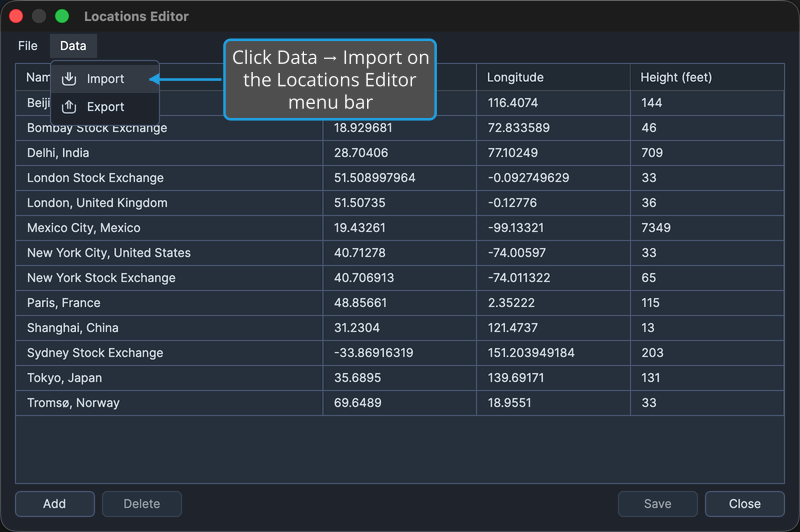
Aquila appends the rows to the Locations table, reports how many locations it added, and marks the editor as holding unsaved changes. To back out without reading anything, see Cancel the Open File Dialog.
note
Imported rows sit in the editor only until the list is written. Click Save to keep them. See Locations Editor.