Save Workspace As
The Save Workspace As command persists the active workspace to a new file under a chosen name and location. The new file becomes the workspace's current file, and its path is added to the recent files list. Use Save Workspace As to create a copy of an existing workspace before making experimental changes.
Save the Workspace Under a New Name
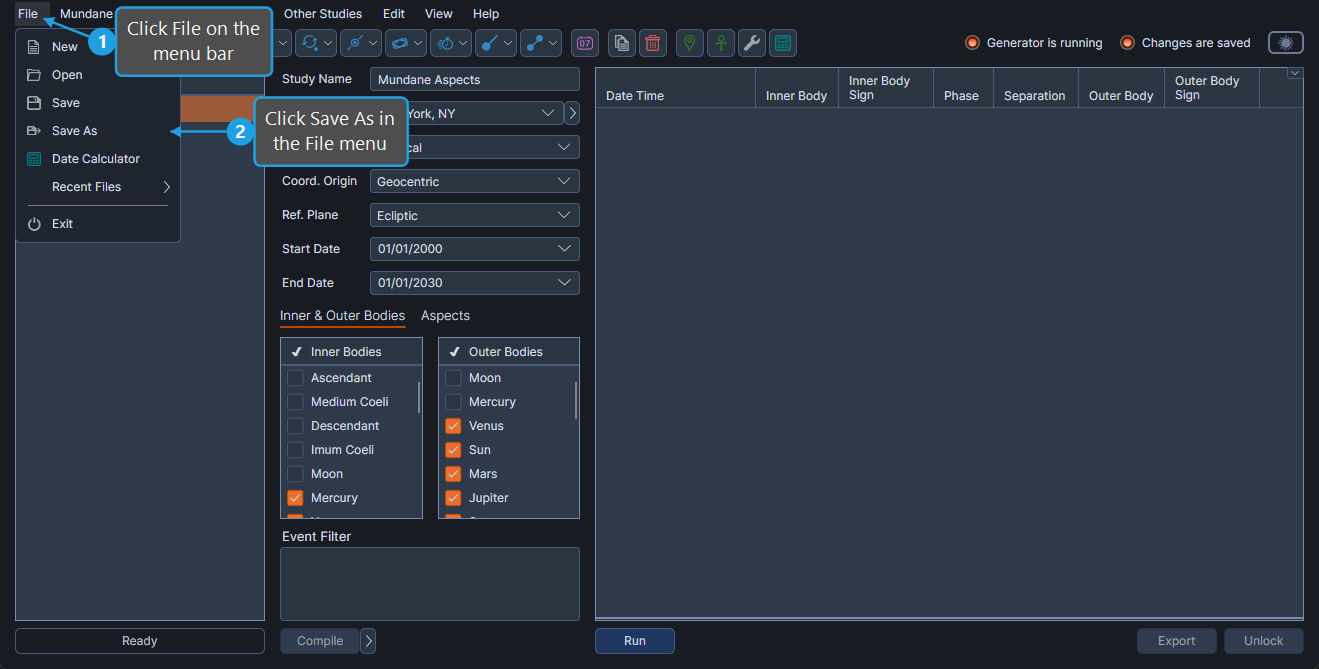
To save the workspace under a new name:
- Click File on the menu bar.
- Click Save As.
- Type a file name in the file-save dialog and click Save.
note
Save Workspace As is available only from the File → Save As menu item; there is no toolbar button or keyboard shortcut for this command. Use Save Workspace (Ctrl+S) to save the workspace to its existing file.
After the save completes, the Changes-Are-Saved status indicator turns green and the new file path becomes the active workspace's file.