Main Window
R7.Activator runs in a single window titled R7.Activator. Below the title bar it stacks a menu bar, a toolbar strip, the application list that fills the body of the window, and a Close button at the lower right.
On macOS the in-window menu strip is hidden. The same four menus appear in the native menu bar at the top of the screen instead, so the toolbar is the topmost strip in the window, as the screenshot below shows.
The window is resizable, and the application panels stretch with its width. It opens centered on the screen with the first product already selected, and R7.Activator evaluates every supported product's license state while the window loads, so each panel fills in its own status without you having to click through the products one at a time.
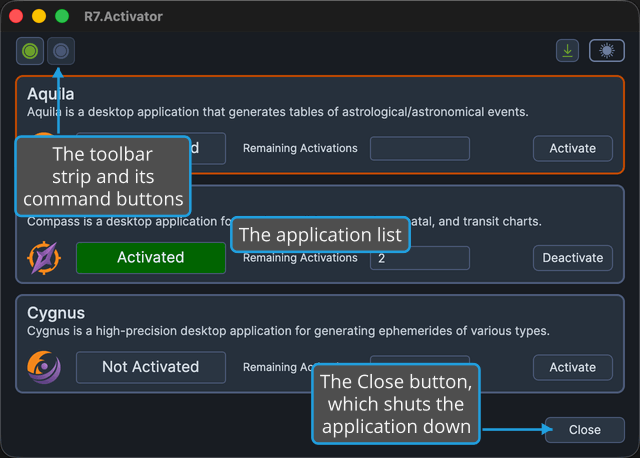
Opening R7.Activator
To start the application:
- Double-click the R7.Activator shortcut on your desktop.
You can also start it from the Windows Start menu or from the macOS Applications folder.
What Is on the Window
The window's regions, and the two controls that sit on the toolbar, each have their own page:
Menu Bar
The menu strip across the top of the window holds the File, License, View, and Help menus, and is the only place some commands appear. See Menu Bar.
Toolbar
The button strip directly above the application list, below the menu bar on Windows, puts the Activate and Deactivate commands one click away, and holds the theme controls at its right end. See Toolbar.
Application List
The body of the window is a list of application panels, one for each supported product, each reporting that product's activation status and remaining activations. See Application List.
Theme Toggle
The switch at the right end of the toolbar changes the application between its Dark and Light themes, and R7.Activator remembers your choice between sessions. See Toggle Theme.
Update Notification
When a newer version of R7.Activator has been published, the update notification button appears in the toolbar immediately to the left of the theme toggle. See Update Notification.
Close Button
The Close button at the lower right of the window shuts the application down, as do File → Exit and the window's own title-bar close button. See Exit Application.