Menu Bar
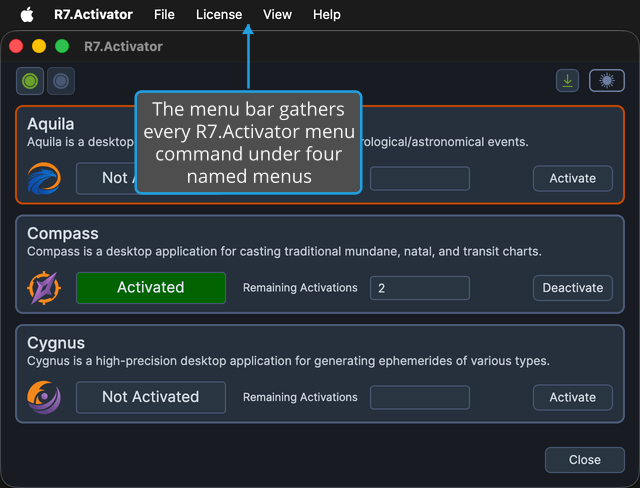
The menu strip across the top of the window holds four menus (File, License, View, and Help) and gives every menu command a predictable, named home. On Windows, each menu item carries an icon glyph beside its label.
The three License menu items act on whichever application is currently selected in the application list, so select the product's panel before you use them. See Application List.
On macOS the in-window menu strip is hidden. The same four menus appear in the native menu bar at the top of the screen instead, carrying the same items and running the same commands, without the icon glyphs. The one label difference is in the Help menu, where the About item reads About rather than About Dialog. macOS also adds items of its own to some menus: a Search field at the top of the Help menu, and Enter Full Screen in the View menu. Both come from the operating system rather than from R7.Activator, and are not documented here.
File Menu
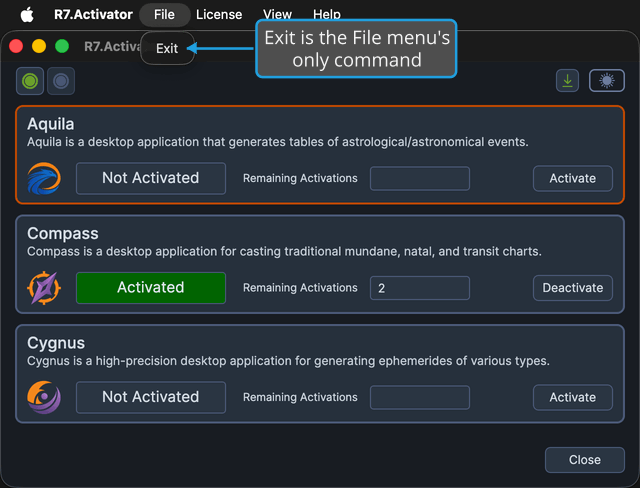
The File menu holds the command that closes the application. Click File on the menu bar to open it.
| Command | Description | Details |
|---|---|---|
| Exit | Closes R7.Activator | Exit Application |
License Menu
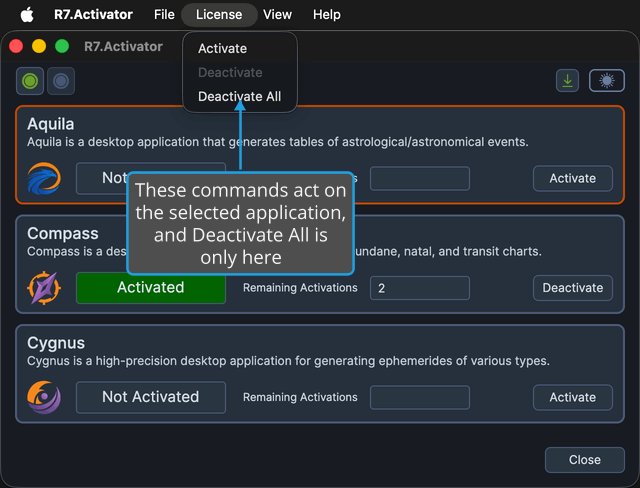
The License menu holds the three commands that act on your product licenses. Click License on the menu bar to open it.
All three act on the application selected in the application list. Deactivate All is reachable only from this menu; it has no toolbar button and no button on the panels.
| Command | Description | Details |
|---|---|---|
| Activate | Licenses the selected application on this computer | Activate License |
| Deactivate | Releases the selected application's activation from this computer | Deactivate License |
| Deactivate All | Resets every activation of the selected application registered to you, on this computer and on any others | Deactivate All Licenses |
View Menu
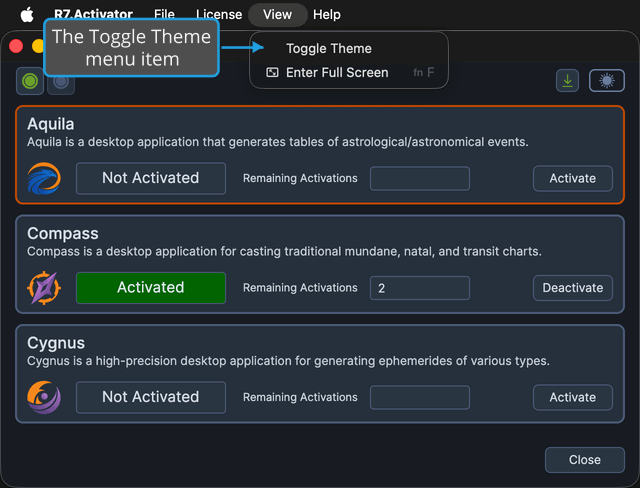
The View menu holds the command that changes the application's appearance. Click View on the menu bar to open it.
| Command | Description | Details |
|---|---|---|
| Toggle Theme | Switches between the Dark and Light themes | Toggle Theme |
Help Menu
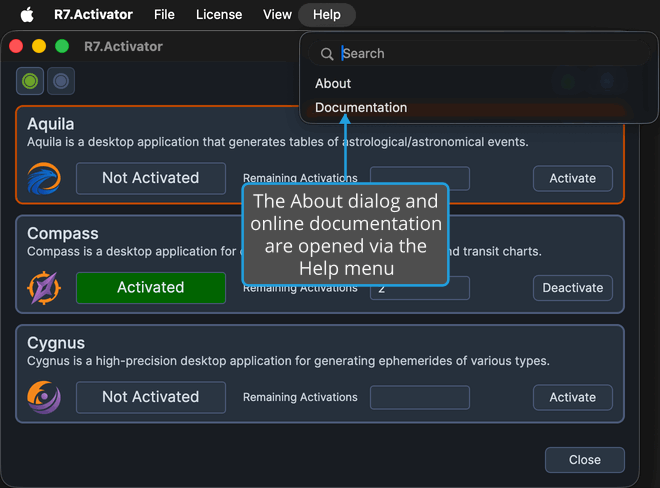
The Help menu holds the commands that lead to information about the application. Click Help on the menu bar to open it.
| Command | Description | Details |
|---|---|---|
| About Dialog | Shows the installed version number and the copyright line | About Dialog |
| Documentation | Opens the R7.Activator online documentation in your default web browser | Open Documentation |