Theme Toggle
Choose the light or dark appearance that suits your working conditions. Aquila has a Light theme and a Dark theme: switch between them with the theme switch at the far right of the toolbar row, or with View → Toggle Theme. Aquila remembers the theme you choose and uses it the next time it starts.
Switch Between the Light and Dark Themes
To change Aquila's appearance from one theme to the other:
- Click View on the menu bar.
- Click Toggle Theme in the View menu.
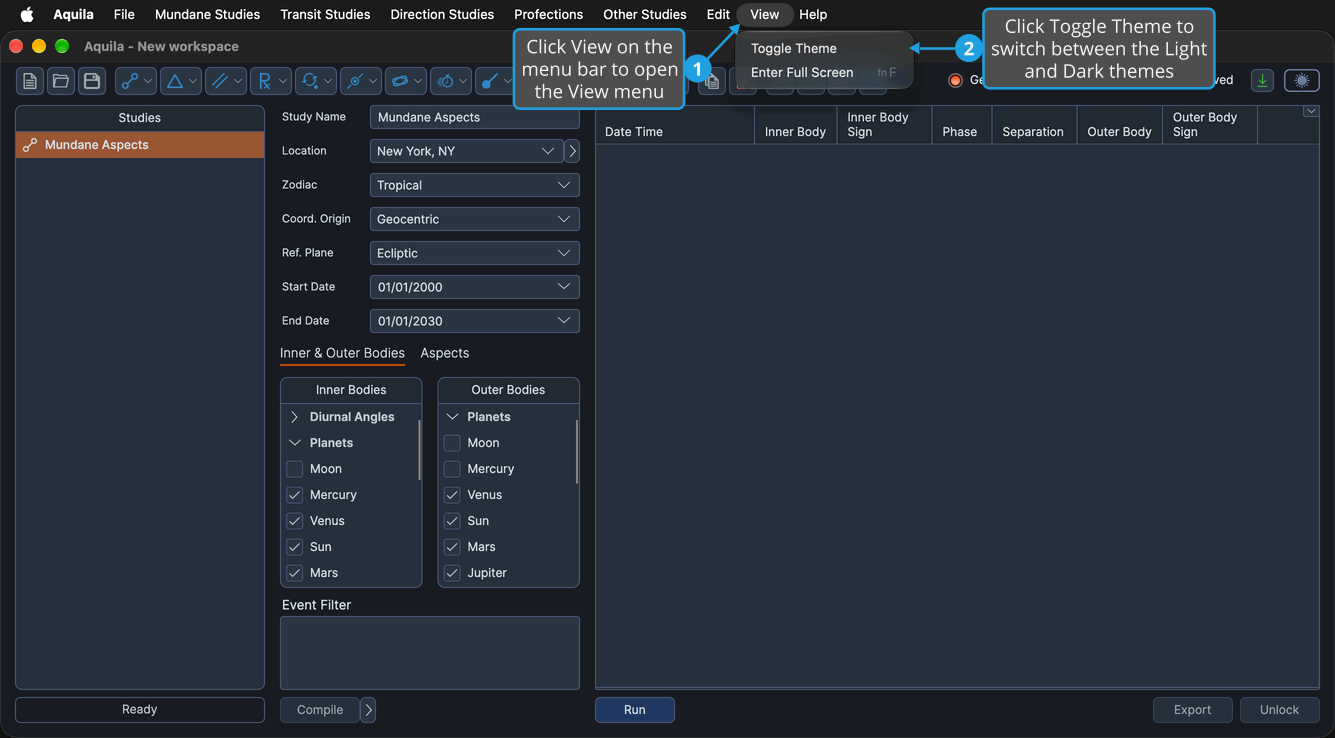
Aquila redraws in the other theme, and the theme switch at the right end of the toolbar row shows the new state. Clicking the theme switch itself changes the theme the same way. On macOS, the View menu is in the menu bar at the top of the screen; on Windows, you can also press Alt+V and then T to choose Toggle Theme from the keyboard.