Chart Aspects Presets
An aspect preset is a named, saved set of aspect angles. Keep one set for quick reading and a fuller one for detailed work, and swap between them without retyping a single angle.
Overview
Every preset command lives on the aspects grid's right-click context menu, alongside the delete commands. Opening that menu is where each of those commands begins, and it is documented once as Open the Numeric Grid Context Menu.
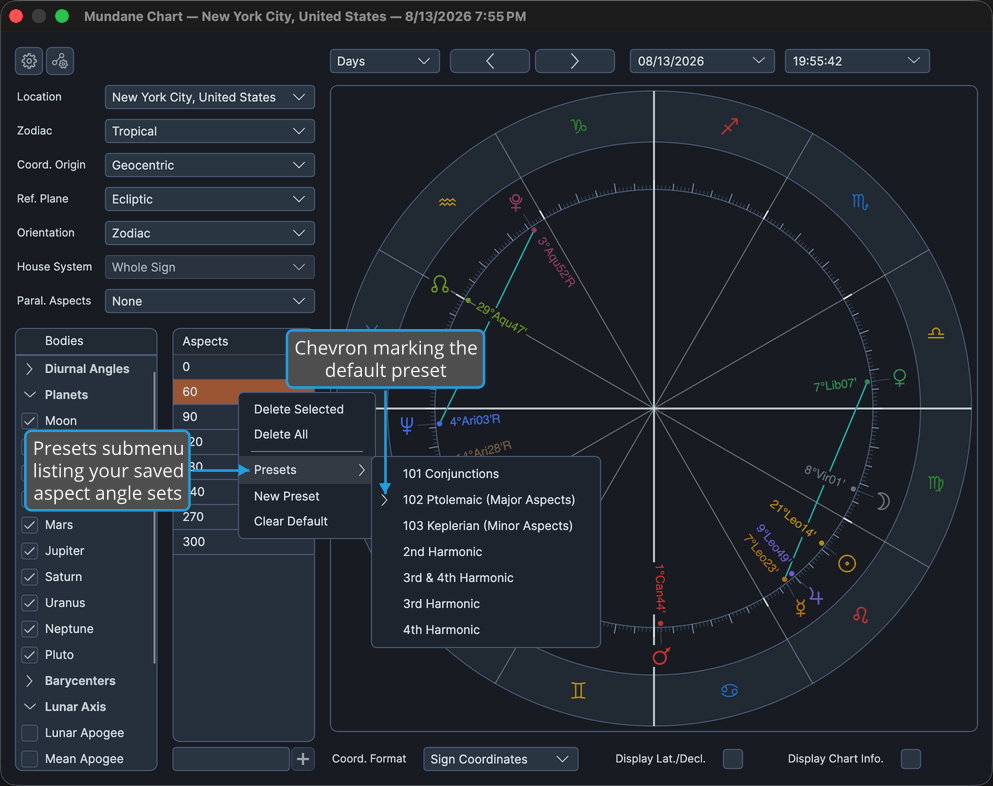
Aspect presets are shared by every chart window, so a set saved on one chart is offered on the next, whatever its type. A chevron in the Presets submenu marks whichever preset is the default.
The same grid control appears inside the Aspect Settings window with its preset entries deliberately hidden. The sets described here belong to charts, not to aspect definitions.
Procedures
Apply an Aspect Preset
To swap the chart window's aspect angles for a saved set:
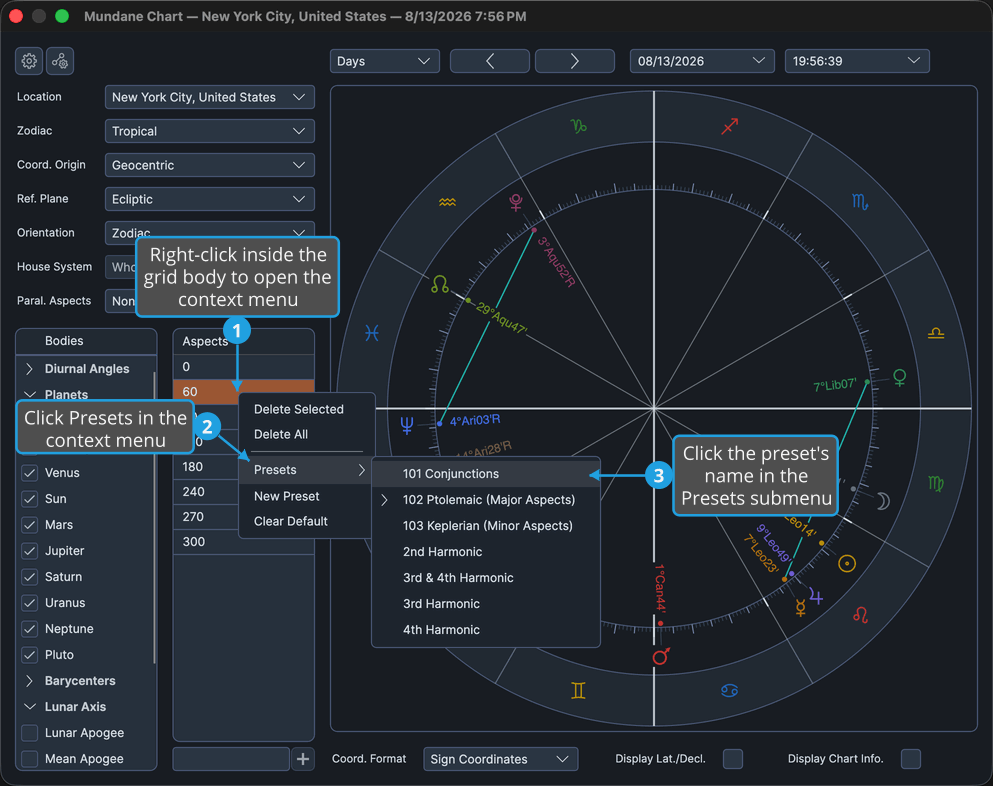
- Open the Numeric Grid Context Menu.
- Click Presets in the context menu.
- Click the preset's name in the Presets submenu.
The grid's angles are replaced by the preset's and the wheel redraws with the new chords.
Save a New Aspect Preset
To store the grid's current angles under a name:
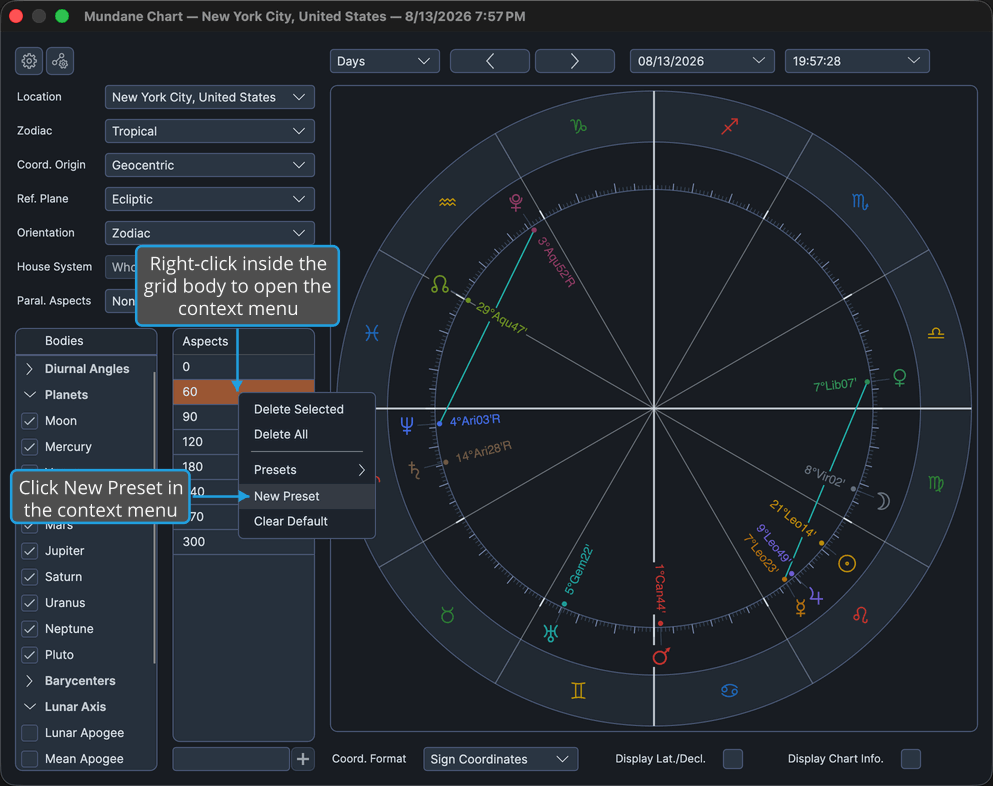
- Open the Numeric Grid Context Menu.
- Click New Preset in the context menu.
- Enter the preset's name in the prompt and click the Save button.
The new preset appears in the Presets submenu of every chart window's aspects grid.
Clear the Default Aspect Preset
To drop the default designation so no aspect preset is applied automatically:
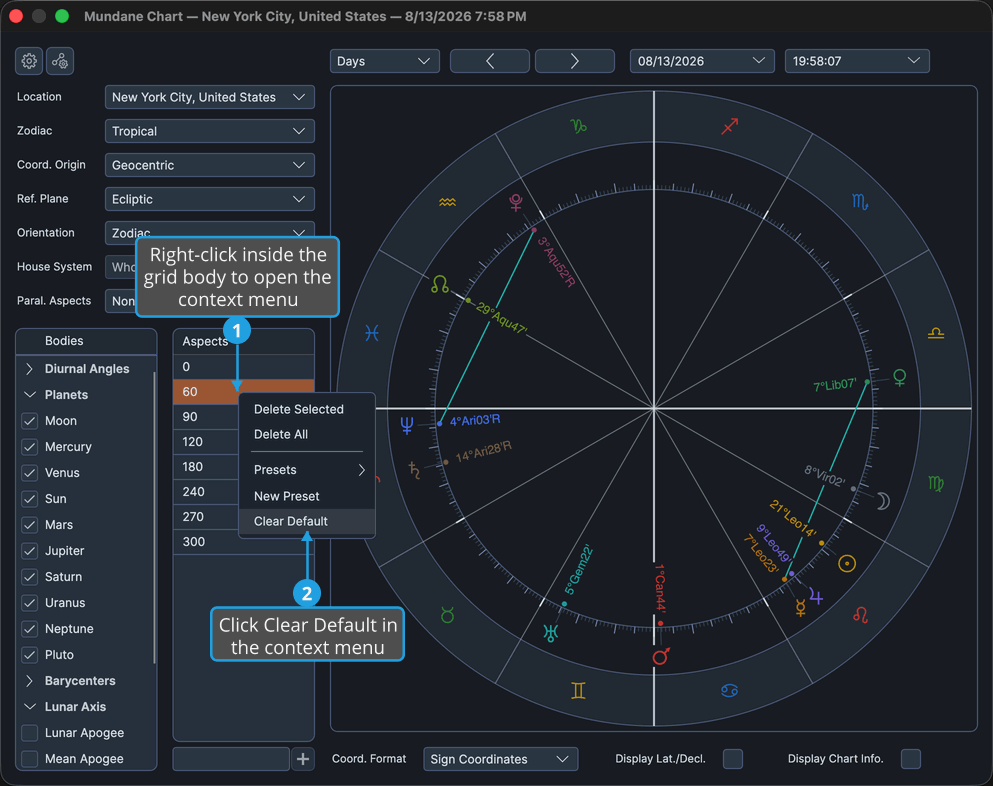
- Open the Numeric Grid Context Menu.
- Click Clear Default in the context menu.
The chevron disappears from the Presets submenu and no aspect preset is marked default.
Set the Default Aspect Preset
To mark one aspect preset as the default:
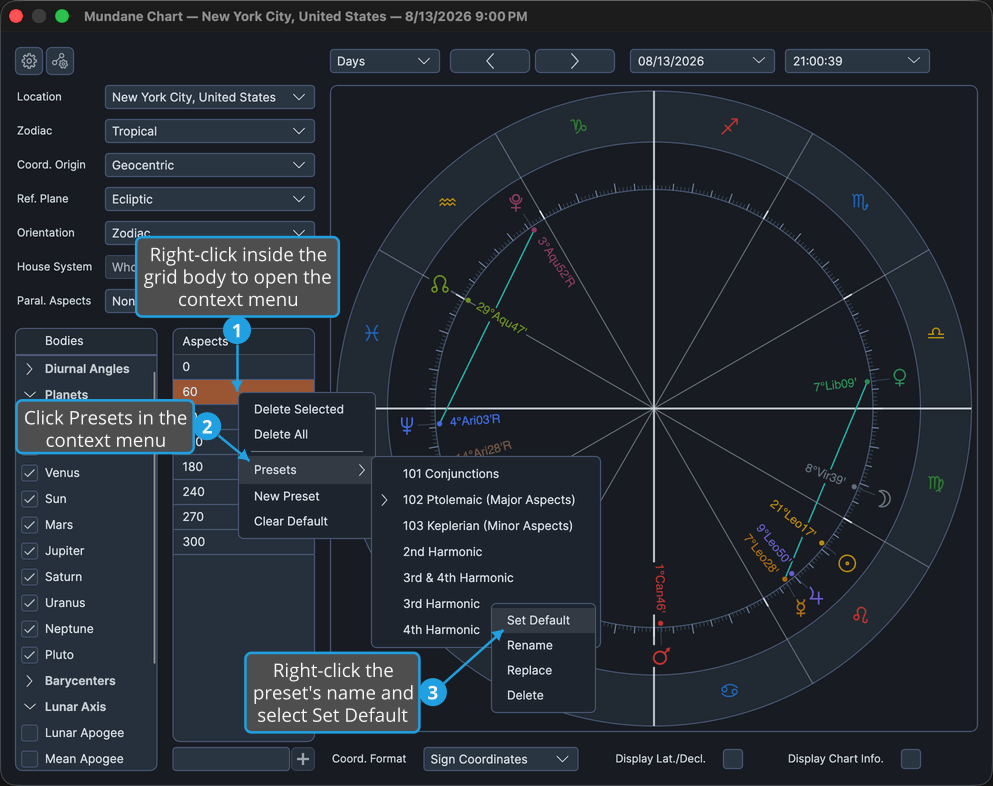
- Open the Numeric Grid Context Menu.
- Click Presets in the context menu.
- Right-click the preset's name in the Presets submenu and select Set Default.
A chevron appears beside the chosen preset in the Presets submenu.
Rename an Aspect Preset
To give a saved aspect preset a name that reads better later:
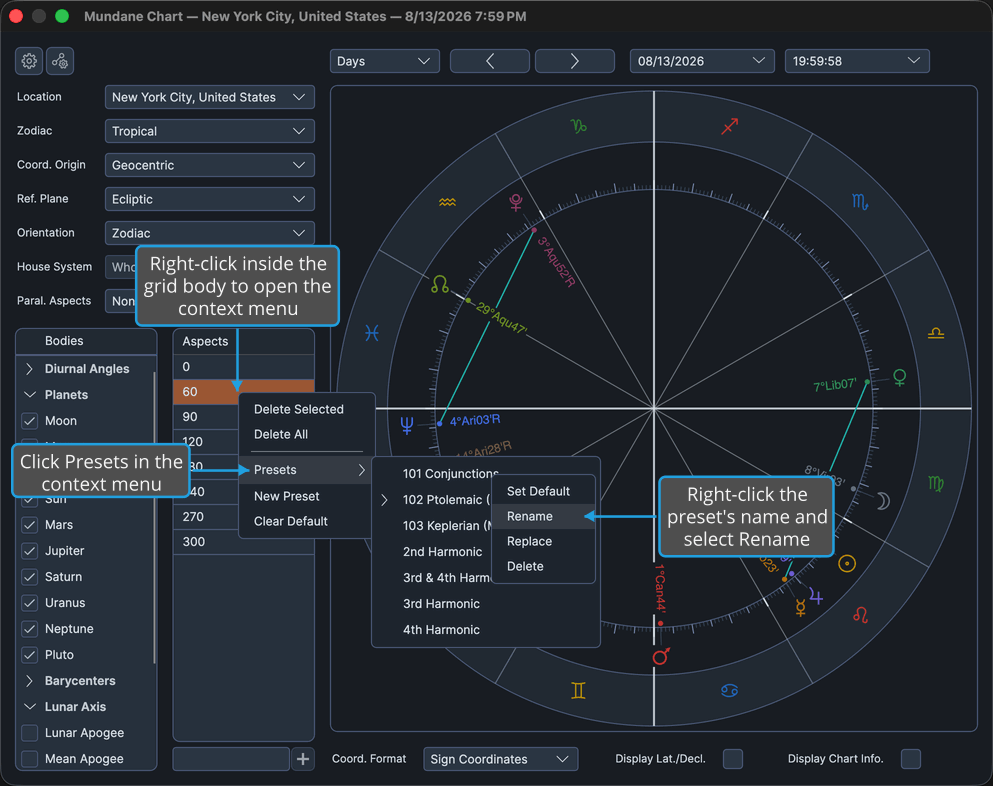
- Open the Numeric Grid Context Menu.
- Click Presets in the context menu.
- Right-click the preset's name in the Presets submenu and select Rename.
- Edit the name in the prompt and click the Save button.
The preset is listed under its new name in the Presets submenu.
Replace an Aspect Preset
To overwrite a saved aspect preset with the grid's current angles, keeping its name:
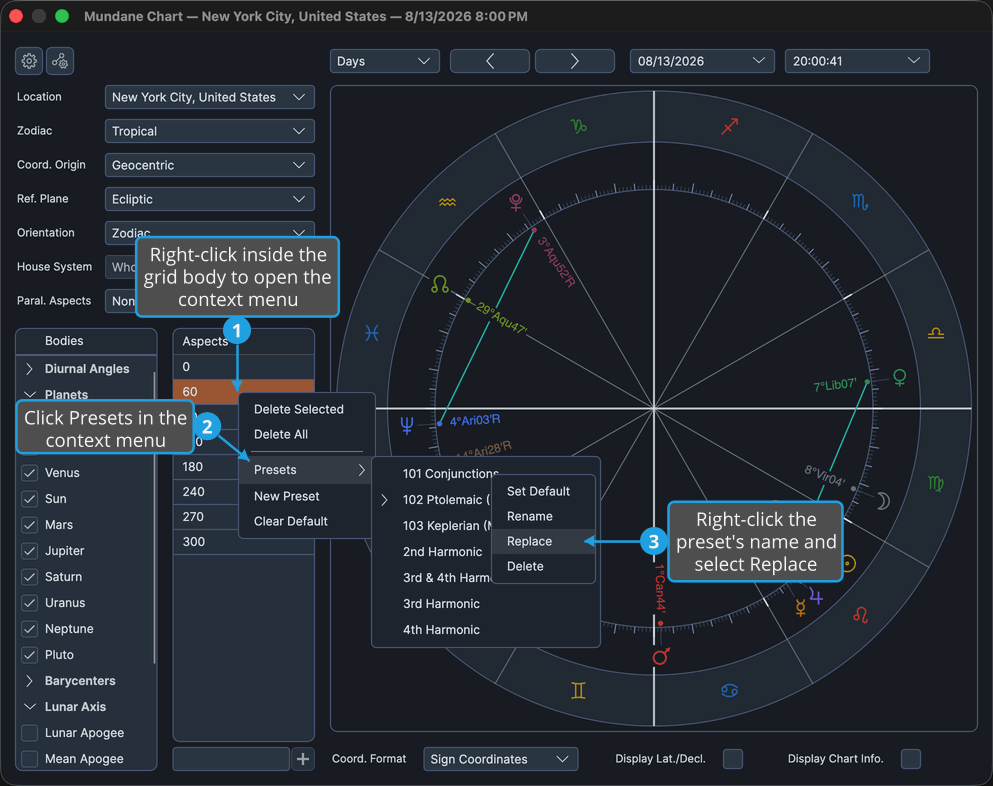
- Open the Numeric Grid Context Menu.
- Click Presets in the context menu.
- Right-click the preset's name in the Presets submenu and select Replace.
The preset now holds the current angles. Its name and default designation are unchanged.
Replace commits immediately. There is no confirmation prompt, and the preset's previous angles are gone.
Delete an Aspect Preset
To remove a saved aspect preset that is no longer wanted:
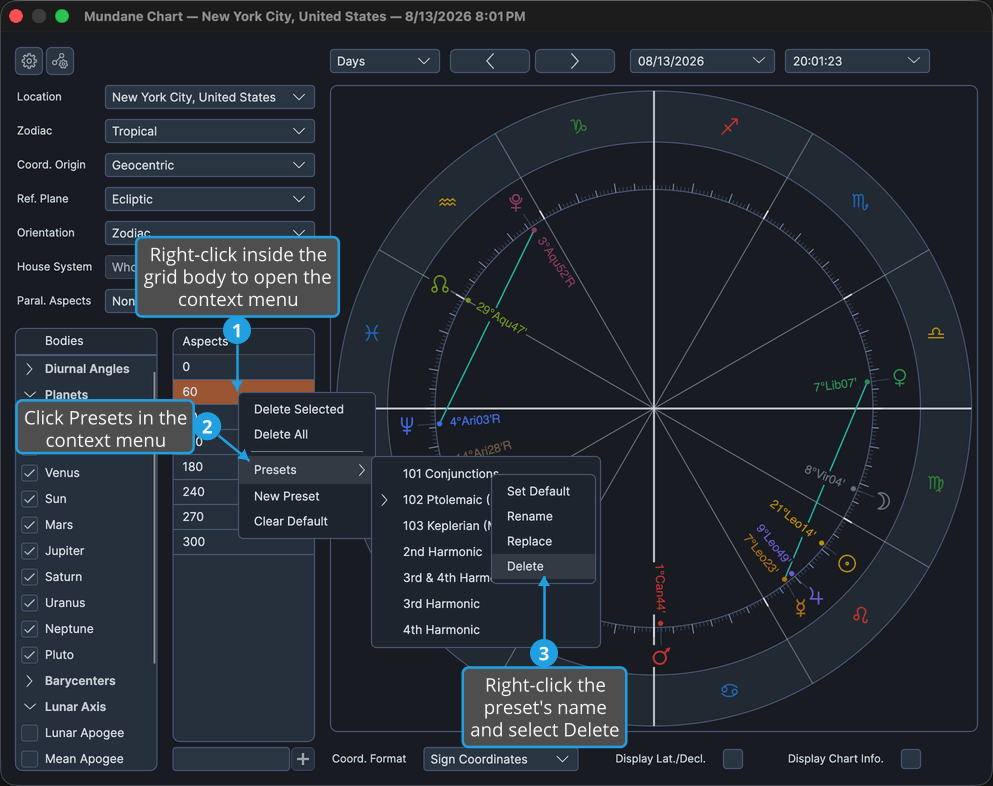
- Open the Numeric Grid Context Menu.
- Click Presets in the context menu.
- Right-click the preset's name in the Presets submenu and select Delete.
The preset is gone from the Presets submenu of every chart window's aspects grid.
Deletion is immediate. There is no confirmation prompt.
Preset Name Prompt
Choosing New Preset or Rename raises a small prompt that collects the preset's name. It holds one text box with Save and Cancel buttons. Raised from New Preset the box is empty; raised from Rename it opens pre-filled with the current name, ready to edit. The text box takes focus as the prompt opens, and Save stays unavailable until the box holds text.
To name the preset:
- Enter the name in the prompt's text box.
- Click the Save button.
The prompt closes and the preset is saved, or renamed, under the entered name with any surrounding spaces trimmed off.
Save is the prompt's default button, so pressing Enter does the same thing.
To back out instead:
- Click the Cancel button.
The prompt closes, the entered text is discarded, and no preset is created or renamed. Pressing Esc or closing the prompt from its title bar does the same.

Reference
The Presets submenu
The submenu lists your saved aspect presets, each a name plus the set of angles it holds. The presets are yours to create, so the submenu's contents cannot be listed here. Use New Preset to add one, and the per-preset menu below to manage the ones you have. A chevron marks the default.
Per-preset commands
Right-clicking a preset's name in the Presets submenu offers four commands, and each acts on the preset whose row you right-clicked:
| Command | What it does |
|---|---|
| Set Default | Marks this preset as the default, shown by a chevron. |
| Rename | Opens the name prompt pre-filled with the current name. |
| Replace | Overwrites the preset with the grid's current angles, keeping its name. |
| Delete | Removes the preset. |