Studies List
The Studies list is the panel on the left of the main window, headed "Studies," that lists every study in the current workspace. Each entry shows an icon for the study's ephemeris type and the study's name. Selecting an entry opens that study in the content area on the right so you can view and configure it.
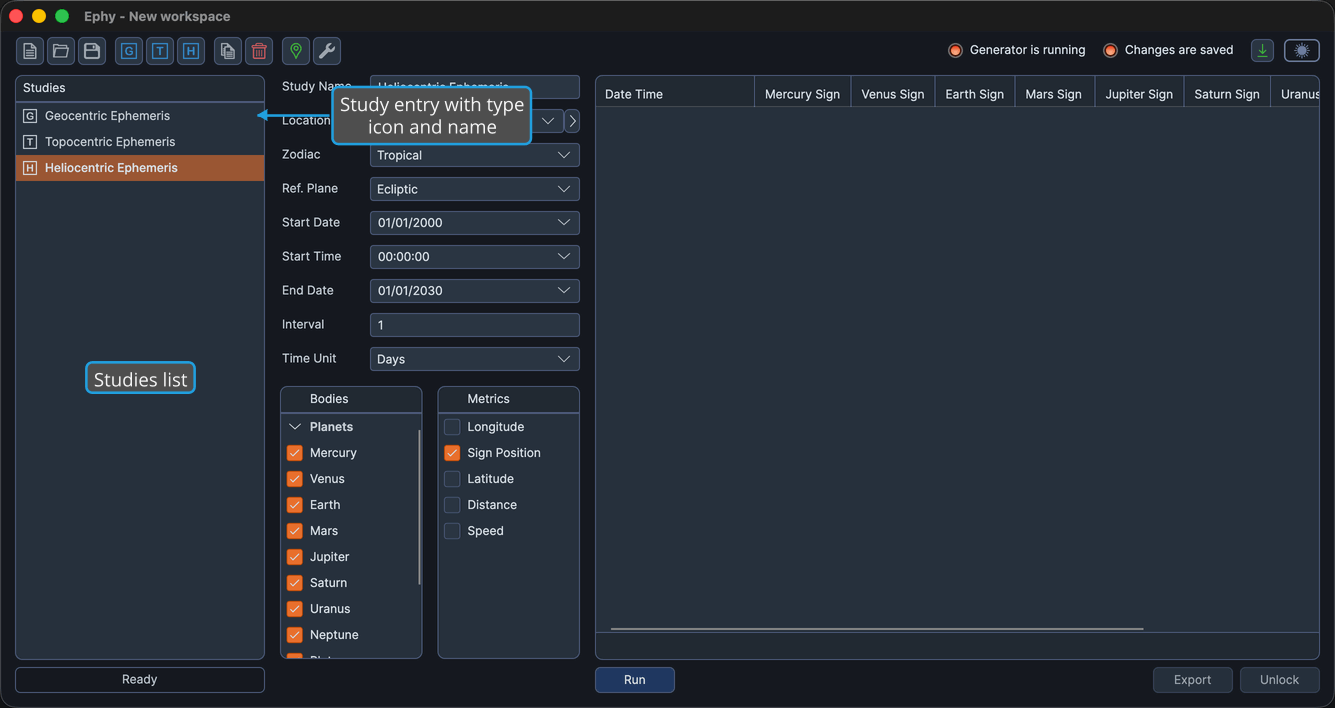
Opening a Study
To open a study:
- Click the study in the Studies list.
The selected study's content appears on the right, where you can configure its settings and generate its records.
Studies List Context Menu
Right-click a study in the list to open a context menu with the following commands:
| Command | Description | Details |
|---|---|---|
| Copy | Duplicate the study | Copy Study |
| Delete | Remove the study | Delete Study |
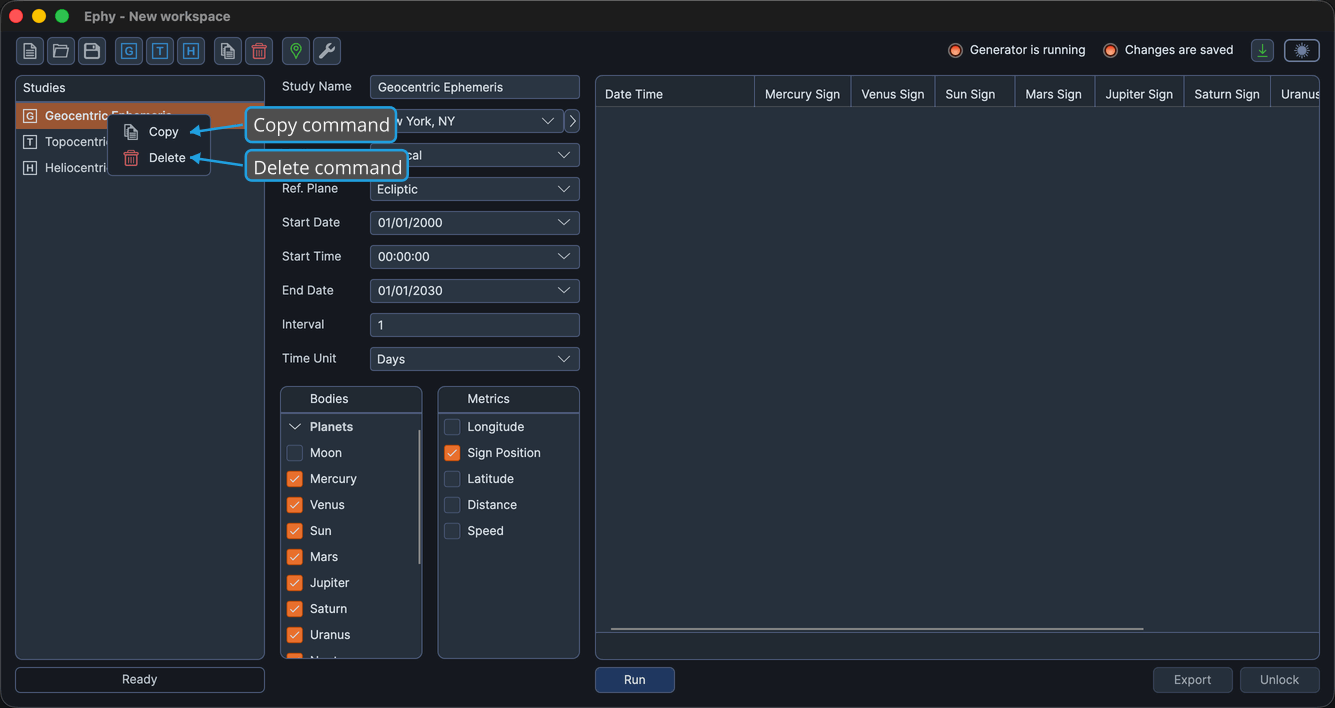
You can also press the Delete key to remove the selected study, or drag an entry up or down to change its position. See Reorder Studies for details on rearranging the list.