Menu Bar
The menu bar provides a familiar way to reach every command in Ephy, organized into five menus: File, Ephemerides, Edit, View, and Help. Each command opens a feature that is documented in full on its own page; use the tables below to find the command you need and follow the link for details.
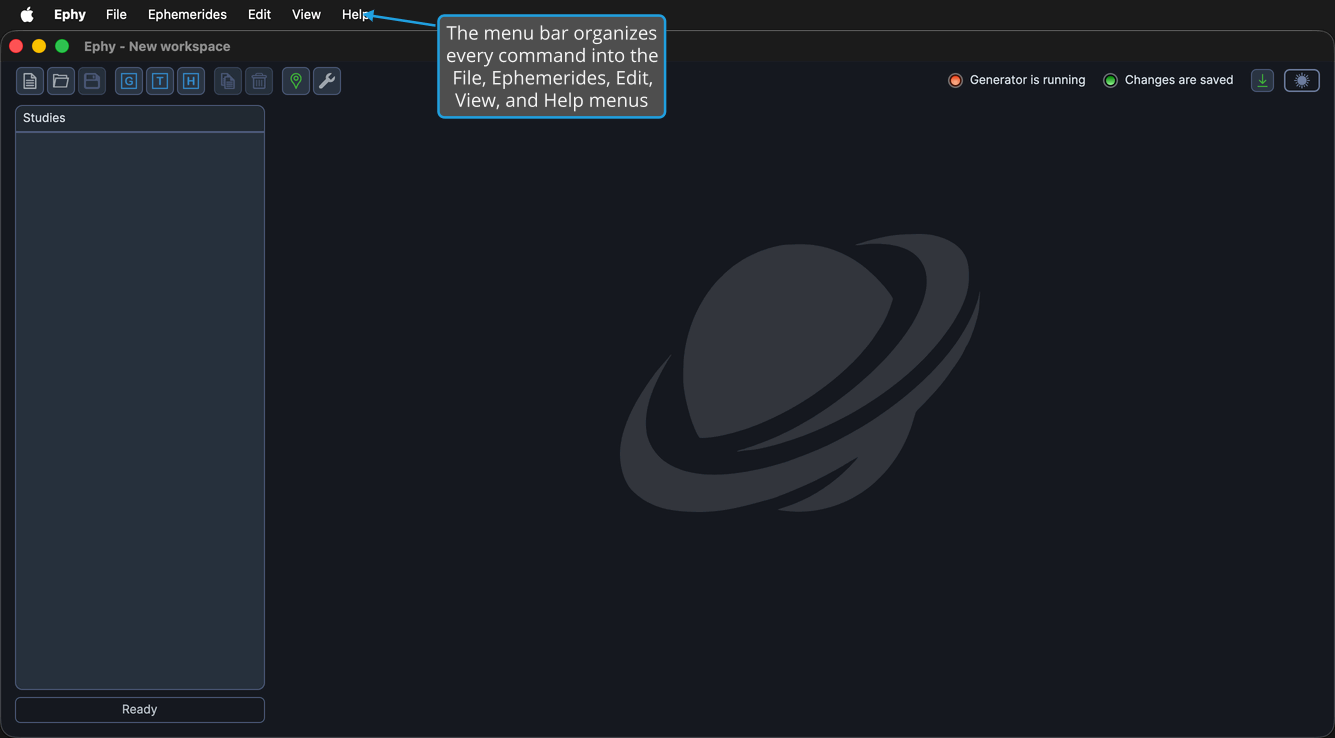
On Windows, the menu bar appears inside the main window, beneath the title bar. On macOS, it appears in the system menu bar at the top of the screen. The menus and commands are the same on both platforms.
File Menu
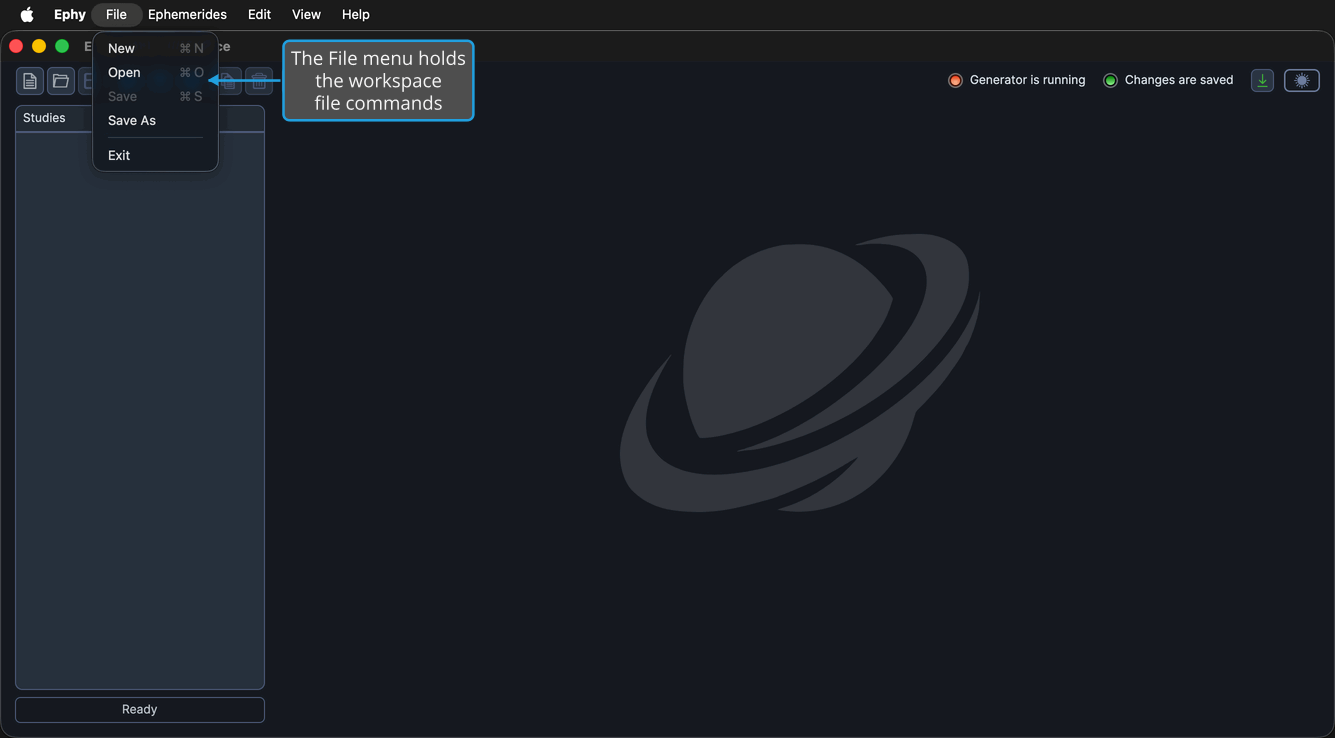
The File menu holds the workspace-file commands. To open it, click File on the menu bar.
| Command | Description | Details |
|---|---|---|
| New | Start a fresh, empty workspace | New Workspace |
| Open | Open a previously saved workspace file | Open Workspace |
| Save | Save the current workspace to its file | Save Workspace |
| Save As | Save the current workspace to a new file | Save Workspace |
| Exit | Close the application | Exit Application |
Ephemerides Menu
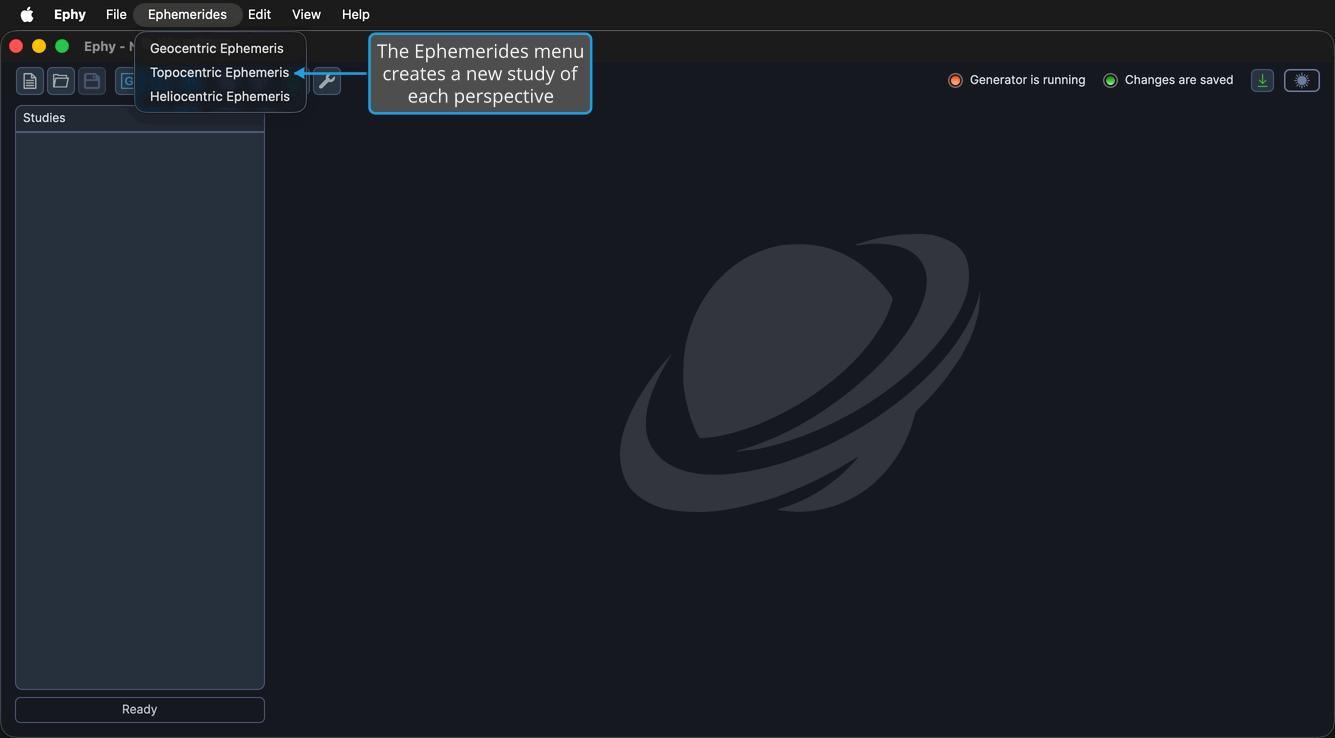
The Ephemerides menu creates a new study of each perspective. To open it, click Ephemerides on the menu bar. Each command adds a new study to the current workspace and selects it; see Create Study for the full procedure.
| Command | Description | Details |
|---|---|---|
| Geocentric Ephemeris | Create an Earth-centered study | Geocentric Ephemeris Study |
| Topocentric Ephemeris | Create an observer-relative study | Topocentric Ephemeris Study |
| Heliocentric Ephemeris | Create a Sun-centered study | Heliocentric Ephemeris Study |
Edit Menu
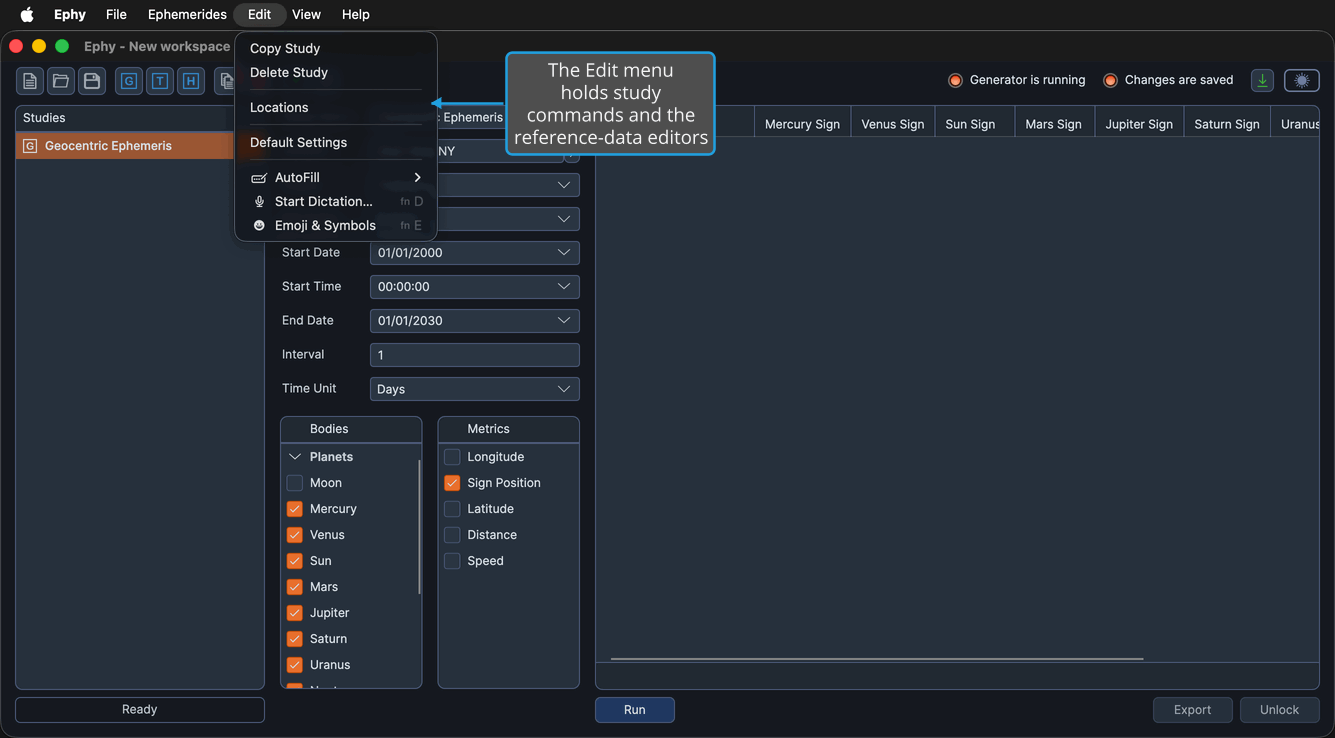
The Edit menu holds study-management commands and access to the reference-data editors. To open it, click Edit on the menu bar.
| Command | Description | Details |
|---|---|---|
| Copy Study | Duplicate the selected study | Copy Study |
| Delete Study | Remove the selected study | Delete Study |
| Locations | Open the Locations Editor | Locations Editor |
| Default Settings | Open the Default Settings Editor | Default Settings Editor |
View Menu
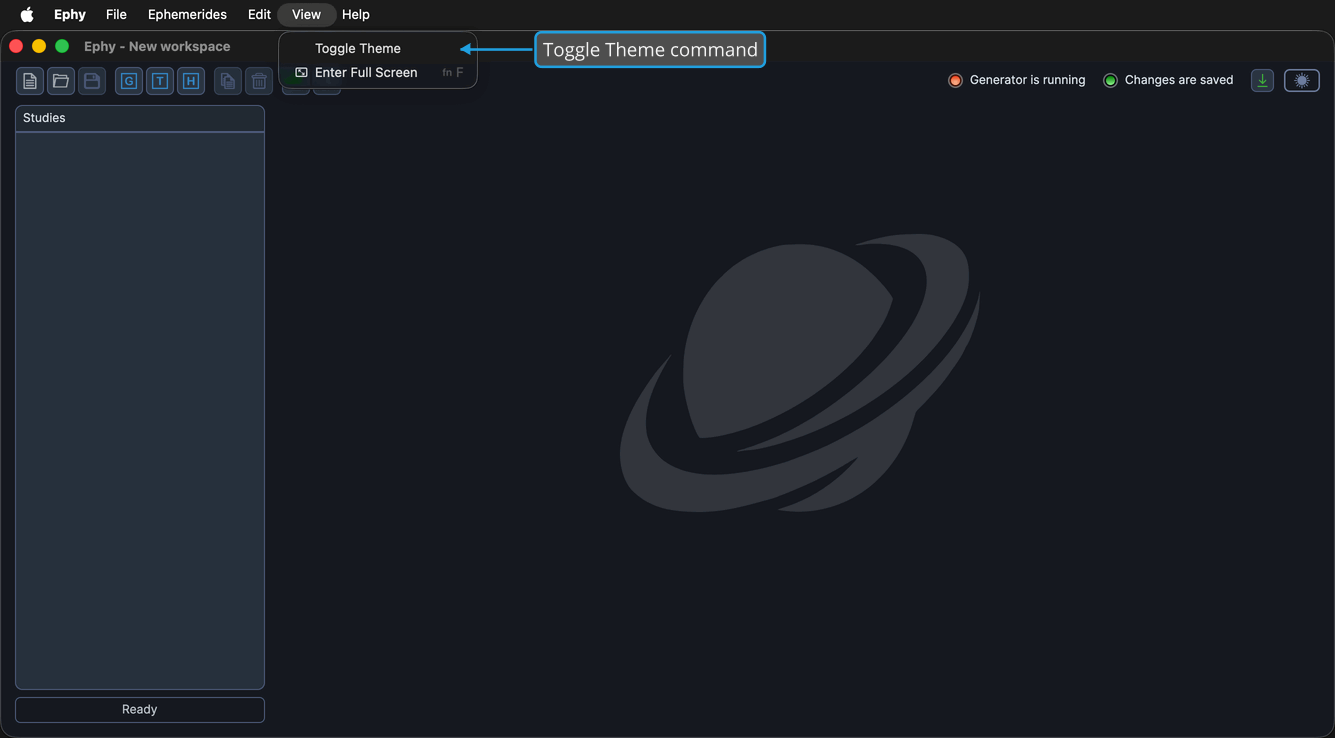
The View menu controls the application's appearance. To open it, click View on the menu bar.
| Command | Description | Details |
|---|---|---|
| Toggle Theme | Switch between the Light and Dark themes | Theme Toggle |
Help Menu
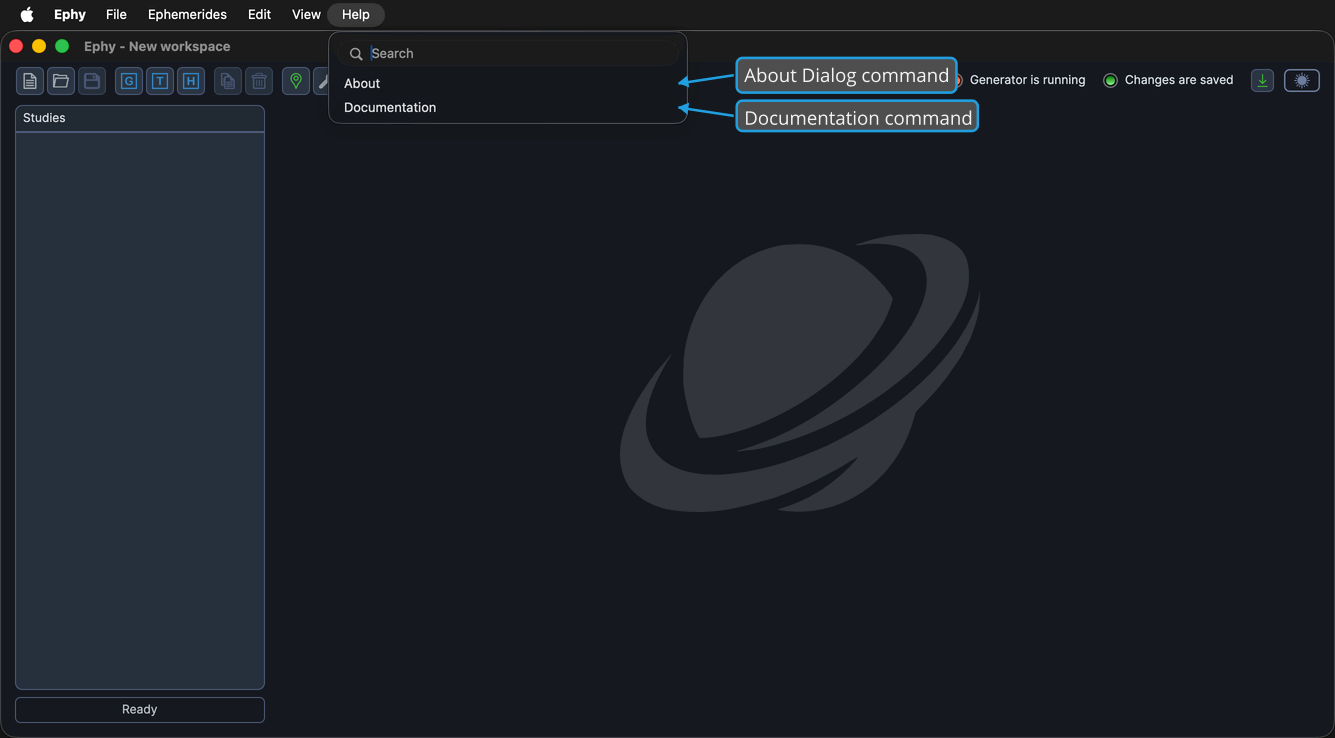
The Help menu provides version and documentation access. To open it, click Help on the menu bar. (On macOS, the first item appears as About.)
| Command | Description | Details |
|---|---|---|
| About Dialog | Show the application name, version, and copyright | About Dialog |
| Documentation | Open the Ephy user documentation | Documentation |