Moon Phase Types Selection
The Moon Phase Types list lets a Lunar Phases Study include only the lunar phases you care about. Check the box of each phase to include, or highlight several rows and right-click one to Select, Deselect or Clear All. When you generate the study's events, it includes only the checked phases.
Every procedure on this page starts from a Lunar Phases study that is selected in the Studies list (Open an Event Generator Study) and unlocked (Unlock Study). The list's check boxes and its right-click menu are disabled while the study is locked.
Check or Uncheck a Moon Phase
Include one lunar phase in the study's events, or leave it out.
- Click the check box beside the phase in the Moon Phase Types list.
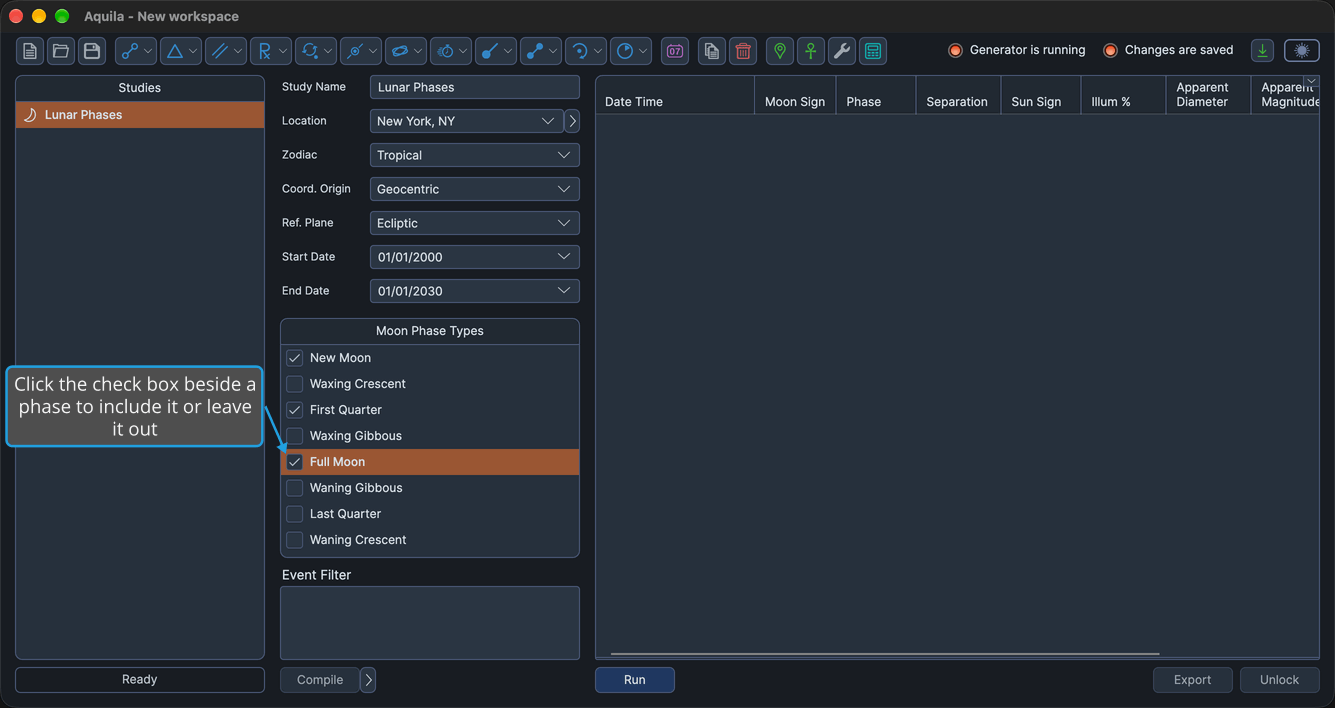
The check box shows the new state, and the study has unsaved changes. The next time you generate the study's events, it includes only the checked phases.
To switch several check boxes at once, highlight their rows and, with the list focused, press Space. Each highlighted check box changes to the opposite state.
Check the Highlighted Moon Phases
Include several lunar phases in one action from the list's right-click menu.
Click a phase's row to highlight it, and Cmd-click (Ctrl-click on Windows) each further row to add it to the highlight. Shift-click extends the highlight over a range of rows.
- Highlight the rows of the phases to check in the Moon Phase Types list by clicking their names, not their check boxes.
- Right-click one of the highlighted rows.
- Click Select on the right-click menu.
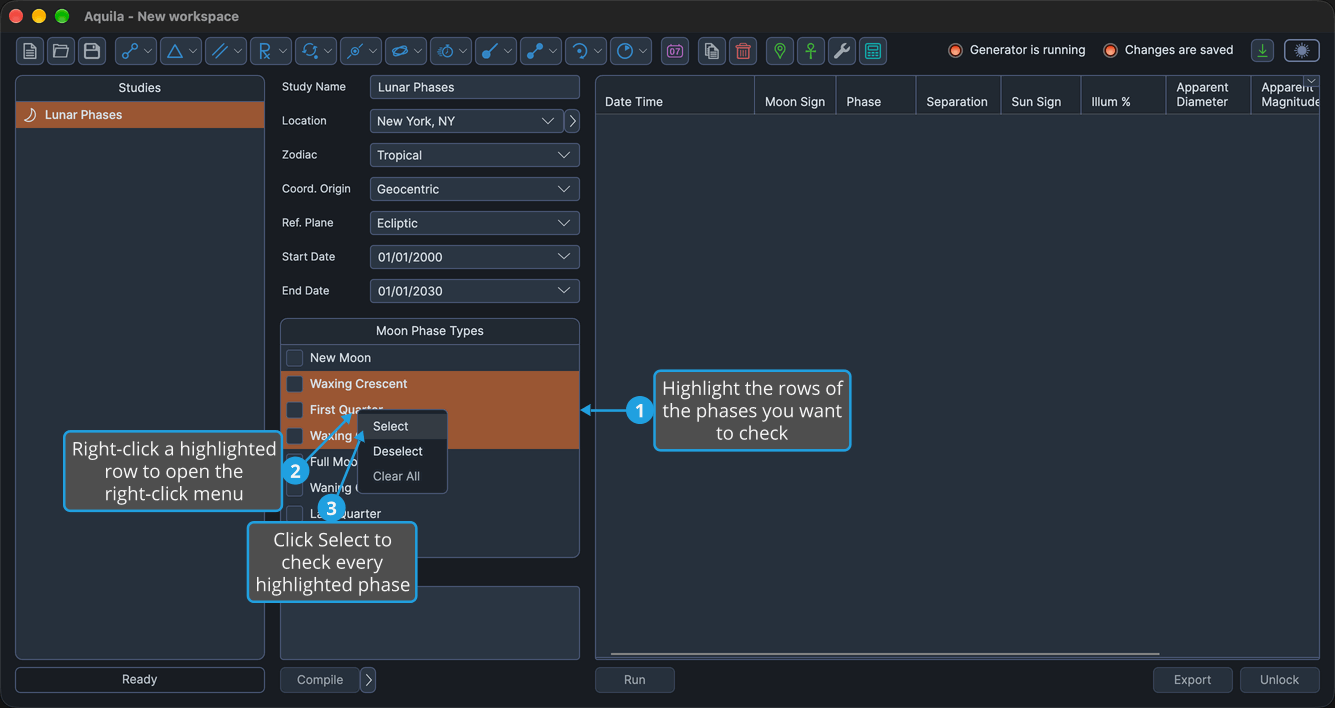
Every highlighted phase is checked and is included the next time you generate the study's events. The menu opens only on a phase row, and the highlight clears when the list loses focus.
Uncheck the Highlighted Moon Phases
Leave several lunar phases out in one action from the list's right-click menu.
Click a phase's row to highlight it, and Cmd-click (Ctrl-click on Windows) each further row to add it to the highlight. Shift-click extends the highlight over a range of rows.
- Highlight the rows of the phases to uncheck in the Moon Phase Types list by clicking their names, not their check boxes.
- Right-click one of the highlighted rows.
- Click Deselect on the right-click menu.
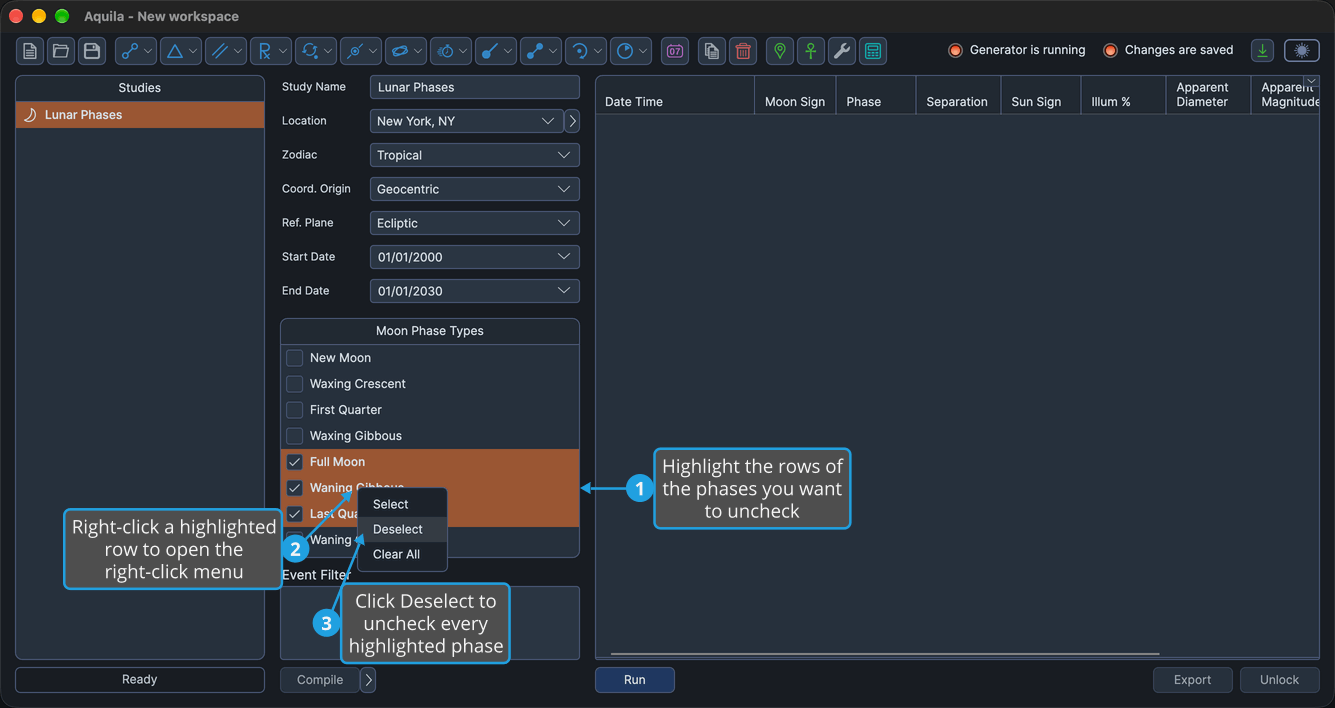
Every highlighted phase is unchecked and is left out the next time you generate the study's events.
Uncheck Every Moon Phase
Uncheck every phase in the list in one action, to start the selection afresh. No rows need to be highlighted, and Clear All is available only while at least one phase is checked.
- Right-click any phase's row in the Moon Phase Types list.
- Click Clear All on the right-click menu.
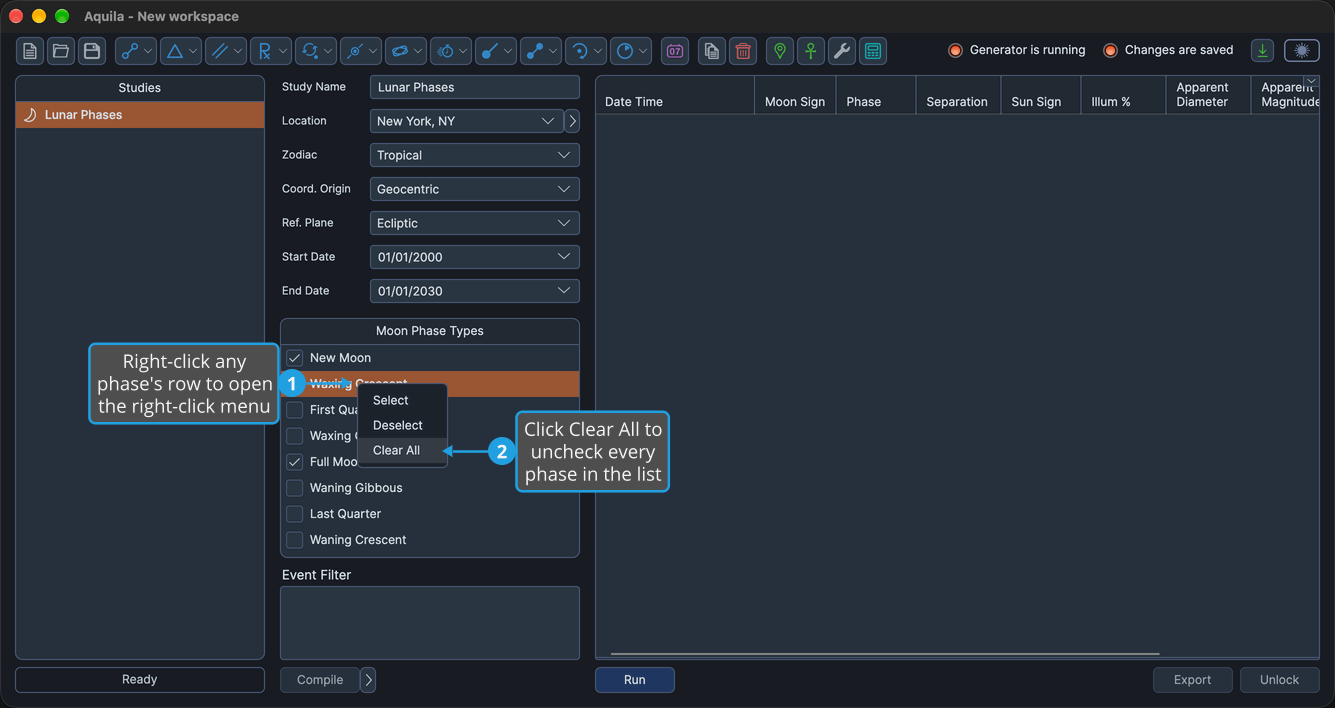
Every phase in the list is unchecked.
Moon Phase Types
The list offers eight phases, in this order. The set is fixed: you check and uncheck these phases, but you cannot add or remove one.
- New Moon
- Waxing Crescent
- First Quarter
- Waxing Gibbous
- Full Moon
- Waning Gibbous
- Last Quarter
- Waning Crescent
Moon Phase Types Context Menu
Right-click a phase's row to open the list's right-click menu. Its three commands are always present, and the menu is disabled while the study is locked.
| Command | Description |
|---|---|
| Select | Checks every highlighted phase. |
| Deselect | Unchecks every highlighted phase. |
| Clear All | Unchecks every phase in the list, whichever rows are highlighted. Available only while at least one phase is checked. |