Show or Hide Table Columns
A generated study can easily carry dozens of columns. Hiding the ones that are irrelevant to the comparison you are making narrows the table to what you want to read, without changing which measurements the study computed.
There are exactly two ways to control which columns the ephemeris table shows:
- Check or uncheck a metric in the Body Metrics List, which shows or hides that measurement for every selected body at once. On the three aspect studies the Aspect Metrics List works the same way for the Cycle Angle, Phase, and Separation columns.
- Right-click any column header in the ephemeris table and check or uncheck individual columns, which is the method described on this page.
Show or Hide Ephemeris Table Columns
To change which columns are visible:
- Right-click a column header in the ephemeris table to open the context menu.
- Click the checkbox beside a column's name in the menu.
- Click outside the menu to close it.
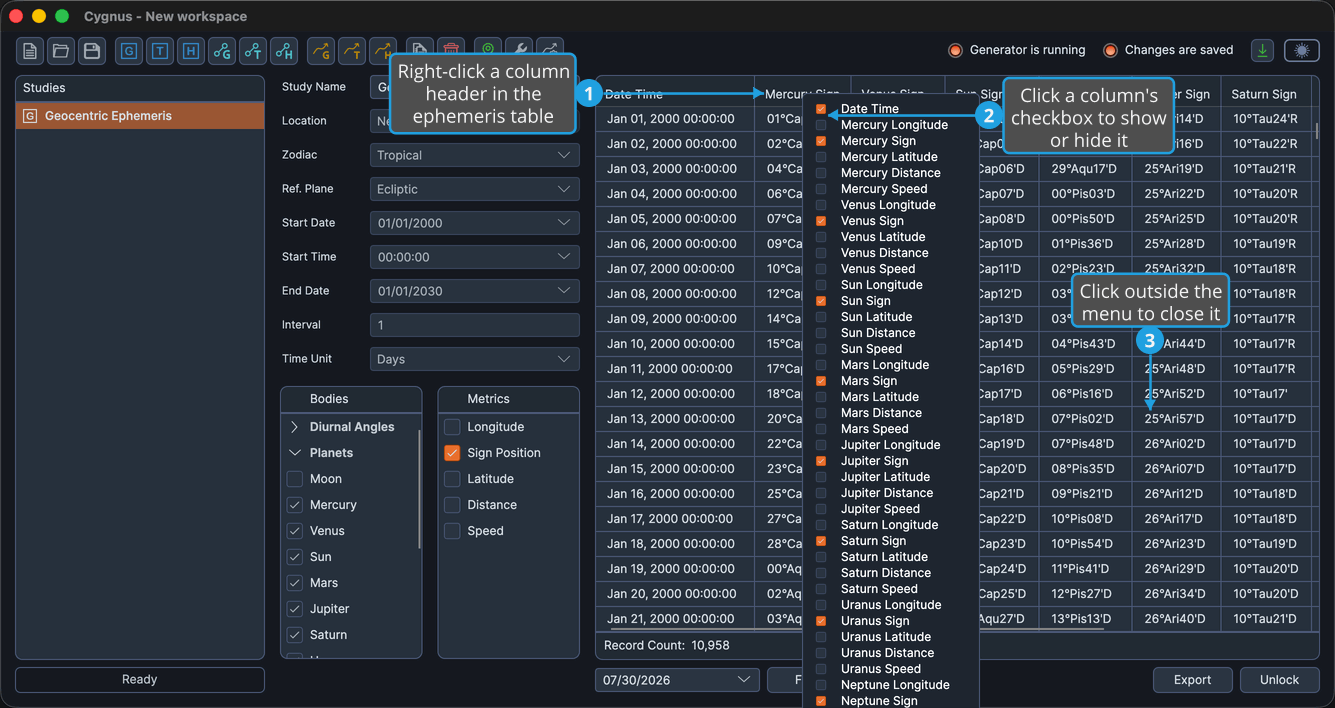
The menu lists every column of the table with a checkbox beside its header text, and it stays open while you work through the boxes, so you can change several columns in one visit. Unchecked columns disappear from the table and checked columns reappear.
The new visibility is saved for the study when the menu closes, so the arrangement is restored the next time you open that study.
The first item in the menu is always Date Time. The rest are generated from the study's current body selection, so the menu is as long as the table is wide.
Right-clicking a column header opens this menu. Clicking a column header does not sort the table: the ephemeris table cannot be sorted by any column.
Effect on the CSV Export
Only the columns currently visible in the table are written to a CSV file, so hiding columns here narrows the export. See Export Records to CSV.
The As Markdown and As Tab-Delimited clipboard commands honor the same visibility. See Copy Records to Clipboard.