Ephemeris Table
The ephemeris table displays the records a generation produced. It fills the right-hand side of the six tabular study editors: the three standard and the three aspect ephemerides. The three graphic ephemeris studies plot an Ephemeris Graph in its place and have no table.
The table is read-only. You read the numbers, scan across the bodies at a given moment, follow a single body down the time axis, and then copy or export what you need.
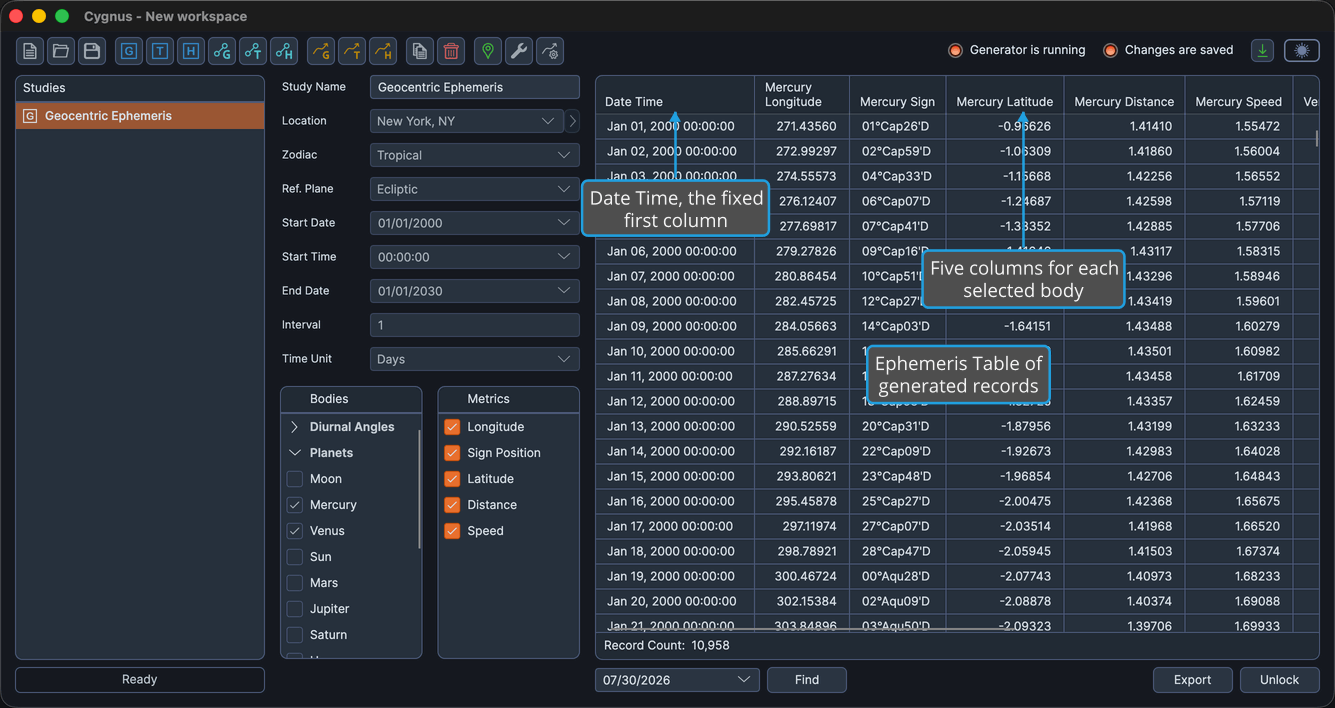
Column Structure
The table's columns are built from the bodies and the measurements you selected, so the exact set depends on the study. The table below shows the column structure, not a fully enumerated column list: the columns you see depend on which bodies you checked in the Bodies List.
| Block | Column | What it reports |
|---|---|---|
| Fixed leading column | Date Time | The record's date and time, in the study location's time zone. Always the first column. |
| Per selected body | {Body} Longitude | The body's position along the reference plane, in degrees. |
| Per selected body | {Body} Sign | The body's position expressed within its zodiac sign. |
| Per selected body | {Body} Latitude | The body's position perpendicular to the reference plane, in degrees. |
| Per selected body | {Body} Distance | The body's distance, in AU. |
| Per selected body | {Body} Speed | The body's rate of motion, in degrees per day. |
Every selected body contributes five columns, so a standard ephemeris study has 1 + 5 x (number of selected bodies) columns in total.
Under an Equatorial reference plane the first and third of the five read {Body} Right Asc and {Body} Declination instead. See Basic Ephemeris Settings.
Aspect Study Columns
An aspect ephemeris study adds a second generated block, three columns for every valid Inner and Outer body pair, after the per-body block.
| Block | Column | What it reports |
|---|---|---|
| Per body pair | {Inner}/{Outer} Cycle Angle | The angular distance from the outer body to the inner body in the direction of zodiacal motion, from 0 to 360 degrees. |
| Per body pair | {Inner}/{Outer} Phase | Where the pair sits in its cycle: New, Waxing, Full, or Waning. |
| Per body pair | {Inner}/{Outer} Separation | The shortest angular distance between the two bodies regardless of direction, from 0 to 180 degrees. |
An aspect study therefore has 1 + 5 x (unique bodies) + 3 x (valid Inner/Outer pairs) columns. Both terms come from the two body lists you filled in, so the count is settled only when you generate the study.
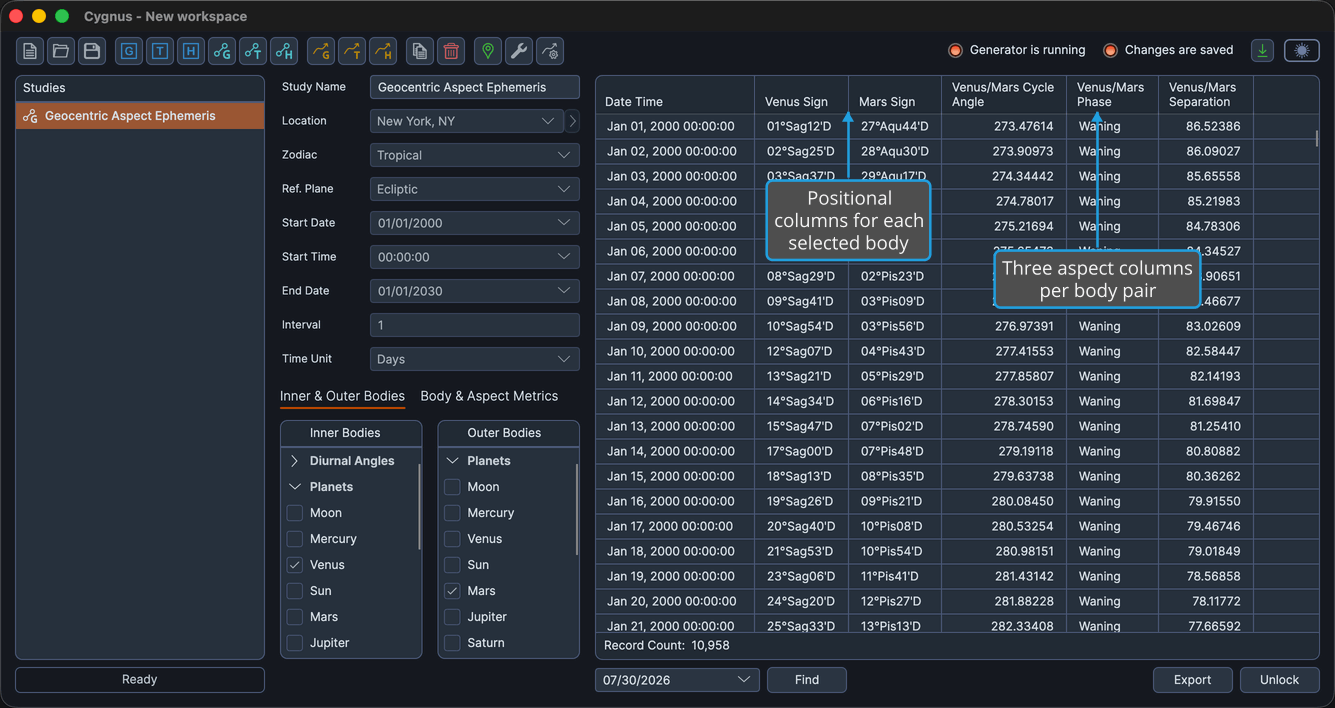
Every metric is always calculated and always given a column. The metrics lists and the column-header menu control only which of those columns are visible, which is why metric selection stays available after a completed generation locks the study.
Select a Record
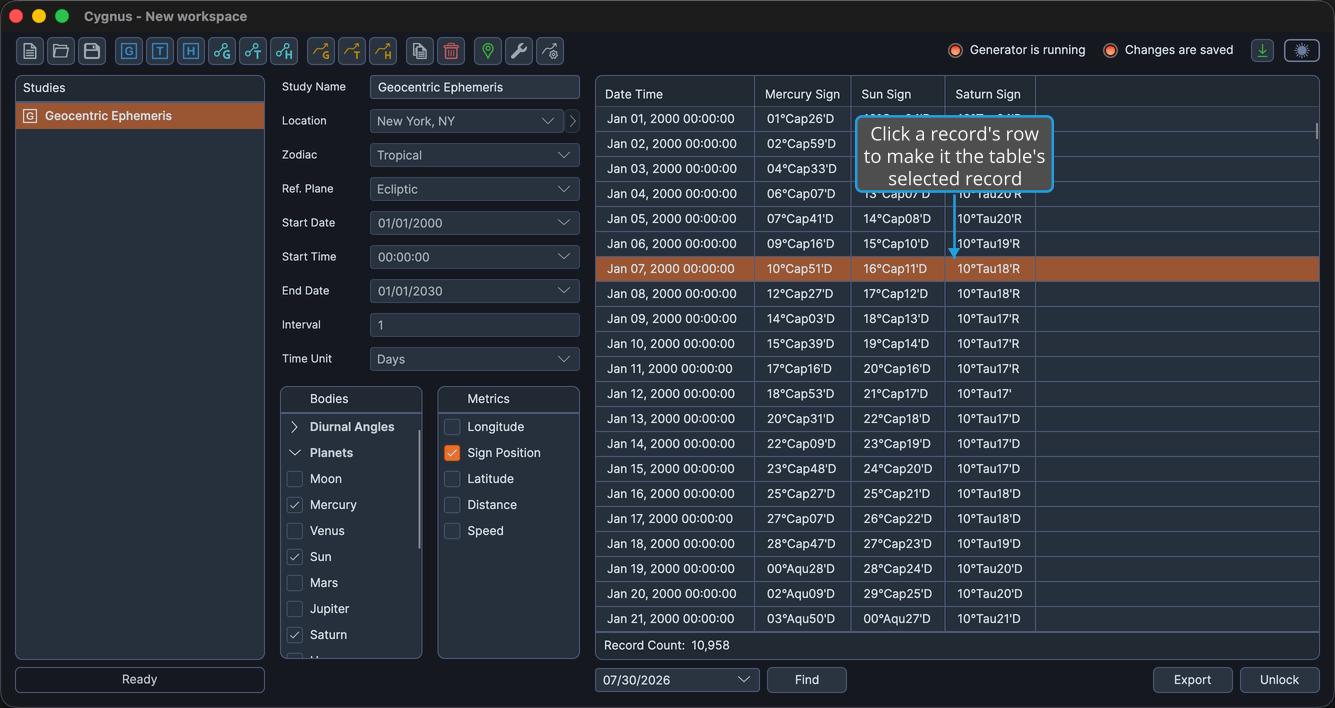
To make one record the current one, so the copy commands act on it:
- Click the record's row in the ephemeris table.
The row is highlighted and becomes the table's selected record.
Select a Range of Records
To highlight a contiguous block of rows, ready for the As Markdown or As Tab-Delimited copy commands:
- Click the first row of the range.
- Hold Shift and click the last row of the range.
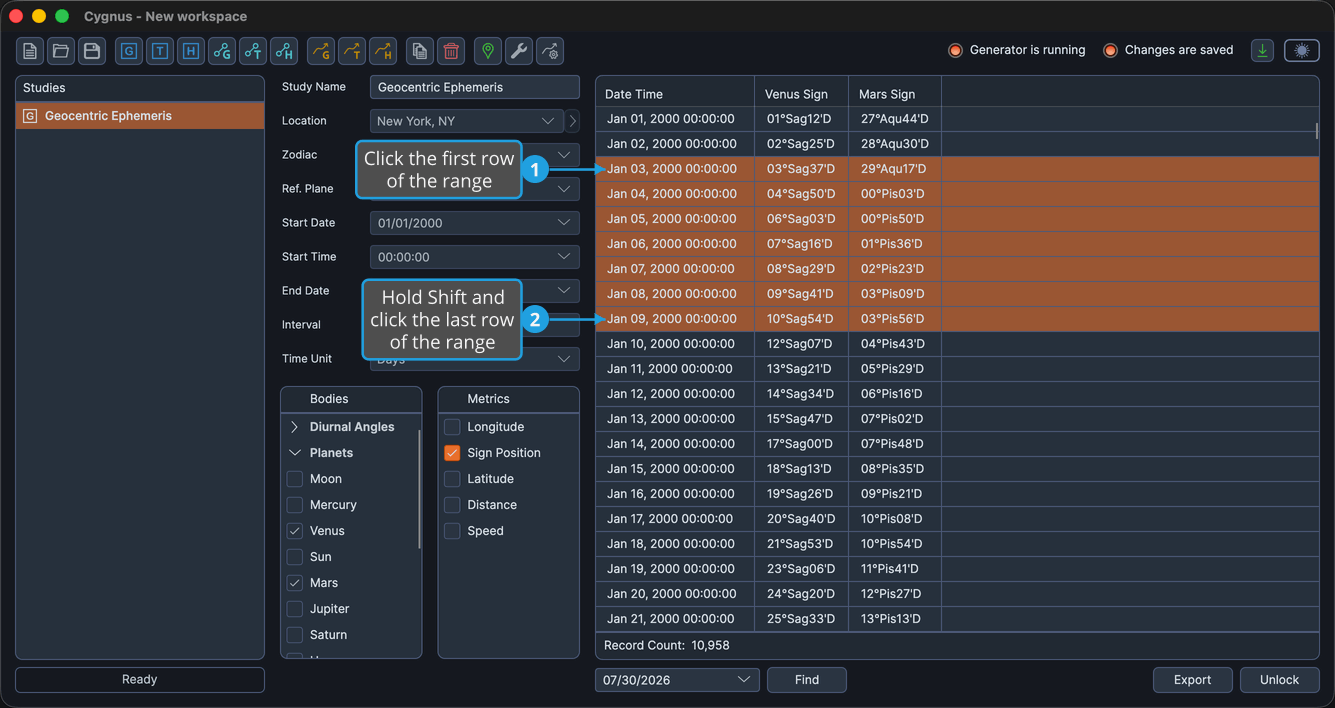
Every row from the first click to the Shift-click is highlighted.
Add Individual Records to the Selection
To build a selection of rows that are not next to each other:
- Click the first row to select it.
- Hold Ctrl (Cmd on macOS) and click each further row you want.
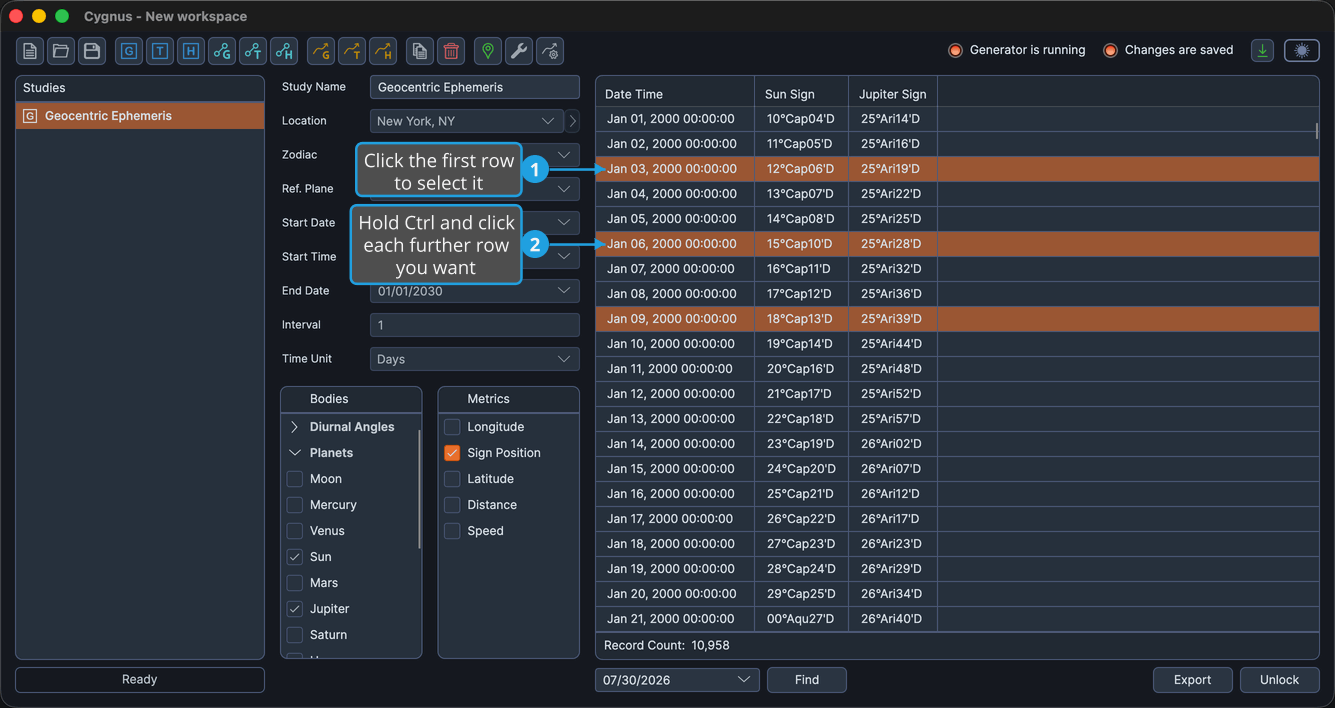
Each Ctrl-clicked (Cmd-clicked on macOS) row is added to the highlighted set, or removed from it if it was already highlighted, leaving a selection with gaps in it.
What the Table Does Not Do
The rows of the ephemeris table cannot be sorted. Clicking a column header does not reorder the rows. Right-clicking one opens the column-visibility menu described in Show or Hide Table Columns. Records are always presented in time order, which is what an ephemeris is.
No cell in the table is editable. To change the data, change the study's settings and generate it again, which means unlocking the study first.
Column Layout
The order and visibility of the columns are saved per study, so the arrangement you set up is restored the next time you open that study.
- To hide or show a column, see Show or Hide Table Columns.
- To move a column, see Reorder Table Columns.