Timeline Source Studies
The Generator Studies list on a Timeline Study is where you choose which of the workspace's generator studies feed the timeline. The list shows every generator study in your workspace, so its contents depend on the studies you have created. Each study has a checkbox, and the checked studies are the ones whose events are combined when you load the timeline.
Including a Study
To include a study's events in the timeline:
- Click the checkbox next to a study in the Generator Studies list.
Clicking a checked checkbox clears it, excluding that study from the timeline.
Selecting Multiple Studies at Once
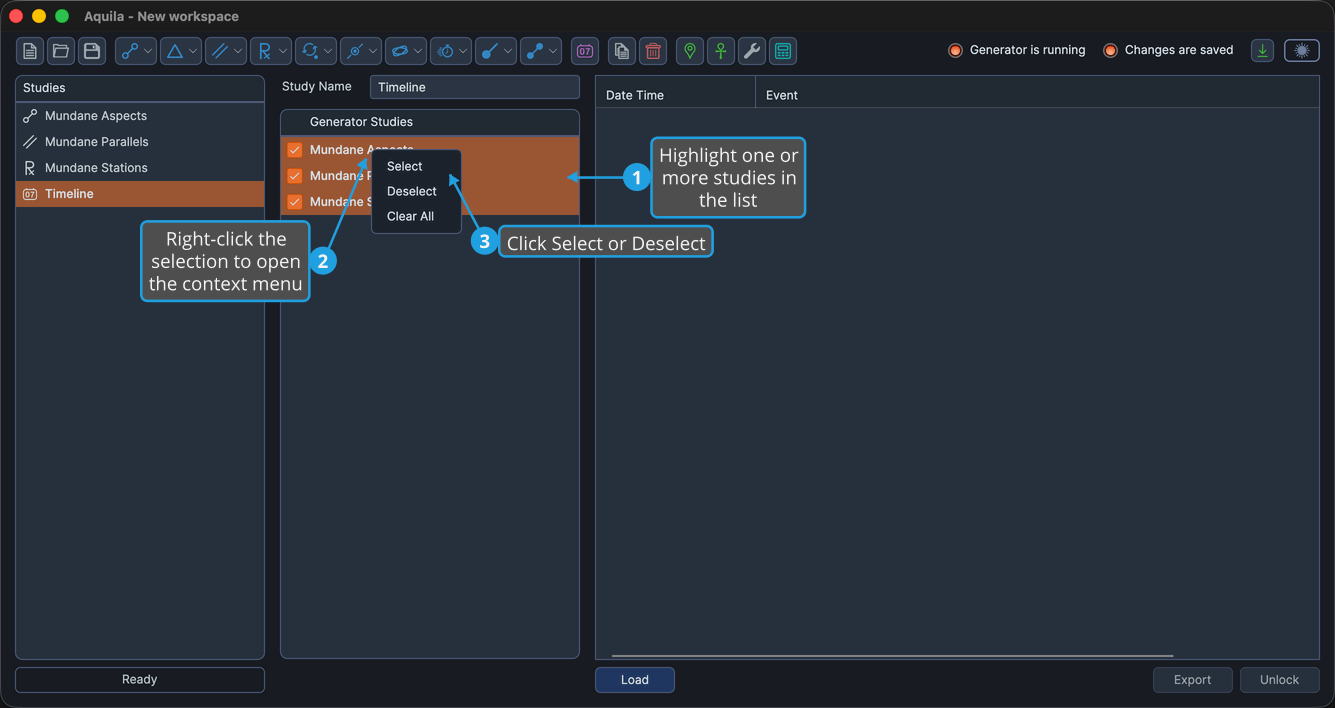
Right-clicking the Generator Studies list opens a context menu with three commands:
| Command | Effect |
|---|---|
| Select | Checks every highlighted study, including it in the timeline. |
| Deselect | Unchecks every highlighted study, excluding it from the timeline. |
| Clear All | Unchecks every study in the list. |
To check or uncheck several studies at once:
- Highlight one or more studies in the Generator Studies list.
- Right-click the selection to open the context menu.
- Click Select or Deselect.
Ctrl-click to add or remove individual studies from the highlight, and Shift-click to highlight a range.
To uncheck every study in one step:
- Right-click the Generator Studies list and select Clear All.
After choosing your source studies, click Load to compile the timeline. See Load Timeline.