Events Column Visibility Menu
Each event-generator study exposes a set of metric columns in its events table. Many of these columns are hidden by default. The column visibility menu, opened from the right-click context menu on any column header, lists every available column with a checkbox you can toggle to show or hide each column individually.
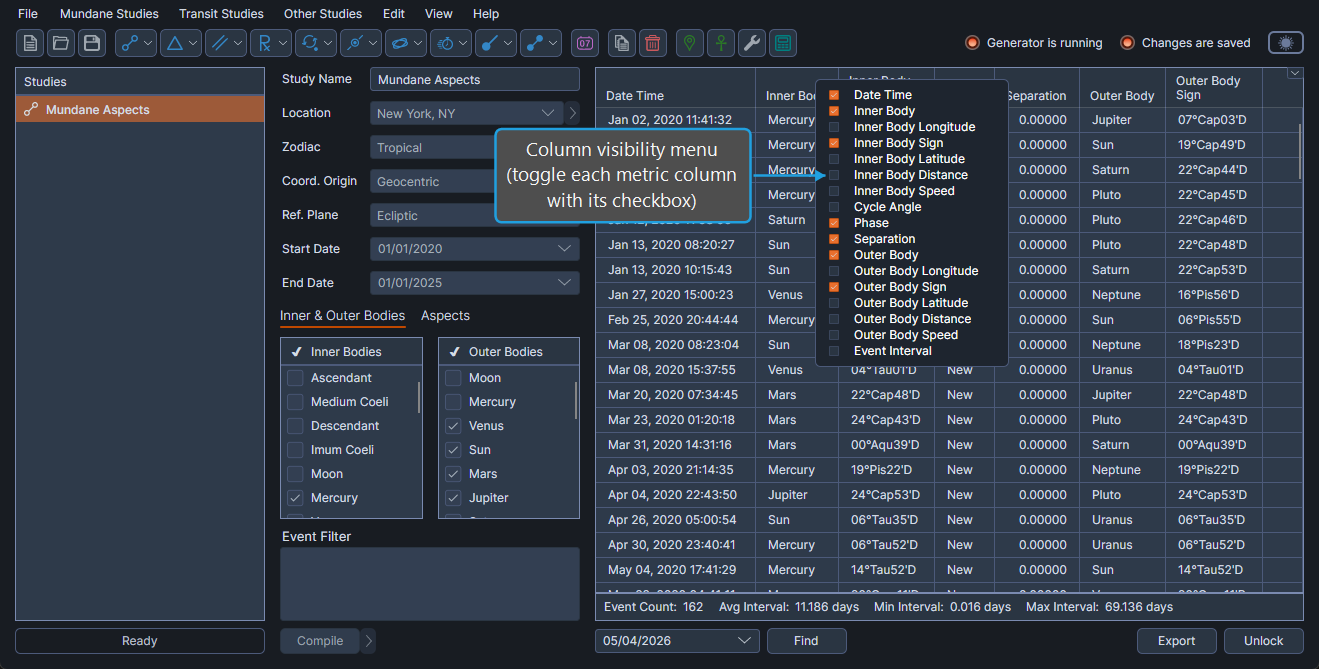
Toggle Column Visibility
To show or hide individual metric columns:
- Right-click any column header in the events table.
- Click a checkbox in the column-selection menu to toggle the corresponding column's visibility.
The toggled column becomes visible or hidden immediately. Repeat the steps to toggle additional columns. To save the resulting layout as the default for the current study type, use the Events Table Layout Menu.